How to remove
Recall feature
from Windows
Easily disable the Recall feature in Windows 11 with our expert-tested guide. Follow simple steps and regain control of your settings in minutes!

How does How to remove Recall feature from Windows 11 end up on your PC?
- Windows Recall was installed with the latest update
- Users may not want continuous activity tracking
- Privacy concerns regarding sensitive content being captured
- Recall consumes significant storage space
- Performance impacts due to ongoing AI activity
Repairs Windows system files, removes malware, and restores a clean OS state — without reinstalling.
Hey, I have noticed that Windows Recall was installed on my PC with the latest update. How can I remove Recall? I neither need it nor want it.
Windows Recall is a new AI-powered feature introduced in Windows 11, primarily available on Copilot+ PCs. Released in 2024, this feature uses on-device AI to take frequent snapshots of your screen, creating a searchable timeline of everything you've done on your computer.
It allows users to search for specific content they've viewed or interacted with, using either exact search terms or natural language queries. For example, you could search for an image or document you viewed days ago by simply describing it, and Recall would retrieve it from your saved snapshots.
While Windows Recall offers powerful search capabilities, not everyone may want this level of continuous activity tracking on their system. Some users are concerned about privacy, as the feature captures all visible information on the screen, which may include sensitive content such as passwords or financial data, even though Microsoft assures that all data remains stored locally and encrypted.
Additionally, Recall consumes a significant amount of storage, requiring at least 25GB for snapshots, which may not be ideal for users with limited storage capacity or those concerned about performance impacts.
Users may want to remove or disable Recall to prevent unnecessary data storage or potential privacy risks. While it can be temporarily paused or disabled through the settings menu, users also have the option to completely uninstall the feature if desired. Doing so frees up storage and stops the AI from recording future screen activity.
For more complex scenarios, including managing potential system conflicts during uninstallation, tools like [d1] repair might assist in ensuring that no residual issues remain after disabling Recall.
Fix 1. Disable Recall through Windows settings
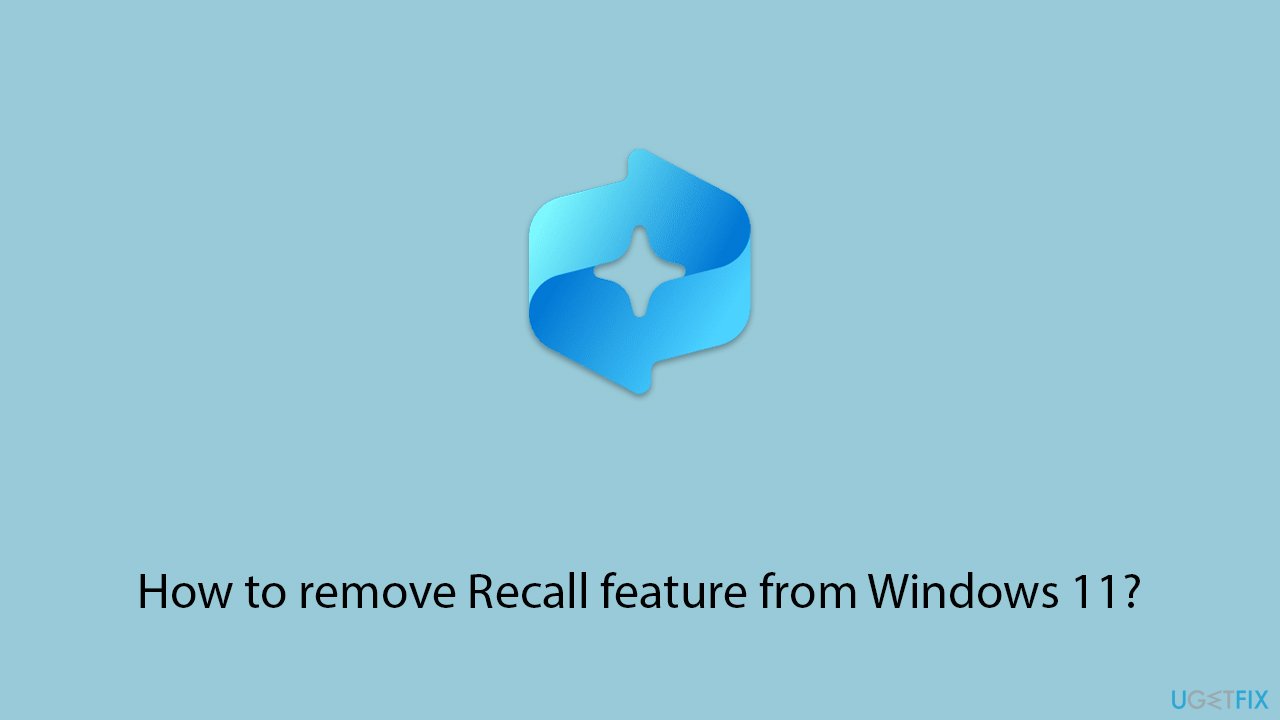
Disabling the Recall feature through the settings menu is a straightforward option that stops it from capturing future snapshots without uninstalling it entirely. This method is useful for those who want to maintain some control over Recall without removing it completely.
- Press Win + I to open Settings.
- Go to Privacy & Security.
- Click on the Recall & Snapshots page.
- Toggle Save Snapshots off.
Fix 2. Uninstall Recall via Windows features
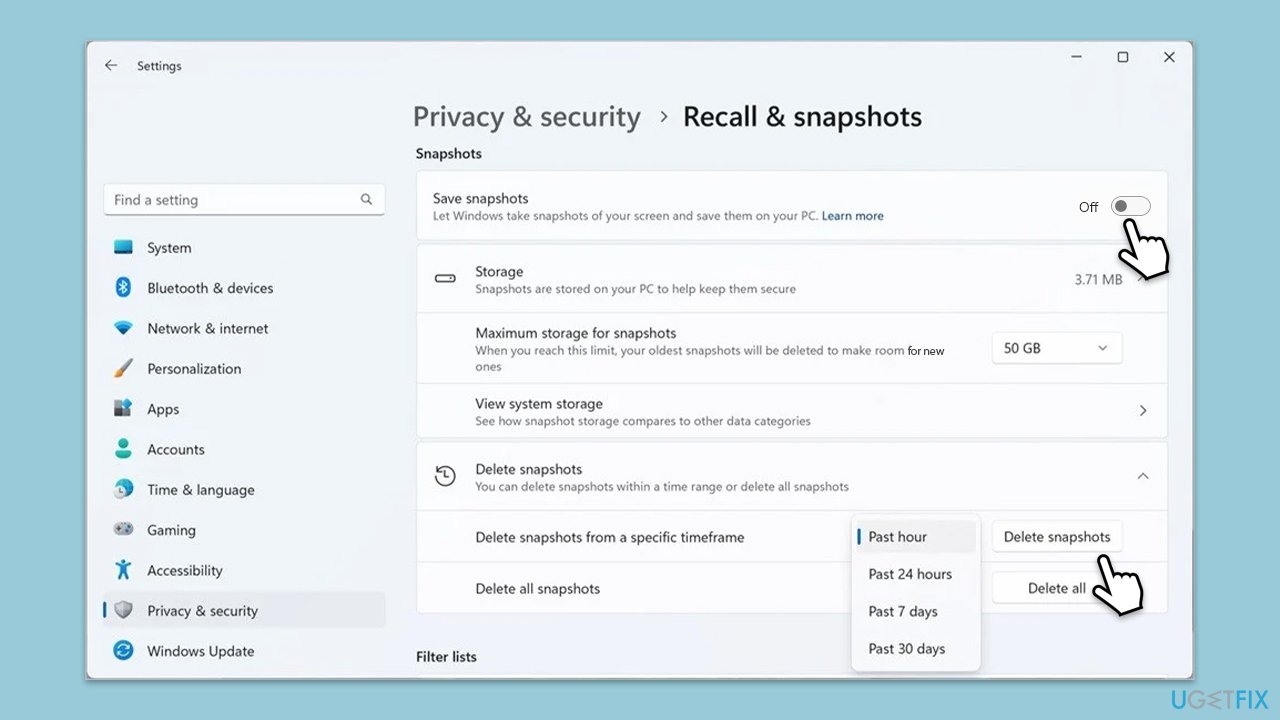
If you prefer to remove Recall entirely, you can uninstall it through the Windows Features menu. This stops the service completely and frees up the storage used by the feature.
- Open the Start menu and type Turn Windows features on or off.
- Scroll down to find Recall.
- Uncheck the box next to Recall and click OK.
- Restart your computer to complete the uninstallation process.
Fix 3. Disable Recall using Group Policy
For users on Windows 11 Pro, Enterprise, or Education, Group Policy offers another way to disable Recall, especially useful in business environments where centralized control is needed.
- Type Group Policy in Windows search and press Enter.
- Navigate to User Configuration > Administrative Templates > Windows Components > Windows AI.
- Double-click Turn off saving snapshots of Windows and select Enabled.
- Click Apply, then OK.
Fix 4. Disable Recall via Registry Editor
If you are using Windows 11 Home, which lacks Group Policy, you can disable Recall by editing the Windows Registry. Be cautious, as improper edits to the registry can cause system issues.
- Type regedit in Windows search and press Enter.
- Navigate to the following location:
HKEY_CURRENT_USER\Software\Policies\Microsoft\Windows\WindowsAI - Right-click on an empty space and select New > DWORD (32-bit) Value, then name it DisableAIDataAnalysis.
- Set the value to 1 and restart your computer.
Fix 5. Free up storage by managing Recall data
Recall stores snapshots locally, which can consume significant disk space. Clearing out unnecessary data can improve system performance and free up space.
- Open Windows Settings.
- Go to Privacy & Security > Recall & Snapshots.
- Select Delete Snapshots and click Delete All to clear stored data.
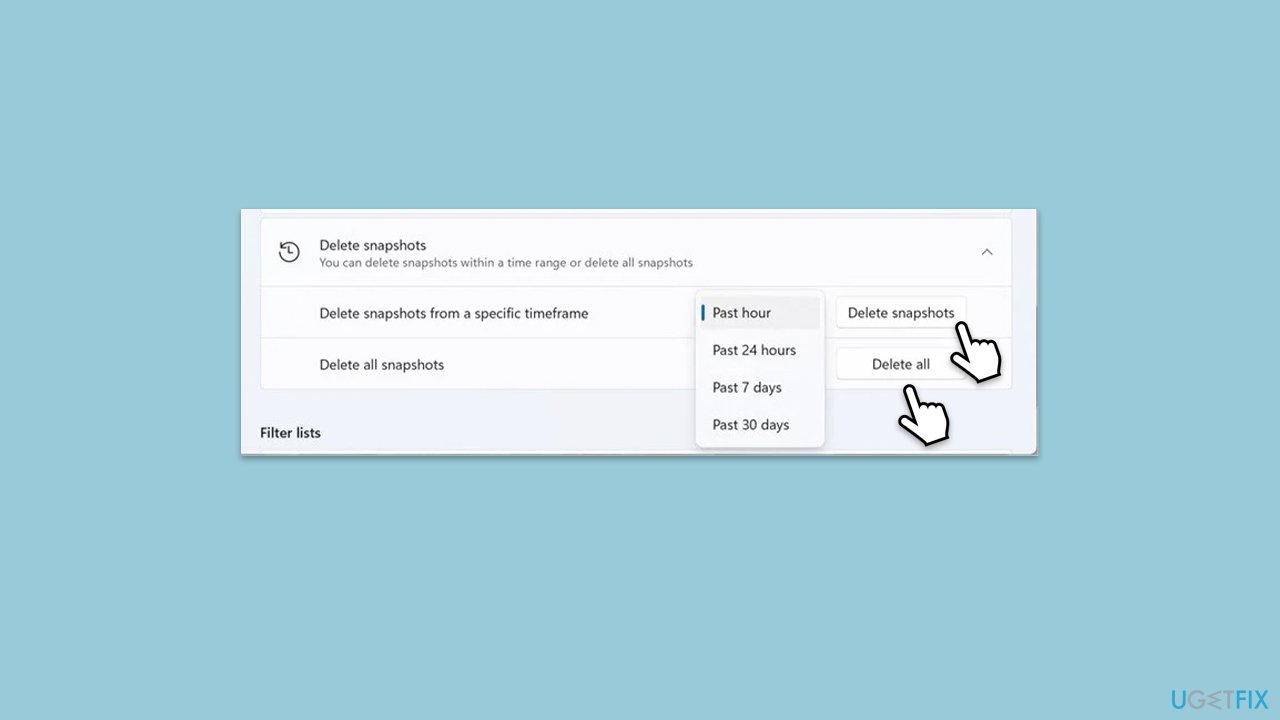
Fix 6. Pause Recall temporarily
If you want to stop Recall for a short period without disabling or uninstalling it, you can pause the feature from the system tray. This is useful for short breaks in activity tracking.
- Click the Recall icon in the system tray.
- Select Pause until tomorrow to stop snapshots temporarily.
- To resume snapshots, click the Recall icon again and select Resume snapshots.
Bottom line
To remove the Recall feature from Windows 11, users can disable it through the settings menu or completely uninstall it to free up storage and stop future activity recording. If these methods do not resolve the issue, consider using repair tools to address any potential system conflicts.
Frequently asked questions
To disable the Recall feature in Windows 11, go to Settings, select Privacy & security, then under 'Windows permissions', click on 'Activity history' and toggle off 'Let Windows collect my activities from this PC'.
No, the Recall feature is integrated into Windows 11 and cannot be uninstalled; however, you can disable it as described above.
Disabling the Recall feature will not affect other functionalities in Windows 11, but it will stop the system from collecting and syncing your activity history.




Report an issue
What's wrong with this guide? We review every report and update or remove content.
Report received — thank you. We'll review and fix it.
You need a free account to submit a report.
Be the first to comment