How to remove
Uninstall CCleaner
from Windows
Easily uninstall CCleaner from Windows 10 or 11 with our expert-tested guide. Remove unwanted software and optimize your system in minutes!

How does How to Uninstall CCleaner end up on your PC?
- CCleaner version 5.33 was compromised by hackers
- Malicious version was available between August 15 and September 15, 2017
- Hackers modified CCleaner before its public release
- Users of 32-bit Windows systems are at risk
- The malware is dubbed Floxif trojan
Repairs Windows system files, removes malware, and restores a clean OS state — without reinstalling.
Help me to uninstall CCleaner virus from my computer! I have just noticed that I have CCleaner 5.33 on my computer and it is the version that was compromised by hackers. What should I do to remove the backdoor this malicious version of the software setup on my computer?
CCleaner is a legitimate system optimization software that is trusted by millions of users worldwide. However, the company that offers this computer maintenance program recently became a victim of a cyber attack. As a consequence, the legitimate CCleaner servers started serving a malicious version of computer optimization software, resulting in 2.27 million infected machines. The malicious version was available between August 15 and September 15, 2017.
According to Piriform (the developer of CCleaner), hackers managed to modify CCleaner 5.33 version before it was released to the public as well as CCleaner Cloud 1.07.3191. The company also says that all users of 32-bit Windows system are at risk. Security researchers dubbed the malware injected into the legitimate software as Floxif trojan. It appears that this virus is capable of transmitting certain data from victim’s computer and also drops the second payload to target giant tech companies.
The guide provided below explains how to uninstall the regular version of CCleaner and also how to cleanse your computer system in case you installed CCleaner 5.33 virus.
Uninstall CCleaner from your computer
- First of all, open Start menu and search for Control Panel. Open it.
- Now, go to Programs and Features or Add/Remove Programs (whichever is available).
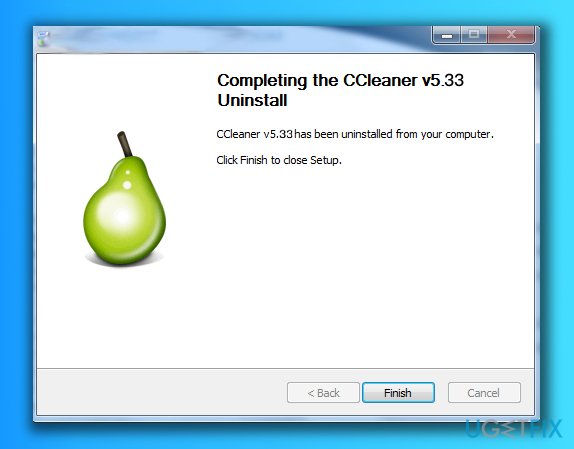
- Here, find CCleaner, right-click on it and select Uninstall. Follow the directions provided by the uninstaller and patiently wait until it finishes the removal process.
- Now, press down Windows key + R and type regedit into the Run prompt that opens. Hit Enter to open Windows Registry.
- Here, go to Edit > Find and type CCleaner into the search box. Click Find Next once to find related registry keys.
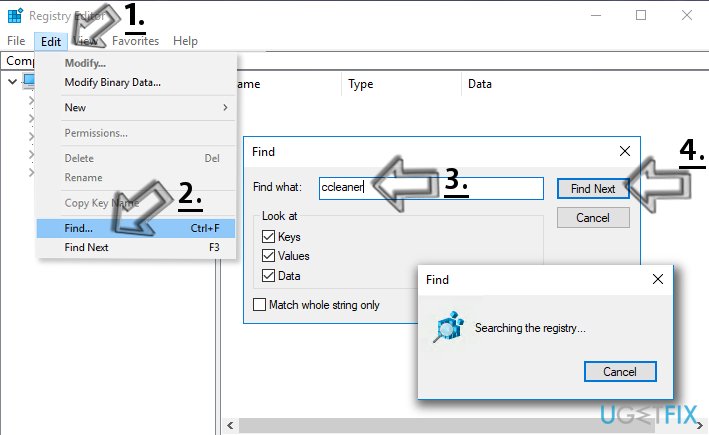
Windows registry ccleaner removal - Right-click on the key related to CCleaner by Piriform and select Delete. Repeatedly click on Find Next and keep deleting keys related to a program until there are no associated keys left.
Remove CCleaner 5.33 virus and protect your computer
Method 1. Remove the malware automatically
- Use the guide provided above to uninstall CCleaner virus or just update the version you have to 5.34. Please download the update from official Piriform’s website.
- Now, scan your computer with a professional anti-malware software such as [d1]. Do not forget to run your computer in a Safe Mode with Networking first. To do this, you should search your computer for msconfig. If asked, enter Administrator’s password. Then go to Boot and select Safe Boot with Networking option. Click Apply and OK.
Windows registry ccleaner removal - Once in Safe Mode, perform the system scan. Let the program remove all suspicious entries from your PC.
Method 2. Restore your computer to date before August 15, 2017
If you have created a system restore point before installing the malicious CCleaner 5.33 version, you should restore Windows to that state immediately. Here is what you need to do:
Windows 7/XP/Vista users:
- First, click on Start > Shutdown > Restart > OK.
- As soon as your computer starts to load, repeatedly press F8 button. You will see Advanced Boot Options window.
- Here, use arrow keys to select Safe Mode with Command Prompt.
Windows 10/ Windows 8 users:
- Open Windows start menu and press the Power button. At the same time, press and hold the Shift key on your keyboard. Then click Restart > Troubleshoot > Advanced Options > Startup Settings and click Restart again.
- Choose Enable Safe Mode with Command Prompt in the Startup Settings window.
- Now that you have booted your computer into the right mode use the command prompt to restore Windows using system restore point. In the command prompt, type the following commands and press Enter after each of them:
- Cd restore;
- Rstrui.exe.
- Once System Restore window appears, click Next and select the restore point that you want to use. Click Next again.
- Finally, click Yes to begin restoring the system.
Final tip: Protect your data
Since CCleaner malware (Floxif Trojan) is capable of sending certain information about victim’s device to criminals, we strongly recommend you to use a clean device such as another computer or your phone to change all login data for your accounts (bank, email, social media accounts).
Bottom line
To uninstall CCleaner, open the Control Panel, navigate to Programs and Features, and uninstall CCleaner. Additionally, use the Windows Registry Editor to delete any related registry keys. If these steps do not resolve the issue, consider seeking professional assistance.
Frequently asked questions
To uninstall CCleaner from Windows 10, go to Settings > Apps, find CCleaner in the list, click on it, and select 'Uninstall.' Follow the prompts to complete the process.
Yes, in Windows 11, you can right-click the Start button, select 'Apps and Features,' find CCleaner, click on the three dots next to it, and choose 'Uninstall' to remove it.
If CCleaner won't uninstall on Windows, try using the built-in troubleshooter by going to Settings > Update & Security > Troubleshoot, or consider using a third-party uninstaller for a more thorough removal.




Report an issue
What's wrong with this guide? We review every report and update or remove content.
Report received — thank you. We'll review and fix it.
You need a free account to submit a report.
Be the first to comment