How to remove
Uninstall OneNote
from Windows
Discover effective methods to uninstall OneNote from your Windows 10 or Windows 11 PC effortlessly. Expert-tested tips for a smooth removal process, zer…

How does How to Uninstall OneNote on Mac OS end up on your PC?
- Missing leftovers on Library directory
- Hidden remnants preventing uninstallation
- Crashing uninstalling process
- Running processes not deactivated
- Using incorrect uninstallation method
Repairs Windows system files, removes malware, and restores a clean OS state — without reinstalling.
I want to remove OneNote 2016 from my Mac, but I can’t due to missing leftovers on Library directory. Do you have any ideas where can I find the full pack of OneNote?
OneNote is a pre-installed Windows application developed by Microsoft. It’s like a virtual notebook that allows organizing events, creating “To Do” lists, and taking notes. The latest OneNote version that is applicable with Windows 10, Mac OS, and latest mobile devices has been supplemented with writing and drawing features. Millions of people worldwide are using OneNote every day and praise it for simplicity and multiplicity of features. Yet, through the last year, many Mac users uninstalled the latest OneNote (2016) version due to frequent crashes, freezes, and unresponsiveness.
From the first glimpse, OneNote removal does not differ from the removal of other apps on Mac OS. However, few people reported that they can’t uninstall it due to hidden remnants or constantly crashing uninstalling process. Thus, we’ll try to explain how to Uninstall OneNote from Mac correctly.
Uninstall OneNote Automatically
Thanks to software developers for making our computer experiences easier by creating software removal tools like [rev id=”CleanMyMac”] or [rev id=”MacKeeper”]. These two programs has a software removal feature, so all you have to do is to download the program, install it, and then set it to delete OneNote completely.
Eliminate OneNote Manually
Step 1. Deactivate running processes
1. Right-click on OneNote icon located on the Dock and select Quit.
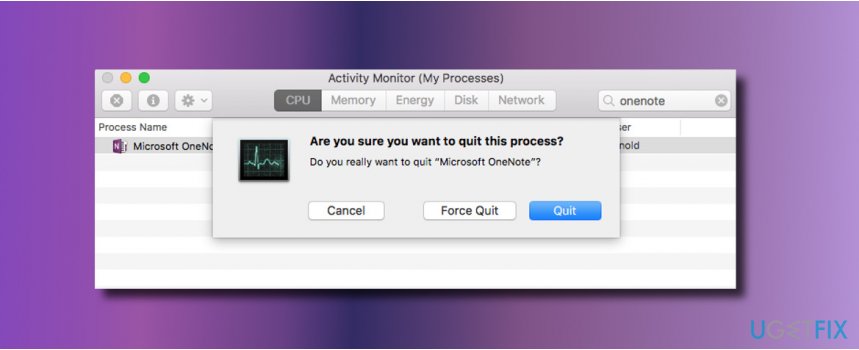
2. Then open Activity Monitor and type Microsoft OneNote 2016.
3. Select it under Process Name and click X button (top-left corner).
4. On the pop-up dialog, select Quit.
Step 2. Uninstall Microsoft OneNote 2016 fully
One of the options would be to drag and drop the OneNote icon to Trash bin, but we would recommend removing it from Launchpad because you won’t need to empty the Trash afterwards:
1. Open Launchpad and type Microsoft OneNote 2016 in the search box.
2. Click and hold its icon and click X (top-left corner).
3. On the confirmation window, press Delete button to start the uninstalling.
Important: if you installed Microsoft OneNote via a .pkg/.dmg file, execute the removal by following these steps:
1. Open Finder and select Applications.
2. Find Microsoft OneNote, click its icon, and drag it to the Trash in the Dock.
3. Then right-click on the Trash icon and select Empty Trash.
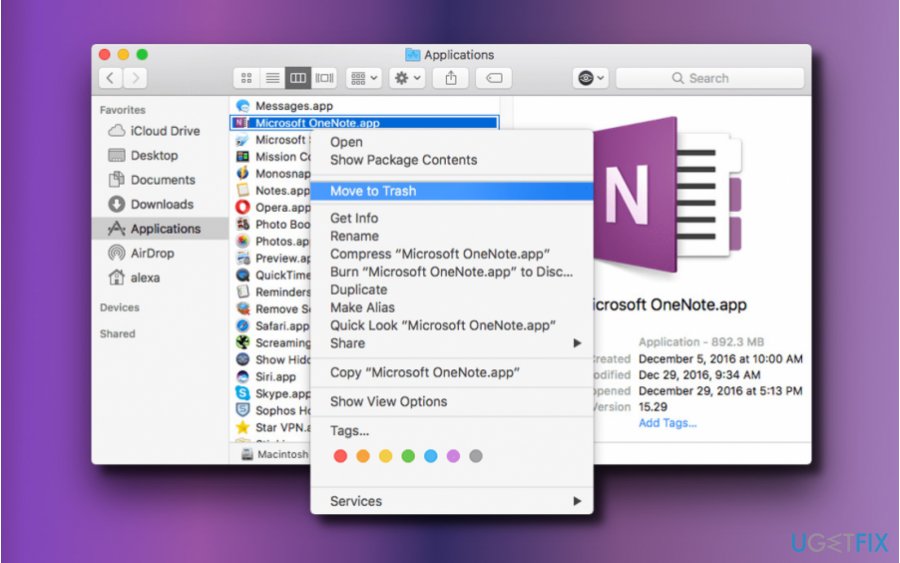
NOTE: before emptying the Trash, check its content and make sure that you no longer need any of the files. If you found a file that is still useful for you, right-click on it and select Put Back.
Step 3. Remove Microsoft OneNote Leftovers
Once Microsoft OneNote 2016 is removed from the Applications and Launchpad, you’ll have to eradicate its leftovers. Be extremely cautious when removing the remnants to prevent damage and system’s mis-operations.
1. Open Finder and click Go.
2. Press Options key and select Library.
3. Double-click on the Containers folder to open it.
4. On the Containers folder, locate the files that begin with com.microsoft.onenote.
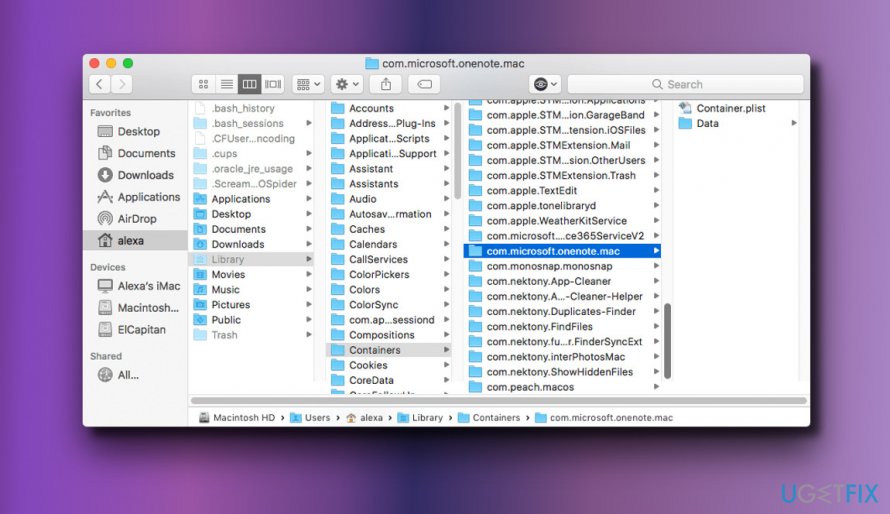
5. Drag and drop each file to the Trash.
6. Then look for the OneNote (com.microsoft.onenote) files on the following directories:
/Library
/Library/Caches
/Library/Preferences
/Library/ApplicationSupport
/Library/LaunchAgents
/Library/LaunchDaemons
/Library/PreferencePanes
/Library/StartupItems
7. Type the path of the current user’s Library Folder: ~/Library and press Enter.
8. Type OneNote in the Search Bar and click on Library.
9. Find the corresponding files and folders. Drag and drop them to the Trash one-by-one.
10. Finally, empty the Trash.
Bottom line
To uninstall OneNote on Mac, you can either use software removal tools like CleanMyMac or MacKeeper, or manually deactivate running processes and remove it from Launchpad. If these methods do not work, consider checking for additional hidden files or remnants that may be interfering with the uninstallation.
Frequently asked questions
No, the uninstallation process for OneNote on Windows 10 or Windows 11 differs from Mac OS. You can uninstall it through the Settings app by navigating to Apps > Apps & features and selecting OneNote.
If OneNote is not listed, it may be a built-in app. You can try using PowerShell to remove it by running the command 'Get-AppxPackage *OneNote* | Remove-AppxPackage'.
Yes, uninstalling OneNote will not affect the functionality of other Microsoft Office apps like Word or Excel on Windows 10 or Windows 11.




Report an issue
What's wrong with this guide? We review every report and update or remove content.
Report received — thank you. We'll review and fix it.
You need a free account to submit a report.
Be the first to comment