How to remove
Uninstall Spotify
from Windows
Easily uninstall Spotify from your Windows 10 or 11 PC with our expert-tested guide, ensuring a clean removal with zero traces left.

How does How to uninstall Spotify on Windows end up on your PC?
- Spotify app freezes
- Cannot launch Spotify
- Uninstallation error message
- Compatibility issues with Windows
- Missing Spotify shortcut
- Temporary files causing conflicts
Repairs Windows system files, removes malware, and restores a clean OS state — without reinstalling.
Spotify app freezes from time to time or I can‘t launch it. I‘ve tried to uninstall the program to fix the errors, but I can‘t. The following message appears: “An error occurred while trying to uninstall Spotify. It may have already been uninstalled. Would you like to remove Spotify from the Programs and Features list?” I’d appreciate your advice.
Unfortunately, Spotify issues are common. While it is one of the most popular and useful[ref en-1] music playing apps, users often report issues related to its operation.
On the other hand, if you are not very fond of this app and use Windows OS, you will be still forced to use as your favorite music will be transcending from Windows Groove to Spotify since the beginning of 2018.
Nonetheless, besides standalone Windows PC users, the Windows phone community struggles with the number of errors in Spotify[ref en-2]. This time let us pay attention to the most common one – an uninstallation error[ref en-3]. Usually, it can be solved simply by running the app in a compatibility mode. Before that, exit its process in the Task Manager. First, you will need to log in as Administrator.
Quit Spotify processes in the Task Manager
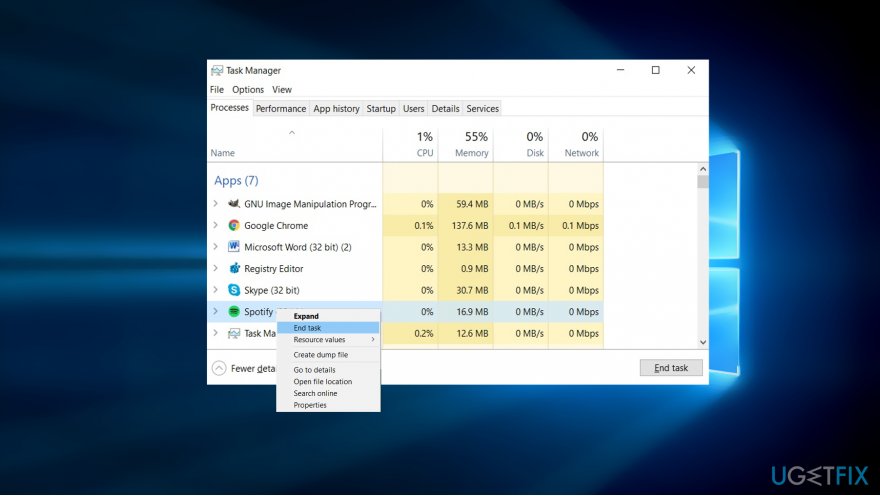
- Launch the app by CTRL+SHIFT+ESC.
- Find Spotify, right-click on it and choose End Task.
Option 1. Run the program in the Compatibility mode
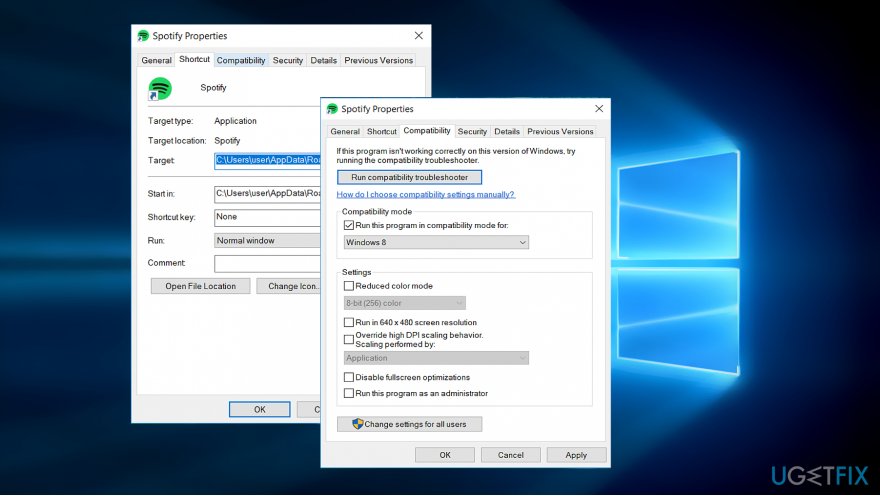
- Right-click on the Spotify icon and choose Properties.
- Once the window appears, opt for the Compatibility section.
- Place the checkmark Run this program in compatibility mode for.
- Once you tick the box, the options will become active. Opt for Windows XP or 7 version.
This should allow you run the program or enable to uninstall it normally via the Control Panel.
- In case you deleted the shortcut, and can’t find the icon to perform above-discussed steps, click on the start button.
- Type Spotify.
- Once it finds its files, right-click on the entry and choose Open file location.
- Once you get directed to its location, find Spotify Installer and perform the above-steps.
Option 2. Delete temporary files
In case the above-suggested method is futile, you cannot find the app, but its window still pops up during every startup, find Spotify temporary and cache files.
- Open File Explorer.
- Go to the following locations: C:\\Users\\USERNAME\\AppData\\Roaming\\Spotify and C:\\Users\\USERNAME\\AppData\\Local\\Spotify.
- Delete the content present in these folders.
- Visit the official site and download Spotify Installer.
- Follow the instructions to install the program again.
Bottom line
To resolve the uninstallation error, you can try running Spotify in compatibility mode or deleting temporary files. If these methods do not work, consider checking the Task Manager to end any Spotify processes before attempting to uninstall again.
Frequently asked questions
To uninstall Spotify on Windows 10, go to Settings > Apps > Apps & features, find Spotify in the list, click on it, and select 'Uninstall'.
Yes, on Windows 11, you can uninstall Spotify by right-clicking its icon in the Start menu, selecting 'Uninstall', and confirming the action.
If you face issues uninstalling Spotify on Windows, try using the built-in Troubleshooter or a third-party uninstaller tool to remove any lingering files.




Report an issue
What's wrong with this guide? We review every report and update or remove content.
Report received — thank you. We'll review and fix it.
You need a free account to submit a report.
Be the first to comment