How to remove
Uninstall Mac Apps
from Windows
Discover the easiest ways to uninstall unwanted apps on Windows 10 and Windows 11. Expert-tested methods for a clean and hassle-free removal, zero trace…

How does How to Uninstall Mac Apps end up on your PC?
- Moving the app to Trash does not remove all associated files
- Applications may have linked files in different directories
- User preferences are stored in separate locations
- Some apps have supporting files that need to be deleted
Repairs Windows system files, removes malware, and restores a clean OS state — without reinstalling.
I am new at Macs, so I have no idea how to uninstall apps from Macs. I’ve discovered that it’s enough to move them to trash. Is it correct?
Removing unnecessary apps from Mac might be one of many cultural shocks that might occur once you switch from Windows OS to macOS. Indeed, Macs do not have Control Panel.[ref en-1] However, uninstalling programs is not hard.
Generally, users can uninstall Mac apps by simply moving them to Trash. However, this is not enough to remove the program entirely. Applications might be linked to other files or folders. Thus, it's important to eliminate all these entries.
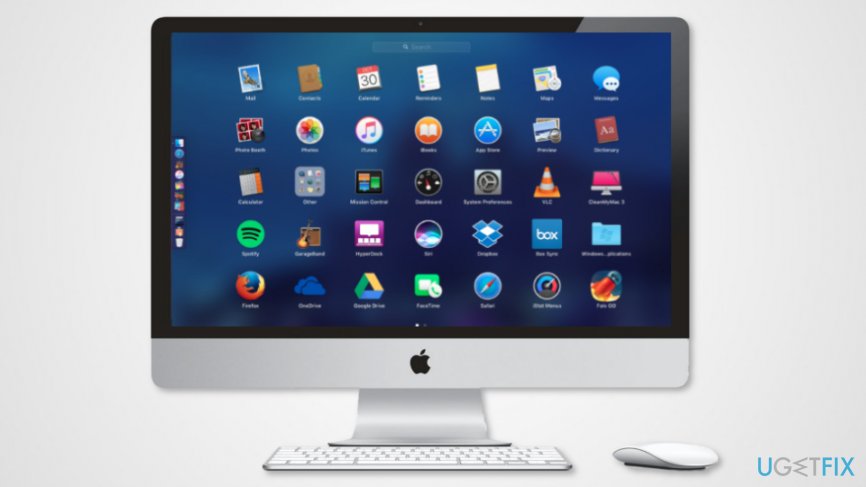
Mac apps are located in the Applications folder. However, system files and user’s preferences are stored in different directories. Thus, app-related content is saved in these locations:
- /Applications
- ~/Library/Preferences
Some of Mac apps also have supporting files. Thus, they might be stored in these two directories:
- ~/Library/Application Support
- /Library/Application Support
Therefore, in order to remove apps from Mac completely, you have to delete all entries from the above-mentioned locations. However, the majority of users just rely on drag and drop feature: they just delete the program by moving it to the Trash folder. Indeed, that’s enough to get rid of the app. But other related files and folders remain.
To remove Mac apps entirely, you have to make sure that other related entries or linked files are deleted as well. Thus, the instructions below will be handy.
Deleting Mac apps entirely
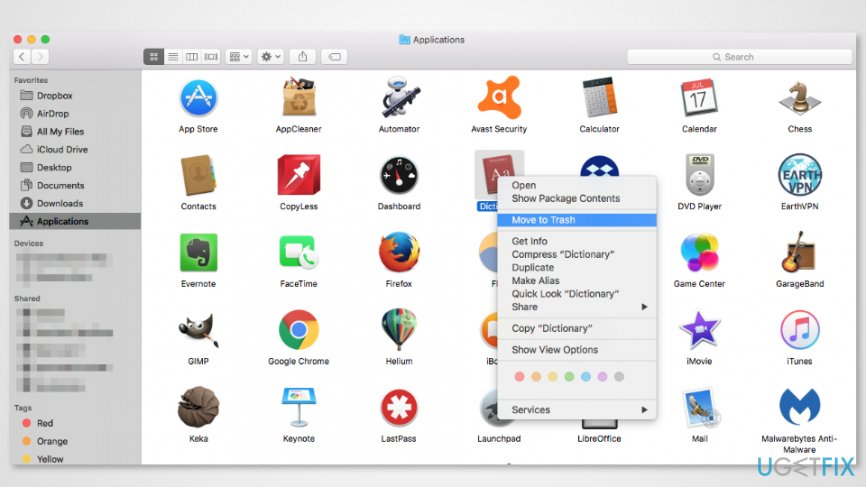
To remove Mac apps, you have to navigate to program’s location and move it to the Trash:
- Access Applications folder.
- Find the program you want to uninstall from Mac.
- Drag and drop it to Trash in the Dock.[ref en-2] Additionally, you can right-click program’s icon and choose “Move to Trash” from the drop-down menu.
- If you do not run Mac with an administrator account, you will need to enter admin password in order to remove the app.
However, if you accidentally removed the app you want to keep installed, you can easily move it from the Trash folder back to Applications. In order to remove Mac app entirely, you have to perform two more steps:
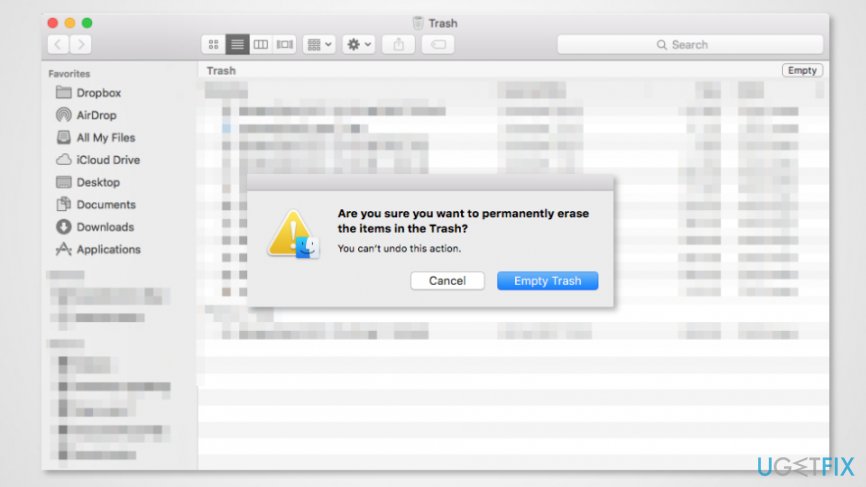
- Right-click the Trash icon and choose Empty.
- Click Empty Trash option in the appeared dialog window.
Delete Mac App preferences
To remove app preferences, you have to access Library folder.[ref en-3] However, Mac OS X 10.6 and earlier versions users should be aware that this folder is hidden by default. Thus, in order to access it, follow these steps:
- Open Finder.
- Click Go on the top menu bar.
- When the drop-down menu appears, click Option key on the keyboard.
- In the list, you will see a new Library entry between Home and Computer. Click until while keeping your finder on Option key.
- In the Library find a bunch of folders. You have to look through all of them in order to locate and delete all entries that might be related to your deleted program.
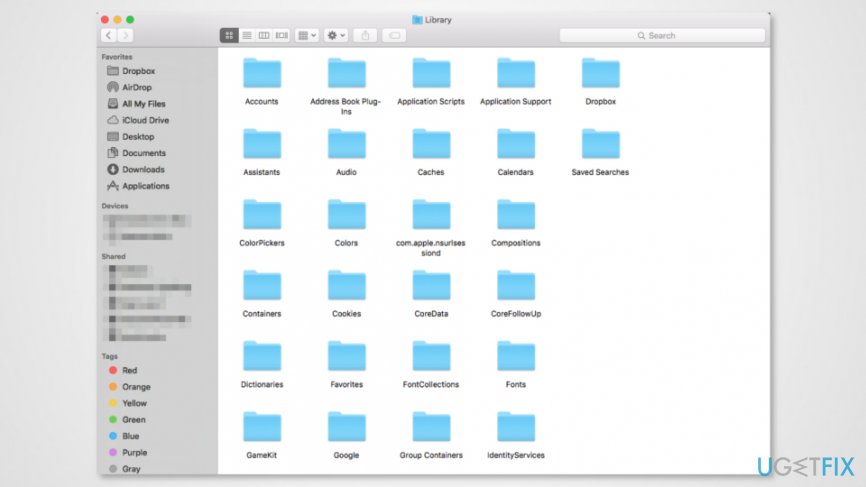
TIP. Majority of associated files are located in these folders, so you can speed up the process by checking only them:
- Application Support
- Caches
- Containers
- Frameworks
- Logs
- Preferences
- Saved Application State
- WebKit
NOTE. Removing files from the Library might cause problems. Once you delete files, some apps might become sluggish or crash. Additionally, you might lose some of the information. Therefore, you should be careful and create backups.
Bottom line
To completely uninstall Mac apps, you need to move the app to Trash and also delete related files from the Applications folder and the Library directories. If you accidentally delete an app, you can restore it from the Trash. If none of these methods work, consider using a dedicated uninstaller application.
Frequently asked questions
No, Mac apps are designed for macOS and cannot be directly uninstalled on Windows operating systems like Windows 10 or Windows 11.
If you used an emulator to run a Mac app on Windows 10 or Windows 11, you can usually uninstall it through the emulator's interface or by removing the emulator itself.
Yes, Windows 10 and Windows 11 include built-in tools like 'Add or remove programs' in Settings, as well as third-party software that can assist in removing unwanted applications.




Report an issue
What's wrong with this guide? We review every report and update or remove content.
Report received — thank you. We'll review and fix it.
You need a free account to submit a report.
Be the first to comment