How to remove
Uninstall Smart PC Mechanic
from Windows
Easily uninstall Smart PC Mechanic from Windows 10 or 11 with our expert-tested guide. Enjoy a cleaner system with zero traces left behind.

How does How to Uninstall Smart PC Mechanic end up on your PC?
- Installed without user consent
- Bundled with other free programs
- Detected issues do not affect performance
- Connection with Trojan infection
- Classified as a potentially unwanted program (PUP)
Repairs Windows system files, removes malware, and restores a clean OS state — without reinstalling.
I have no idea how Smart PC Mechanic got installed on my PC. I did not install it, so I assume it’s a virus. It’s strange how my anti-virus did not detect it as I have updated definitions a couple of days ago. When I run a repeatable scan, it doesn’t detect any virus either. Could you please tell me should I uninstall Smart PC Mechanic?
Smart PC Mechanic claims to be a PC optimization tool[ref en-1] capable of detecting malware, potentially unwanted programs, issues related to system’s files, startup problems, and numerous other tasks. Its developer claims that the system has a powerful engine that performs a full system scan in no time and returns a detailed list of existing problems that are negatively influencing PC’s performance.
However, cyber security experts and Windows OS technicians express rather opposite opinion about the program. Though it’s not treated as a severe cyber threat, most of them agree upon the fact that Smart PC Mechanic is a potentially unwanted program (PUP) that is, mildly saying, not a necessary tool for keeping.
Ineligible distribution method is one of the factors that create a negative reputation of the Smart PC Mechanic. The latter is mainly distributed by bundling, meaning that it’s circulating on the Internet as an attachment of other free programs and often installed on PCs without requiring its user’s consent properly.
Speaking about the performance of the Smart PC Mechanic, it does not raise trust either. According to BleepingComputer experts,[ref en-2] many issues that the program detects do not have a negative effect on PC’s performance, but the scan log indicates them as severe or medium severity.
Last, but not the least fact proving the fact that this PC optimizer is not the best selection, is the connection of Smart PC Mechanic with the Trojan infection. VirusTotal analysis[ref en-3] of the Smart PC Mechanic PUP revealed that its executable file spcmsetup.exe contains a Trojan. Therefore, many security vendors classify the program as a PUP and virus.
Smart PC Mechanic Uninstall Guide
In a nutshell, Smart PC Mechanic PC optimizer is not a trustworthy application. It may not only diminish your PC’s performance and inject malicious files, but also trigger fatal system files by removing the wrong registry entries or core system files. Luckily, Smart PC Mechanic requires purchasing a full product license to fix all detected problems. Due to this requirement, most of people either restrain from further actions or prompt to initiate a research on the tool.
If you found Smart PC Mechanic PUP on your PC out of nowhere, we would recommend you to uninstall it and you can do that by following these steps:
Uninstall Smart PC Mechanic manually
- Click on Ctrl + Shift + Esc to open Task Manager.
- Find Smart PC Mechanic process, right-click on it, and select Open file location.
- Press Print Screen key next to Delete button to memorize the location of the tool.
- Now right-click on the Smart PC Mechanic process in Task Manager and select End Task.
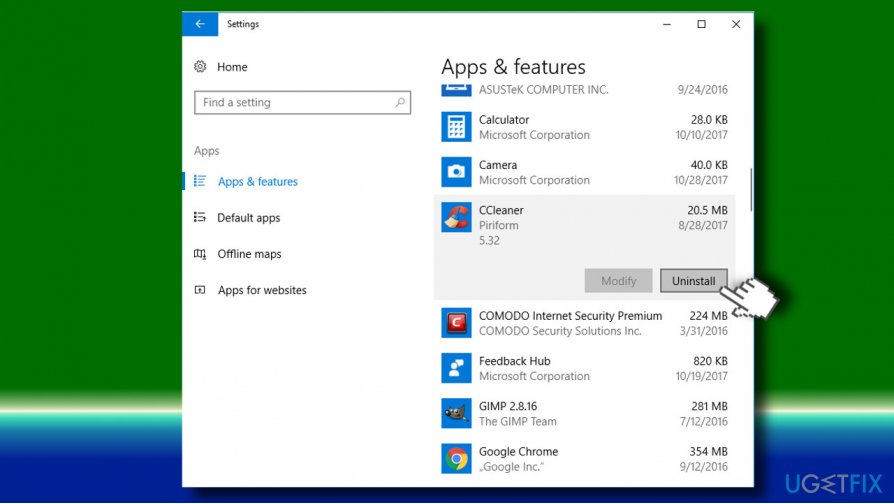
- Close Task Manager and click Windows key + I.
- Select Apps and open Apps and Features section on the left pane.
- Find Smart PC Mechanic, click it, and select Uninstall.
Uninstall from programs and features - Finally, check the location of Smart PC Mechanic (that you've checked while accessing Task Manager) and check if the program has been successfully removed.
- Then open File Explorer, click on View tab and select Options.
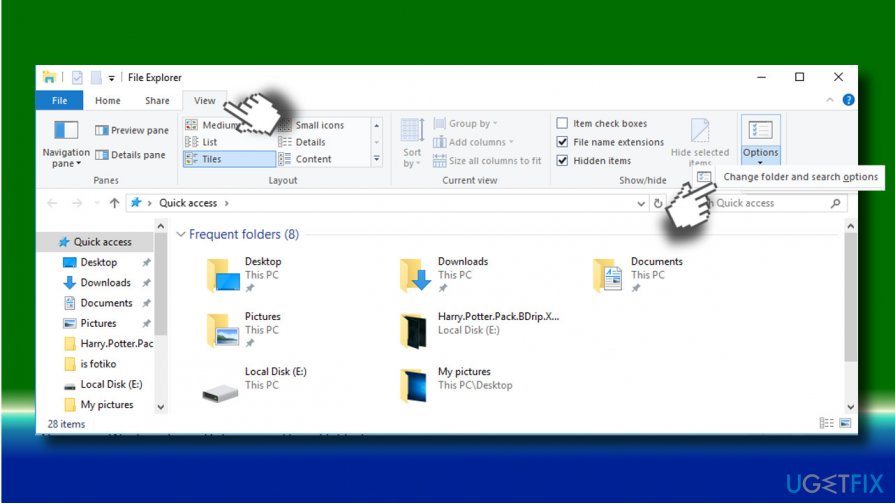
Unhide hidden items - Mark the Show hidden files, folders, and drives.
- Now press Windows key + R, type regedit, and hit Enter.
- Open Edit tab, click Find next and type Smart PC Mechanic.
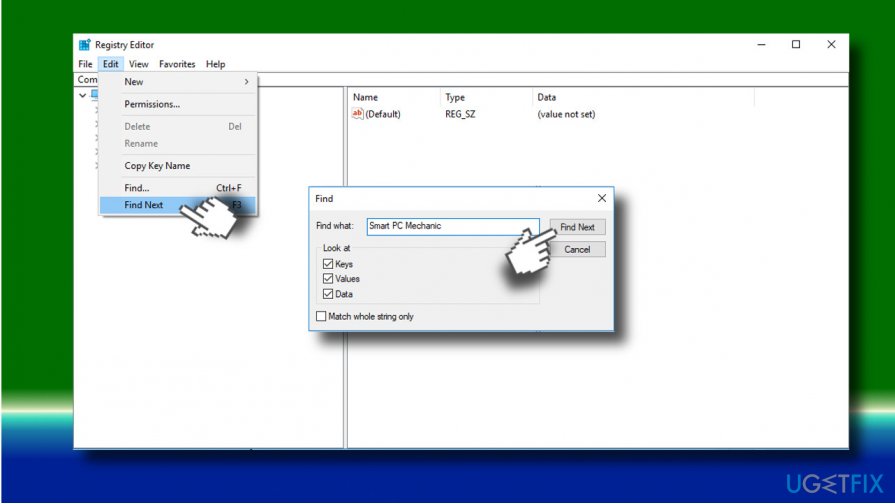
Delete leftovers - If the finder detects some remnants of the optimizer, remove them.
Remove Smart PC Mechanic with a professional anti-malware tool
Most of the reputable security vendors has already included Smart PC Mechanic into the PUP/virus database. Therefore, a full system scan with a professional and powerful anti-virus should eliminate this program without difficulties. For this purpose, we would recommend using [d1].
Eliminate Smart PC Mechanic with a software removal tool
The last option that you have for Smart PC Mechanic is a reliable software removal tool. If your antivirus failed to detect this program or you cannot uninstall it manually because it's not listed in the Programs and Features, you can use [rev id="Perfect Uninstaller"]. Install the utility and launch the executable file. Once installed, set it to uninstall the irrelevant application.
Bottom line
Smart PC Mechanic is not a necessary tool for maintaining your PC and may even pose risks due to its association with malware. To uninstall it, you can use the Control Panel or a dedicated uninstaller tool. If these methods do not work, consider seeking professional assistance.
Frequently asked questions
To uninstall Smart PC Mechanic from Windows 10, go to Settings > Apps, find Smart PC Mechanic in the list, and click on 'Uninstall.' Follow the prompts to complete the removal process.
Yes, you can remove Smart PC Mechanic by opening Control Panel, selecting 'Programs and Features,' finding Smart PC Mechanic, and clicking 'Uninstall.'
If Smart PC Mechanic won't uninstall on Windows, try using a third-party uninstaller or booting into Safe Mode and then attempting the uninstallation.




Report an issue
What's wrong with this guide? We review every report and update or remove content.
Report received — thank you. We'll review and fix it.
You need a free account to submit a report.
Be the first to comment