How to remove
Disable Pre-Installed Apps
from Windows
Easily disable pre-installed apps on Windows 10 or 11 for a cleaner experience. Boost performance and save space with expert-tested methods.


How does How to Disable Pre-Installed Apps on Android end up on your PC?
- Pre-installed apps consume battery by running in the background.
- Users find pre-installed apps annoying and useless.
- Removing pre-installed apps can lead to device instability.
- Uninstalling pre-installed apps may require rooting the device.
- Different Android devices may have varying methods to disable apps.
Repairs Windows system files, removes malware, and restores a clean OS state — without reinstalling.
I’ve got a new smartphone with Android OS, but there are so many pre-installed apps! I tried to remove some of them, but I failed. However, they are running in the background and draining my battery. How can I at least disable those apps?
Pre-installed apps are also known as bloatware.[ref en-1] They can be found not only on Android smartphones or tablets but Windows phones, laptops or desktop computers. Most of the time users find them annoying, useless and impossible to get rid of. However, it's still possible to disable pre-installed apps on Androids and other devices.
All Android users can find pre-installed apps on their devices. However, the amount of them might differ based on the phone’s model. Among the most bothersome applications are Google apps (for instance, Google Play Movies & TV), S Health or other Samsung apps,[ref en-2] and many more.
Bloatware takes up space and drains the battery by working in the background. However, removing them simply is not easy and might lead to various problems. After removal, Android device might not work properly, or you might encounter instability issues, be unable to install updates or even re-installing apps if needed in the future.
What is more, uninstalling pre-installed apps might need to root your phone.[ref en-3] Indeed, this task is difficult, and many users are not aware of how it is done properly. However, there’s a way to disable pre-installed apps and avoid such complicated procedure.
Once you disable unneeded apps, you won’t see them on the Home screen menu. However, the most important benefit is that they won’t eat your device’s battery by running in the background.
Instructions for disabling pre-installed Android apps
Disabling pre-installed apps on different Android devices might slightly differ. It means some folders or locations might be named differently. These instructions are only indicative. You should look up for similar names and directories on your smartphone.
- Go to your Android smartphone’s Home screen.
- From the Home screen, you should access App drawer and access Settings (if you are using Samsung phone). Other phone users might find Settings icon on the Home screen. Thus, tap on it.
- When in Settings, Go to App Settings (or Apps).
NOTE: Other phone users might need to follow this path: Settings > Device > Apps. - In the list of installed applications, find the apps you want to disable and tap on it.
- It will prompt Application info (or App info) window where you have to click Disable button.
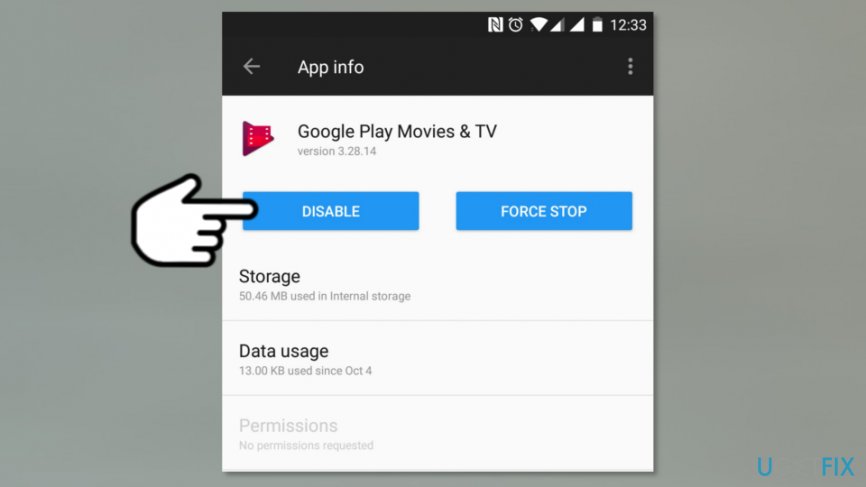
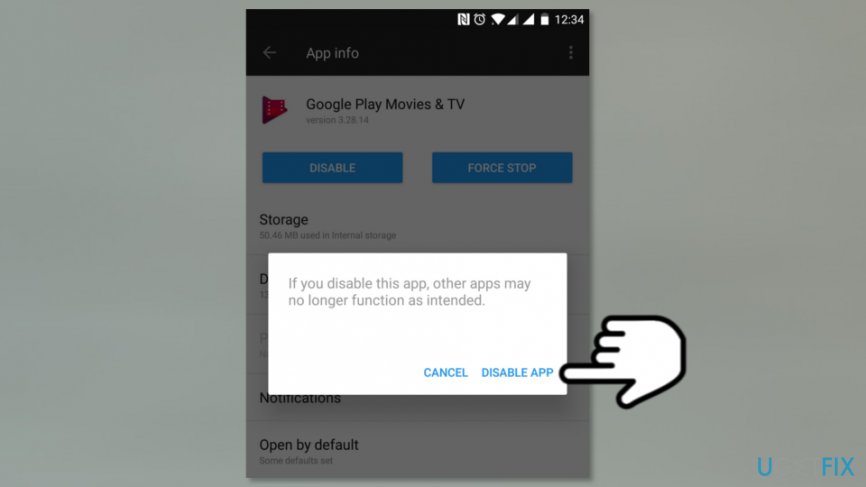
Disable pre installed app on android - You will receive a pop-up window that warns about possible problems if you disable the app. Click Disable (or Disable App) button.
Disable android app - Another pop-up shows up on the screen. Click OK to disable the app.
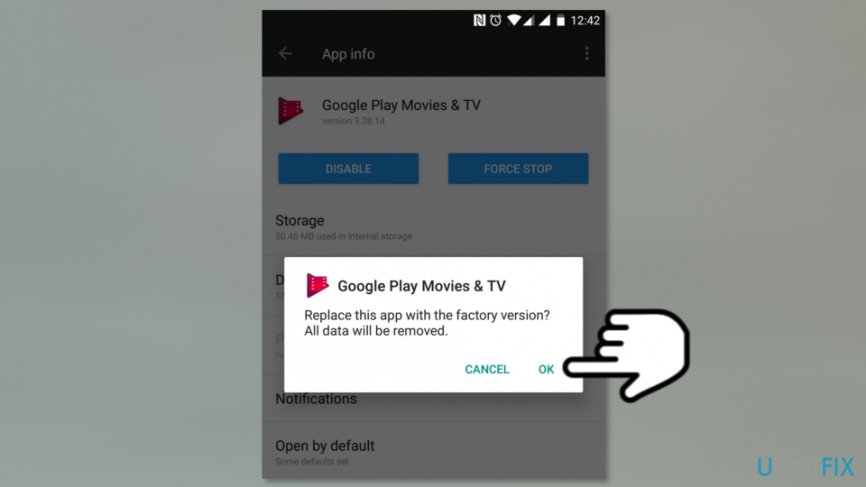
Disable bloatware
Now you have to repeat the same instructions for all other Android apps you want to disable. Hopefully, this won’t cause you any problems, and you will be able to use your smartphone smoothly. If you ever need to enable some of these Apps, you can always do it by accessing App Settings and clicking Enable button: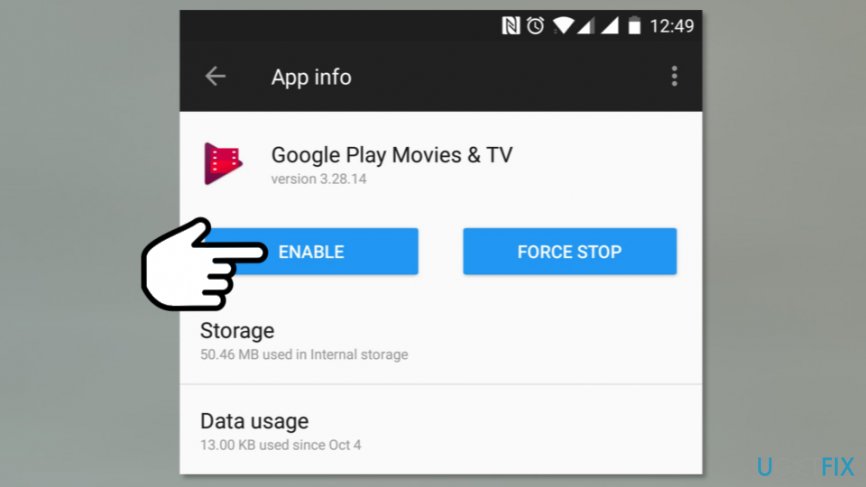
Additionally, the majority of these apps are available to install on Google Play Store.
Bottom line
To disable pre-installed apps on your Android device, access the App drawer and navigate to Settings. Once there, you can disable the apps to prevent them from draining your battery. If these steps do not resolve the issue, consider seeking further assistance or exploring alternative solutions.
Frequently asked questions
Yes, you can disable pre-installed apps on Windows 10 by going to Settings > Apps > Apps & features, selecting the app, and clicking 'Uninstall' or 'Advanced options' to disable it.
While many pre-installed apps are similar, Windows 11 may come with new apps and features, but you can still disable or uninstall them following the same method as in Windows 10.
Disabling a pre-installed app prevents it from running and removes it from the Start menu, but it can be re-enabled later if needed.




Report an issue
What's wrong with this guide? We review every report and update or remove content.
Report received — thank you. We'll review and fix it.
You need a free account to submit a report.
Be the first to comment