How to remove
“Windows Has Detected a Malicious Virus On Your System” Pop-Up
from Windows
Eliminate the "Windows Has Detected a Malicious Virus" pop-up on Windows 10/11 effortlessly. Follow our expert-tested guide for instant removal!

How does How to Remove “Windows Has Detected a Malicious Virus On Your System” Pop-Up end up on your PC?
- Adware infection
- Websites infected with malicious code
- Installation of potentially unwanted programs (PUP)
- Pop-up designed to trick users into calling a scam number
- Lack of Microsoft trademarks or specific virus information
Repairs Windows system files, removes malware, and restores a clean OS state — without reinstalling.
Hello all. Today I get a really suspicious warning claiming “Windows Has Detected a Malicious Virus On Your System.” It does not look like a genuine alert from Microsoft. The following is the telephone number that I’m supposed to call to remove the virus: 877-384-3078. Have you heard something about that?
Scammers are actively improving their strategies to lure people into scam affairs and shake down their money. While prize giveaway, online surveys, and similar scam types[ref en-1] are still alive, tech support scam is currently the most popular technique used by cyber villains.
While most of Tech-Support-Scams are really catchy, the others look rather fishy and unprofessional. “Windows Has Detected a Malicious Virus On Your System” Tech-Support-Scam would probably fall for the scam gimcracks.
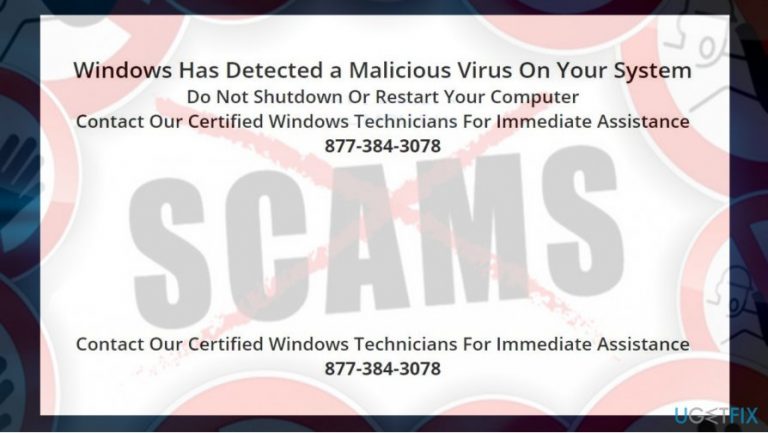
The “Windows Has Detected a Malicious Virus On Your System” scam is caused by adware infection or websites infected with a malicious code. It shows up as a pop-up window on a user’s default web browser and usually freezes it up. The pop-up contains the following information:
Windows Has Detected a Malicious Virus On Your System
Do Not Shutdown Or Restart Your Computer Contact Our Certified Windows Technicians For Immediate Assistance
877-384-3078
Although the Windows Has Detected a Malicious Virus On Your System scam exhibits all Tech-Support-Scam traits, it looks neither trustworthy, nor professional. Although it’s stated that “Windows” has detected a virus and that the provided number belongs to “Certified Windows Technicians,” the pop-up does not contain any Microsoft’s trademarks or specific information, for example, what virus was detected.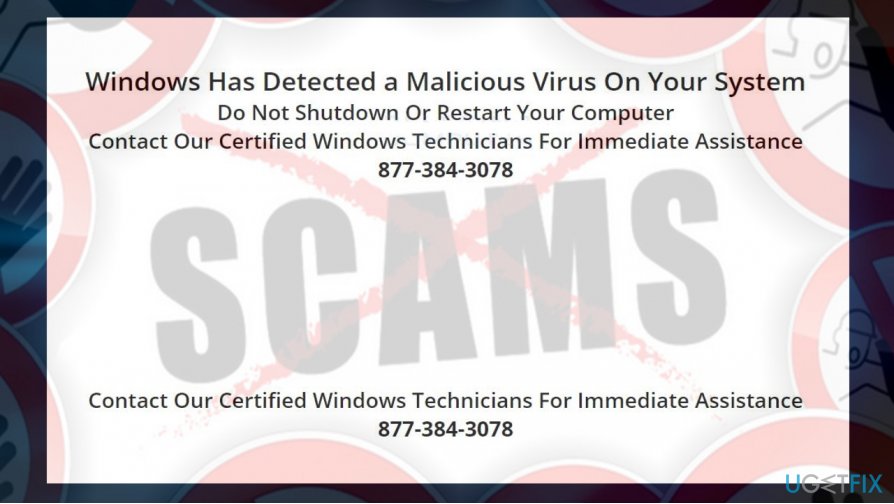
If you received such and similar pop-up alert while browsing, that probably means that a potentially unwanted program (PUP)[ref en-2] has been installed on your PC. Alerts like Windows Has Detected a Malicious Virus are developed with an intention to trick people into calling highly-charged number, installing other untrustworthy programs or even establishing remote connection with hackers.
To remove the “Windows Has Detected a Malicious Virus On Your System,” you’ll have to perform several steps.
- End Task of your web browser;
- Uninstall all suspicious programs;
- Reset your web browser;
We highly recommend using a professional anti-malware tool for removing PUPs from the system. Our recommendation is [d1], but you are free to use alternative anti-malware utility. It will ensure that all malicious programs, folders, and files have been removed. After running a scan with anti-malware, reset your web browser’s settings manually.
Removing “Windows Has Detected a Malicious Virus On Your System” Tech-Support-Scam
First of all, to get rid of the "Windows has detected a malicious virus" pop-up, you will have to close your web browser. If it can't be closed in a usual way by clicking on the X button at the top-right corner of the window you should:
- Press Ctrl + Alt + Del or Ctrl + Shift + Del.
- Open Task Manager and find your web browser's entry on Processes tab.
- Click on it and select End Task.
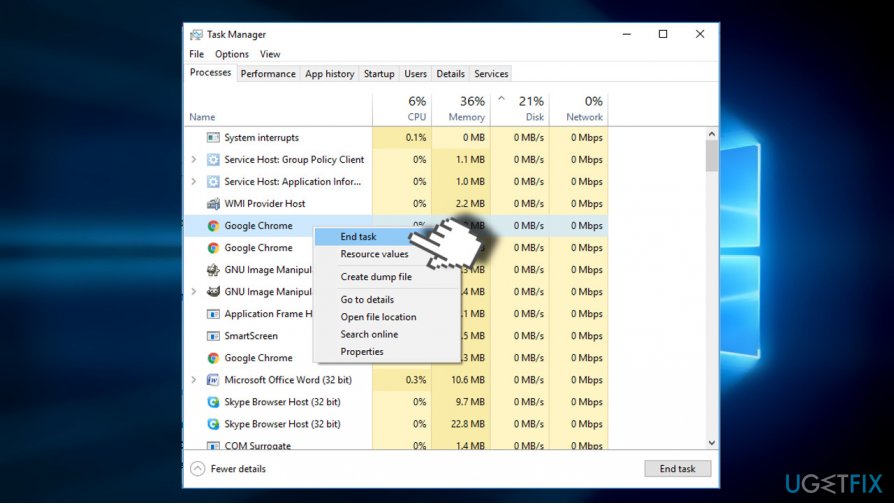
Close web browser
Once done, you have to check the list of installed programs and find the one's that you are not familiar with. The installation date may help you to identify, which one may be potentially unwanted. Usually, the installation date of the unwanted program coincide with the emergence of the “Windows Has Detected a Malicious Virus On Your System” error.
- Press Windows key + I and open Apps section. (Windows 10)
- In earlier Windows versions you should navigate to Control Panel -> Programs & Features.
- Carefully check the list of installed programs. If you detected a suspicious one, you can search for it online to find out if it falls for the PUP category.[ref en-3]
- Click on the unwanted program and select Uninstall.
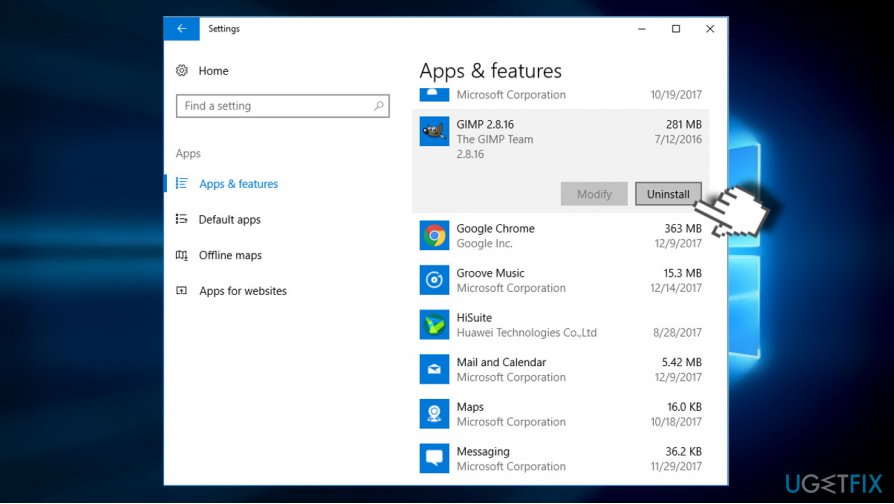
Uninstall pups
When all suspicious programs are uninstalled, reset your web browser. Otherwise, malicious “Windows Has Detected a Malicious Virus On Your System” scam files will remain active and the pop-up will keep reocurring.
- First of all, DO NOT restore the last browsing session because the screen will get stuck with the malicious pop-up again. Instead, start a new browsing session.
- Open Google Chrome and click on the menu icon (three vertical dots) at the top-right corner of the screen.
- Open Settings and select Show Advanced Settings.
- Find Reset Settings option and click it.
- To confirm the option, click Reset.
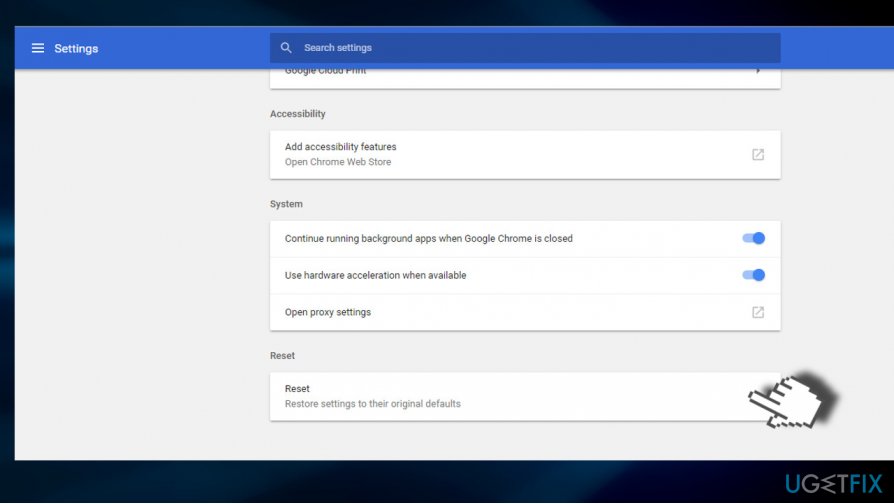
Reset web browser
If you are nor using Google Chrome as your default web browser, you'll find Reset option of any web browser under Menu ->Settings.
Bottom line
To remove the pop-up, you should end the task of your web browser, uninstall all suspicious programs, and reset your web browser. It is also recommended to use a professional anti-malware tool. If these steps do not resolve the issue, further investigation may be necessary.
Frequently asked questions
Immediately close the pop-up and do not click any links. Run a full system scan using Windows Defender or another trusted antivirus program to remove any potential threats.
Yes, you can remove it by uninstalling any suspicious programs from the Control Panel and using Windows Defender to perform a system scan.
Keep your Windows 10 or Windows 11 operating system updated and install reliable antivirus software to provide real-time protection against malicious threats.




Report an issue
What's wrong with this guide? We review every report and update or remove content.
Report received — thank you. We'll review and fix it.
You need a free account to submit a report.
Be the first to comment