How to remove
Uninstall Kaspersky Internet Security
from Windows
Easily uninstall Kaspersky Internet Security from your Windows 10 or Windows 11 device. Follow our expert-tested guide for a hassle-free experience, fix…


How does How to Uninstall Kaspersky Internet Security end up on your PC?
- Removal process fails due to software corruption
- Incompatibility with other installed software
- Insufficient user permissions to uninstall
- Issues with the Windows operating system
- Presence of leftover files from previous installations
Repairs Windows system files, removes malware, and restores a clean OS state — without reinstalling.
My problem is rather simple – I can‘t uninstall Kaspersky Internet Security. The removal process fails each time I try, but I have no ideas why.
Kaspersky Lab[ref en-1] is a cyber-security and antivirus provider founded in 1997. The company develops and sells antivirus programs, internet security tools, password management utilities, and many other products related to cyber security.
Initially, Kasperky Lab‘s products were circulating in Russia only, but since 2005 it started gaining international acknowledment. The company offers Kaspersky Anti-Virus, Kaspersky Internet Security, and Kaspersky Total Security. While the supply of cyber security tools is not limited to the aforementioned products.
Currently, Kaspersky Lab‘s products are listed[ref en-2] among the best security tools as it received perfect scores for virus protection, keylogger and adware detection, smooth performance, and labeling of legitimate threats and save files. Therefore, if you are using any of the Kasperky Lab‘s products, you can trust it as it‘s the right choice to protect your PC.
But there‘s one but. A couple of months ago, the media flickered from reports about the alleged ties of Kaspersky Lab and Russian intelligence and other government agencies.[ref en-3] Consequently, US government decided to ban federal agencies from using Kaspersky Lab‘s cybersecurity software to prevent spying.[ref en-4] The Kasperky Lab‘s CEO, Eugene Kaspersky called such accusations a conspiracy theory and denied the allegations. Until there‘s no evidence of the wrongdoing by the company, all Kasperky Lab‘s products are treated secure and can be used by everyone, except US-based federal agencies.
Unfortunately, such alleged claims negatively affected Kasperky‘s reputation and pushed lots of home and company users to reject Kaspersky and switch to another security software. A wave of people asking how to uninstall Kaspersky Internet Security has been noticed for the last months. If you can‘t uninstall Kaspersky Internet Security, you can try to the following methods.
Use the kavremover tool
The kavremover is an official Removal tool for Kaspersky Lab products. If you cannot uninstall the Kaspersky Internet Security for one or another reason, navigate to the official Kasperky Lab‘s website and download the kavremover.
- Download the archive kavremvr.zip and extract the files from it or download the kavremvr.exe file.
- Run the kavremvr.exe and read the license agreement before clicking Accept.
- Then enter the code given in the picture, check if the tool detected the right product that you want to remove, and click Remove.
- Once done, reboot your PC.
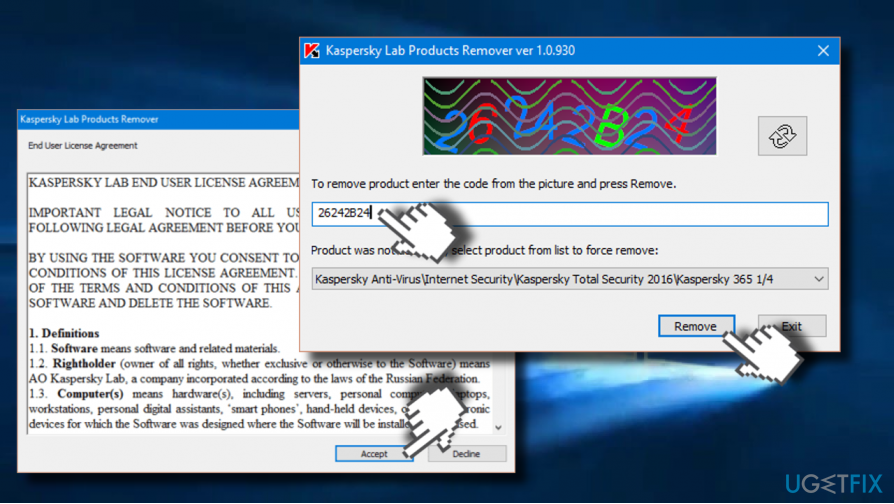
Run kaspersky uninstaller
In case kavremover failed to remove Kaspersky Internet Security either, try to contact Kaspersky Lab‘s technical support.
Uninstall the program with a software removal tool
Alternatively, you can use [rev id="Perfect Uninstaller"] or another third-party tool to eliminate any unwanted program, including Kasperky‘s products. If you uninstalled the main executable of the program, but detected loads of its remnants under Windows Registry or elswhere, we would recommend using [d1] to wipe out the remnants.
Try uninstalling in a usual way
- Open Task Manager and check if the Kaspersky Internet Security process is running. If you found it, right-click on it and select Disable.
- Then locate program’s icon on Windows taskbar, right-click on it, and select Exit.
- Once done, press Windows key + I and open Apps section. (Windows 10)
- Look for Kaspersky Internet Security entry, click on it, and select Uninstall.
- Alternatively, you can access Control Panel and open Programs & Features.
- Find the program, click on it, and select Uninstall.
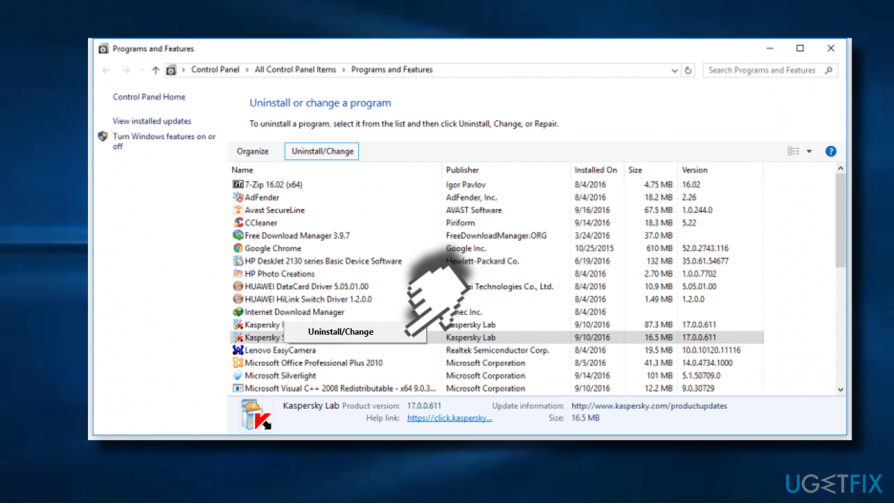
Uninstall kaspersky - To remove the leftovers, press Windows key + R, type regedit, and press Enter.
- Then click Edit at the top of the window and select Find.
- Enter Kaspersky in the search box and click Find Next.
- Remove all entries detected.
- Finally, reboot your PC.
Bottom line
If you can't uninstall Kaspersky Internet Security, you can try using the official kavremover tool from Kaspersky Lab's website. This tool is designed to assist in the removal of Kaspersky products. If none of these methods work, consider seeking further technical support.
Frequently asked questions
To uninstall Kaspersky Internet Security on Windows 10, go to Settings > Apps, find Kaspersky in the list, select it, and click 'Uninstall.' Follow the prompts to complete the removal process.
If you encounter issues uninstalling Kaspersky on Windows 11, use the Kaspersky Removal Tool, which can be downloaded from their official website to ensure complete removal.
Yes, it is safe to uninstall Kaspersky Internet Security from your Windows PC, but make sure to have an alternative security solution in place to protect your system.




Report an issue
What's wrong with this guide? We review every report and update or remove content.
Report received — thank you. We'll review and fix it.
You need a free account to submit a report.
Be the first to comment