How to remove
Uninstall iTunes
from Windows
Easily uninstall unwanted programs from Windows 10 or 11. Get rid of iTunes with our expert-tested guide, ensuring zero traces left behind.

How does How to Uninstall iTunes on Mac OS X end up on your PC?
- Mac OS requires iTunes for system functionality
- iTunes may not recognize connected devices like iPhone/iPad
- iTunes may display error messages unexpectedly
- iTunes may become unresponsive
- Incomplete removal of iTunes may lead to software issues
Repairs Windows system files, removes malware, and restores a clean OS state — without reinstalling.
Hello. When trying to uninstall iTunes on Mac OS X, I keep receiving an error message that says that Mac OS requires it. Could you please help me with this issue?
You've touched a really heated issue that has already caused various discussions on the Internet. Some people claim that iTunes did not recognize iPhone/iPad, that all of a sudden iTunes starts displaying an error message, that it does not respond and so on. These are just a few examples of why people decide to uninstall/reinstall iTunes on Mac.[ref en-3] Unfortunately, that's not so easy as you may think at first.
iTunes is a handy music-related application developed by Apple that comes integrated into every Mac machine and device. This software is used as a media player, media library, Internet radio broadcaster, and allows users to download and purchase components that are related to multimedia.[ref en-1]
To start with, we want to stress the fact that 'uninstalling' is not the same as 'removal'. Actually, removal can be called an incomplete uninstalling. To remove the program on Mac you need:
- Go to the Applications folder;
- Click and hold the iTunes icon;
- Drag this icon to Trash;
- Select Empty Trash.
Yes, that's removal, but not a complete uninstalling of the software itself. In order to uninstall this software completely thus preventing future slowdowns, crashes, errors, and increasing free space, you should also remove all system logs, cache files, file settings, app libraries, and other relevant files.
Of course, this requires much time because various locations of the system have to be checked. Even more, you may be confused about what kind of files should be removed to uninstall iTunes on Mac OS X completely. That's why we highly recommend using the help of [d1] that is considered as a helpful PC optimization tool.
How to uninstall iTunes on Mac OS X?
Usually, the software can be removed on Macs manually. This can be done by removing the main file of the program and them finding all relevant files on various locations, including /Library/Application Support/ and /Library/Preferences/.
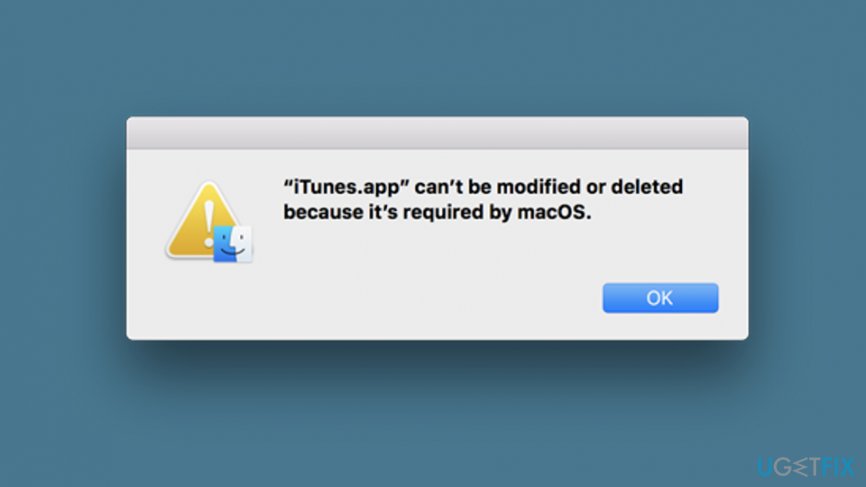
However, in this case, manual removal probably will not work. Users have reported that when trying to drag the icon to trash they have been presented with an error message saying:
“iTunes” can't be modified or deleted because it's required by OS X.
After receiving such a notification, users might not be allowed to initiate any other operations regarding the iTunes program. However, there is something you can try that might help you to uninstall iTunes on Mac OS X. Find out the appropriate methods by going through the following steps.
Task 1. Change some permissions
iTunes might start dropping you error messages that the software cannot be permanently deleted from the Mac computer as it is an integrated component. However, you might still have a chance of getting rid of the application by changing permissions.[ref en-2] To achieve this goal, perform the following guiding steps:
- Press the Ctrl key and click on iTunes.app.
- Continue with the option that says "Get Info".
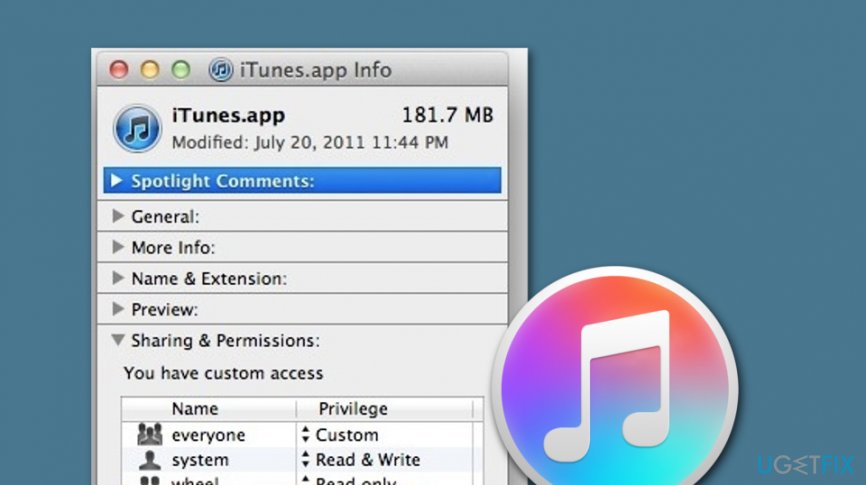
Task 1 - Expand Sharing & Permissions to view all available options.
- Afterward, select the lock icon.
- Write the required password.
- Find everyone and turn it to Read & Write.
- Then, select iTunes.app software and put it in the Trash bin.
- Empty the Trash section.
Task 2. Deactivate SIP
If the previous task did not help you to uninstall iTunes from Mac OS X, you can try deactivating SIP (System Integrity Protection) on your Mac machine. This feature has been officially released by Apple and integrated into every Mac computer in order to limit some user interaction that might increase the risk of some type of danger or damage.
However, if you think that you have good computing skills and experience with Mac machines, you can try completing this task and uninstalling iTunes from Mac OS X. Here, take a look at the entire process:
- Reboot your Mac machine.
- Press the Command key and R button on your keyboard.
- When a specific menu pops out, select Utilities > Terminal.
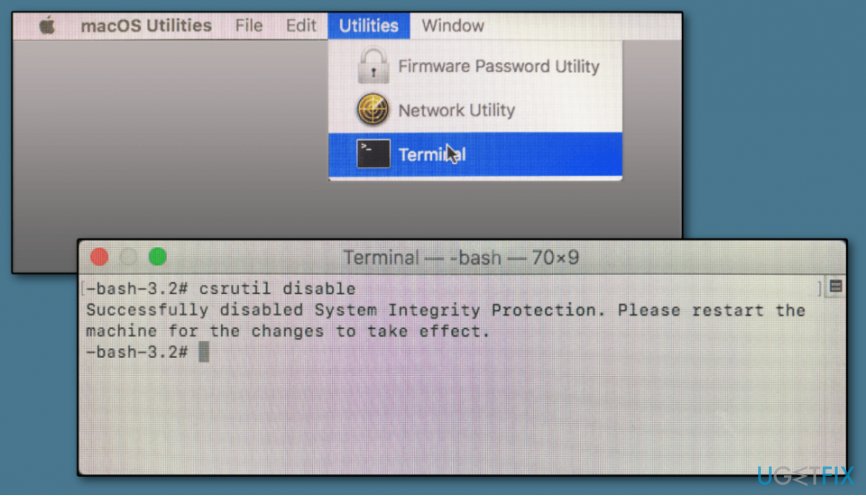
Task 2 - When the window appears, type csrutil disable and hit Return.
- Reboot the computer once again and log into the PC by using your administrative account.
- Then, write the cd/Applications/ command and press the Return key.
- Continuously use the sudo rm -rf iTunes.app/ command to delete the official app.
- After you are done, enable the SIP again.
- For this, reboot > select Command + R > open Terminal > write csrutil enable
Bottom line
To uninstall iTunes on Mac OS X, you can start by dragging the iTunes icon to Trash and emptying it. For a complete uninstall, ensure to remove all related system logs, cache files, and settings from various locations. If these methods do not resolve the issue, consider using a PC optimization tool for assistance.
Frequently asked questions
Yes, you can uninstall iTunes on Windows 10 or Windows 11 by going to Control Panel, selecting 'Programs and Features', finding iTunes in the list, and clicking 'Uninstall'.
If iTunes won't uninstall, try using the Windows Troubleshooter or a third-party uninstaller tool to remove it completely.
To remove all iTunes components, you should uninstall iTunes, followed by Apple Mobile Device Support, Apple Software Update, and Bonjour from the Programs and Features menu.




Report an issue
What's wrong with this guide? We review every report and update or remove content.
Report received — thank you. We'll review and fix it.
You need a free account to submit a report.
Be the first to comment