How to remove
Uninstall Web Companion
from Windows
Easily uninstall Web Companion from your Windows 10 or Windows 11 device with our expert-tested guide. Get it done in minutes, zero traces left!

How does How to uninstall Web Companion end up on your PC?
- Bundling trick during installation of another app
- Web Companion crashes during uninstallation
- Unauthorized changes to browser settings
- Potentially malicious files preventing removal
- Browser helper objects resisting uninstallation
Repairs Windows system files, removes malware, and restores a clean OS state — without reinstalling.
I was caught in bundling trick as by installing another free app I ended up installing Web Companion. The worst part is that I cannot uninstall it regularly. I opened Control Panel and tried to uninstall that program, but the pop-up occurred saying that Web Companion crashed. This happens again and again.
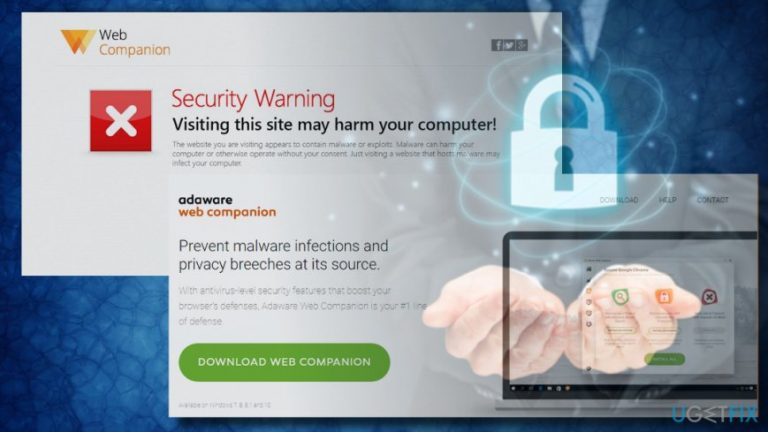
Web Companion is a security program developed by Adaware, formerly known as Lavasoft.[ref en-1] It's not a primary antivirus program, though it's often classified as a second option antivirus or malware scanner. It's developer aimed at protecting people's PCs and data stored on them by anti-virus-level security features combined in the all-in-one app.
Ad-Aware Web Companion is compatible with most of the Microsoft Windows versions, including 7, 8, 8.1 and 10. Once installed, it adds an extra layer of security to boost web browser's defense in particular. The application blocks unauthorized changes to browser's settings so-called browser hijacking,[ref en-2] and hinder redirects to malicious websites. Its main advantage is that it fights against virus and malware at the URL level and immunizes it before it infects the targeted system.
However, many people have already created threads on IT-related forums asking for help to remove Web Companion. Such questions induced us to check what's the problem with the application so that it's objectionable.
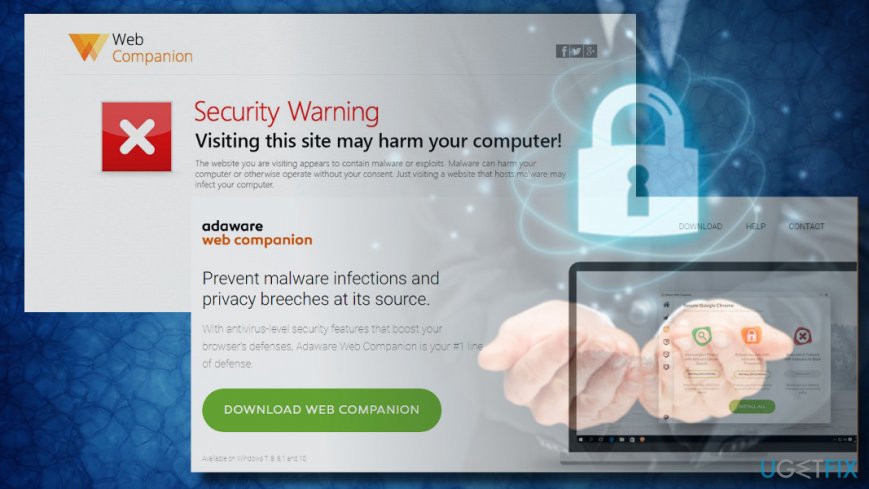
We found out that this application is often dubbed as Ad-Aware Web Companion virus despite being legitimate because it initiates web browser's changes without asking for permission explicitly. Isn't it a paradox?
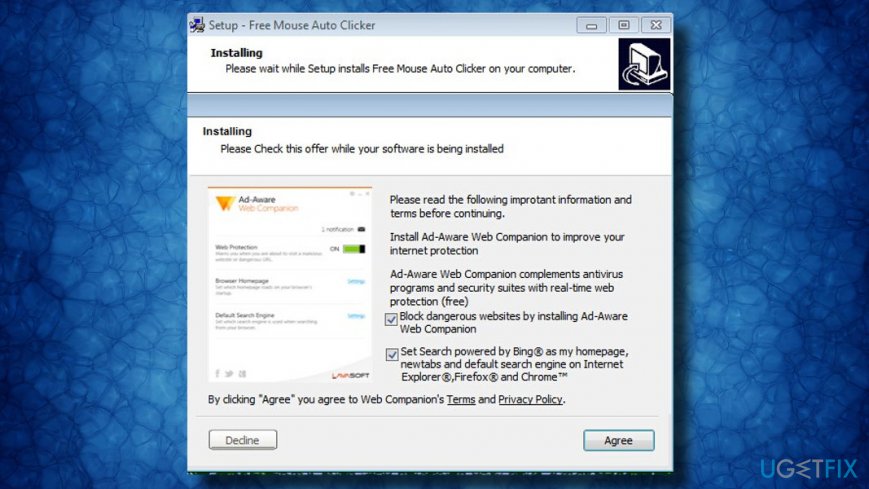
During the installation setup, the app contains a couple of statements saying that the user automatically gives permission to replace start page and search engine by installing this app. Such claims are marked by default and are approved as soon as PC's owner clicks Next.
Apart from the stealthy installation of web browser's extensions, the program subsequently resists the removal. It's not yet clear why people are not allowed to uninstall Web Companion, but that can be induced by potentially malicious files, browser helper objects (BHO),[ref en-3] and similar components.
Thus, if you installed Web Companion by Lavasoft accidentally or (intentionally) and cannot eliminate it, you should install [d1]or [rev id="Perfect Uninstaller"] and run a scan, or follow manual Web Companion removal instructions given below.
A guide on how to uninstall Ad-Aware Web Companion by Lavasoft from Windows
If you cannot remove Web Companion because the uninstall process triggers a notification saying that Web Companion has crashed or stopped working, we would strongly recommend you to eliminate the application using a professional software removal tool. That's because some running processes or support files can block the uninstalling process.
If you prefer manual Web Companion uninstall, here's a step-by-step guide that you should follow:
Step 1.
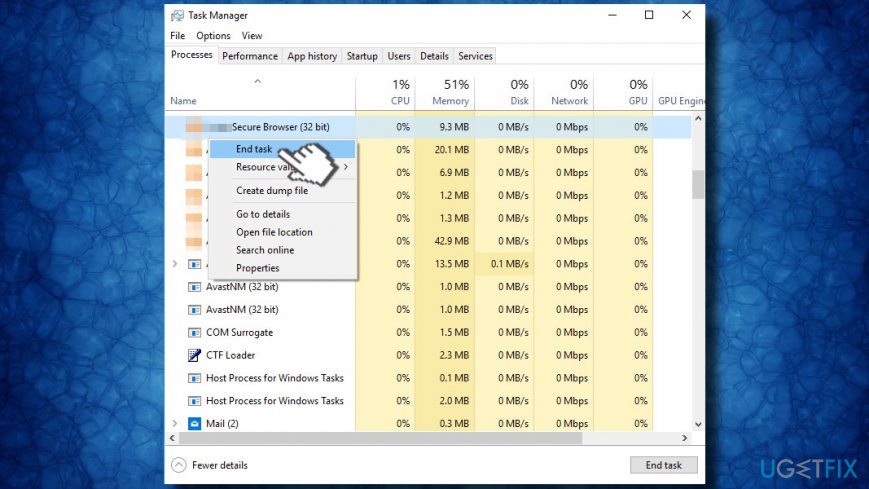
- Press Ctrl + Alt+ Del to open Task Manager.
- Look for processes related to Web Companion, including WebCompanion.exe and AASearchCompanion.exe.
- Right-click on the process and select End Task.
Step 2.
- Press Windows key + I to open Settings -> Apps (Windows 8 and 10)
- Users of Windows versions before Windows 8 should open Control Panel -> Programs and Features.
- Now find Web Companion uninstaller, right-click on it, and select Uninstall.
- If the process is blocked by a pop-up alert and eventually fails, go to the step 3.
In case the main executable has successfully been uninstalled, remove the remnants from Windows Registry:
- Press Windows key + R, enter regedit in the run, and press Enter.
- Open Edit tab and select Find Next.
- Type Web Companion (or Companion) and see if search delivers results.
- If some entries were found, right-click on them, and select Uninstall.
Step 3.
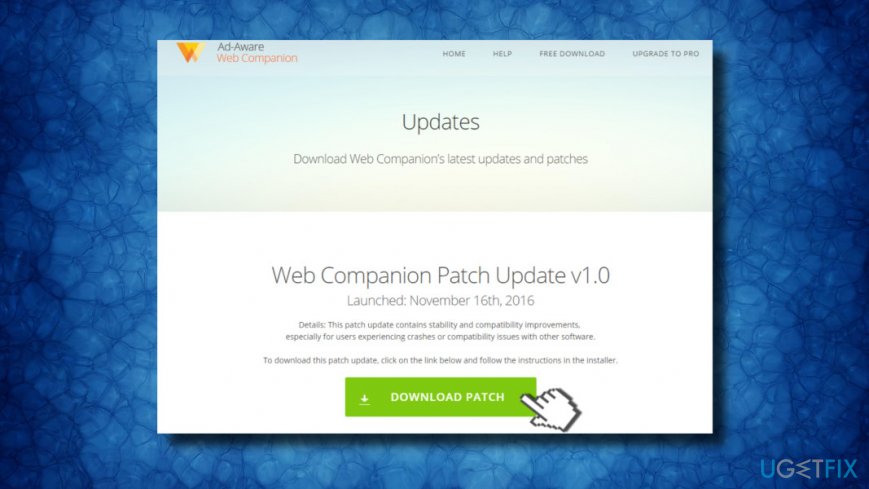
- Navigate to this site and download "Web Companion Patch Update v1.0.
- Now run the downloaded file.
Step 4.
- Right-click on a space on the desktop and select New -> Notepad.
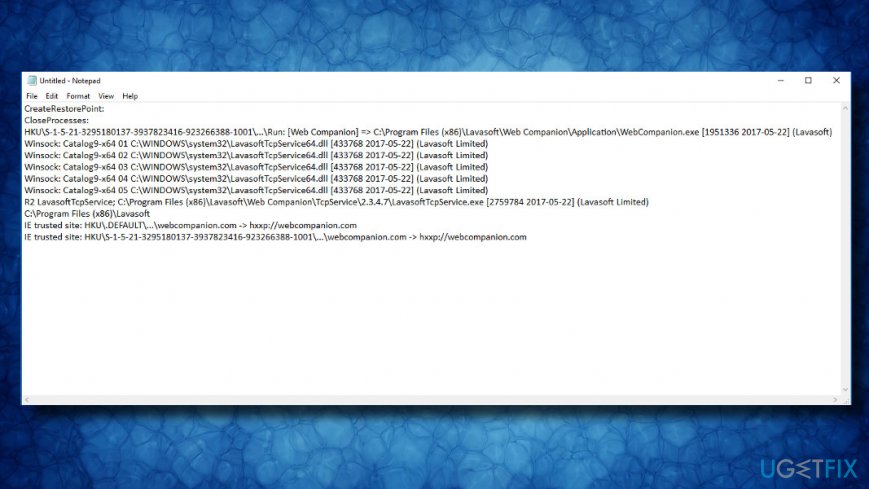
- Copy and paste the following text into the Notepad file:
CreateRestorePoint:
CloseProcesses:
HKU\\S-1-5-21-3295180137-3937823416-923266388-1001\\...\\Run: [Web Companion] => C:\\Program Files (x86)\\Lavasoft\\Web Companion\\Application\\WebCompanion.exe [1951336 2017-05-22] (Lavasoft)
Winsock: Catalog9-x64 01 C:\\WINDOWS\\system32\\LavasoftTcpService64.dll [433768 2017-05-22] (Lavasoft Limited)
Winsock: Catalog9-x64 02 C:\\WINDOWS\\system32\\LavasoftTcpService64.dll [433768 2017-05-22] (Lavasoft Limited)
Winsock: Catalog9-x64 03 C:\\WINDOWS\\system32\\LavasoftTcpService64.dll [433768 2017-05-22] (Lavasoft Limited)
Winsock: Catalog9-x64 04 C:\\WINDOWS\\system32\\LavasoftTcpService64.dll [433768 2017-05-22] (Lavasoft Limited)
Winsock: Catalog9-x64 05 C:\\WINDOWS\\system32\\LavasoftTcpService64.dll [433768 2017-05-22] (Lavasoft Limited)
R2 LavasoftTcpService; C:\\Program Files (x86)\\Lavasoft\\Web Companion\\TcpService\\2.3.4.7\\LavasoftTcpService.exe [2759784 2017-05-22] (Lavasoft Limited)
C:\\Program Files (x86)\\Lavasoft
IE trusted site: HKU\\.DEFAULT\\...\\webcompanion.com -> hxxp://webcompanion.com
IE trusted site: HKU\\S-1-5-21-3295180137-3937823416-923266388-1001\\...\\webcompanion.com -> hxxp://webcompanion.com
- Save the file as fixlist.txt on the desktop.
- Now close all programs that are currently running and start the FRST file.
- Click Fix button and wait until a Fixlog.txt file is created on the desktop.
- The log file should contain a report on why the Ad-Aware Web Companion removal fails.
According to many people, the culprit of the issue is Spigot adware or similar malware. Thus, if you cannot get rid of this application anyway, we would recommend you to boot the system into Safe Mode with Networking and run an in-depth system's scan with [d1].
Reset your web browser's settings
If the Web Companion adware has also compromised the settings on your web browser, don't forget to eliminate the new tab window and related extensions by simply resetting browser's settings. If you have never done that before, you can find illustrated step-by-step instructions here.
Bottom line
To uninstall Web Companion, you may need to use alternative methods such as third-party uninstaller tools or safe mode. If these methods do not work, consider seeking help from IT forums or professional support.
Frequently asked questions
To uninstall Web Companion from Windows 10, go to Settings > Apps, find Web Companion in the list, select it, and click on Uninstall.
Yes, you can remove Web Companion using Control Panel in Windows 11 by navigating to Control Panel > Programs > Programs and Features, locating Web Companion, and selecting Uninstall.
If Web Companion doesn't appear in the uninstall list, try using a third-party uninstaller or check for its removal tool on the official website.




Report an issue
What's wrong with this guide? We review every report and update or remove content.
Report received — thank you. We'll review and fix it.
You need a free account to submit a report.
Be the first to comment