How to remove
Uninstall Win Speedup 2018
from Windows
Easily uninstall Win Speedup 2018 from your Windows 10 or 11 device with our expert-tested guide. Enjoy a cleaner system in minutes, zero traces left.

How does How to uninstall Win Speedup 2018 end up on your PC?
- Installed without permission
- Bundled with other software
- Deceptive marketing techniques
- False claims of performance issues
- Minor issues detected do not affect performance
Repairs Windows system files, removes malware, and restores a clean OS state — without reinstalling.
Hi. I noticed some suspicious activity of Speedup 2018 program on my computer. I don’t know where it came from, as I never downloaded it. It performs scans and tells me that my PC is heavily damaged. However, my computer runs smoothly, so I don’t think this is true. For some reason, the uninstall process fails every time I try it. And I want to get rid of it ASAP. Please help!
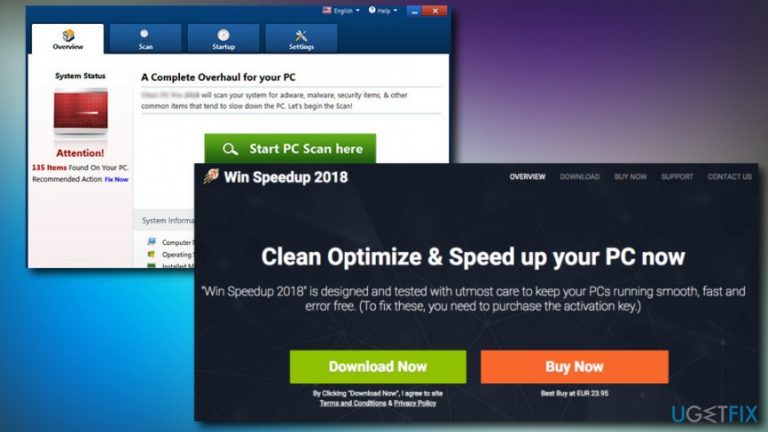
Win Speedup 2018 is presented as a system optimizer and a registry cleaner that can eliminate all the junk from the PC and make it run faster. However, security experts noted that this optimizer is not entirely genuine and hardly benefit computer in any way.
Win Speedup 2018 is considered to be a potentially unwanted program[ref en-1] as it enters users’ machines without permission. PUP creators often employ software bundling[ref en-2] - a deceptive marketing technique that helps free software developers to install additional components together with the desired application.
Therefore, if you want to avoid such applications, you should always pick Advanced or Custom installation mode. Once prompted, remove all the tick marks by add-ons, toolbars,[ref en-3] optimization utilities and similar useless software.
It goes without saying that most programs that are distributed via bundling are quite useless and only seek financial benefit. Win Speedup 2018 is precisely that and will come up with multiple automatic scans and, obviously, find a multitude of issues with the computer.
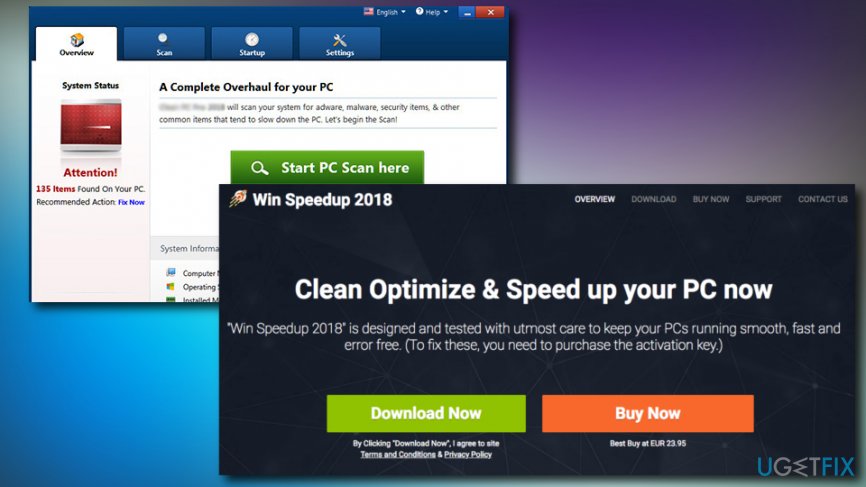
The problem is that the issues detected are minor and do not affect computer’s performance in any way. For example, Google’s cookies might be marked for deletion “to speed up” the PC.
Another portion of suggested files to delete are Windows registry[ref en-4] entries. A registry is a set of databases that hold all the information about the settings for Microsoft Windows operating system. Sometimes, these tiny files might get outdated, incorrectly deleted or get corrupted.
Nevertheless, deleting or modifying registry entries is not recommended as it might negatively impact correct OS operation. Besides, these files only take a few kilobytes of space and will not impact your computer speed.
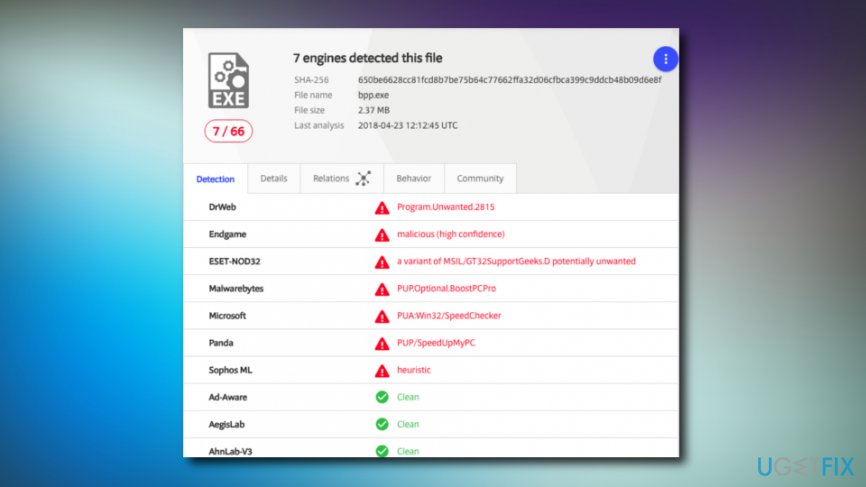
Finally, some AV engines detect Win Speedup 2018 as a PUP.[ref en-5] Therefore, you should uninstall Win Speedup 2018 as it can hardly bring any benefit to your computer. Our security experts prepared a detailed guide how to complete the removal process, so please read below.
Step 1. Uninstall Win Speedup 2018 using professional software
Since Win Speedup 2018 deceptively entered your machine, it can also insert additional programs without your permission. Also, the program might run several processes in the task manager or even prevent its removal.
Therefore, we highly advise you to download and install [rev id=“Reimage”]. This security software is powered by Avira-AntiVir antivirus engine which can easily find an unwanted program and eliminate it with ease.
If Win Speedup 2018 has still not been added to the database of all antivirus programs, it won’t detect the app. In this case, we suggest trying out the software removal utility [rev id="Perfect Uninstaller”]. This software will ensure that all the registry entries related to Win Speedup 2018 are removed as well.
Step 2. End Win Speedup 2018 via Task Manager
- Press Ctrl + Shift + Del to open Task Manager
- Find Win Speedup 2018 process in the list
- Right-click and press End Task
Step 3. Uninstall the PUP via Control Panel
Most of the legitimate programs have an uninstaller available inside the installation folder. However, rogue programs typically lack this feature. Therefore, you will have to remove Win Speedup 2018 manually:
- Right-click on the Start button and select Control Panel
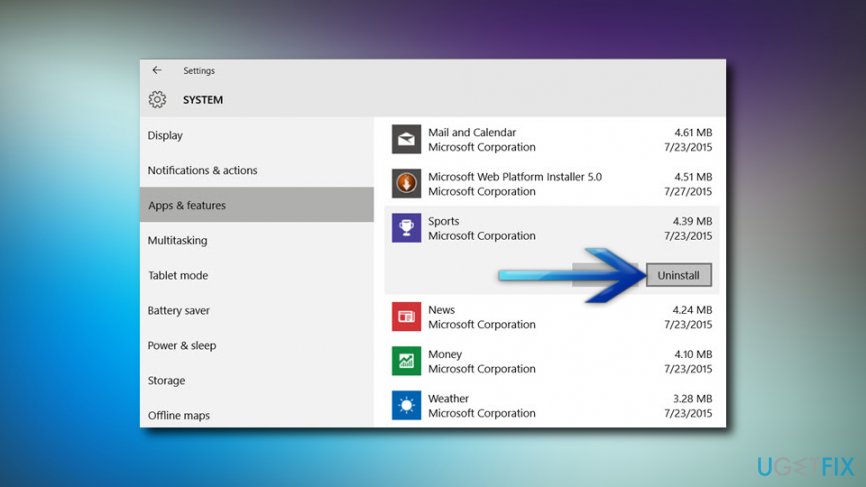
- Go to Apps & features
- Find Win Speedup 2018
- Right-click on it, press Uninstall and then follow on-screen instructions
Step 4. Make sure that no files are still inside the system
As soon as you uninstall Win Speedup 2018, you need to make sure that no additional files connected to it are left on your computer.
- Press Win + E on your keyboard to open File Explorer
- Click View and then Options
- Mark the Show hidden files, folders, and drives
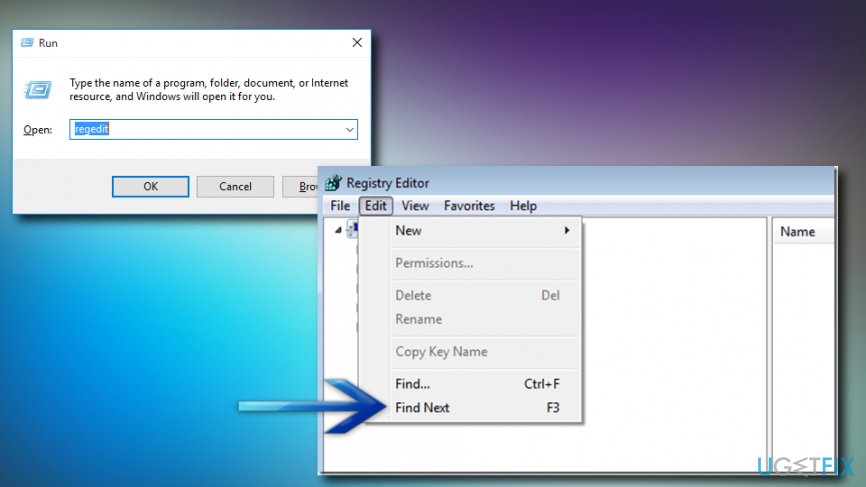
- Next, press Windows Key + R to open the Run dialog box
- Type regedit and tap Enter
- Click on Edit and then Find Next
- Type in Win Speedup 2018 and click Find Next
- If any remaining files are found, go ahead and delete them (tip: make sure files belong to the unwanted program by checking their location)
Bottom line
To uninstall Win Speedup 2018, try using the Control Panel or a dedicated uninstaller tool. If the uninstall process fails, consider running a malware scan or using system restore to revert to a previous state. If none of these methods work, seek professional assistance.
Frequently asked questions
To completely uninstall Win Speedup 2018 from Windows 10, go to Settings > Apps, find Win Speedup 2018 in the list, and click 'Uninstall.' Follow the on-screen instructions to remove it fully.
If Win Speedup 2018 doesn't appear in the installed programs list on Windows 11, try using the Control Panel by searching for 'Control Panel' in the Start menu, then navigate to Programs > Programs and Features to uninstall it.
Yes, after uninstalling Win Speedup 2018 on Windows 10, it's advisable to use a tool like CCleaner or Revo Uninstaller to remove any leftover files or registry entries.




Report an issue
What's wrong with this guide? We review every report and update or remove content.
Report received — thank you. We'll review and fix it.
You need a free account to submit a report.
Be the first to comment