How to remove
Uninstall Screencast-O-Matic
from Windows
Easily uninstall Screencast-O-Matic from Windows 10 or 11 with our expert-tested guide. Get it done quickly and leave zero traces behind!

How does How to uninstall Screencast-O-Matic end up on your PC?
- Screencast-O-Matic is not present on the list of Windows programs
- Screencast-O-Matic does not have a built-in uninstaller
- An error message shows up when trying to remove Screencast-O-Matic
- Registries and other associated files are not removed along with Screencast-O-Matic
- Software bundling from third-party sites may have installed it unintentionally
- Screencast-O-Matic does not have a desktop shortcut and is named differently
Repairs Windows system files, removes malware, and restores a clean OS state — without reinstalling.
Hello, I need help with uninstallation instructions. I don't know where the Screencast-O-Matic program came from. It might be that my younger brother has installed it, but I am not using it and is not very likely to start using it. Therefore, could you please tell me how I should remove Screencast-O-Matic? My computer is running Windows 10. Any help appreciated!
Screencast-O-Matic is a video editing application used by more than 9 million users, according to the app's official website.[ref en-2] Compatible with Windows, Mac, Chromebook, iPhone, and iPad, it can help users with entry-level video editing, screen recording, as well as video sharing and can be used in a workplace, school, or at home. In other words, Screencast-O-Matic is a legitimate application that can help users with various video editing and screen capture tasks.
However, in some cases, users might encounter Screencast-O-Matic on their systems seemingly out of nowhere - this is because of a software bundling.[ref en-3] Third-party software sharing sites often include several apps into a single package and hide optional components deliberately. As a result, users might end up with the program unintentionally - this is when they start looking for ways to uninstall Screencast-O-Matic from their computers.
Additionally, some users might have installed Screencast-O-Matic purposely from official sources, such as its main website screencast-o-matic.com. Just to make it clear, the app is absolutely legitimate and is not detected by any anti-malware software,[ref en-1], so you can't remove Screencast-O-Matic with the help of a security tool, for example.
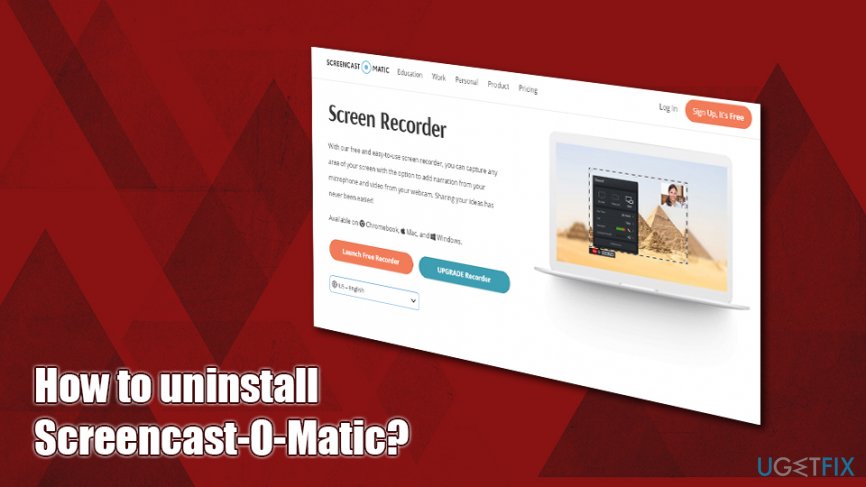
In most cases, performing Screencast-O-Matic removal should be easy via the Control Panel. If you never had to install or uninstall applications, we provide detailed instructions on how to do that as well. However, there might be several difficulties when users are trying to uninstall Screencast-O-Matic, for example:
- Screencast-O-Matic is not present on the list of Windows programs;
- Screencast-O-Matic does not have a built-in uninstaller;
- An error message shows up when you try to remove Screencast-O-Matic;
- Registries and other associated files are not removed along with Screencast-O-Matic.
Besides, once Screencast-O-Matic is installed, it does not have a desktop shortcut and is also named completely different, e.g., Screen Recorder Launcher or Web Launch Recorder.
However, do not get us wrong because we do not want to convince you to remove Screencast-O-Matic or blame it for being irrelevant. In fact, it is a reliable application that can be used for “One-click screen capture recording on Windows or Mac.” However, if you seek to uninstall it and encounter several issues (listed below), we will provide you with a guide that explains the peculiarities of Screencast-O-Matic removal step-by-step.
Uninstall Screencast-O-Matic from Windows
Usually, programs on Windows can easily be removed. Unfortunately, there are some exceptions, and Screencast-O-Matic is one of them. We have already received lots of reports of unsatisfied users who cannot perform the removal of this tool entirely. Follow these steps carefully, and you should be able to uninstall Screencast-O-Matic without any problems.
Step 1. Shut down Screencast-O-Matic-related processes
First of all, you should shut down all the processes related to the program. For that, you need to reach the Task Manager:
- Press Ctrl + Shift + Esc on your keyboard
- Once the Task Manager window opens, press More details
- Find Screen Recorder Launcher entry and press End task at the bottom-right of the Window
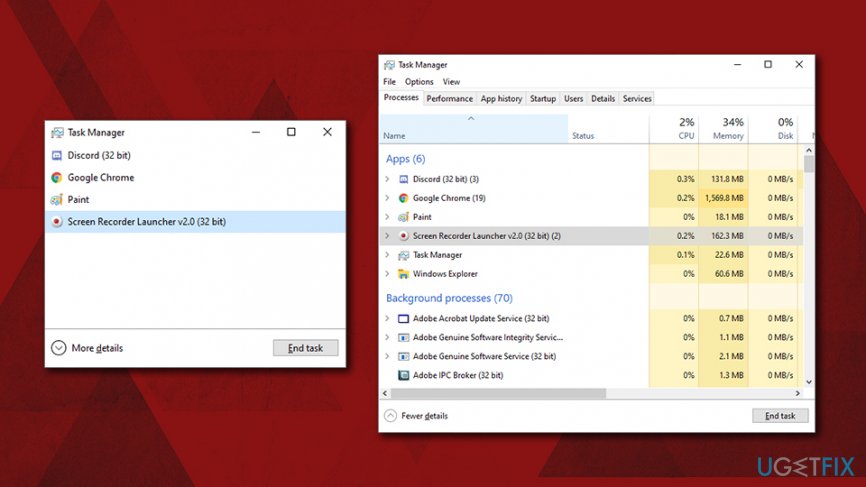
Uninstall screencast o matic shut downvia task manager - This shut down the process of Screencast-O-Matic
Step 2. Uninstall Screencast-O-Matic via the Control Panel
There is no reason why developers of Screencast-O-Matic have to name the application differently once it is installed on the system - yet they did. This could also explain why users struggle to remove the app.
- In Windows search, type in Control Panel and press Enter
- In the new window, select Programs and then Uninstall a program
- Right-click on Web Launch Recorder and click Uninstall
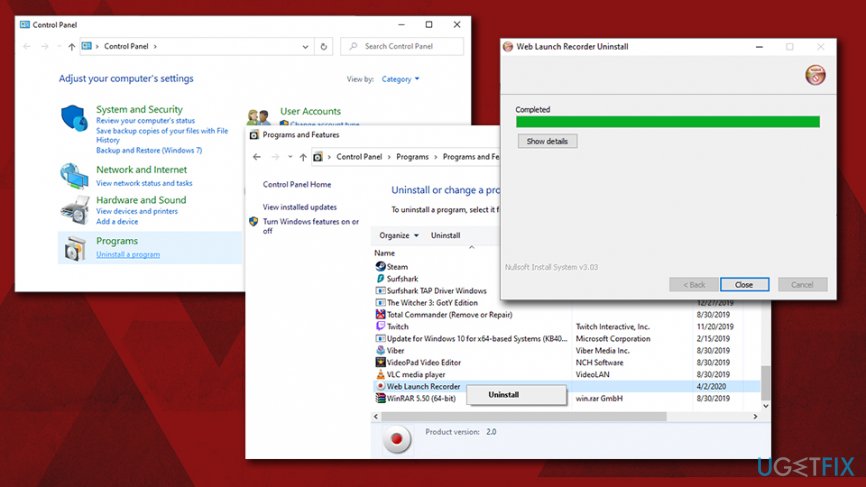
Uninstall screencast o matic uninstall via control panel
Step 3. Get rid of other related files
- Check C:\\Program Files (x86)\\Screencast-O-Matic\\v2 directory and remove all files that are still present there
- After that, open Start Menu, type “regedit” in the search bar and click Enter to open Registry Editor
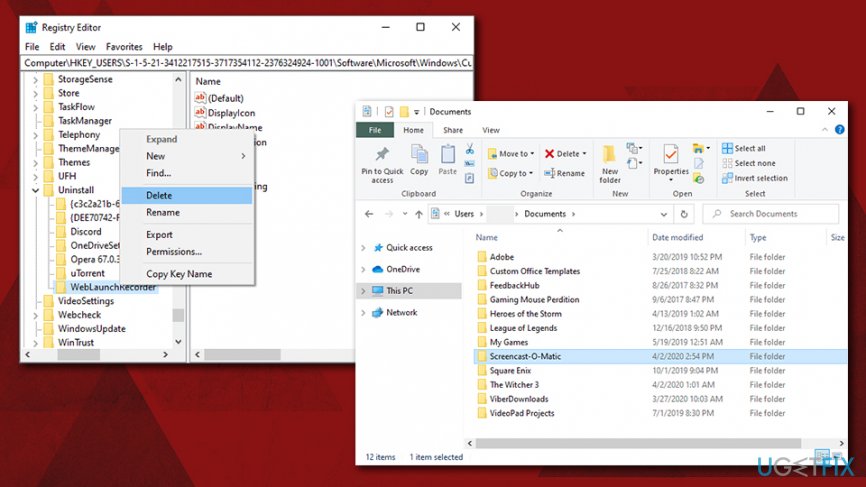
- Here you should find and remove all registry entries that belong to Screencast-O-Matic
- Go to Edit > Find and enter Web Launch Recorder, hit Enter and delete entries associated with the app
- Find and delete all program files in the following locations:
C:\\Users\\%USER%\\AppData\\Local\\Screencast-O-Matic
C:\\Users\\%USER%\\AppData\\Local\\WebLaunchRecorder
C:\\Users\\%USER%\\Documents\\Screencast-O-Matic
Uninstall Screencast-O-Matic from Mac
Usually, dragging an app to trash suffice to execute its removal. However, some files might still remain on the system, taking up space. So you should either get rid of them manually or employ optimization software like [d1].
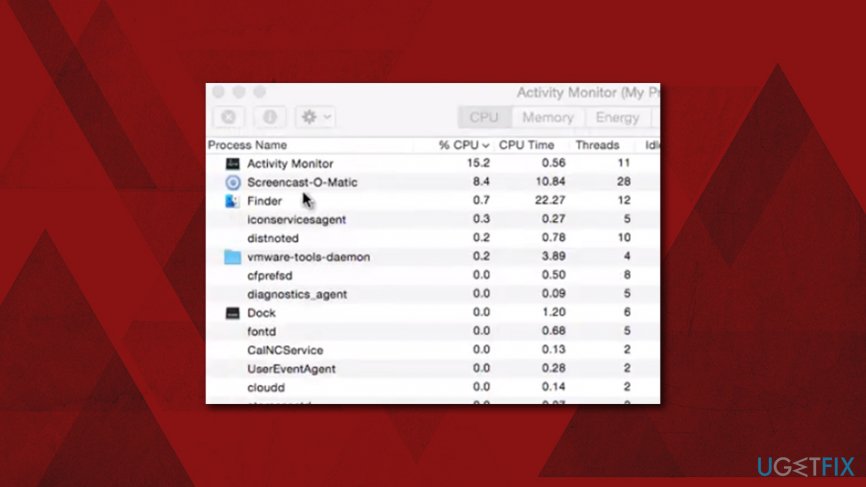
Step 1. Shut down related processes via Activity Monitor
- Go to Applications > Utilities folder
- Find and double-click Activity Monitor
- From here, find the entries related to Screencast-O-Matic
- Click on it, and then click on the X button (Force Quit) at the top-left
Uninstall screencast o matic shut down the process via activity monitor
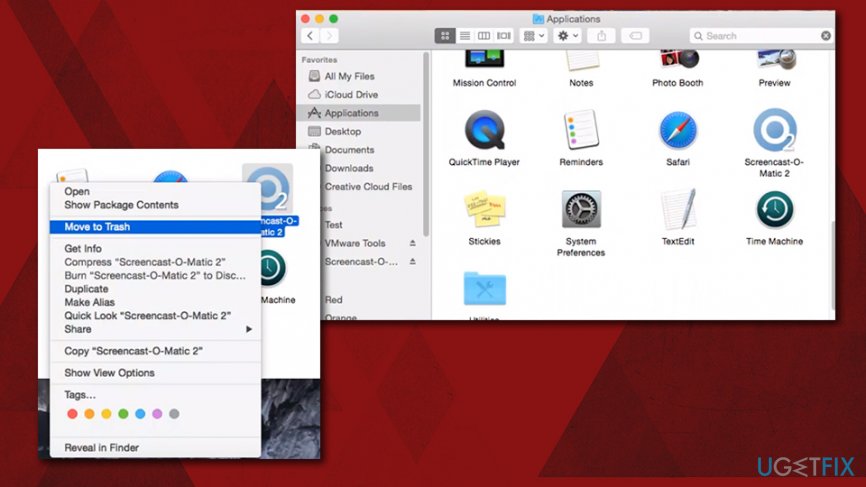
Step 2. Remove Screencast-O-Matic by placing it to Trash
- Go to Applications folder
- Locate Screencast-O-Matic
- Right-click and select Move to Trash or drag the icon to Trash manually
Uninstall screencast o matic move to trash
Step 3. Get rid of the remaining app files
- Click on Finder and then pick Go > Go to Folder...
- Now you need to terminate all the files related to Screencast-O-Matic. Go to the following locations and delete unneeded files from there:
/Library/LaunchAgents
/Library/Application Support
/Library/LaunchDaemons - a
Bottom line
To uninstall Screencast-O-Matic, users can typically use the Control Panel. If issues arise, such as the program not appearing in the list or error messages during uninstallation, further steps may be needed. If none of these solutions work, consider seeking additional help or using specialized uninstaller software.
Frequently asked questions
To uninstall Screencast-O-Matic on Windows 10, go to Settings > Apps, find Screencast-O-Matic in the list, click on it, and select Uninstall.
Yes, you can remove Screencast-O-Matic by opening Control Panel, navigating to Programs > Programs and Features, selecting Screencast-O-Matic, and clicking Uninstall.
If you encounter issues uninstalling Screencast-O-Matic, try using a third-party uninstaller or boot your Windows 10 or Windows 11 in Safe Mode and then attempt the uninstallation.




Report an issue
What's wrong with this guide? We review every report and update or remove content.
Report received — thank you. We'll review and fix it.
You need a free account to submit a report.
Be the first to comment