How to recover
Mail with Time Machine
from Windows
Accidentally lost important emails on Windows 10 or 11? Discover effective recovery tips that ensure zero traces left. Expert-tested solutions await!

What leads to How to recover mail with Time Machine on MacOS?
- Deleted emails from the mailbox
- Compromised data by potentially unwanted programs (PUP)
- Infection of the computer
- Using Internet Message Access Protocol (IMAP)
Repairs Windows system files, removes malware, and restores a clean OS state — without reinstalling.
I have recently deleted all emails from the mailbox to make some free space on my computer. Unfortunately, I have also get rid of essential documents from my mail, so I need them ASAP. Is there a way how I could recover mail folder on MacOS?
Many readers have asked us how to recover mail folder on MacOS. Fortunately, if you have deleted it or some potentially unwanted program (PUP)[ref en-2] has compromised the data, you can retrieve it with Time Machine.
Time Machine[ref en-1] is an inbuilt feature on Mac which allows the users to travel back in time. Luckily, this feature is free of charge and backups apps, data and other essential information every 24 hours. Also, you can alter the parameters to fit your needs.
Users can do the following with the help of Time Machine software:
- Retrieve older versions of files and applications;
- Recover the whole system from the backup;
- Get back missing files that have been deleted or corrupted.
Therefore, if you want to recover mail folder, we recommend using Time Machine. It is a helpful tool that can quickly help you get back access to valuable information. Although, if your computer is infected, there is a substantial risk that this feature won't be effective.
Recover mail with Time Machine
Keep in mind that if you are using Internet Message Access Protocol (IMAP)[ref en-3], you can try an alternative way to recover mail. First, go to Mail and select Mailbox. Then click Synchronize and hit Mail Account Name. This should restore your messages that have been deleted or corrupted.
Additionally, if your computer is infected, you won't be able to use Time Machine. In this case, you must clean your Mac first. For that we recommend using MacOS version of [d1]. This is a helpful tool which will also help you recover from malware attacks.
Mail recovery with Time Machine:
- Open System Preferences and click on Time Machine icon;
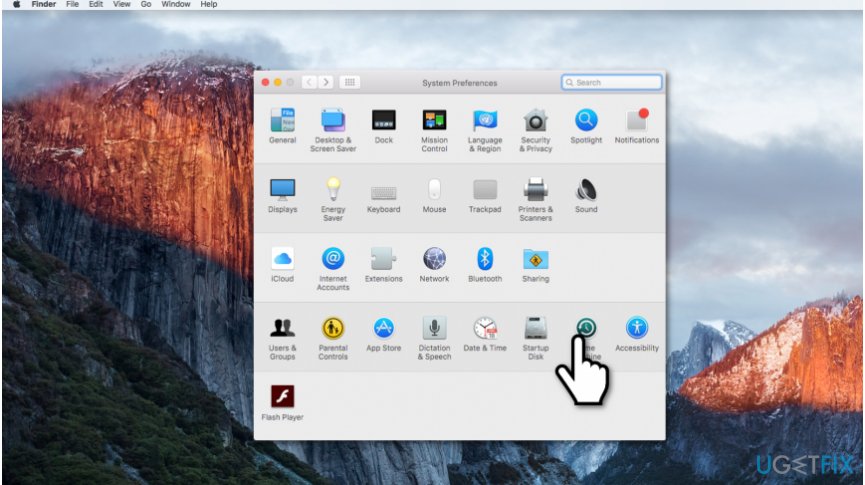
Time machine mail recovery - Enter the Time Machine mode;
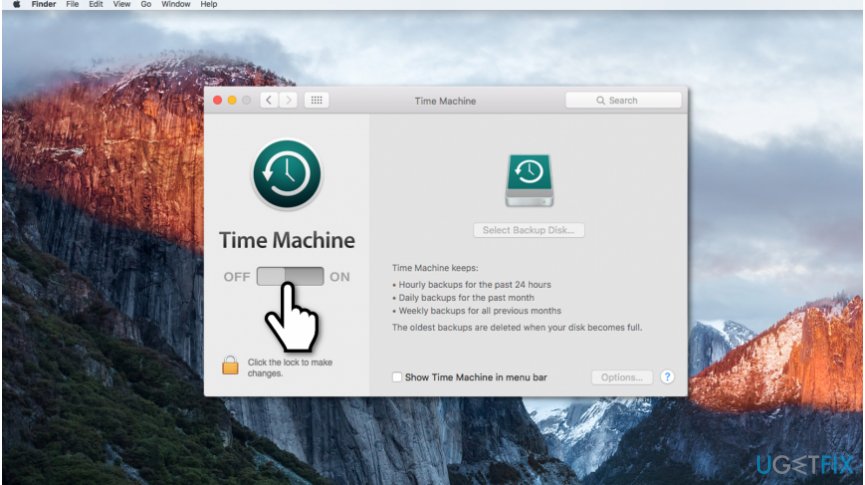
Turn on time machine - Search for the Home directory;
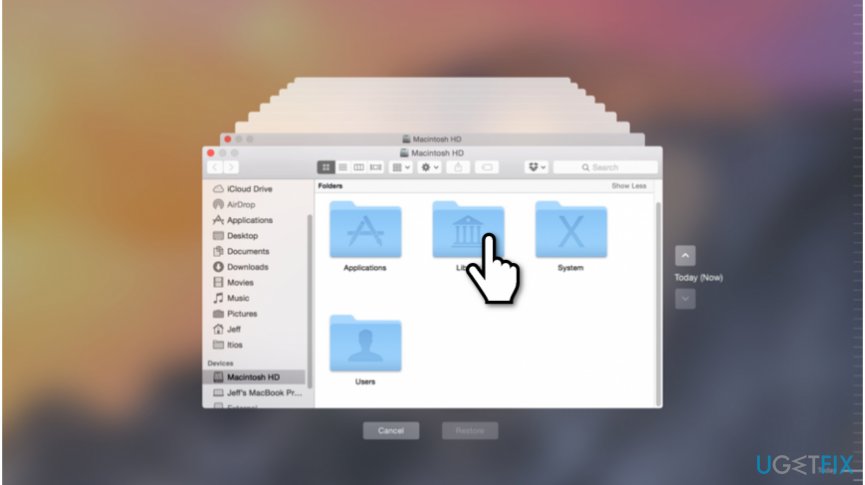
Recover mail with time machine on mac - Double-click on Library and Mail folders;
- Open the folder starting with the letter V and check if it has the most recent modification date;
- Check the folders with long hexadecimal strings and find the one which has the mailbox you need;
- Restore the document with the name of the deleted/corrupted mailbox on the desktop;
- Exit Time Machine and open Mail;
- Go to File and Select Import Mailboxes;
- Hit Apple Mail and click continue;
- Select the folder you have restored on the desktop and click Choose;
- The recovered mailbox will appear at the bottom.
Bottom line
To recover your mail folder on MacOS, you can use Time Machine to restore deleted files. If your computer is infected, clean it first and consider using a malware recovery tool. If none of these solutions work, you may need to seek professional help.
Frequently asked questions
Yes, you can recover lost mail on Windows 10 or Windows 11 by using the File History feature if it was enabled prior to the loss. Additionally, check your email client's recovery options for any built-in restore features.
To recover an accidentally deleted email account on Windows 10, go to your email client settings, look for 'Accounts', and use the option to re-add your account. If mail data is lost, consider checking any backups or recovery options provided by your email service.
In Windows 11, you can restore previous versions of email files by right-clicking the folder containing your email data, selecting 'Properties', and then navigating to the 'Previous Versions' tab if File History or System Restore was enabled.




Report an issue
What's wrong with this guide? We review every report and update or remove content.
Report received — thank you. We'll review and fix it.
You need a free account to submit a report.
Be the first to comment