How to remove
Uninstall MiniTool Partition Wizard
from Windows
Easily uninstall MiniTool Partition Wizard from your Windows 10 or Windows 11 with our expert-tested guide. Get it fixed in minutes!

How does How to Uninstall MiniTool Partition Wizard end up on your PC?
- Application not useful or needed
- Fake or infected version of the tool
- Issues with uninstallation process
- MiniTool Partition Wizard may not work as it used to
- User may accidentally delete important system files
Repairs Windows system files, removes malware, and restores a clean OS state — without reinstalling.
I want to find out how to remove MiniTool Partition Wizard. I have noticed this application on my desktop but I never use it, and I want to free up disk space. I am using Windows 10. Can you provide me with instructions on how to remove it?
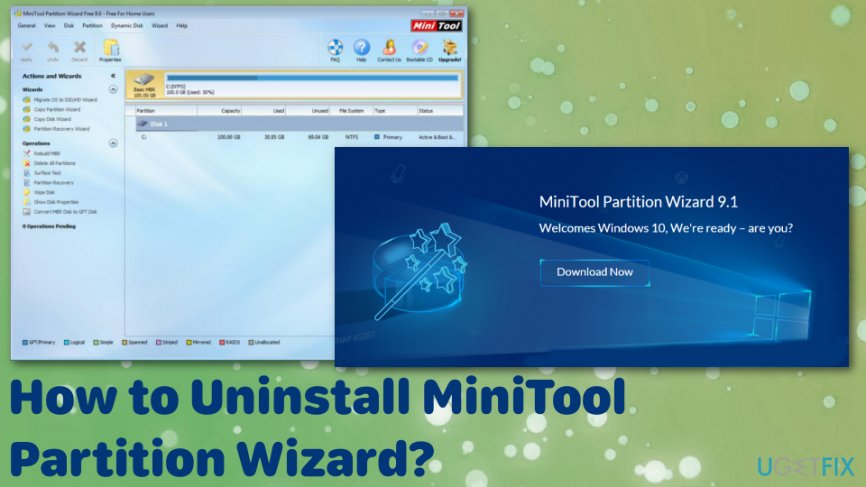
MiniTool Partition Wizard is a lawful and 100% trustworthy program. The official website of MiniTool claims that ''MiniTool Partition Wizard is an easy-to-use partition manager software with comprehensive functions.'' It combines functions of Partition/Volume Resizer, Partition/Disk Converter, and Disk Partition Manager.[ref en-1]
As a partition manager, MiniTool Partition Wizard has the capability to Resize and Move, Merge, Extend, Split, Copy, Create, Delete and Format, Convert, Explore, Hide and Unhide server and non-server partitions and much more. It is known that this program is used by over 15 million users.
MiniTool Partition Wizard supported operating systems are Windows XP, Vista, 7, 8 and Windows 10.[ref en-2] However, it can be a challenging task to uninstall MiniTool Partition Wizard. If you want to free up space on your computer but you do not know how to properly remove MiniTool Partition Wizard, we will help you.
Users want to uninstall MiniTool Partition Wizard because it may not work as it used to or the application is not useful or needed for the person. Unfortunately, some people can encounter the fake or even infected version of the tool or any other software that affects uninstallation and keeps the user from removing the application completely.[ref en-3]
How to Uninstall MiniTool Partition Wizard?
Please be very attentive and make sure you select the right files and folders when deleting, so other applications cannot get affected. Otherwise, you may remove important files that are necessary for your system. Also, if you did not succeed to remove MiniTool Partition Wizard completely, we suggest using [d1] or similar application. This program can indicate additional issues and fix them or even detect malware.
End MiniTool Partition Wizard processes
- Firstly, end MiniTool Partition Wizard process running on the Windows Task Manager.
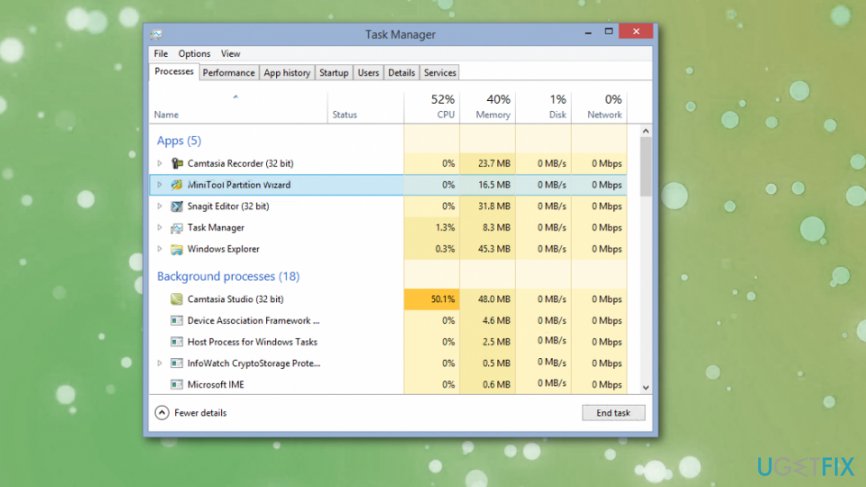
How to uninstall minitool partition wizard task manager - Then, go to Control Panel → Uninstall a program/Add or Remove programs.
- Find MiniTool Partition Wizard, and click Uninstall or Change/Remove.
- Click Yes to remove the program and wait until the process is over.
Use MiniTool Partition Wizard uninstaller
- Open Start Menu→ All Programs.
- Locate the MiniTool Partition Wizard folder, then open it and find Uninstaller.
- Double-click on it and follow the steps to delete MiniTool Partition Wizard.
Uninstall MiniTool Partition Wizard vis Apps & Features
- Go to Control Panel.
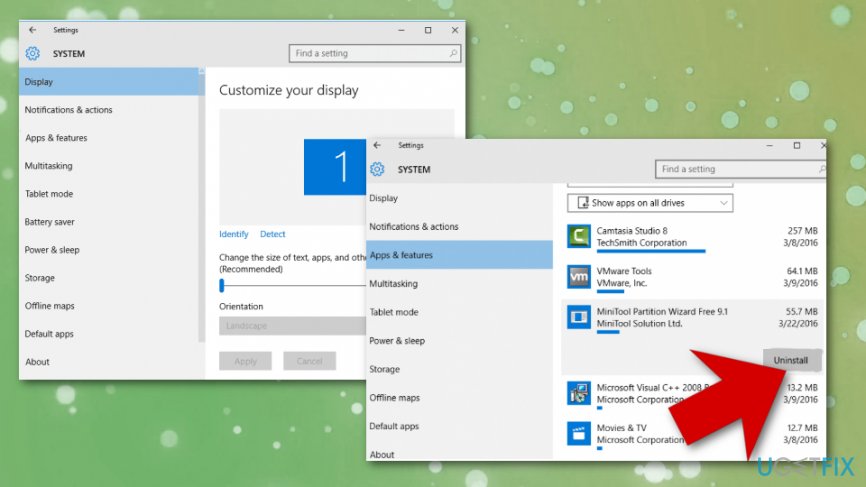
- Click on Uninstall a Program/Apps and Features.
- Select MiniTool Partition Wizard on the window and click Uninstall. Confirm the removal by clicking Yes.
How to uninstall minitool partition wizard uninstall
Locate all MiniTool Partition Wizard files
Once you finish either 1 or 2 removal method, you need to find all files that are associated with MiniTool Partition Wizard. They can be placed in different folders on your computer, but the majority of them should be kept in Windows Registry. To find these files and remove them, follow these steps:
- Check the folder that belongs to MiniTool Partition Wizard and remove all files that are still sitting there.
- After that, open Start Menu, type regedit in the search bar and click Enter to open Registry Editor.
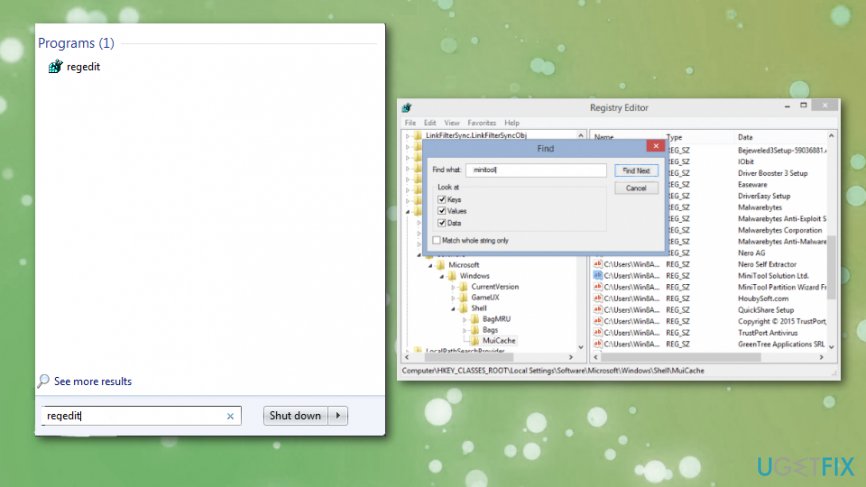
How to uninstall minitool partition wizard regedit - Here you should find and remove all registry entries that belong to MiniTool Partition Wizard. Look for the files located in folders:
- HKEY_CURRENT_USER> Software>AVG and HKEY_CURRENT_USER> Software.
- Find and delete all program files in system folders C:\\Program Files\\, C:\\Document and Settings\\All Users\\Application Data\\ and C:\\Documents and Settings\\%USER%\\Application Data\\.
Bottom line
To uninstall MiniTool Partition Wizard, end its processes in the Windows Task Manager and then navigate to Control Panel to remove the program. If you encounter issues during uninstallation, consider using a dedicated uninstallation tool to resolve any remaining problems or detect malware. If none of these solutions work, further investigation may be necessary.
Frequently asked questions
To uninstall MiniTool Partition Wizard from Windows 10, go to Settings > Apps, find MiniTool Partition Wizard in the list, and click 'Uninstall.' Follow the prompts to complete the removal process.
Yes, you can uninstall MiniTool Partition Wizard in Windows 11 by opening Control Panel, selecting 'Programs and Features,' finding the program, and clicking 'Uninstall.'
If MiniTool Partition Wizard won't uninstall on Windows, try using a third-party uninstaller or boot into Safe Mode and attempt the uninstallation again.




Report an issue
What's wrong with this guide? We review every report and update or remove content.
Report received — thank you. We'll review and fix it.
You need a free account to submit a report.
Be the first to comment