How to remove
Uninstall Labels & Addresses
from Windows
Easily uninstall unwanted programs on Windows 10 or 11. Follow our expert-tested tips for a clean removal, leaving zero traces behind.

How does How to Uninstall Labels & Addresses on Mac OS X end up on your PC?
- User no longer needs the software
- Software is taking up space
- User prefers alternative programs
- Software is not being used frequently
- User is experiencing issues with the software
Repairs Windows system files, removes malware, and restores a clean OS state — without reinstalling.
Hello! I am interested in uninstalling Labels & Addresses software from my Mac. I know that it is a good program, but I do not need it anymore. I would like to ask you to provide a professional Labels & Addresses removal guide. Thank you.
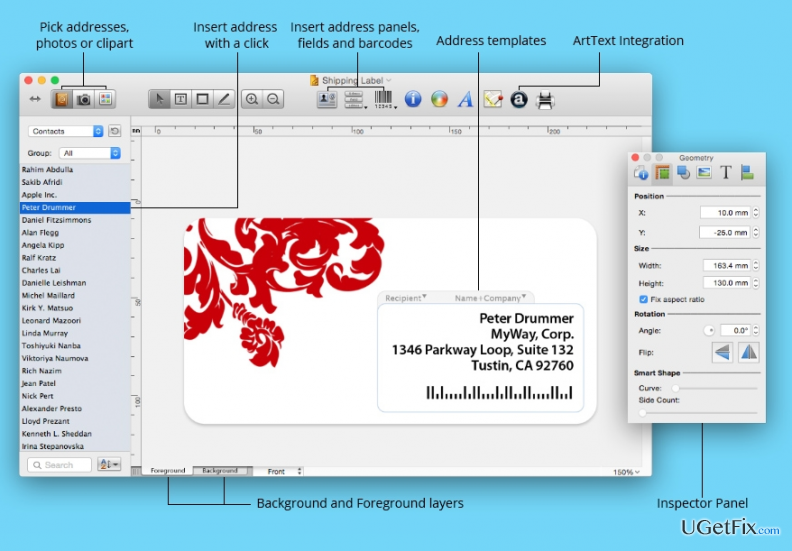
Labels & Addresses is an advantageous software that is developed by BeLight Software, Ltd. It is a program that can be used for printing envelopes, mailing labels, price tags, also labels for objects around the house. This program can be beneficial if you want to want to send a huge amount of letters at one moment - writing these letters by hand would take ages, but Labels & Addresses helps to quickly generate beautiful labels that can be printed. Moreover, this program can print industry-standard barcodes including Code 39, EAN-8/13, UPC-A/E, Code 128, Data Matrix and ISBN barcodes.
Labels & Addresses can import your contacts and various document files to the program library, merge mail, and it also provides an opportunity to customize the design of the labels and barcodes. Plus, this application can automatically recognize the address and format the label according to the address local rules. Obviously, Labels & Addresses is an excellent program if you send mails or e-mails frequently. However, if you think that this program is not going to be useful for you anymore, we are going to help you to delete Labels & Addresses.
How to Uninstall Labels & Addresses on Mac OS X?
First of all, remove the Labels & Addresses icon from the Applications folder:
- Launch the folder named Applications;
- Click on Labels & Addresses file and hold it;
- Drag Labels & Addresses icon to the Trash folder;
- Select Empty Trash option.
After you delete the Labels & Addresses icon, you have to uninstall the rest of the Labels & Addresses files. To find these files, we suggest to look for them in the locations listed below:
- /Library/Application Support/;
- /Library/Preferences/.
You have to find Labels & Addresses related data and delete it. It is essential to detect the right files because if you delete files that do not belong to Labels & Addresses software, you might corrupt other applications and they will not work properly later. If you think that removing Labels & Addresses might be a challenging task for you, you can install one of the following uninstallers and remove Labels & Addresses automatically:
- MacCleanse;
- MacKeeper;
- MacBooster.
Bottom line
To uninstall Labels & Addresses on Mac OS X, first remove the application from the Applications folder and then delete related files from /Library/Application Support/ and /Library/Preferences/. If you encounter any issues during the process, consider seeking additional support or checking for leftover files.
Frequently asked questions
No, you cannot uninstall Mac OS X programs directly from Windows 10 or Windows 11, as they operate on different operating systems.
You can remove unwanted software on Windows 10 or Windows 11 by going to Settings > Apps, selecting the program, and clicking 'Uninstall'.
Yes, there are several third-party uninstaller tools available that can help you remove programs more thoroughly on Windows 10 or Windows 11.




Report an issue
What's wrong with this guide? We review every report and update or remove content.
Report received — thank you. We'll review and fix it.
You need a free account to submit a report.
Be the first to comment