How to remove
Uninstall iLife Media Browser
from Windows
Easily uninstall iLife Media Browser from your Windows 10 or Windows 11 system with our expert-tested guide. Fixed in minutes for a clutter-free PC!


How does How to uninstall iLife Media Browser end up on your PC?
- Upgrade to iLife Media Browser version 2.0 did not go as expected
- Receiving numerous errors and notifications
- Application is resource-heavy for users with limited system space
- Corrupted or intervened update causing disruptions
- Potential for malware disguising as iLife Media Browser
Repairs Windows system files, removes malware, and restores a clean OS state — without reinstalling.
I was using iLife Media Browser, and recently my Mac offered an update to iLife Media Browser version 2.0. I guess the upgrade didn't go as expected as now I started receiving numerous errors and notifications. Since I don't use this browser very often and it has begun to irritate me, I would like to know how to uninstall iLife Media Browser. Can you help?
iLife Media Browser is a component of GarageBand which belongs to the iLife suite[ref en-1] for MacOS. This application is designed to help users find and import audio and video content into GarageBand projects. Usually, the software is only useful for those who excessively use this workstation to create podcasts and music on MacOS and other iOS[ref en-2] devices.
Note that iLife Media Browser is not a pre-installed MacOS application. Thus users have options to perform iLife Media Browser download or not. If people do not lack space on their systems, iLife Browser should not cause any troubles and operate in the background silently.
However, others who have a limited amount of space on their computers might find this application resource-heavy. In this case, it is advisable to uninstall iLife Media Browser as it might make your computer slower, increase latency and cause system crashes. 
Additionally, users report about troubles after an update to iLife Media Browser Mac version 2.0. If the update was intervened or corrupted in other ways, people might start receiving error notifications. Even though such activity is harmless, it might begin disrupting browsing experience and become annoying.
Luckily, you can learn how to uninstall iLife Media Browser from MacOS easily. Our experts have prepared detailed instructions which should guide you through the process. You will find them at the end of this article. Although, please, be attentive and follow them strictly to avoid any potential damage to your system.
Guidelines to uninstall iLife Media Browser from MacOS
Finally, our experts want to warn you that even though iLife Media Browser is not malicious, cybercriminals might create applications which use this app name as a disguise. Therefore, it is essential to check your system for malware before trying to uninstall iLife Media Browser.
The easiest way to find all cyber threats and potentially unwanted programs (PUPs)[ref en-3] is to scan an entire system with a professional system optimization software. Our top choice is [d1] which is designed to help novice computer users clean their MacOS.
Step 1. Terminate iLife Media Browser on Activity Monitor
- Click Go on the top panel on the screen;
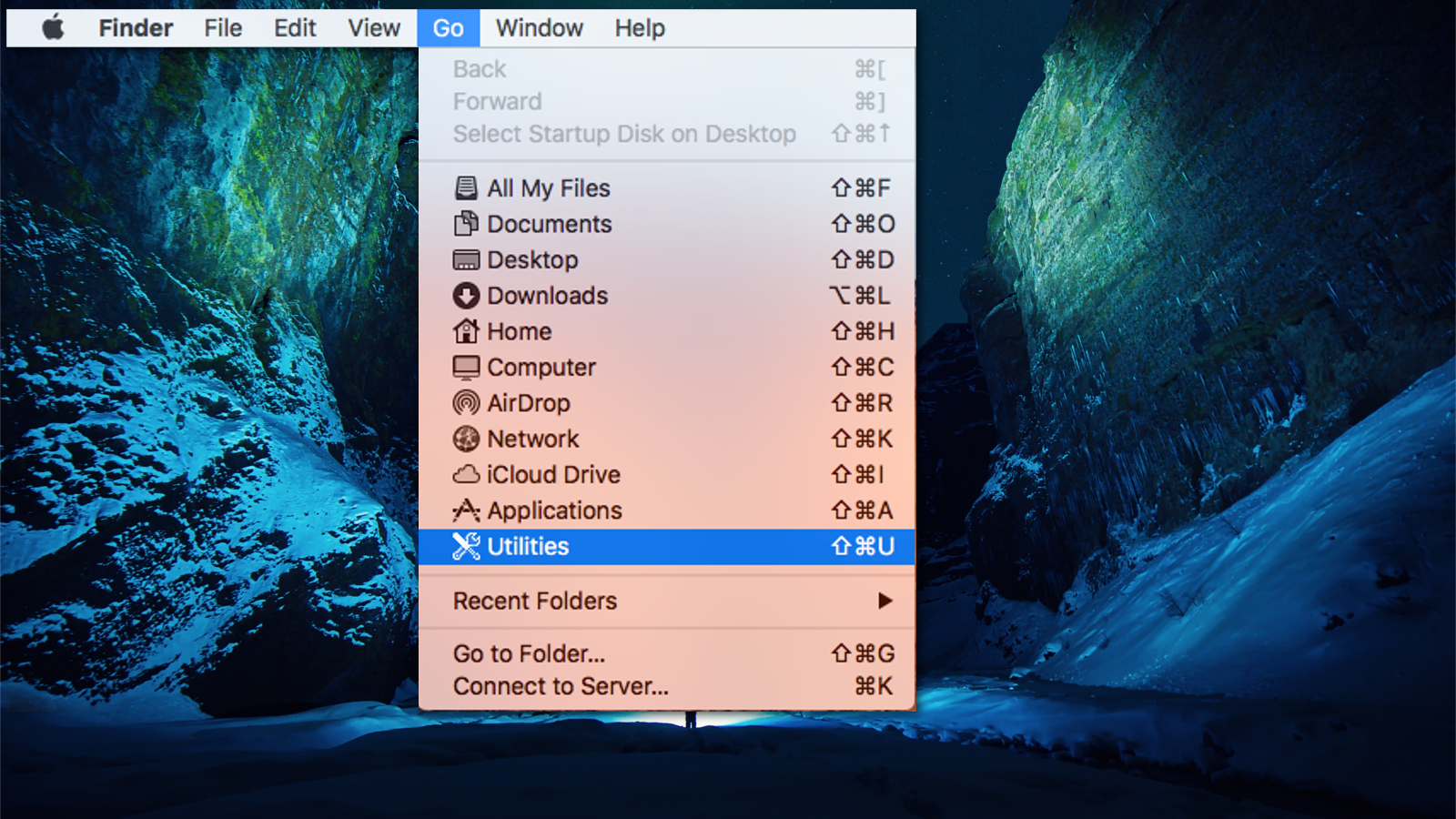
Utilities on mac - Select Utilities;
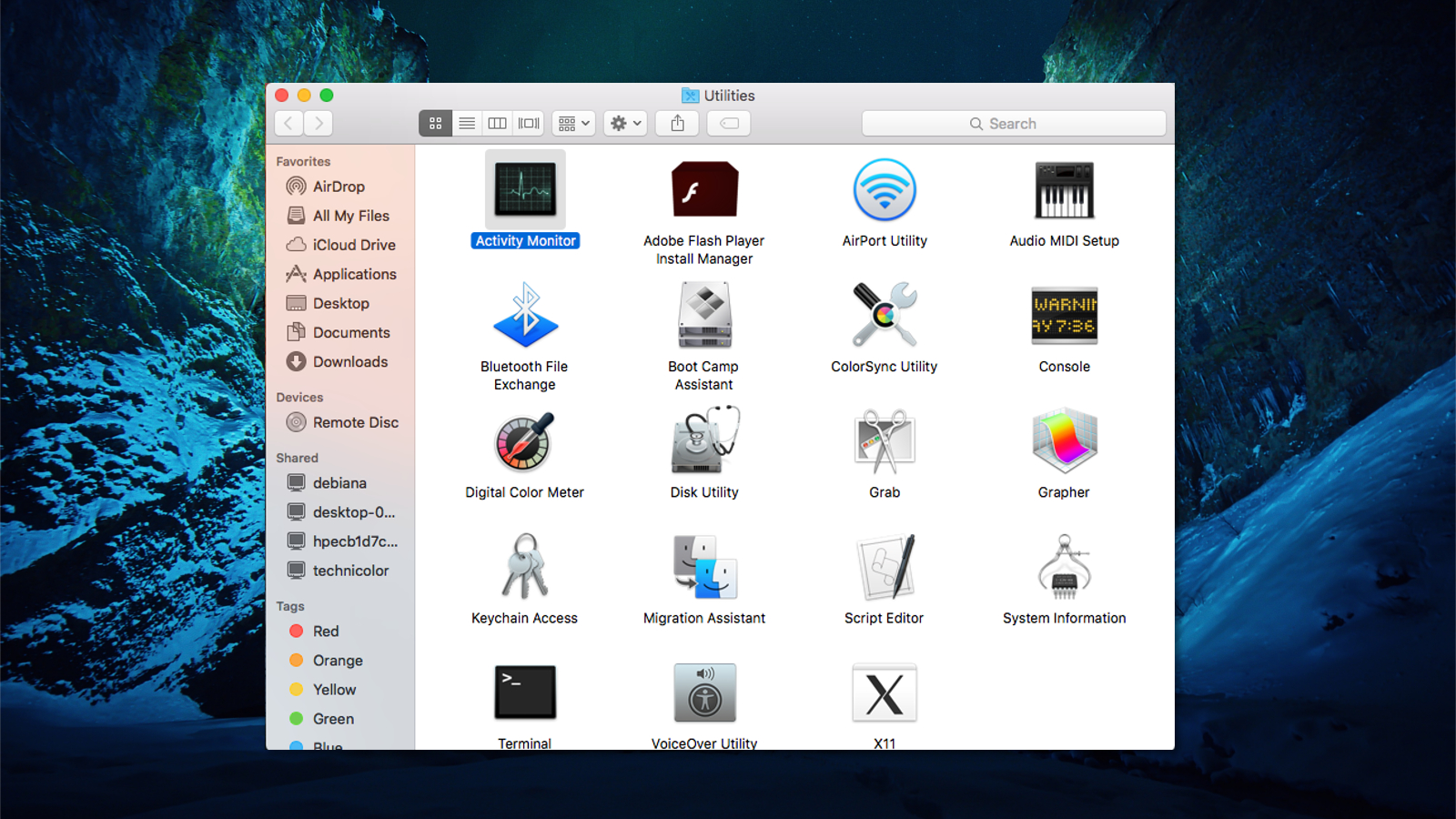
Activity monitor on mac - Open Activity Monitor;
- Find iLife Media Browser;
- Double-click on it and hit Quit;
- Once the pop-up window appears, select Force Quit.
Step 2. Uninstall iLife Media Browser from Applications
- Navigate to the Go button on the top panel of the screen;
- Select Applications;
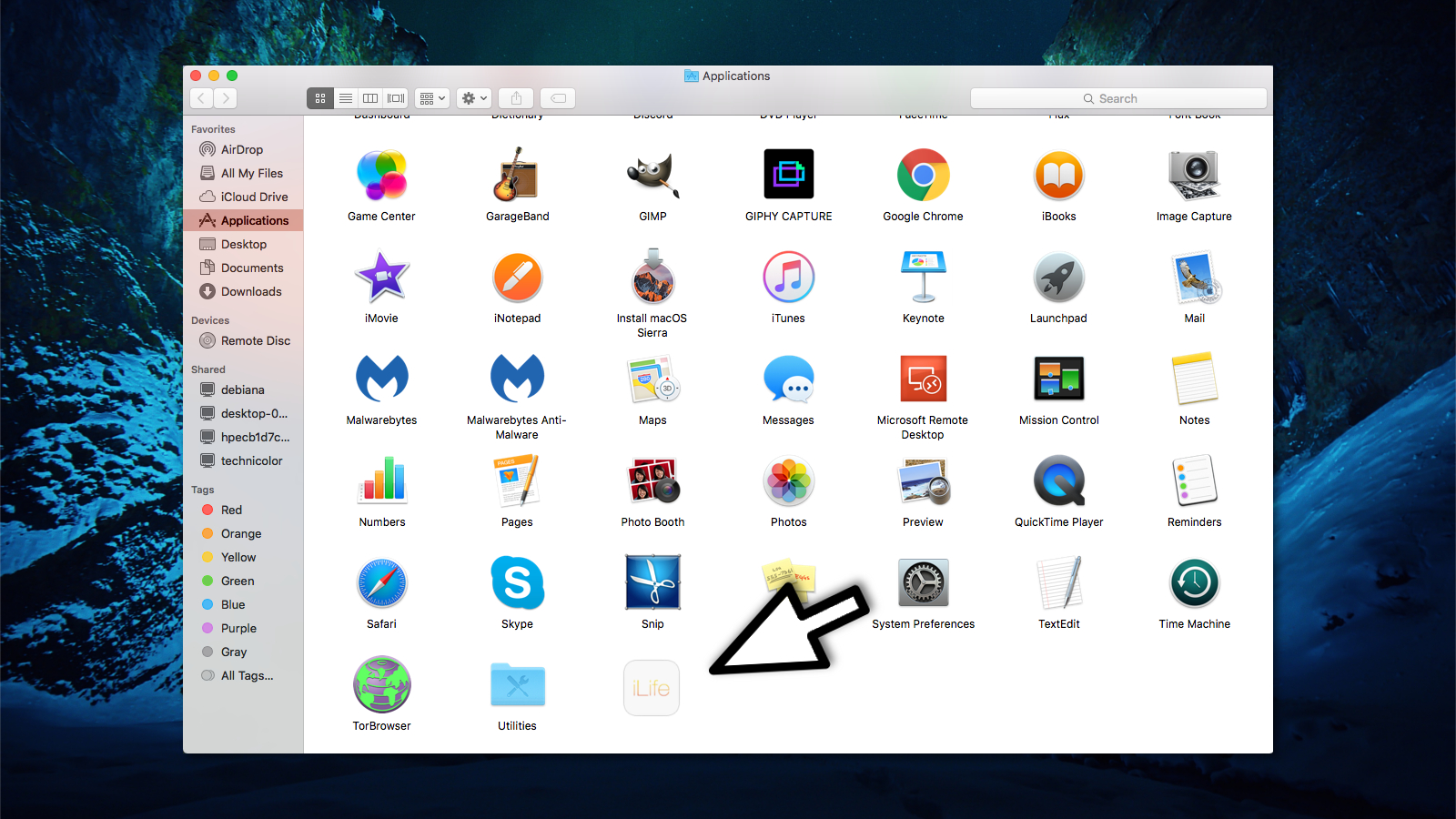
Ilife suite uninstall - Locate iLife Media Browser;
- Right-click on it and choose Move to Trash;
- You might be required to enter Admin password.
Step 3. Delete iLife Media Browser from Login Items
- Click on the Apple icon (Apple Menu) on the top panel of the screen;
- Select System Preferences;
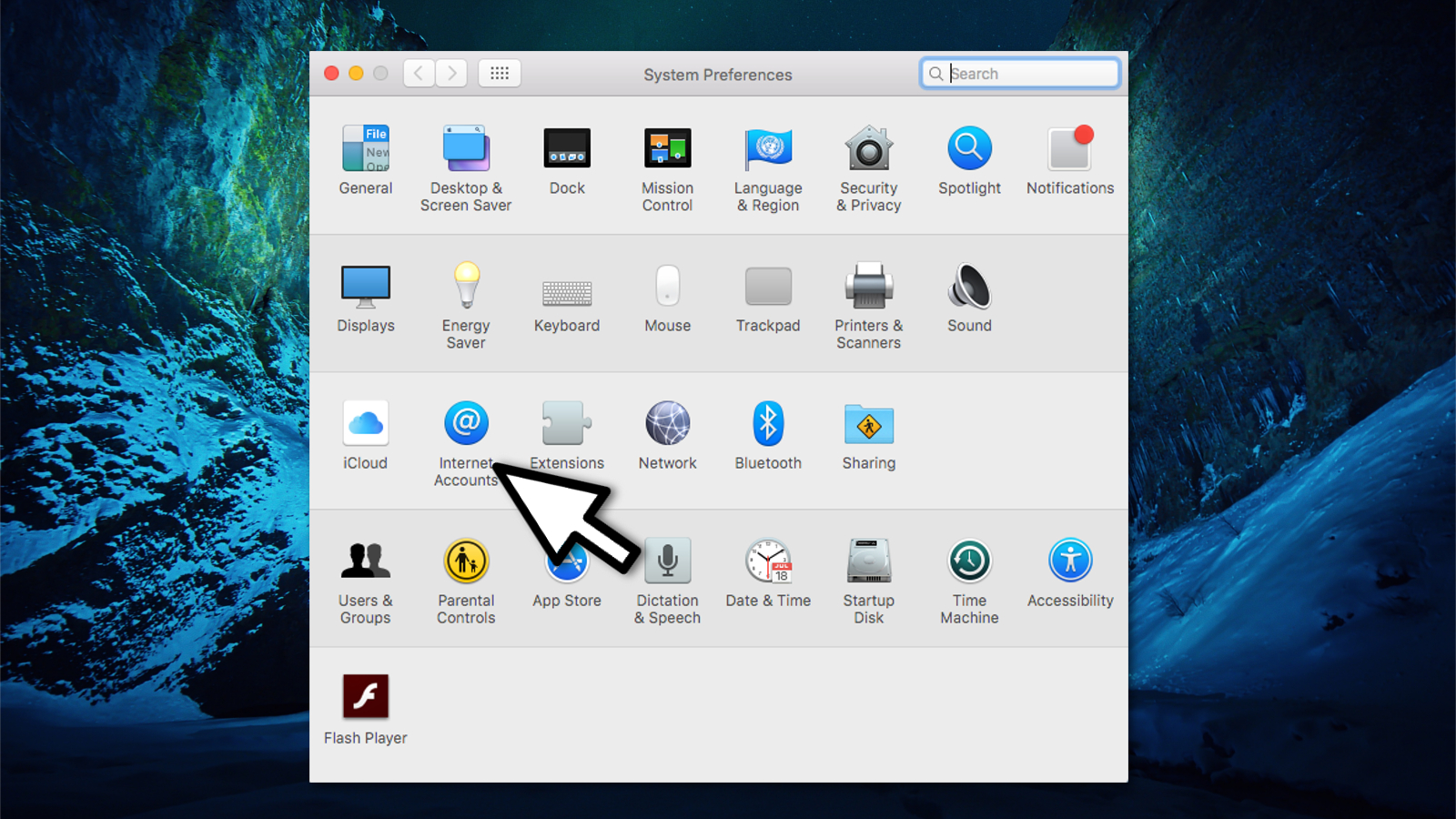
Internet accounts on mac - Go to Internet Accounts;
- Find iLife Media Browser and select it;
- Hit the minus (-) button.
Bottom line
To uninstall iLife Media Browser from MacOS, follow the detailed instructions provided at the end of the article. Be attentive to avoid any potential damage to your system. If the issues persist after following the guidelines, consider checking your system for malware.
Frequently asked questions
To uninstall iLife Media Browser on Windows 10, go to Settings > Apps, find iLife Media Browser in the list, select it, and click on 'Uninstall.' Follow the prompts to complete the removal process.
Yes, after uninstalling iLife Media Browser on Windows 11, you can use a tool like Disk Cleanup or a third-party uninstaller to remove any residual files or registry entries.
If iLife Media Browser won't uninstall from your Windows system, try running the uninstallation as an administrator or use the Control Panel's 'Programs and Features' to force the uninstall.




Report an issue
What's wrong with this guide? We review every report and update or remove content.
Report received — thank you. We'll review and fix it.
You need a free account to submit a report.
Be the first to comment