How to remove
Uninstall Native Desktop Media Service
from Windows
Easily uninstall Native Desktop Media Service on Windows 10 or 11 with our expert-tested guide. Get it fixed in minutes for a smoother experience!

How does How to uninstall Native Desktop Media Service end up on your PC?
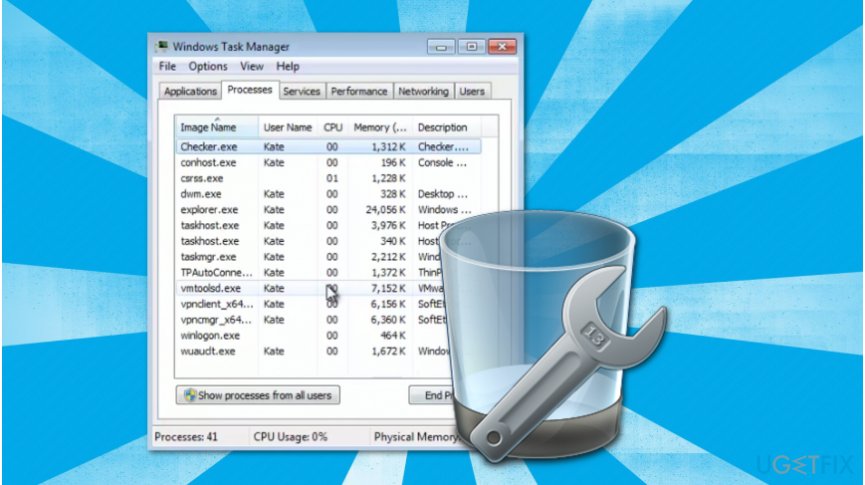
- Suspicious checker.exe process running in Task Manager
- Infection with Native Desktop Media Service virus
- Presence of ad-supported programs
- Browser hijacking leading to redirects
- Intrusive ads and pop-ups in browsers
Repairs Windows system files, removes malware, and restores a clean OS state — without reinstalling.
Hello, I have noticed a suspicious checker.exe process running in the Task Manager. Now, I am continuously redirected to Aclassigned.info or Efishedo.info sites while browsing. I tried scanning my computer with a system optimization tool, and it showed that it is infected with Native Desktop Media Service virus. Can you help me remove Native Desktop Media Service?
Native Desktop Media Service is a specific cyber threat which is designed to create tasks on the system and infiltrate potentially unwanted programs (PUPs)[ref en-1]. Usually, it is located in C:\\Program Files\\Jetmedia\\NativeDesktopMediaService\\checker.exe folder and can be detected as the Checker.exe process in the Task Manager[ref en-3].
According to the security researchers, computers infected with Native Desktop Media Service are infiltrated with various ad-supported programs which take over most popular browsers, like Google Chrome, Internet Explorer, Mozilla Firefox, Safari or Microsoft Edge. Once the browser is hijacked, the adware[ref en-2] modifies its settings to display pop-ups, banners, in-texts and redirect to various suspicious pages.
Keep in mind that visiting less than reliable sites or clicking on potentially malicious ads might lead to further computer infections. Therefore, users are advised to remove Native Desktop Media Service as soon as they notice its presence. IT experts say, that after Native Desktop Media Service infection, users are continuously redirected to one of the following sites:
- Enclosely.info
- Acinster.info
- Insupposity.info
- Aclassigned.info
- Suggedin.info
- Maraukog.info
- Efishedo.info
Likewise, if you notice that your browser has started to act sluggish and is filled with intrusive ads or redirects to one of the sites mentioned above, you should consider Native Desktop Media Service removal right away. Our security researchers have prepared instructions showing how to uninstall Native Desktop Media Service. You can find them below.
Steps to uninstall Native Desktop Media Service virus
Even though you can try to uninstall Native Desktop Media Service manually, you can also complete this procedure automatically. All you need is to install a professional malware removal tool and let it scan your computer system. For that, we suggest using [d1].
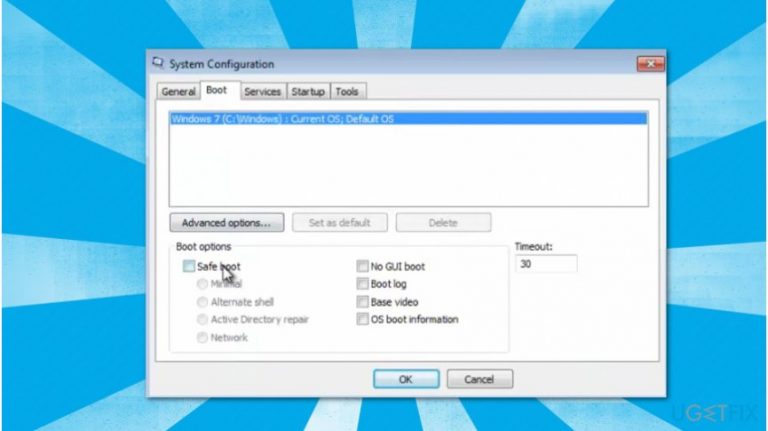
Step 1. Boot your computer into Safe Mode
- Click on Windows key and type msconfig.exe;
- Open it and go to Boot tab;
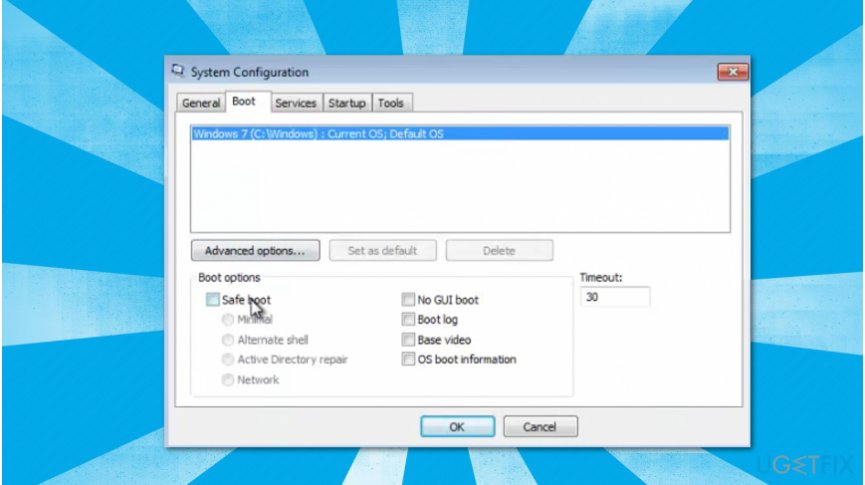
Boot computer into safe mode - Select Safe Boot and click OK;
- In the pop-up window click Restart button.
Step 2. Reveal hidden files and folders
- Click the Start button and open Control Panel;
- Select Folder options and go to View tab;
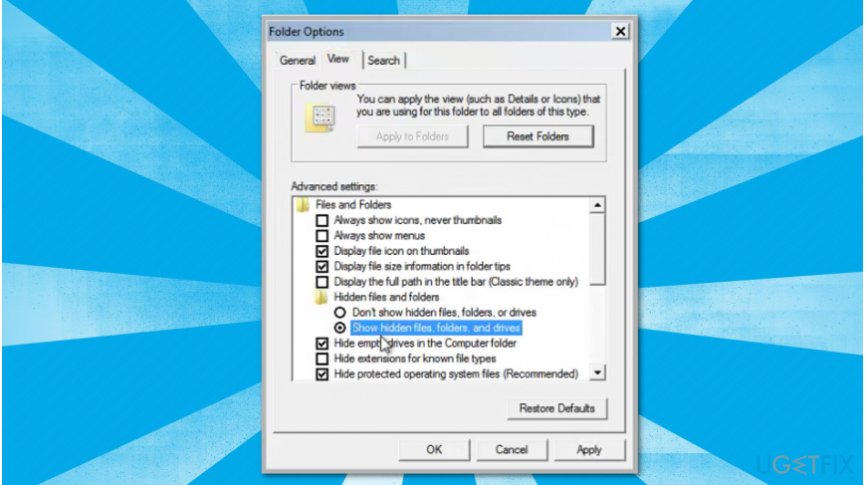
Show hidden files and folders - Tick Show Hidden Files and Folders box;
- Hit Apply and OK.
Step 3. Uninstall unknown applications
- In the Control Panel click on Programs and Features;
- Locate all suspicious programs and uninstall them.
Step 4. Delete NativeDesktop program
- Click the Start button and select Computer;
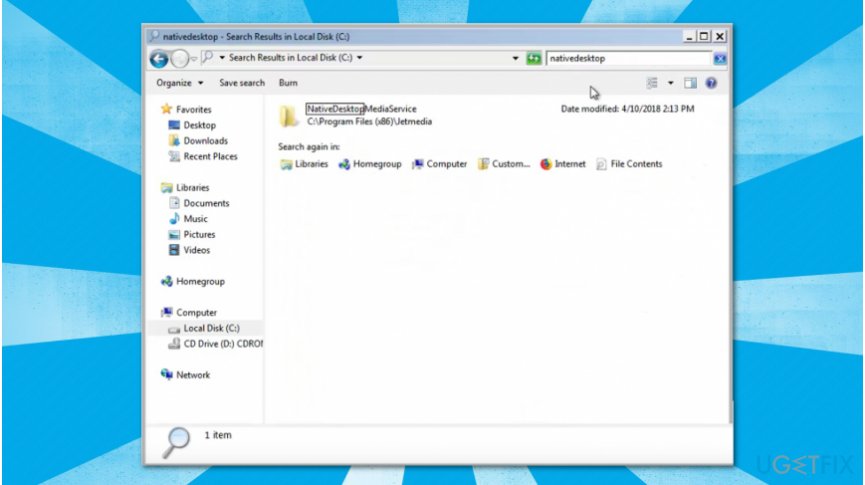
Delete nativedesktop application - Go to Local Disk and search for NativeDesktop;
- Open the NativeDesktopMediaService folder and delete Checker.exe;
Step 5. Get rid of the Checker32 task
- Go to C:\\WINDOWS\\System32\\Tasks\\ folder;
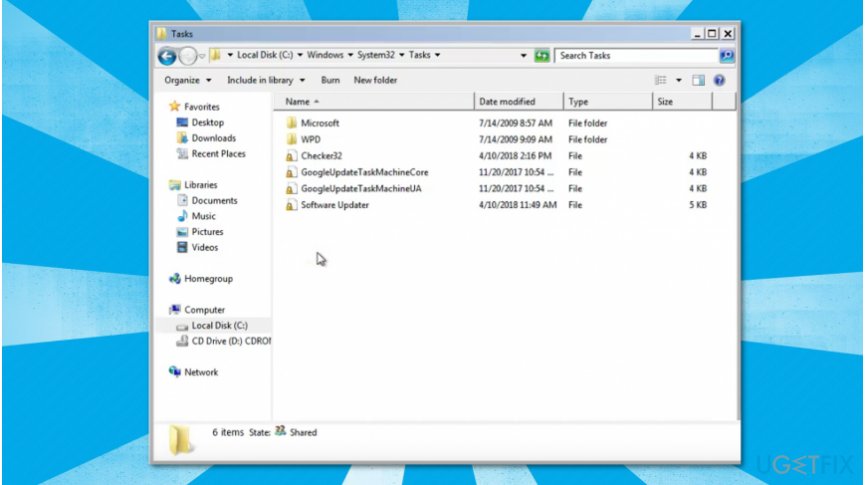
Delete checker32 file - Find the Checker32 file and delete it.
Step 6. Delete unverified extensions from Google Chrome and other browsers
- Open Chrome and click on three vertical dots in the top-right corner of the window;
- Navigate to More Tools and select Extensions;
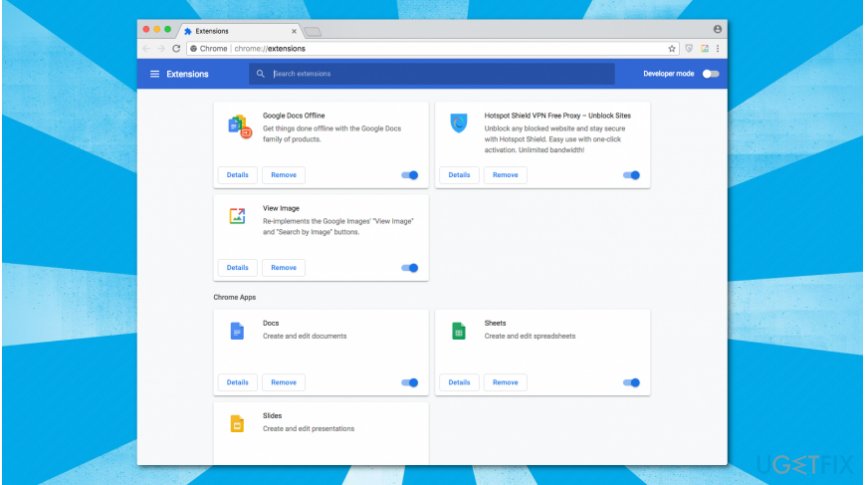
Delete suspicious extensions from google chrome - Uninstall all unknown extensions.
Step 7. Reset Google Chrome and other affected browsers
- Open Google Chrome and press on three vertical dots in the top-right corner of the window;
- Select Settings;
- Expand the Advanced tab;
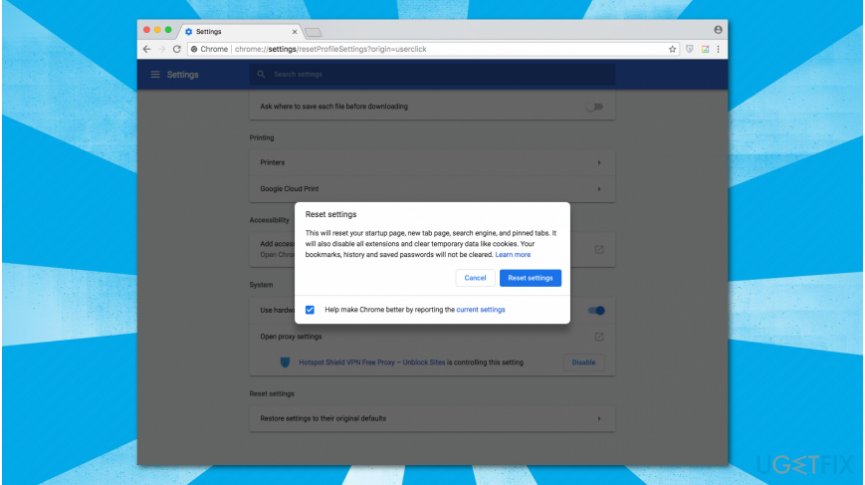
Reset google chrome settings - Click on Restore Settings to their original defaults.
Bottom line
To uninstall Native Desktop Media Service, you can either manually remove it or use a professional malware removal tool. Booting your computer into Safe Mode and following the provided instructions can help in the removal process. If these methods do not work, consider seeking further assistance from IT experts.
Frequently asked questions
To uninstall Native Desktop Media Service on Windows 10, go to Settings > Apps > Apps & features, find the service in the list, and click 'Uninstall.' Follow the prompts to complete the uninstallation.
Yes, you can remove Native Desktop Media Service from Windows 11 by accessing Settings > Apps > Installed apps, locating the service, and selecting 'Uninstall' to remove it.
If Native Desktop Media Service won't uninstall on Windows, try running the uninstallation as an administrator or using a third-party uninstaller tool to force the removal.




Report an issue
What's wrong with this guide? We review every report and update or remove content.
Report received — thank you. We'll review and fix it.
You need a free account to submit a report.
Be the first to comment