How to remove
Uninstall SlimCleaner Plus
from Windows
Easily remove SlimCleaner Plus from your Windows 10 or Windows 11 system with our expert-tested guide. Clear your PC in just minutes!

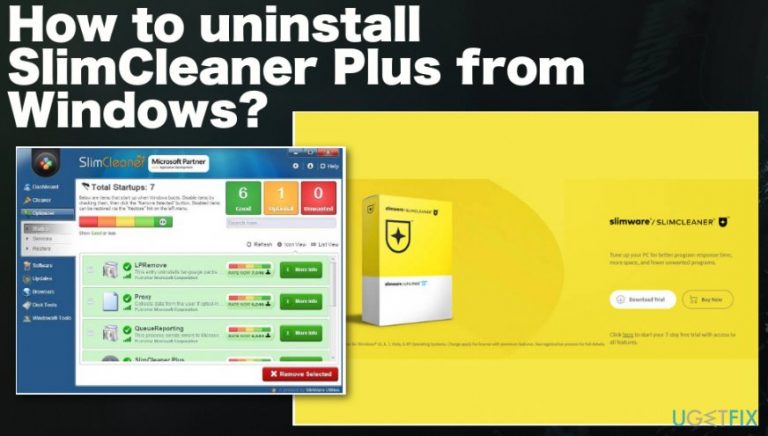
How does How to uninstall SlimCleaner Plus from Windows OS end up on your PC?
- Uninstallation wizard prompts for system changes approval
- Potentially unwanted program (PUP) characteristics
- Presence of additional unwanted programs
- Detection as a cyber threat by antivirus engines
- Fake detection of system issues by the program
Repairs Windows system files, removes malware, and restores a clean OS state — without reinstalling.
Hello. SlimCleaner Plus was installed on my computer a long time ago. When I decided to do the general cleaning of unwanted programs I wanted to remove SlimCleaner Plus as well. However, I ran into an obstacle. After the uninstallation wizard launches, it asks whether I want to let this program make changes to the system. Such a message alerted me and I stopped the removal. I don't know what to do and how to get rid of the program entirely. I‘d like your advice concerning this issue.
Uninstalling SlimCleaner Plus can go a bit frustrating when you are not the one that installed the optimization tool in the first place because there are no particular programs or files that could get deleted directly from the system. Also, there are a few other programs loaded by the PUP without your knowledge that affects persistence. And since this is also considered to be a cyber threat, AV engines can detect it as possibly dangerous and remove from the system.[ref en-1]
SlimCleaner Plus is a program offering you to speed up your device and remove all registry issues. Similar tools are created for users who do not have time to maintain the effective performance of their computers. Reformatting local disks, removing temporary files and other computer trash seem to take too much time. Here the PC optimization tool steps in. However, this SlimCleaner Plus tool is considered to be a potentially unwanted program that falls into the category of fake system tools and optimization utilities that even Microsoft advises to avoid.[ref en-2]
This is the program that conducts fake detection of system issues and even malware, other unwanted software to convince users to purchase the licensed version of the tool. This is a program involved in various scam campaigns,[ref en-3] so you should trust neither the content it delivers nor the promotional ads that push this optimizer online as a useful tool. 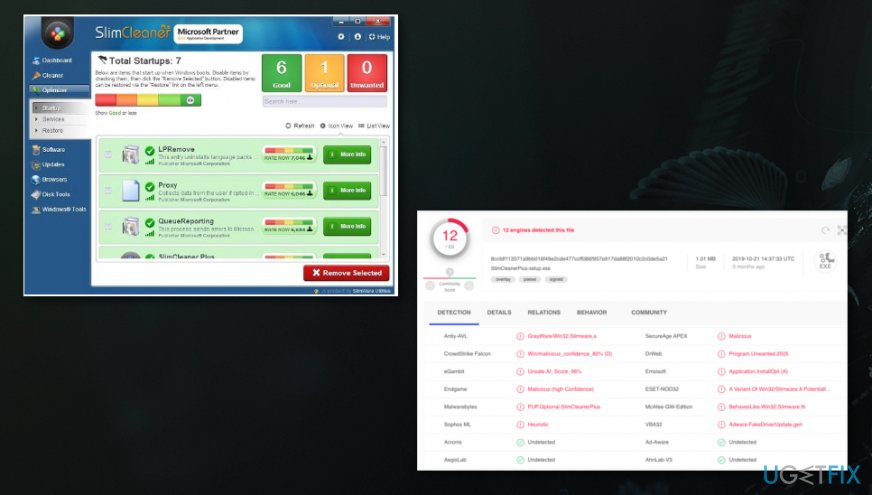
Thus, “Do you want to allow the following program from an unknown publisher to make changes to this computer?“ might cause suspicion. If you downloaded the program from secondary sources, the publisher might be “Unknown”. This is another peculiarity that might make you consider the uninstallation. Brushing aside any doubt, let us help you by offering simple and quick removal instructions. 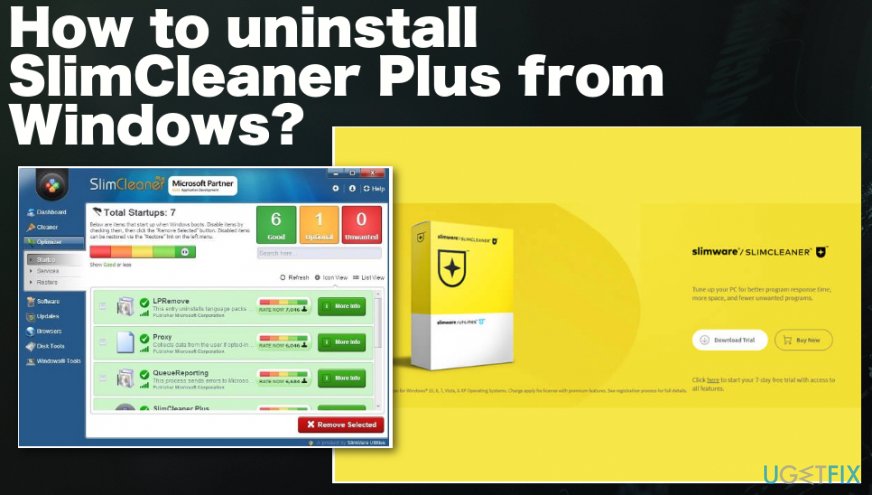
How to uninstall SlimCleaner Plus from Windows OS
There are different uninstallers which help you delete the unused applications. We recommend running a system optimizer or a cleaner utility like [d1]. This program ensures that the PUP uninstallation process goes smooth and undisturbed. The software also ensures that no traces of SlimCleaner Plus remain on the system.
All in all, you should not stop the elimination process when you see the above-mentioned message. Continue with the process without any concerns. On the final note, we would like to suggest to avoid installing any application from secondary sources. Check the official publisher before starting to install a program and try to use reliable sources for any programs you install or purchase.
Start with Appwiz.cpl
- Type appwiz.cpl in the search on the start menu or in the Run dialog window.
- Control Panel opens and shows the Add/Remove Programs window.
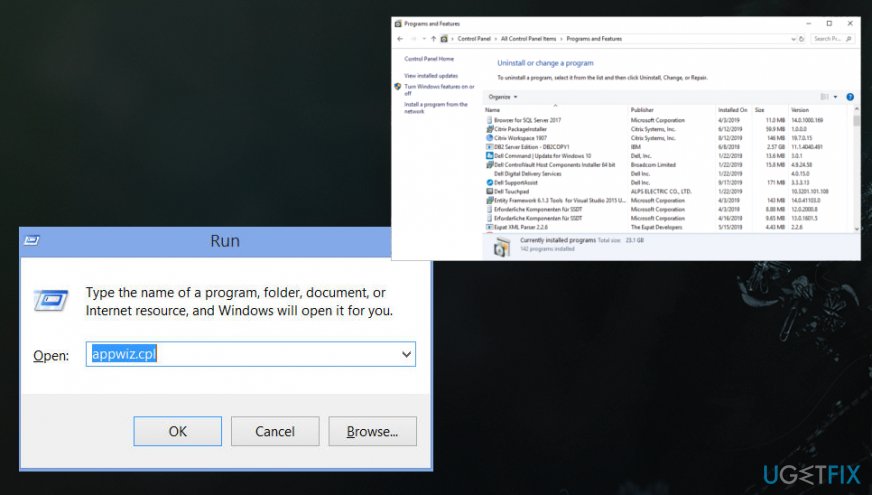
How to uninstall slimcleaner plus from windows appwiz - Look for the shady Slimcleaner and press the right mouse button on it, select Uninstall.
Uninstall SlimCleaner plus manually in Windows 10
- Exit SlimCleaner Plus. In the right corner of the toolbar, expand the running applications‘ list. Right-click on the icon of SimCleaner Plus and click Exit.
- Click Start button. Type Programs/Apps and Features and the list of system applications will appear. Find the software and click Uninstall.
- Open Registry Editor by clicking Windows button + R. Type regedit and press Enter. In the newly opened window, click on HKEY_CURRENT_USER folder. Later on, navigate to Software and find SlimWare Utilities folders.
- Delete the folders.
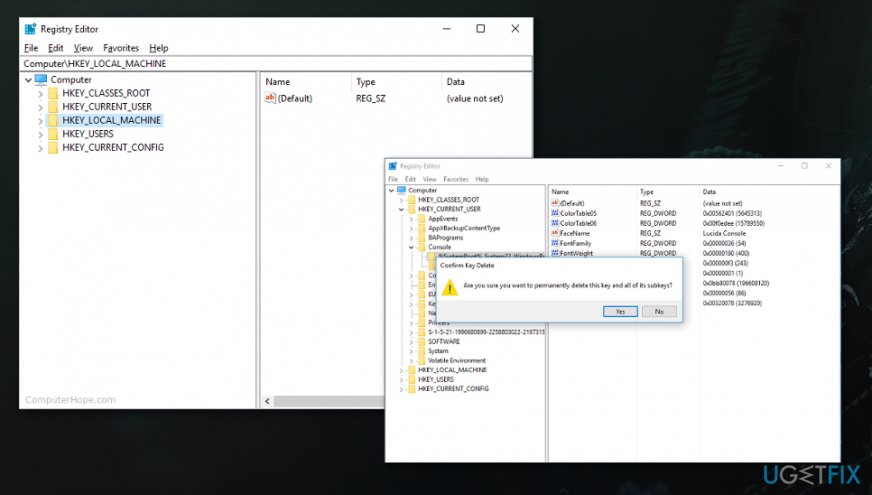
How to uninstall slimcleaner plus from windows registry
Bottom line
To uninstall SlimCleaner Plus, you may need to approve the changes requested by the uninstallation wizard. If issues persist, consider using antivirus software to remove it or seek assistance from a tech professional. If none of these solutions work, further investigation into system settings may be necessary.
Frequently asked questions
To uninstall SlimCleaner Plus from Windows 10, go to Settings > Apps, locate SlimCleaner Plus in the list, and click 'Uninstall'.
Yes, in Windows 11, you can right-click on the Start button, select 'Apps and Features', find SlimCleaner Plus, and choose 'Uninstall'.
If SlimCleaner Plus is not listed, try using the Control Panel by navigating to Programs > Uninstall a program, or consider using specialized uninstaller software.




Report an issue
What's wrong with this guide? We review every report and update or remove content.
Report received — thank you. We'll review and fix it.
You need a free account to submit a report.
Be the first to comment