
UnityPlayer.dll is missing or crashes the game: what the file is and how to fix it
UnityPlayer.dll is the Unity engine. Every Windows game or app made with Unity keeps its own copy next to its .exe, and the .exe is little more than a starter that loads it. When a game says the file is missing, the copy was deleted, quarantined or never fully installed. When a game crashes in it, the file is usually fine and the cause is the graphics driver, the game data or a mod.

Prefer to fix it yourself? The manual steps follow.
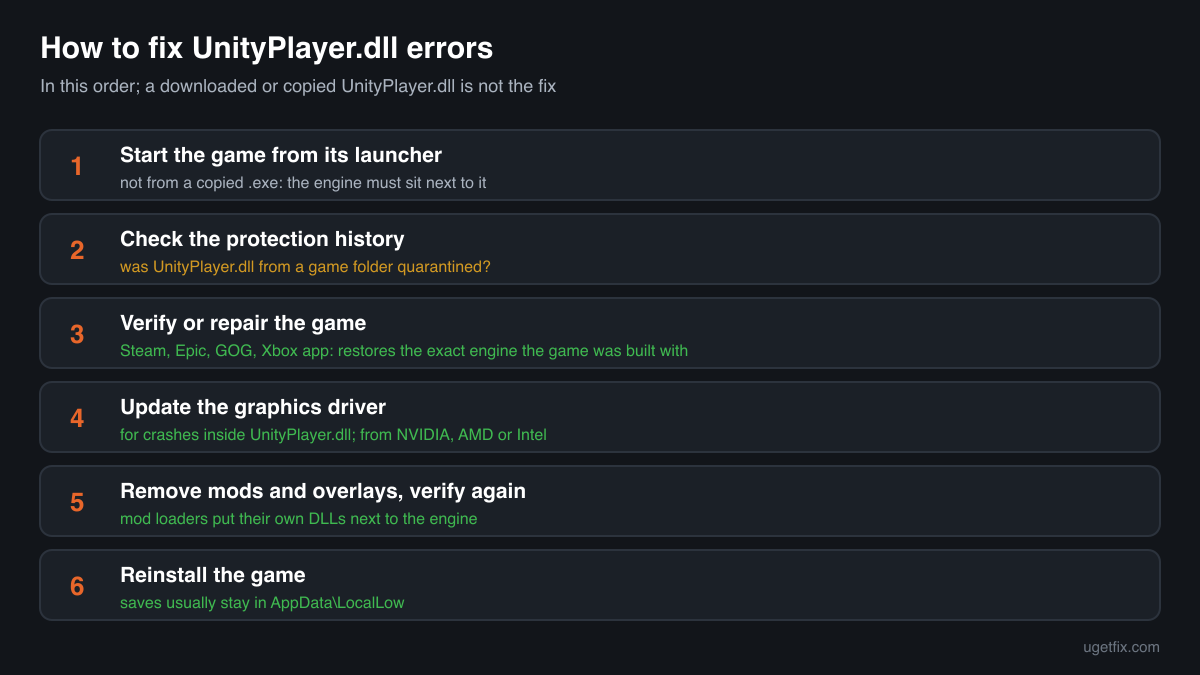
How to fix UnityPlayer.dll errors
The file belongs to the game that shows the error, not to Windows and not to any runtime you can install. Repair the game through the store or launcher you installed it with: in Steam, right-click the game, choose Properties, Installed Files, Verify integrity of game files; other launchers have a Verify or Repair command in the game's menu. The launcher compares the game with its own copy and downloads what is missing or changed, UnityPlayer.dll included, in exactly the Unity version that game was built with. If the error is a crash in UnityPlayer.dll rather than a missing file, update the graphics driver from the maker of your graphics card first.
A UnityPlayer.dll from a DLL download site or from another Unity game is not the fix. Each game is built with one Unity release, and its data in the _Data folder only works with the engine of that release. A copy from elsewhere either stops the game at start-up or loads and then crashes.
Which games and programs ship UnityPlayer.dll
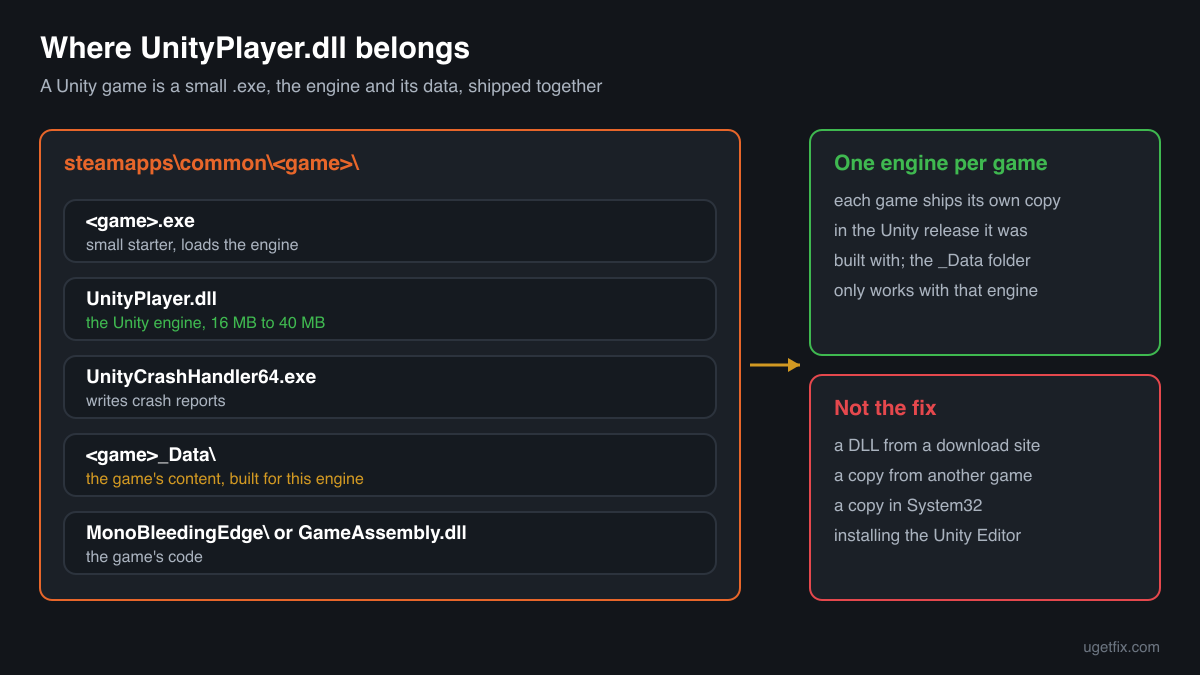
Unity builds a Windows game as a small .exe, the UnityPlayer.dll engine and a folder with the game's data, and the developer ships all of it together. So there is no single UnityPlayer.dll on a PC: there is one per Unity game or app, each in the Unity version it was made with. These are the cases you will meet.
| Program | Made by | What to know |
|---|---|---|
| Unity games on Steam | Unity Technologies (engine), shipped by the game's developer | The file sits next to the game's .exe in steamapps\common\<game>, beside a <game>_Data folder and UnityCrashHandler64.exe or UnityCrashHandler32.exe. Verifying the game in Steam restores it. |
| Unity games from other stores and launchers | Unity Technologies, shipped by the game's developer | Games from the Epic Games Launcher, GOG Galaxy, the Xbox app, itch.io and the developers' own sites carry the same file in their own install folders. Use that launcher's Verify or Repair command, or reinstall the game from where you got it. |
| IL2CPP builds of Unity games | Unity Technologies | Next to UnityPlayer.dll you also find GameAssembly.dll, which holds the game's own code. Both belong to the game; an error about either one is fixed the same way, by repairing the game. |
| 32-bit and 64-bit builds | Unity Technologies | The file has the same name in both builds. A 64-bit game cannot load a 32-bit UnityPlayer.dll, so a copy taken from another game can fail even when the Unity version looks close. |
| Unity apps that are not games | Their own developers | Some VR apps, simulators, training and visualisation programs, and desktop tools are built with Unity and ship the file too. Repair or reinstall that program; its own support pages name the right installer. |
| Cracked and repacked copies of games | Unknown | Pirated Unity games carry a UnityPlayer.dll whose origin you cannot check, and repacks are a common way to spread malware. If such a copy fails, the fix is a legitimate copy of the game, not another file. |
Step by step
- Start the game from its launcher, not from a copied folder. Launch it from your Steam, Epic, GOG or Xbox Library rather than from a desktop shortcut or a .exe that you copied elsewhere. A game .exe moved out of its folder without UnityPlayer.dll and the _Data folder fails with exactly this error, because the engine is not next to it any more.
- Look at your security software's protection history. In Windows Security open Virus and threat protection, Protection history; other security programs have a quarantine or a history list of their own. If UnityPlayer.dll from a game folder is listed, you know why it is gone. Do not restore it yet: the repair in the next step brings back a clean copy from the store anyway.
- Verify or repair the game files. Steam: right-click the game, Properties, Installed Files, Verify integrity of game files. Epic Games Launcher, GOG Galaxy and the Xbox app: open the game's menu or its settings and choose Verify or Repair. Wait until it finishes. The launcher replaces missing and changed files, including UnityPlayer.dll and the game data that must match it.
- If the file was removed again, deal with the detection. Only for a game you installed from a store: when the security program removes the copy a second time, check its signature (Properties, Digital Signatures). A file signed by Unity Technologies ApS from a store install points to a false positive. Restore it from quarantine or repair again, allow that one game folder in the security program and report the false detection to its maker. Never allow a file that came with a cracked copy.
- Update the graphics driver for crashes inside UnityPlayer.dll. A game that starts and then crashes with UnityPlayer.dll as the faulting module most often hits a graphics driver problem, because the engine does all of its drawing from this file. Download the newest driver for your card from NVIDIA, AMD or Intel, install it, restart and try again. On a laptop with two graphics chips, also check that the game runs on the dedicated one.
- Remove mods, injectors and overlays. Mod loaders for Unity games put their own DLLs next to UnityPlayer.dll, often with a doorstop or loader configuration file and a folder for plugins. Remove them with the mod's own instructions, turn off overlays and recording tools for a test, then verify the game: the store puts back its own files, but it leaves the extra files the mod added.
- Reinstall the game. Uninstall it from the launcher, check that its install folder is gone and install it again. Unity games usually keep saves and settings in AppData\LocalLow under the developer's name, not in the install folder, so a reinstall normally keeps them; if the game's own help says otherwise, copy the saves first.
What not to do
Do not download UnityPlayer.dll from a DLL site.
You cannot know which Unity release, which build or which game the file came from, or whether it is Unity's at all. The file is the whole engine, tens of megabytes of code that runs with your rights every time you play, and attackers have already used planted copies of it to load malware.
Do not copy the file from another Unity game.
It is Unity's file in both folders, but rarely the same release. The game's data in its _Data folder is built for one engine version, and the engine of another release refuses it or crashes on it. Only the game's own store or installer has the copy that matches.
Do not restore a quarantined copy from a cracked or repacked game.
In those downloads you cannot tell which files were changed, and malware is often bundled with them. A detection there may be correct. Restoring the file and switching protection off is how infections from free game downloads start.
Do not put UnityPlayer.dll into System32 or SysWOW64.
Unity games load the engine from their own folder, and Windows has no use for it in its own folders. A copy there fixes nothing and stays behind, unknown, for every program that might load a file of that name.
Do not delete files from the _Data folder to make the game start.
The data and the engine are one unit. Removing or swapping files there, or pasting a _Data folder from another version of the game, turns a missing-file error into crashes that a verify then has to undo.
Check the copy on your PC
Choose the UnityPlayer.dll from your game folder. Its checksum is calculated in your browser and compared with 11 copies of the file collected from PCs.
The file stays on your computer. Nothing is uploaded: the checksum is computed locally.
1 genuine programs have been documented loading a planted copy of unityplayer.dll. Found a UnityPlayer.dll in Temp, Downloads or AppData, next to an .exe that is not a game you installed, or in a game you did not get from a store? Then the question is whether it is Unity's file at all, and that is a security question rather than a missing-file one. Is unityplayer.dll Unity's engine or a planted copy? On 2-Spyware
The error messages and what each one means
The wording tells you whether the engine is missing, cannot be loaded, or loads and then crashes. These are the texts Windows, Unity's crash handler and Event Viewer show, with the file name filled in.
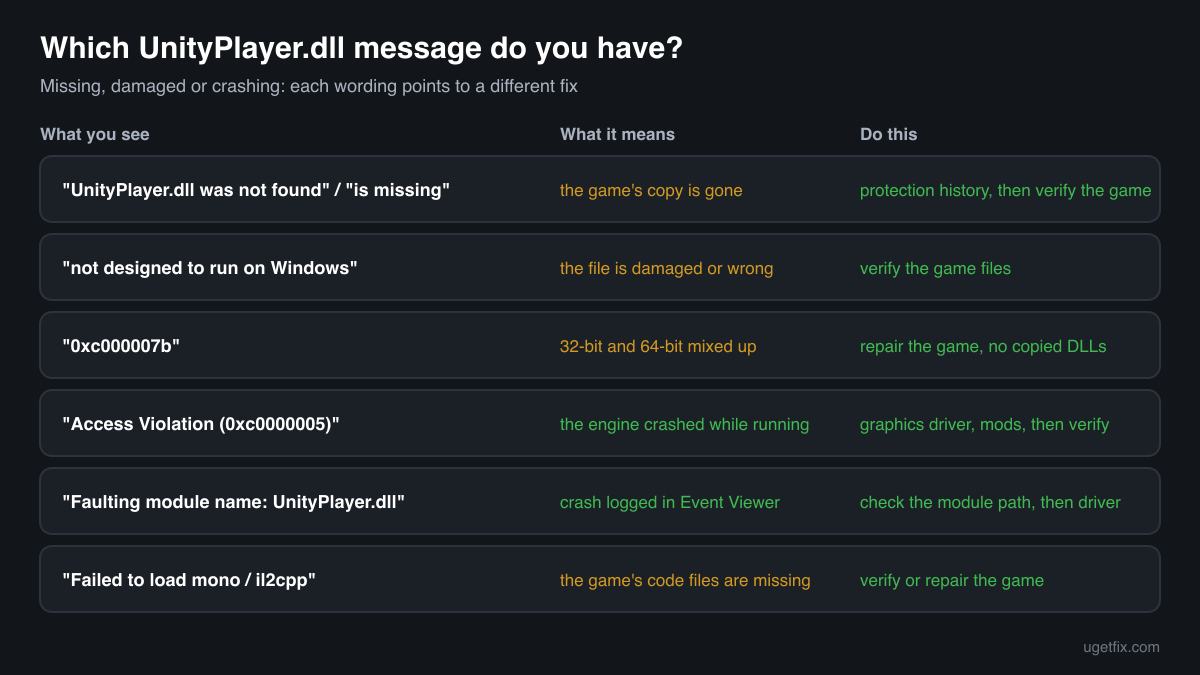
The code execution cannot proceed because UnityPlayer.dll was not found. Reinstalling the program may fix this problem.
Windows 10 and Windows 11 wording. The game's own copy is not next to its .exe: deleted, quarantined, or the .exe was started from somewhere else. Check the protection history, then verify or repair the game.
The program can't start because UnityPlayer.dll is missing from your computer. Try reinstalling the program to fix this problem.
The same situation in the older Windows wording. Same fix: repair the game through its launcher, or reinstall it.
UnityPlayer.dll is either not designed to run on Windows or it contains an error.
Windows found the file but it is damaged or not a valid library for this build, often after an interrupted download, a disk error or a copy from another game. Verify the game files. If several games show it, check the drive.
The application was unable to start correctly (0xc000007b).
Often a 32-bit UnityPlayer.dll next to a 64-bit game or the other way round, which happens when the file was copied from another game or a download site. Repair the game so its own matching copy comes back.
UnityPlayer.dll caused an Access Violation (0xc0000005)
Written by Unity's crash handler, usually in a crash report or the game's log. The engine loaded and then crashed while running. Update the graphics driver, remove mods and overlays, then verify the game. The file itself is rarely the cause.
Faulting module name: UnityPlayer.dll
A line from the Application log in Event Viewer after a crash. Look at the Faulting module path in the same event: inside the game's install folder, update the graphics driver and verify the game; a path outside any game folder, such as Temp or Downloads, points to a copy that does not belong there.
Failed to load mono / Failed to load il2cpp
Shown by the Unity player when UnityPlayer.dll started but could not load the game's code: the MonoBleedingEdge folder or GameAssembly.dll is missing or damaged. Same fix: verify or repair the game.
File facts
UnityPlayer.dll holds all of the native Unity engine code: rendering, audio, physics, input, the scripting runtime and loading of the game's data. Unity's manual describes the Windows build this way: a small .exe that starts the game, UnityPlayer.dll with the engine, signed with the Unity Technologies certificate so you can verify it, and a <game>_Data folder with the content. That is why the error names a DLL when the game itself is the one that is incomplete. What the catalogue copies of the file report:
- Description in the file
- -
- Company in the file
- Unity Technologies ApS
- Where the genuine unityplayer.dll belongs
C:\Users\<you>\AppData\Local\Temp\<version>\Windows- Signed by
- Unity Technologies ApS: Properties, Digital Signatures shows it.
The genuine file always sits in the game's own install folder, next to the .exe that loads it, and never in the Windows folders. A copy signed by Unity Technologies ApS shows the signer under Properties, Digital Signatures. Most copies in the public catalogue leave the company and description fields empty; one reports Unity Technologies ApS and Unity playback engine. The file is large, from about 16 MB to 40 MB across the copies listed below, and its version follows the Unity release the game was built with, so the only reliable comparison is the copy the store installs for that game.
Copies of UnityPlayer.dll found on PCs
Public DLL catalogues have collected 11 copies of UnityPlayer.dll uploaded from PCs, from different Unity releases and in both 32-bit and 64-bit builds. Each one came from some game's folder. The table lists them with their checksums, so you can tell whether your file is one of them.
None of them is the right file for your game unless it came from that same game. A newer Unity release is not a replacement for an older one: the engine has to match the game's data. If your copy matches an entry, it is most likely a genuine Unity build; whether it fits the game is something only the launcher's verify can confirm.
| Version | Build | Size | MD5 | SHA-1 |
|---|---|---|---|---|
2019.4.7.37553 | 64-bit | 24.7 MB | 63139061e9d0fca420687f5182419ab4 | edece64492f4bec300f5264588d9c96f126af454 |
2019.3.14.13067 | 64-bit | 24.7 MB | fd6f9d4bea2e08c2bd8145bfc3965765 | 9e47276cae52a9bc9fbe205329078b7b1679911d |
2019.3.7.14333 | 64-bit | 24.6 MB | 1e1d69dc21f22a66af154c5684354d3c | 0c6963f61c40823fe1f155e075df6f98f1759ed5 |
2019.1.14.35672 | 64-bit | 39.1 MB | 0e6cbc4b753b20fd6977a8d5247a83c7 | dedf87516df68cf88dea9acb00469931e045d68a |
2018.3.8.4067 | 64-bit | 21.8 MB | f4ee15d97fdbe1f8455388f7c9293615 | 62e537e6cbed97782ea37d44885a0db526d40868 |
2018.2.20.62438 | 32-bit | 17.1 MB | 5ef0cbbe8e24a19d09c5c23f36700cb3 | a0dd482290645b09f415c7e3043fc00c0680e336 |
2018.1.2.28017 | 32-bit | 16.6 MB | 5e43b2b56534629114d9f7c0c1f09107 | 79c1ad5f9b0ef30b734f10b94bb2f54316696ce5 |
2018.1.0.55711 | 32-bit | 16.6 MB | cf24a8e66d3c67931f5ba3b04d39da79 | 7362eb6f92b67f8dac4e663fd3d1886bab44e904 |
2017.4.3.44594 | 64-bit | 21.3 MB | 745d09bc77ef107b1b4d4c4d99b44b05 | b6a0542ffa45488cb89b39b973ac869fed458a9a |
2017.3.1.7475 | 64-bit | 21.3 MB | 27b289da711f4f7262d624e2d1021a8b | 6831ed556f0769baeba467cd4a1b92e14a097ddb |
5.6.0.0 | 64-bit | 20.2 MB | 2d43c2feb07f85ee1adeace4a60a9c26 | 51a28dff4dad722ede3ddcf71d0575130b3f3eff |
Copies uploaded by users to a public DLL catalogue, read on 17 October 2026. We list their checksums so you can identify a file; we do not offer them for download and we did not verify each one against Unity's signature.
Questions people ask
Is UnityPlayer.dll a virus?
Unity's UnityPlayer.dll is the engine of every Unity game and is harmless in a game you installed from a store. Attackers have planted fake copies next to a genuine Unity .exe, and cracked games carry copies nobody can vouch for. A copy in a store-installed game folder, signed by Unity Technologies ApS, is the real file. For any other copy, read the security page linked above.
Why does my game crash with UnityPlayer.dll in the error?
Because the whole engine runs from this file, nearly every crash of a Unity game names it, whatever the real cause. The usual causes are the graphics driver, a mod or overlay, and damaged game data. Update the driver from your graphics card's maker, remove mods, then verify the game. Replacing the DLL does not help with crashes.
Can I download UnityPlayer.dll and put it in the game folder?
You should not. There is no single correct file: each game needs the Unity release it was made with, in the right 32-bit or 64-bit build, and a downloaded one is of unknown origin. The right copy for your game is on its store's servers, and a verify or repair downloads exactly that one.
Do I need to install Unity to play the game?
No. A Unity game brings the whole engine with it in UnityPlayer.dll and the files next to it. You do not need the Unity Editor, Unity Hub or any Unity account to play. Installing Unity does not fix a missing UnityPlayer.dll either, because the game only looks in its own folder.
Why are there so many copies of UnityPlayer.dll on my PC?
Every Unity game and app ships its own copy, in the Unity release it was built with, so ten Unity games mean ten copies of different sizes and versions. That is by design. What matters is that each copy sits in a game folder next to that game's .exe.
The game was working yesterday. Why is UnityPlayer.dll missing today?
Most often a security scan or an update of its detection rules removed the file overnight. Look at the protection history first. Other causes are a game update that was interrupted, a mod installed or removed since, a game folder that was moved by hand, and a disk problem. Repairing the game fixes all of them once the cause is clear.
Does reinstalling Windows or the Visual C++ runtimes fix UnityPlayer.dll?
No. The file is not part of Windows and not part of any runtime package, so neither a Windows repair nor a runtime installer puts it back. It comes only with the game. Repair the game through its launcher, and reinstall the game itself if that does not help.
Related guides
UnityPlayer.dll is missing or crashes the game: what the file is and how to fix it
Sources
- Unity Manual: Windows standalone Player build binaries (UnityPlayer.dll, signed by Unity Technologies)
- Steam Support: Verify integrity of game files
- HijackLibs: unityplayer.dll
File data read on October 17, 2026.

The editors who write and check uGetFix guides and reference pages. File facts are read from Microsoft's own installers and documentation, and every page shows the date its data was read.
Questions and experiences
Ask about this page: members and our editors answer. Reading is open; writing needs a free account.
…