How to fix
Word Runtime Error 91
on windows
Word Runtime Error 91 occurs when an object variable is not set, preventing macros or document actions from executing properly. This error typically arises from issues within Word's VBA environment.

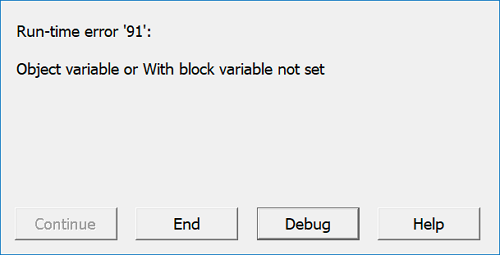
Is this your error?
Match two or more signs — you are likely dealing with Word Runtime Error 91.
What causes Word Runtime Error 91?
- Broken object reference in VBA
- Corrupted Normal template
- Faulty add-in or macro
Fix in 5 steps
Press Win + R, type winword /safe, and press Enter. Check if the error persists after disabling add-ins.
Rename Normal.dotm to Normal.old to create a fresh template and see if the error resolves.
Open the document, access the Visual Basic Editor, and disable or fix the problematic macro.
Create a backup, open a copy of the document, and save it under a new name to remove unstable states.
Use the Apps and Features settings to repair the Office installation if the error continues.
Repairs Windows system files, removes malware, and restores a clean OS state — without reinstalling.
Word stops with Runtime Error 91: Object variable or With block variable not set, and the document or macro action cannot continue.
That failure usually points to a broken object reference inside Word’s VBA environment, not a broad Windows crash. The error appears when a macro, form, add-in, or document-level event tries to use an object that has not been set, has already been released, or no longer matches the code that calls it. In Word, that can stop a document from opening cleanly, break editing automation, or interrupt a task that depends on a custom command. The same message can appear during launch, while opening a file, or when a specific action triggers VBA code.
Runtime Error 91 is a classic object-reference fault in VBA. Word uses VBA to drive macros, document events, and add-ins that extend the editor beyond normal typing and formatting. When code expects a document, range, selection, control, or other object and the reference is empty or invalid, Word cannot continue that routine. The result is the familiar message about an object variable or With block variable not being set, which is why the error often looks random until the exact trigger is isolated.
The error can surface after a template change, after an add-in update, or after a document with embedded automation is opened. It can also appear when Word loads startup extensions that hook into the editor before the main window is ready. In that situation, the failure is not the document text itself but the code path behind it, and the interruption feels broader than it is because Word blocks the action that depended on the missing object.
Users often see the issue most clearly in Word files that carry macros, custom ribbon actions, mail-merge automation, or legacy document logic. A plain document may open normally, while one file or one command fails immediately. That split is important because Runtime Error 91 usually affects a specific code path rather than the whole application, so a fix has to identify whether the trigger lives in the document, an add-in, or the Word installation state that supports VBA.
The same message can be misleading because it is a programming error at heart, but the visible symptom is a Word problem. If the macro code points to a missing object, the editor reports the fault instead of explaining the broken reference. If an add-in injects the failing code, the error appears as though Word itself is damaged. That is why the first practical move is to separate Word’s built-in behavior from the extensions and automation loaded into it.
Several conditions can produce the same fault. A damaged Normal template can pass bad macro behavior into every new session, a corrupted add-in can call Word objects before they exist, and a document with stale VBA references can fail when it opens or runs an event. Each of those causes produces the same visible result because the VBA engine reaches a line of code that expects a valid object and receives nothing usable in return.
Another common cause is a reference mismatch inside a macro project. VBA code may rely on libraries, forms, or objects that were available when the macro was written but are not available now. When that happens, Word loads the code, but the routine breaks the moment it tries to touch the missing component. The failure is technical rather than cosmetic, which is why no amount of simple document reformatting will remove it if the code path stays intact.
Add-ins are also a frequent source of the fault because they run automatically and can interact with Word before the user opens a document. A faulty add-in can leave an object uninitialized, especially if it expects a window, selection, or file handle that is not ready yet. Once that happens, Word throws Runtime Error 91 during startup or at the first action that depends on the add-in’s code.
Document-level VBA can trigger the same message if a file contains event code tied to opening, saving, printing, or selection changes. Those routines are meant to run inside a very specific state, and if the state is wrong, the object reference breaks. A document can look ordinary while still carrying hidden automation that produces the error as soon as Word tries to process it.
The Word automation layer matters because it connects the user interface to the document object model. That model is what VBA uses to reach paragraphs, ranges, windows, and controls. When the model is stable, macros can manipulate the document reliably. When the object chain is broken, the editor cannot satisfy the code’s request, so the operation stops with Error 91 instead of completing the task.
This is why the right response is to narrow the fault before touching wider system repair tools. Word is not the same thing as Windows, and a broken object reference inside VBA often clears when the bad macro, add-in, or template is isolated. If those checks do not solve it, then repairing the Office installation becomes the next logical layer because Word also depends on its program files, shared components, and registration state to load automation cleanly. Here are 6 solutions to fix Word Runtime Error 91.
Start Word in Safe Mode and Disable Problem Add-ins
This method isolates Word’s loading path so you can see whether the runtime error is tied to an extension that runs at startup.
- Press Win + R to open the Run box.
- Type winword /safe and press Enter.
- Open Word and check whether the Runtime Error 91 message appears.
- Go to File and select Options.
- Open Add-ins and review the active add-ins.
- At the bottom, choose COM Add-ins and click Go.
- Clear the check box for each add-in, then click OK.
- Restart Word normally and test the same action again.
Check the Normal Template for Corruption
Word stores shared startup behavior in the Normal template, and a damaged copy can keep broken automation alive in every new session.
- Close Word completely.
- Press Win + R, type %appdata%MicrosoftTemplates, and press Enter.
- Find Normal.dotm.
- Rename it to Normal.old.
- Open Word again to let it create a fresh Normal template.
- Retry the action that produced Runtime Error 91.
- If needed, copy only trusted customizations back later.
Remove or Repair the Macro That Raises the Error
If the failure happens inside one document or one command, the broken code path is usually inside the macro project itself.
- Open the affected document in Word.
- Press Alt + F11 to open the Visual Basic Editor.
- Look for the macro, event procedure, or form tied to the action.
- Check any object assignments that run before the error appears.
- Temporarily disable the macro by removing its trigger or event call.
- Save the document as a clean copy.
- Open the clean copy and test the same workflow again.
Open the File Without Its Embedded Automation
A document can carry its own event code or linked behavior, so testing a plain copy separates the file problem from the application problem.
- Make a backup copy of the affected file.
- Open the copy in Word.
- Use File and select Info to inspect document details.
- Save the file under a new name to strip out unstable state.
- If the document contains macros, save it as a macro-free format only when appropriate.
- Close Word and reopen the new copy.
- Test whether the same runtime error still appears.
Repair Microsoft Office from Apps and Features
When Word’s program files or shared components are damaged, built-in repair can restore the code Word uses to load VBA and add-ins.
- Close all Office apps.
- Open Settings and go to Apps.
- Select Installed apps or Apps & features.
- Find Microsoft 365 or Microsoft Office.
- Click Modify or Change.
- Select Quick Repair and start the repair.
- If the problem remains, run Online Repair.
- Restart Word and repeat the failing action.
Reset Word Registration and Recreate Its User State
If Word still throws Error 91 after repair, resetting its registration and user-specific state can clear the launch path that keeps loading the fault.
- Close Word and any Office process in Task Manager.
- Press Win + R, type winword /r, and press Enter.
- Wait for Word to re-register its file associations.
- Open Word and test the same document or macro.
- If the error continues, remove recently added customizations from the user profile.
- Start Word again with a clean session and check the result.
Sources: easeus.com, youtube.com, Microsoft Learn, Stack Overflow, Microsoft Learn, reddit.com, reddit.com, reddit.com, reddit.com, reddit.com
Bottom line
To resolve Runtime Error 91, users should isolate the problematic macro, add-in, or template. If the issue persists, repairing the Office installation may be necessary.
Frequently asked questions
It indicates that an object variable or With block variable is not set in Word's VBA environment.
Ensure that all macros and add-ins are properly coded and updated, and regularly check the Normal template for corruption.




Report an issue
What's wrong with this guide? We review every report and update or remove content.
Report received — thank you. We'll review and fix it.
You need a free account to submit a report.
Be the first to comment