How to recover
Back up Windows 11 locally
from Windows
Secure your data with local backups on Windows 11. Protect lost files and settings effortlessly and with confidence. Expert-tested solutions await!

What leads to How to back up Windows 11 locally?
- Internet speed concerns
- Online storage limits
- Privacy concerns
- Preference for physical backups
- Desire for control over backups
Repairs Windows system files, removes malware, and restores a clean OS state — without reinstalling.
I don't want to use OneDrive to back up my Windows 11 PC - and I am being forced to do so. Is there any other way to do that without using OneDrive?
Backing up your computer is very important for keeping your data safe. If your hardware breaks down or if a cyberattack happens, your information stays protected. Windows 11 users have a good option with OneDrive. This is an online storage system that works well with the Windows OS. OneDrive syncs files online, which lets people get their data from anywhere. It also keeps data safe if something bad happens to the computer.
But some users like keeping their data stored on local devices - and there are several reason for that. Some worry about internet speed. Others think online storage limits are too small. Maybe privacy concerns matter more to others. Some users just feel better having backups on hand. Physical media gives them security, even when the internet doesn’t work or online services face problems.
There are a few good methods to back up Windows 11 locally - here are some of them:
- Using file history. This is a tool built into Windows 11. It can save copies of your files onto an external drive or a shared network space.
- Creating a system image. This is a full copy of your entire system, like installed programs, settings, and files, saved on an external device.
- Third-party backup software. Some apps offer extra features. These include encryption, backups over time, and scheduling.
Local backups may suit those who like more control, especially when no internet is involved. Experiencing trouble setting up or restoring files from backups? A repair tool [d1] helps fix common problems and makes this whole task easier.
Method 1. Create a System Image
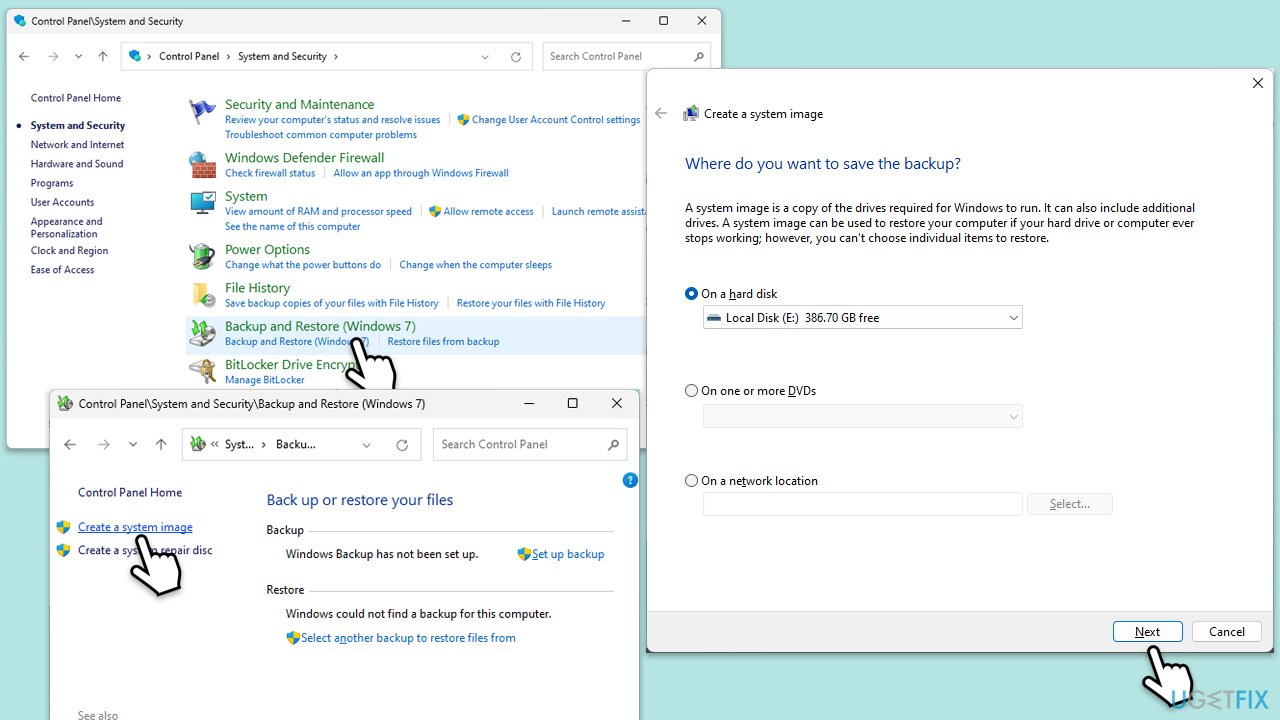
A system image in Windows 11 copies everything on your computer. It takes a full snapshot of the operating system, apps, settings, and your files. Really helpful for fixing things if the drive crashes or big problems happen.
- Connect an external hard drive with sufficient space to store the image. Make sure it's recognized by your system.
- Type Control Panel in Windows search and press Enter.
- Navigate to System and Security > Backup and Restore (Windows 7).
- On the left pane, click on Create a system image.
- When prompted with Where do you want to save the backup?, you have three options:
- On a hard disk
- On one or more DVDs
- On a network location.
- Choose On a hard disk and select your external drive from the list.
- The next prompt will ask Which drives do you want to include in the backup? Ensure that the drives containing your critical data are selected. It's usually recommended to back up all drives with system data.
- After selecting the drives, click on Start backup.
- The backup process will begin, and its duration will depend on the amount of data being backed up.
- Once the backup is complete, you will be asked if you want to create a system repair disc. This disc can help you start your computer and restore from your system image if your entire system crashes. If your computer has a CD/DVD burner, it's a good idea to create this disc.
- Safely store your external hard drive and system repair disc in a secure location.
This backup method is particularly valuable for recovering your entire system to a known, good state, especially after a critical system failure or when upgrading hardware components like your hard drive.
Method 2. Use File History
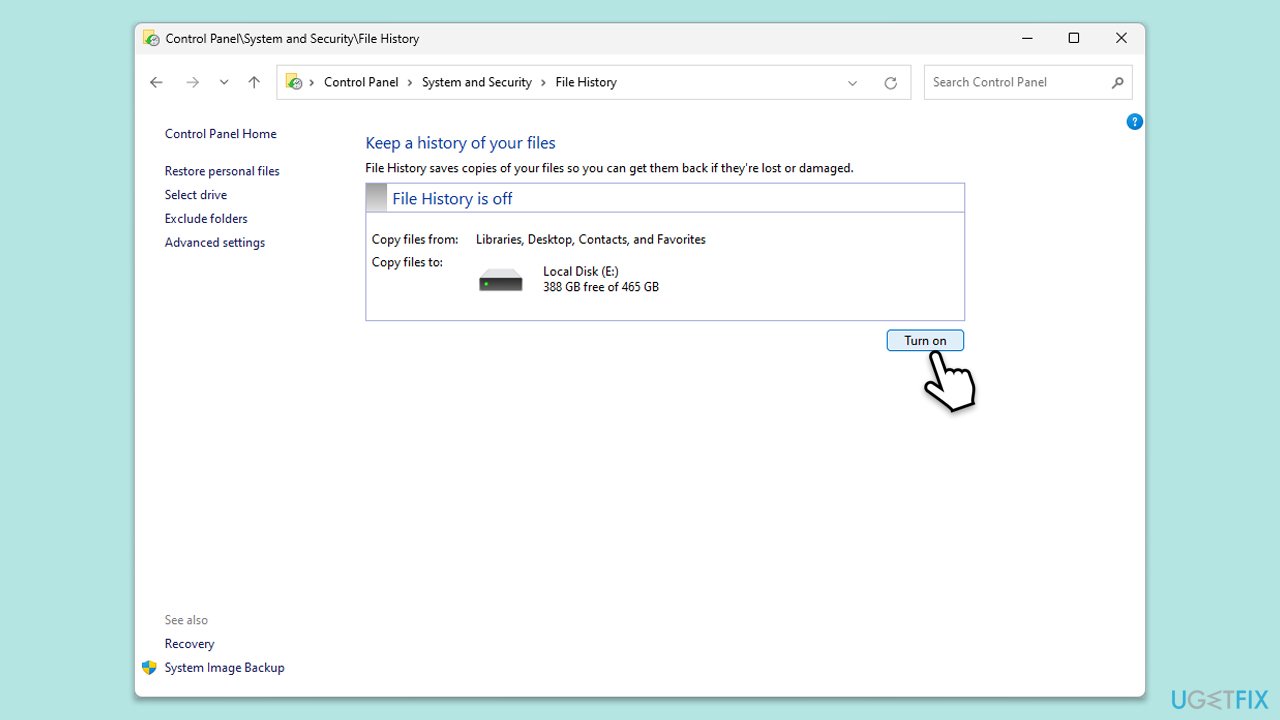
File History in Windows 11 helps keep your files safe by automatically saving copies on an external drive or network. Very useful for people who need constant security for their documents pictures and other important things.
- Connect an external hard drive to your PC.
- Open Control Panel go to System and Security and then click on File History.
- Within the File History menu, you'll find an option to Select drive. Click this to choose the external drive you have connected for your backups.
- You can then choose to Turn on File History if it's not already active.
- On the left pane, you’ll see options such as Exclude folders and Advanced settings. You can use these to customize which folders are backed up and how frequently the backups occur.
- Once you've configured your settings, you can start the backup process immediately by clicking Run now at the bottom of the window.
Method 3. Use third-party backup software
Third-party software often provides more comprehensive backup solutions with features like encryption, incremental backups, and cloud storage options.
- Select and install a trusted backup software on Windows 11.
- Connect your backup storage solution, such as an external hard drive or network storage.
- Set up and schedule your backups using the software’s user interface.
Bottom line
To back up Windows 11 locally, you can use methods such as File History, creating a system image, or utilizing third-party backup software. These options provide flexibility and security for your data. If you experience trouble with setup or restoration, consider using a repair tool to address common issues.
Frequently asked questions
You can use the built-in File History feature to back up your files by navigating to Settings > Update & Security > Backup. Make sure to connect an external drive to store your backups securely.
To create a system image backup, go to Control Panel > Backup and Restore (Windows 7) and select 'Create a system image.' Follow the prompts to save the image on an external drive or network location.
Yes, you can schedule automatic backups using the File History feature by enabling it and selecting 'More options' to set a backup frequency. This ensures your files are regularly backed up without manual intervention.




Report an issue
What's wrong with this guide? We review every report and update or remove content.
Report received — thank you. We'll review and fix it.
You need a free account to submit a report.
Be the first to comment