How to recover
Fix Epic Games is not sending security code
from Windows
Resolve the Epic Games security code issue quickly on Windows 10 or 11. Get back to gaming in no time with expert-tested solutions!


What leads to How to fix Epic Games is not sending security code?
- Internet connectivity problems
- Emails classified as Junk or Spam
- Antivirus software blocking emails
- Firewall settings blocking emails
- Incorrect email settings
Repairs Windows system files, removes malware, and restores a clean OS state — without reinstalling.
Hey. I was wondering if you could help with the Epic Games login issue. I have recently tried to log in to my account which was created ages ago, but Epic Games does not send the security code to my email. As such, I am unable to log in and access all the games that I've got there. How do I resolve this?
Epic Games, a major digital distribution platform, is renowned for its extensive selection of video games and software, along with exclusive titles and free game offerings. A key security feature requires users to verify their identity via a security code sent to their registered email. However, instances where users do not receive this security code from Epic Games can disrupt access to their accounts and the platform's services.
The issue of Epic Games not sending the security code often stems from several factors. Internet connectivity problems can hinder the delivery of the security code. Emails containing the security code might be incorrectly filtered into the junk or spam folders, while third-party software like antivirus or firewalls could block these emails, perceiving them as threats.
To tackle the issue of not receiving the Epic Games security code, users should first ensure a reliable internet connection. Checking the junk or spam folders for the security code email and adjusting email settings to favor communications from Epic Games are crucial steps. Modifying antivirus or firewall settings to allow emails from Epic Games can also help.
In essence, not receiving a security code from Epic Games can be addressed by investigating common issues like internet disruptions, email filtering, and software interference. For continuous problems, particularly those related to Windows, using a PC repair tool [d1] can automatically resolve underlying system issues, facilitating smoother operations with Epic Games.
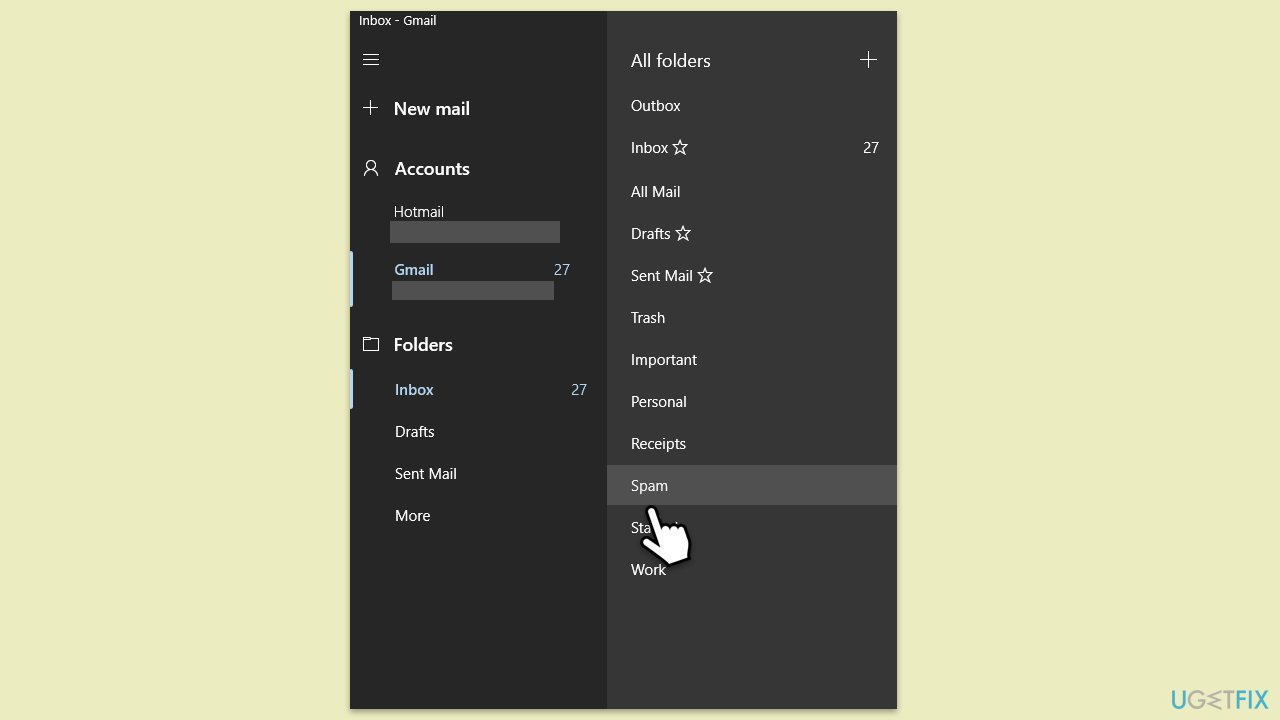
Fix 1. Check your Junk/Spam mail
Sometimes, emails from Epic Games might be mistakenly classified and moved to your Junk or Spam folder by your email service. This fix involves manually checking these folders to locate the missing security code email.
- Open your email client or log into your email account via a web browser.
- Navigate to the Junk or Spam folder.
- Look for any emails from Epic Games - it should contain the verification code.
- If you find the email, mark it as "Not Junk" or "Not Spam" to move it to your inbox. This action also helps future emails from Epic Games to bypass the Junk or Spam filter.
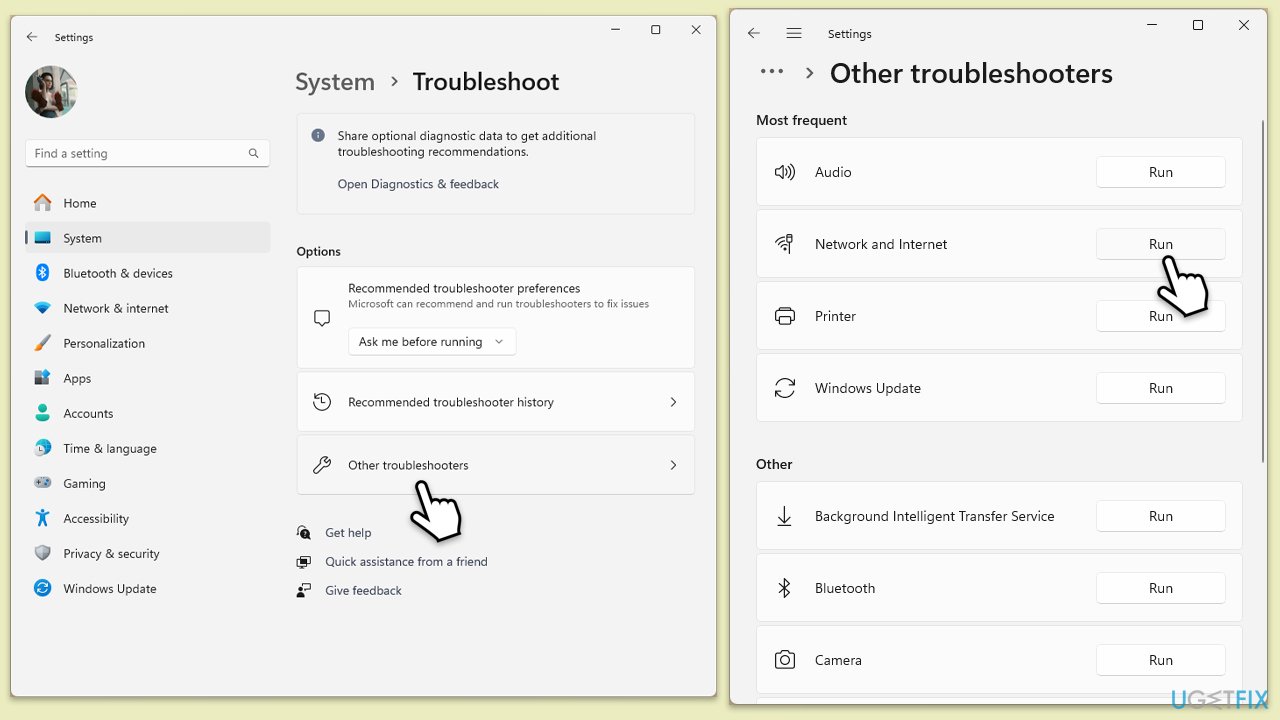
Fix 2. Run Network troubleshooter
Network connection issues can prevent emails from being received. The Network troubleshooter can diagnose and resolve any problems with your internet connection.
Windows 11
- Type Troubleshoot in Windows search and press Enter.
- Select Other troubleshooters.
- Find Network & Internet troubleshooter from the list and select Run.
- Wait till the process is finished and apply the offered fixes.
- Restart your device.
Windows 10
- Right-click on Start and pick Settings.
- Go to the Network & Internet section.
- On the right side, find the Advanced network settings section.
- Click Network troubleshooter and wait.
- The fixes will be automatically applied.
Fix 3. Reset your internet
Resetting your internet connection can resolve issues related to network stability and performance, potentially fixing the problem of not receiving emails from Epic Games. This process refreshes your connection to your Internet Service Provider (ISP) and can clear up any temporary glitches affecting your connectivity.
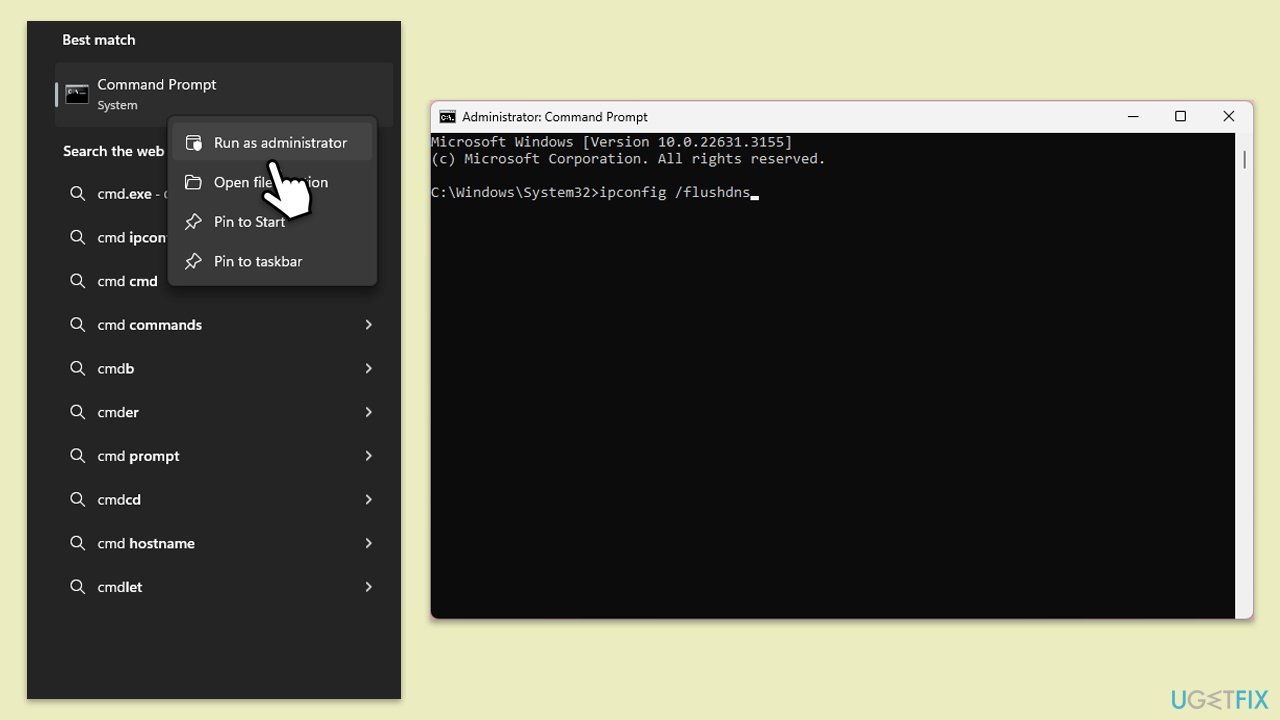
- Type cmd in Windows search.
- Right-click on the Command Prompt result and select Run as administrator.
- Copy and paste each of the following commands, pressing Enter every time:
ipconfig /flushdns
ipconfig /registerdns
ipconfig /release
ipconfig /renew
netsh winsock reset - Restart your system.
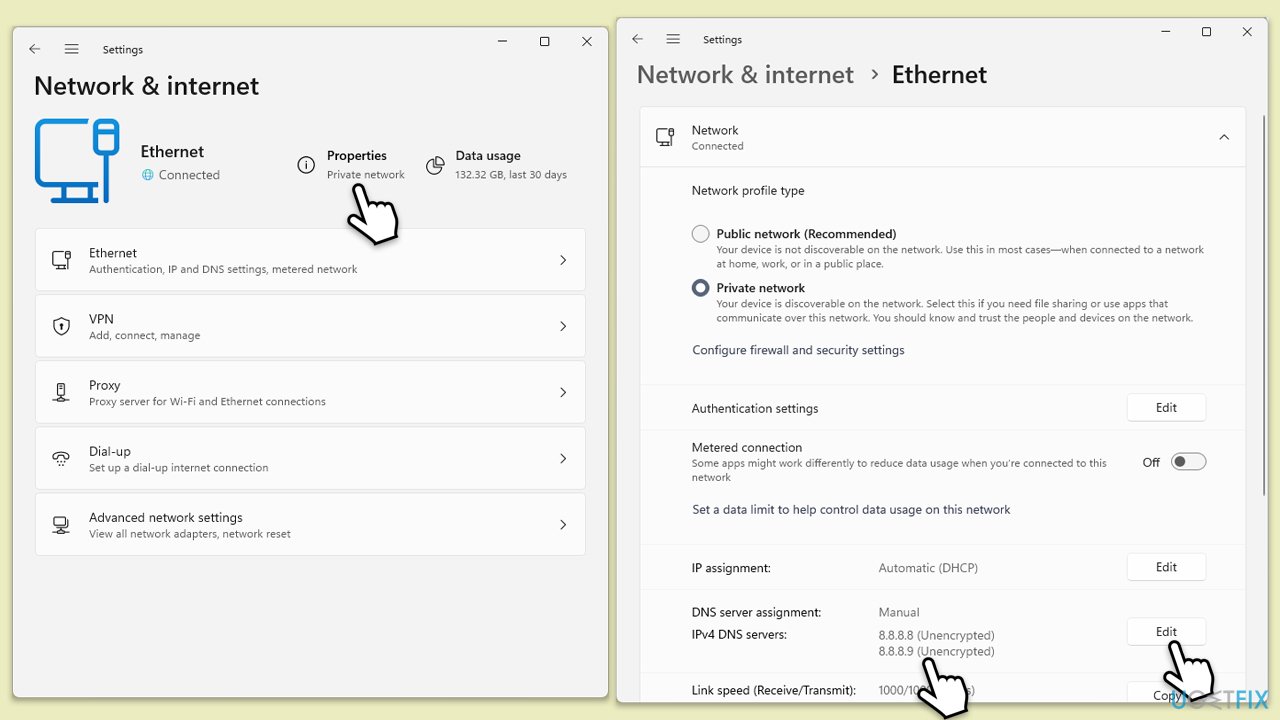
Fix 4. Use Google's DNS
Switching to Google's DNS servers can improve your internet connection stability and speed, potentially resolving issues with receiving emails.
- Right-click on Start and select Settings.
- Go to Network and Internet section.
- Click on Change adapter options.
- Right-click on your internet connection and pick Properties.
- Select Internet Protocol Version 4 (TCP/IPv4) once and go to Properties or select Edit next to the DNS settings.
- Select Use the following DNS server addresses option and set your DNS to Google's:
Preferred DNS server: 8.8.8.8
Alternate DNS server: 8.8.4.4 - Click OK.
Fix 5. Disable VPN/third-party security software
VPNs and third-party security software can interfere with your email and internet connections. Temporarily disabling these can help determine if they are causing the issue.
- Locate the VPN or security software icon on your taskbar (usually in the bottom right corner).
- Right-click on the icon and look for an option that says "Disable" or "Turn off."
- If prompted, choose to disable the software temporarily, usually for a time like 10 minutes or until the next reboot.
- After disabling, try accessing your email again to see if the security code arrives.
Fix 6. Clear your email inbox
A full inbox can prevent new emails from being received. Clearing out unnecessary emails can free up space for incoming messages.
- Log into your email account.
- Delete any emails you no longer need, especially those with large attachments.
- Empty the trash or deleted items folder to permanently free up space.
Bottom line
To resolve the issue of not receiving the security code from Epic Games, users should check their internet connection, inspect their Junk or Spam folders, and adjust their email settings to allow communications from Epic Games. Additionally, modifying antivirus or firewall settings may help. If problems persist, consider using a PC repair tool to address underlying system issues.
Frequently asked questions
Check your email spam folder and ensure that the email associated with your Epic Games account is correct in your account settings on Windows 10.
Try using the 'Get Help' option on the Epic Games login page, which can guide you through account recovery steps on Windows 11.
Unfortunately, bypassing the security code is not possible, but you can try resetting your password or contacting Epic Games support for further assistance on your Windows system.




Report an issue
What's wrong with this guide? We review every report and update or remove content.
Report received — thank you. We'll review and fix it.
You need a free account to submit a report.
Be the first to comment