How to recover
Fix Files Encrypted by Spora Ransomware
from Windows
Recover your files from Spora ransomware on Windows 10/11 with proven methods. Fast solutions to restore your system, expert-tested for your peace of mind.

What leads to How to Fix Files Encrypted by Spora Ransomware?
- Infection by Spora ransomware
- Malicious Chrome pop-ups
- User agreement to install a fake update
- Ransomware's demand for Bitcoin payment
- Lack of recent backups
Repairs Windows system files, removes malware, and restores a clean OS state — without reinstalling.
Help! My computer was infected with Spora ransomware, and I cannot open them anymore. Is it possible to decrypt files encrypted by Spora virus? Please help me out!
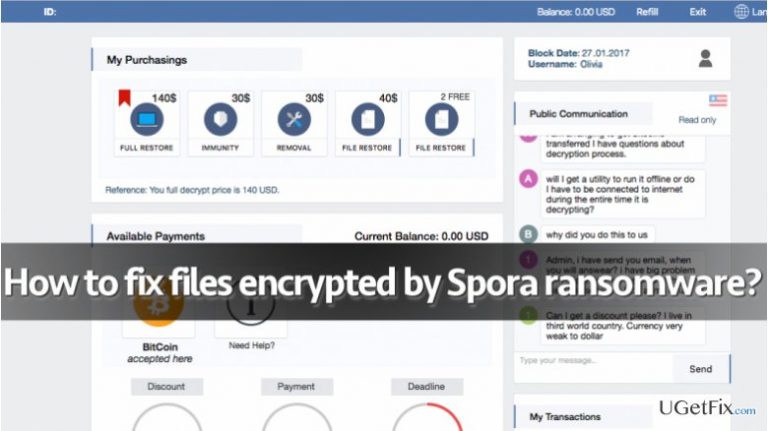
Spora ransomware definitely deserves a label of “a fearsome computer virus,” because it is a malicious computer program that is apparently developed by professional programmers. This virus reportedly spreads via malicious Chrome pop-ups that appear on compromised websites and falsely inform the victim that "The HoeflerText font wasn’t found." If the victim agrees to install this update, he simply downloads Spora ransomware. This particular virus stands out from other ransomware viruses because it provides a number of services to the victim instead of asking for a single ransom payment. The ransomware suggests “Full Restore,” “Immunity,” “Removal” and two “File Restore” options. The virus wants to receive certain ransom from the victim in Bitcoin currency, but apparently, not everyone wants to pay money to cyber criminals.
If Spora virus compromises a computer, the owner of the PC can say farewell to the files stored on it - at least for a very long time. However, there are a couple of methods that might help to recover files lost due to Spora infection. Therefore, we have prepared an informative guide and all options that can help you to restore files encrypted by Spora ransomware. Keep in mind that some of these methods might not help you to solve the problem, however, it is definitely worth to try them all.
How to Fix Files Encrypted by Spora Ransomware?
Method 1. Use backup!
Your files are of the utmost importance - so create backups, and often. As you know, it is advisable to keep file copies on disks or drives unplugged from the computer, so that viruses could not corrupt them. If you created a backup a while ago, you could use the most recent one now. This is what you should do:
- Remove Spora virus using powerful anti-malware software - we recommend using [d1]. Make sure that the virus is entirely gone before you plug in the backup drive - otherwise, the virus might encrypt your backup!
- Import files to the computer.
Method 2. Use Data Recovery Pro
Data Recovery Pro is a tool that comes in handy when personal files get lost, corrupted, or deleted. It can recover a variety of file types - even deleted emails. To use Data Recovery Pro, you will need to install it first. Here’s a short tutorial on how to use this tool:
- Download [rev id=”Data Recovery Pro”].
- Install it according to instructions provided by Data Recovery Pro setup.
- Open the program and command it to scan the system. The tool will identify all files corrupted by the ransomware.
- Restore files.
Method 3. Use ShadowExplorer
In some cases, viruses fail to complete all scheduled tasks on the target system. In such case, Volume Shadow Copies might remain untouched. You can use these copies to restore your files; the easiest way to find out if your records can be recoverable is to run ShadowExplorer software. Just follow these easy steps and see if you can decrypt files encoded by Spora ransomware.
- Download Shadow Explorer setup.
- Follow instructions and install the program on your PC system.
- Open ShadowExplorer and click on the menu located in the top left corner of the program. Choose a disk where encrypted data is stored. Select a particular program with encrypted data.
- Click on the chosen folder with right mouse button and select Export. If you wish, you can provide a direction where you want to save restored data copies.
Method 4. Restore files from a restore point
Have you created a system restore point a while ago? If so, you can use Windows Previous Versions to restore individual files on your computer. Just follow these guidelines:
- Restore point is simply a saved copy of your computer’s data. If you have created a restore point, simply find an encrypted file you want to restore and right-click on it.
- Click on Properties, then on Previous versions tab.
- Find previous file copies, select one and click Restore.
If none of these methods helps to recover your files, we suggest looking for data recovery tools on NoMoreRansom website. Sometimes malware researchers manage to crack ransomware source codes and find flaws in it, which allows creating free decryption tools. You can also find more information about Spora virus in this article by 2-Spyware researchers.
Bottom line
To fix files encrypted by Spora ransomware, you can try using backups to restore your files, ensuring the virus is removed first. Additionally, employing powerful anti-malware software can help eliminate the ransomware. If these methods do not work, consider seeking professional help or exploring data recovery services.
Frequently asked questions
You may notice that your files have unusual extensions or are inaccessible, and a ransom note is typically left in your folders explaining the situation.
Although there are no guaranteed methods, you can try using backup solutions or specialized decryption tools, but success varies depending on the encryption method used.
Disconnect from the internet to prevent further encryption, run a full antivirus scan, and consider restoring your system to a previous state if you have backups.




Report an issue
What's wrong with this guide? We review every report and update or remove content.
Report received — thank you. We'll review and fix it.
You need a free account to submit a report.
Be the first to comment