How to recover
A Deleted File
from Windows
Quickly recover deleted files on Windows 10 or 11 with our expert-tested methods, ensuring no traces are left behind for peace of mind.

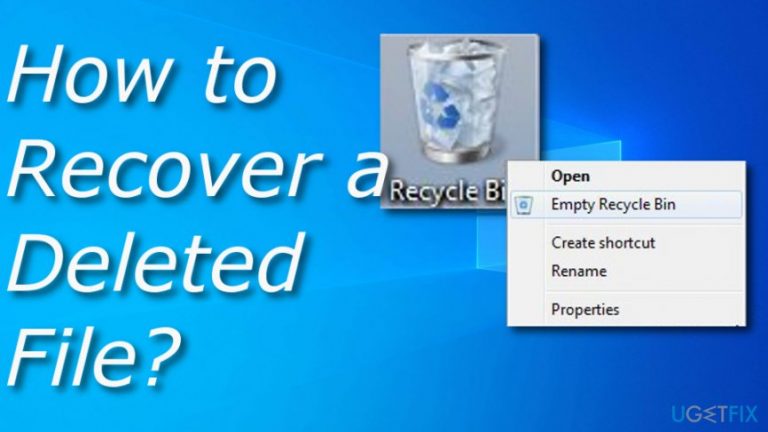
What leads to How to Recover a Deleted File?
- Accidental deletion of files or folders
- Emptying the Recycle Bin without restoring files
- Lack of backups for important data
- Files getting encrypted during a ransomware attack
- Mistakenly deleting files from the desktop
Repairs Windows system files, removes malware, and restores a clean OS state — without reinstalling.
Please help ASAP!! I've accidentally removed the entire folder of photos and did not notice that at first. To say in advance, I've also emptied the recycle bin. Is it possible to recover deleted files somehow?
We guess that every user had run into a similar situation where he/she has deleted some valuable information even from the recycle bin and got lost what to do. It is very frustrating to lose important school essays, work documents, and other data. It is no secret that the deletion of the files can be completed within a couple of steps but restoring them is a bit harder.
To prevent the loss of important data, we always recommend making file backups, which is not a difficult thing to do. You can make copies of valuable information and store it on a portable drive such as a USB device,[ref en-1] DVD, or CD. Also, you can transfer your files, folders, and documents to remote storage such as Dropbox[ref en-3] (for Windows) or iCloud (for Apple users). At least you can save copies of important data on another computer or laptop, however, this might not prevent the files from getting encrypted during a ransomware attack but it is still safer than saving documents just on one single device.
If, however, you have removed the entire folder, emptied the Recycle Bin, and have no backup for the lost data, then you are in some small trouble. Nevertheless, it is possible to recover a deleted file and we will try to explain how this can be done. However, users who have just deleted files from their desktop or a particular, you can find the removed document in the Recycle bin and drag it back, or you can complete the following steps:
- Right-click on the Trash icon that is placed on your desktop.
- Select the Open function from the drop-down menu.
- Then, check all the files that you want to restore.
- Opt for the Restore feature from the list to recover your files.
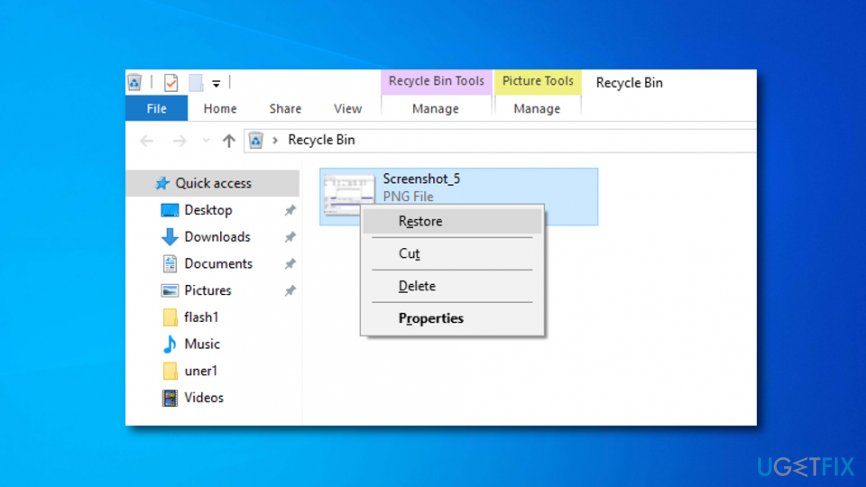
Restore files from trash
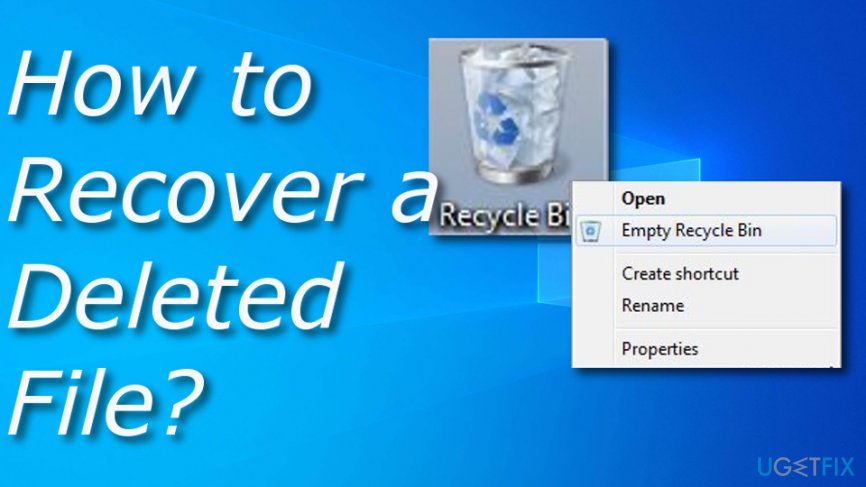
How to Recover a Deleted File?
If you have emptied the Recycle Bin before missing that particular file or if you are not sure whether you have deleted it, then open the Start menu and enter the file name that you want to recover in the search box. That may help in case you've accidentally moved the file from one location to another. By the way, try to remember whether you have stored a missing file in a cloud storage service (Dropbox, Google Drive, SkyDrive, etc.).
In case you have and removed it sometime before, try to log into your account and check the recycle bin there because cloud storages tend to keep deleted files for a long time. Besides, do not forget to check your backups. If you have ever copied data from your computer to USB external hard drive, CD, DVD, or another external storage, make sure that the file you are looking for is not there.
Method 1. Check if Windows has backed up your file
It is possible that Windows has created a backup of your file since Windows 7's versions tend to initiate backup service without setting such a request manually. If you want to check that, then you should complete the following instructing steps:
- Open the location where the missing file was kept.
- Right-click on it and choose to Restore previous versions.
- If you notice that the file has been accidentally removed, click the Open button and you will be taken to the file's location.
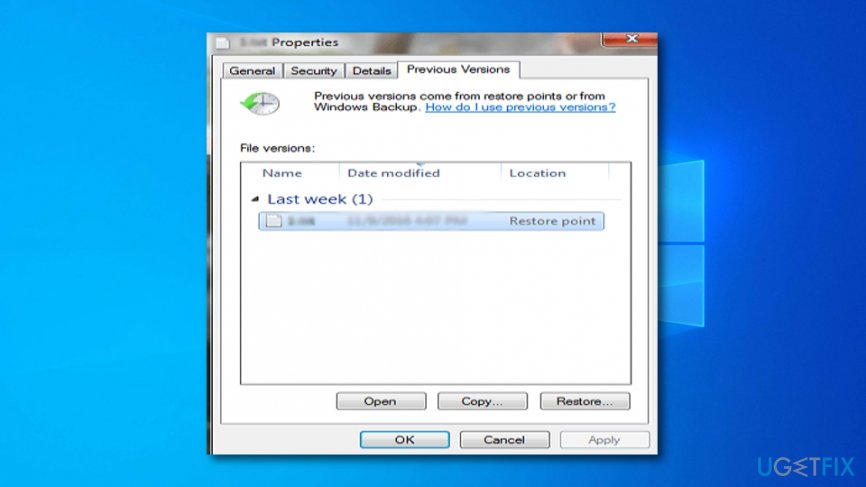
Restore your files
However, you should know that this type of technique is available mostly for users who employ the 7th version of Windows OS.[ref en-4] If you are using a higher variant, this type of method might be enabled only if you have activated the File History option by manual technique:
- Open the location where the missing file was placed.
- Press on the History option.
- Afterward, select the Previous feature.
- Choose the file you want to get back and click the Restore (green) button.
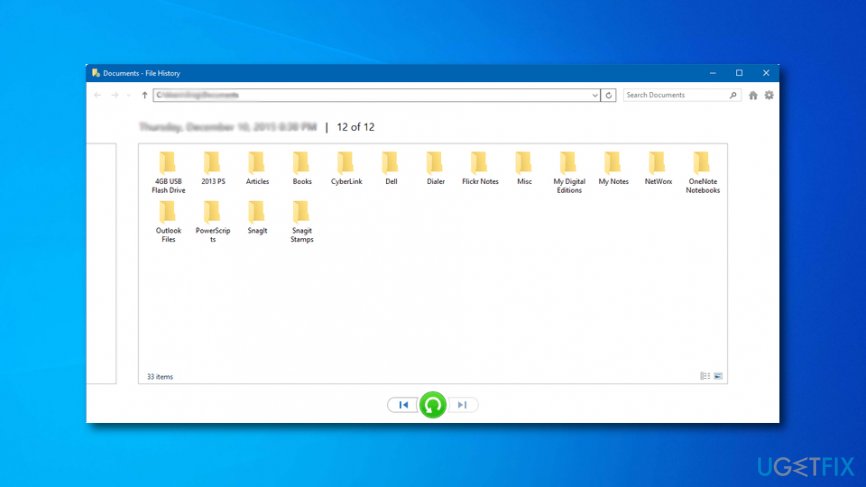
Restoring deleted files
If this method did not help you to restore your lost files, the only thing left that you can try doing is employing some type of automatic recovery software.
Method 2. Recover a deleted file automatically
In the previous section, we have indicated all possible methods of how a deleted item can be restored. Unfortunately, in the majority of the cases, none of them helps due to one or another reason. Fortunately, there is still a solution. In this case, you should use a file recovery[ref en-2] tool, such as Data Recovery Pro.
Bottom line
To recover deleted files, you can check the Recycle Bin and restore files from there. If the Recycle Bin has been emptied, consider using file recovery software or restoring from a backup if available. If none of these methods work, you may need to seek professional data recovery services.
Frequently asked questions
You can recover a deleted file by opening the Recycle Bin, locating the file you want to restore, right-clicking it, and selecting 'Restore.' This will return the file to its original location.
For permanently deleted files, you can use file recovery software such as Recuva or Disk Drill, which can scan your hard drive for recoverable files. Ensure to run these programs as soon as possible to increase the chances of recovery.
Yes, you can right-click the file or folder, select 'Properties,' and navigate to the 'Previous Versions' tab to restore earlier versions, provided that System Restore or File History was enabled before the deletion.




Report an issue
What's wrong with this guide? We review every report and update or remove content.
Report received — thank you. We'll review and fix it.
You need a free account to submit a report.
Be the first to comment