How to recover
Encoded .dewd files
from Windows
Easily recover your encoded .dewd files on Windows 10 or 11 with expert tips. Restore lost data securely and efficiently—zero traces left!

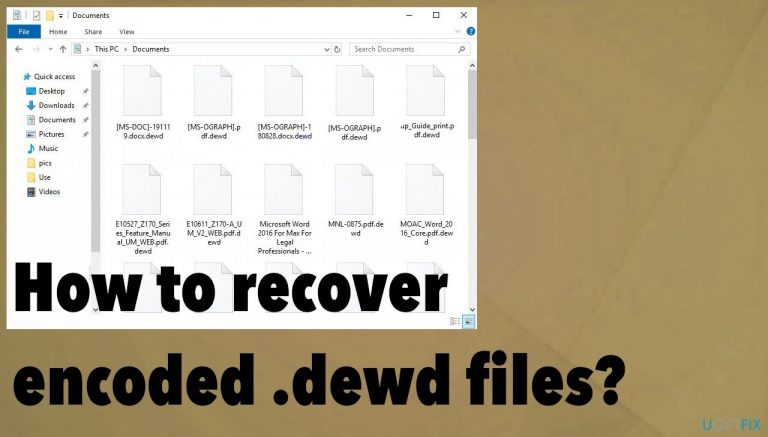
What leads to How to recover encoded .dewd files?
- Files are locked by .dewd ransomware
- Ransomware uses malware as a primary vector
- Infection can spread through trojans and other cyber threats
- Criminals behind ransomware do not care about your files
- Paying the ransom does not guarantee file recovery
Repairs Windows system files, removes malware, and restores a clean OS state — without reinstalling.
Hello. My documents and photos are locked with .dewd now. I need help from you. Can you unlock them or decryption is not possible? I know this is the virus with a ransom demand, but I don't want to pay anything
This is the ransomware that encrypts the commonly used and valuable files, so the ransom is more likely paid. These attackers behind the ransomware try to ensure persistence and can do that by damaging the files and functions of the machine. Cryptocurrency extortionists rely on these operations to make a profit.[ref en-1]
The financially motivated criminals do not care about your files, and paying is never a good option. Even the discount offer in the ransom note _readme.txt for the 50% off in the first 72 hours shouldn't encourage you to pay the sum. There are no guarantees that criminals will recover these files. Especially since this is the version of Djvu ransomware.
There are limited options for file recovery because data backups are needed here for the replacement of locked files and particular tools for direct decryption. However, the particular Dewd file virus does not have a decryption tool that could restore all the files for victims.
There are alternate options, though. You can restore files using the backups, third-party programs designed to recover data. Options offered online can be useless and lead to more issues, so do not fall for random offers of Dewd ransomware decryption or file repair. And remember that removing the threat is crucial here because otherwise, your files might be locked permanently.
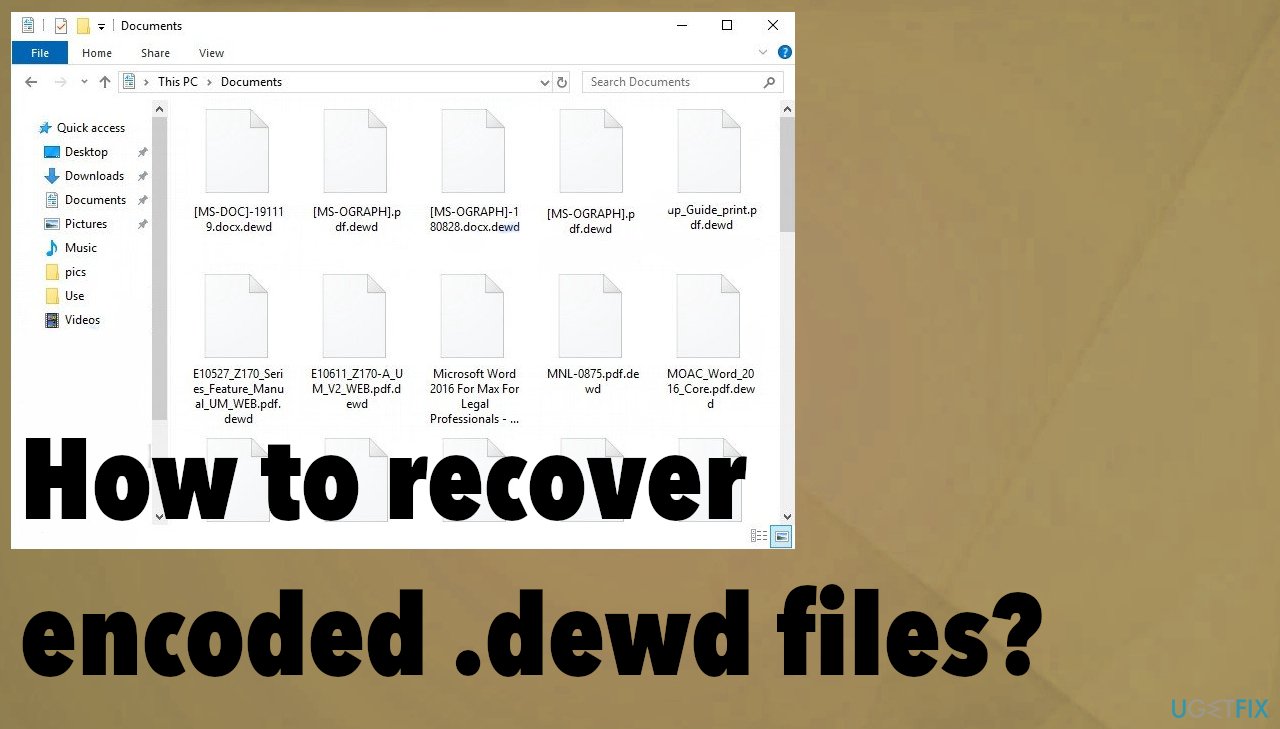
1. Remove the infection
Threats like this can be spread using other malware as a primary vector. Malware, trojans, and other cyber threats get to infiltrate the machine and then deploy the ransomware.[ref en-2] Cyber infections can affect various functions and cause processes when running in the background.
You need to run a proper anti-malware tool or security program that runs on the AV detection engine functions.[ref en-3] The program like this can scan the machine and check various parts of the system to find the malicious files, particular malware, ransomware payload.
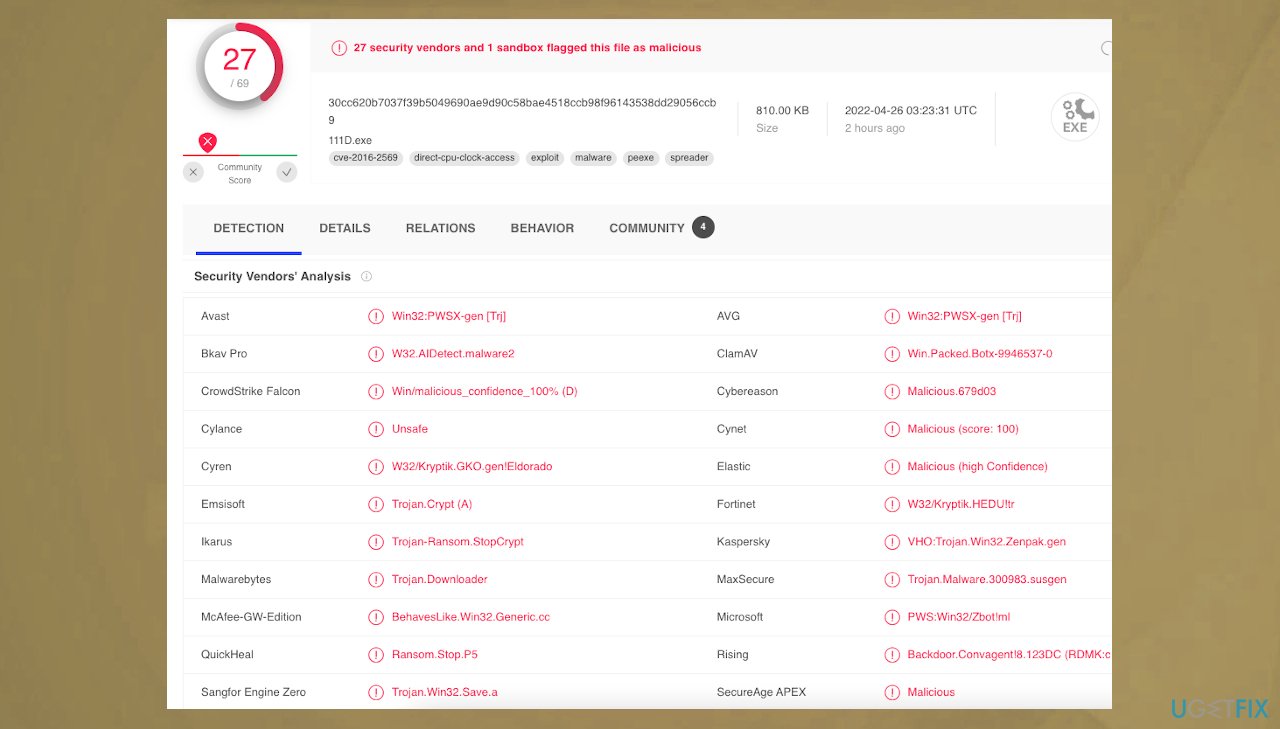
This way you stop the active virus and avoid further damage that ransomware running on the machine can cause. This is not the same as Dewd file decryption or recovery. Removing the threat restores the machine and helps to have a safe system where the data can be recovered.
2. Repair corrupted system data
- Install [d1].
- Run the full system scan and wait for the complete analysis.
- Follow the on-screen steps.
- Allow the machine to get checked.
- Check the Summary.
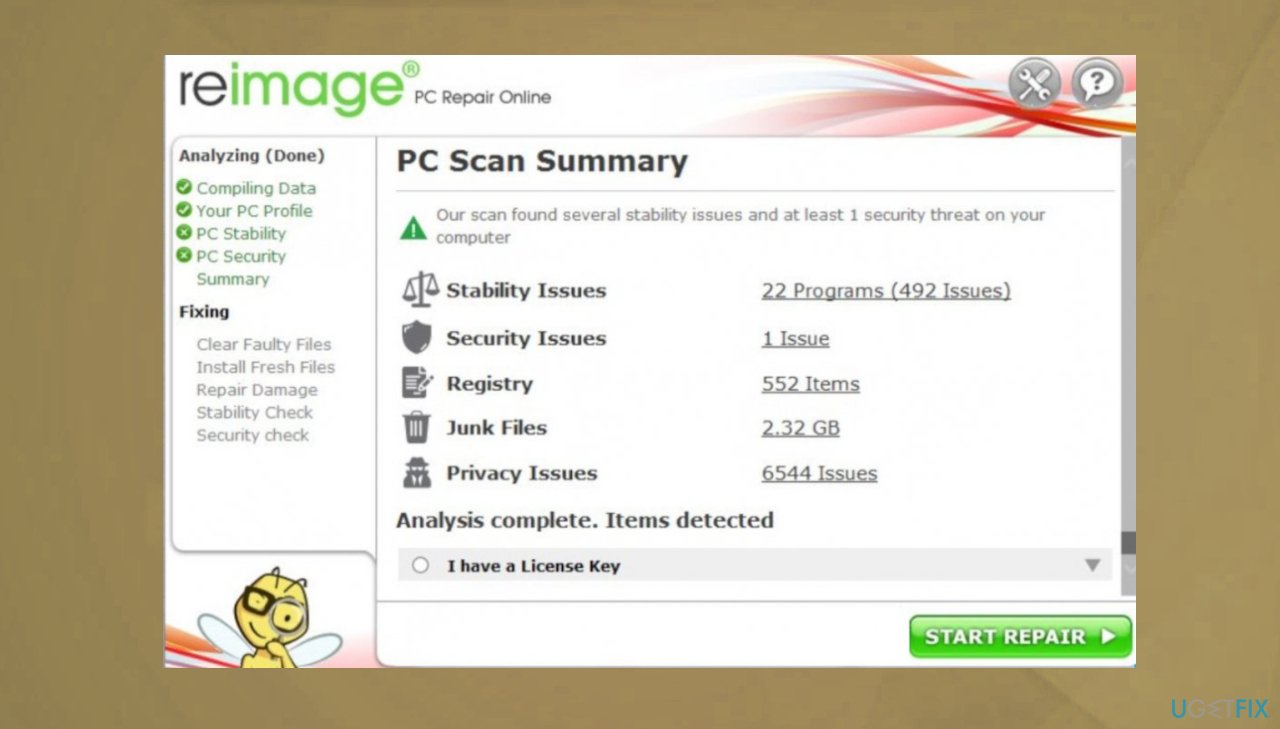
Dewd ransomware reimage - You can fix issues manually from the list.
- Purchasing a licensed version can help repair serious issues.
3. Check the possible decryption option
The family this version derives from was previously decryptable because creators used the offline keys as the primary method when locking data. However, the recent changes and alterations made back in 2019 made this threat more dangerous and no longer decryptable.
Dewd ransomware and other versions released to the wild recently are focused on the online id formation method. It means the key needed for the decryption is unique for each device besides the version of the file-locker virus that affected the system. You can still try to restore files with the tool that was developed previously.
- Download the app on official Emsisoft website.
- Once decrypt_STOPDjvu.exe shows up – click it.
- Follow the steps on the screen.
- The tool should locate the affected folders.
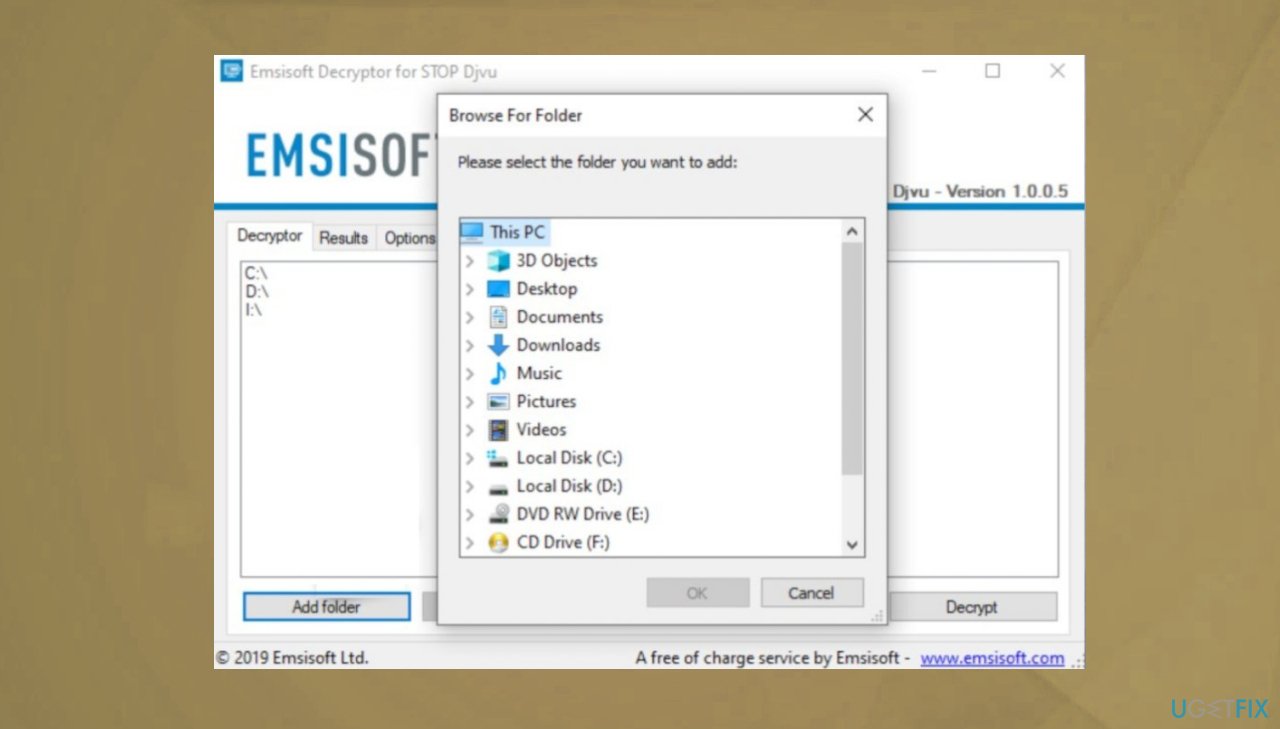
Dewd ransomware decryption tool - You can also do it by pressing Add folder at the bottom.
- Press Decrypt.
- There are particular results that can occur indicating if the decryption is possible.
4. Use a data recovery app
We can recommend [rev id="Data Recovery Pro"].
- Get a tool from a trustworthy source.
- Follow installation instructions.
- Once that is finished, use the application.
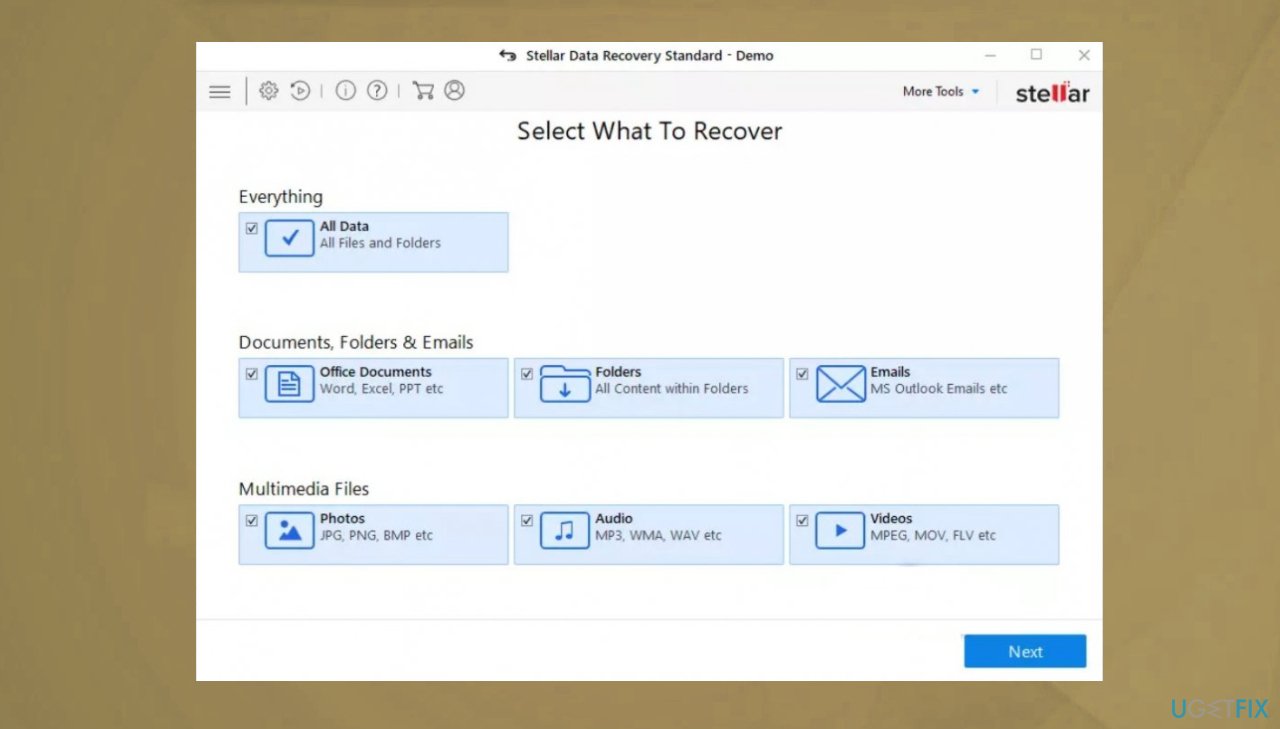
- Select Everything or pick individual folders to recover.
Dewd ransomware recovery tool - Press Next.
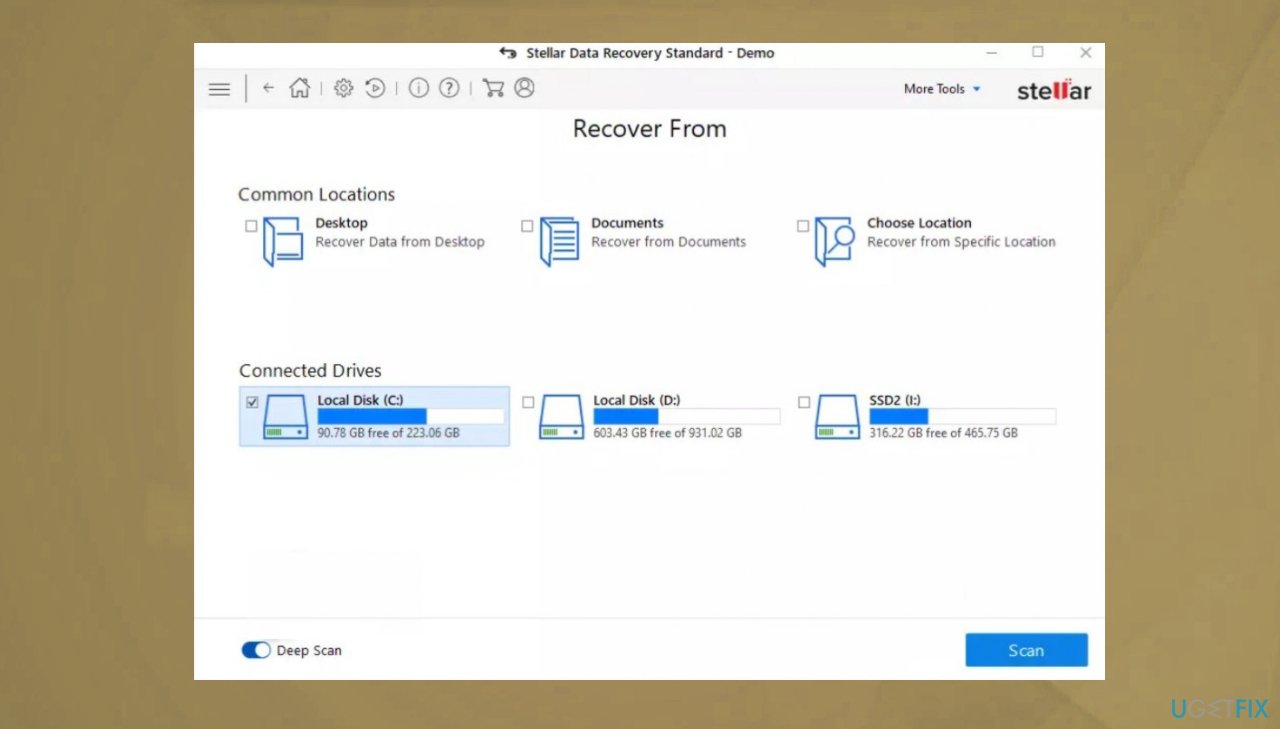
- Enable Deep scan at the bottom.
- Pick which Disk you want to be scanned.
- Scan.
Dewd ransomware data recovery - Hit Recover to restore files.
Bottom line
To recover your files, you should first remove the infection using a proper anti-malware tool. If you have backups, restoring from them is the best option. If none of these methods work, consider seeking professional help.
Frequently asked questions
To recover .dewd files on Windows 10, you can use file recovery software that supports this file type, or check if you have backups available in File History or a similar backup tool.
Yes, tools like Recuva, EaseUS Data Recovery Wizard, or Disk Drill are recommended for recovering .dewd files in Windows 11.
If your .dewd files are corrupted, try using a file repair tool or restore them from a backup if available, as this is often the most effective way to recover lost data.




Report an issue
What's wrong with this guide? We review every report and update or remove content.
Report received — thank you. We'll review and fix it.
You need a free account to submit a report.
Be the first to comment