How to recover
Files encrypted by Aesir ransomware
from Windows
Recover your files encrypted by Aesir ransomware on Windows 10 or 11 with proven methods. Get expert-tested solutions and reclaim your data quickly!

What leads to How to recover files encrypted by Aesir ransomware?
- Files encrypted by Aesir ransomware
- Use of RSA-2048 and AES-256 encryption methods
- Lack of decryption key
- Increased ransomware activity
- Potential for data loss without recovery tools
Repairs Windows system files, removes malware, and restores a clean OS state — without reinstalling.
Today I turned my computer and found all my valuable documents encrypted! I worked on the project for two months! What is more, the message popped up on the screen saying that RSA-2048 ransomware encoded my files. I even consider paying the ransom...anyway, can you propose a solution? Or is it dead-end situation?...
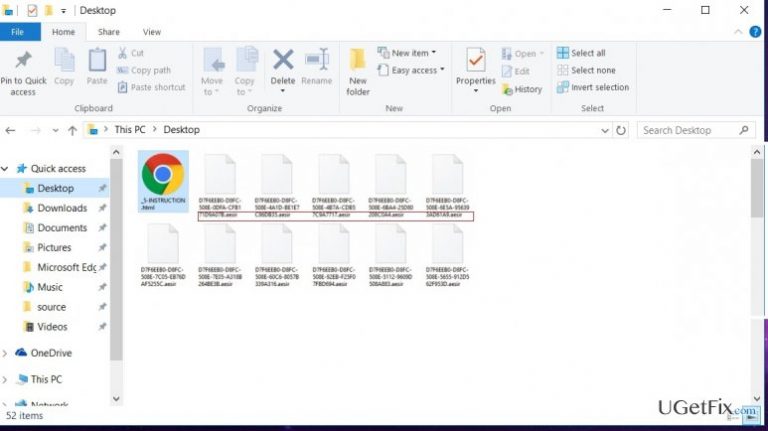
One of the latest versions of notorious ransomware called Locky appends the files with .aesir file extension. It utilizes RSA-2048 and AES-256 encryption methods for the encoding process. Since the latter techniques are based on a public and private key combination, the decryption without the respective key remains a complicated matter. However, while IT specialist are working on the decryption tools, security applications devised alternative methods for decrypting the files. Do not consider transmitting the money as the chances of receiving the data are very low. As you may know, Locky virus has made hundreds of billions of profit by infecting corporations, hospitals, and corporate users. That is why do not foster any hopes and remove Aesir ransomware with a security tool. You may use [rev id=”Reimage”] for that purpose. Below find some of the suggestions to recover the files.
Option 1. Recover the data with Data Recovery Pro
This application helps to restore damaged files after a system crash. Taking into account the increased ransomware activity, the authors of the app updated the utility, and now it is capable of restoring some of your essential files.
- Download [rev id=”Data Recovery Pro”] and run the setup file.
- Follow the guide.
- Scan the system with it. Later on, the program detects corrupted files.
- Choose the affected files and click Recover button.
Option 2. Opting for Windows Previous Versions feature
If System Restore function is enabled, follow the steps to access the last automatically saved copy of your file. However, this solution requires more time.
1. Find the corrupted file right-click on it.
2. Select Properties and navigate to Previous Versions tab.
3. Find the available copies of the file in Folder versions. Select the last version and click Restore.
Option 3. Does ShadowExplorer help decrypt the files?
The essence of this utility lies in employing shadow volume copies which are automatically stored on the device. The original version of Locky is known for deleting these copies but the successive versions might deviate from this pattern. All in all, give this app a try. Note. All recovery actions should be initiated only when the malware removal utility completely eliminates the virus.
- Download and run the program.
- Launch it and select the folder you want to retrieve the files from.
- Click on it and choose Export.
Bottom line
To recover files encrypted by Aesir ransomware, you can use Data Recovery Pro, Windows Previous Versions feature, or ShadowExplorer. If these methods do not work, consider removing the ransomware with a security tool and consult IT specialists for further assistance.
Frequently asked questions
Immediately disconnect your computer from the internet to prevent further encryption and seek professional help or use reliable decryption tools if available.
Yes, you can try using backup recovery options if you have them, or utilize specialized decryption software that may help in recovering files without paying the ransom.
You can try using tools like Emsisoft Decryptor or other reputable ransomware recovery software that specifically mentions Aesir support for Windows 10 and Windows 11.




Report an issue
What's wrong with this guide? We review every report and update or remove content.
Report received — thank you. We'll review and fix it.
You need a free account to submit a report.
Be the first to comment