How to recover
Files Encrypted by Dharma Ransomware
from Windows
Recover your files from Dharma ransomware on Windows 10 or 11 easily and effectively. Expert-tested solutions for fast recovery, zero traces left.

What leads to How to Recover Files Encrypted by Dharma Ransomware?
- Files are encrypted with RSA and AES encryption technologies
- Ransomware appends email addresses and specific file extensions to encrypted files
- Dharma ransomware variants use different email addresses for ransom
- Ransomware drops a ransom note on the desktop
- Criminals aim to extort money from victims
Repairs Windows system files, removes malware, and restores a clean OS state — without reinstalling.
My computer has been infected with a ransomware called Dharma. The problem is that this Dharma virus has encoded all my files and added [[email protected]].dharma extensions to each of them. Is there a way to decrypt files that Dharma ransomware has corrupted?
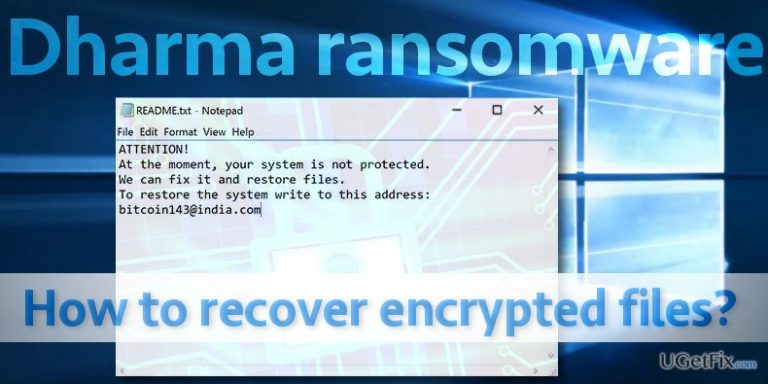
The term “Dharma virus” covers a bunch of malicious computer viruses that are currently actively distributed online. All these viruses are very similar. These viruses can be easily recognized because they append criminals’ email addresses along with .dharma, .wallet, .zzzzz or .xtbl file extension to all encrypted files. At the moment, different Dharma ransomware variants append such extensions: .[[email protected]].wallet, .[[email protected]].wallet, .[[email protected]].wallet, or, in your case, .[[email protected]].dharma file extension. The ransomware encrypts files securely - it encrypts them with RSA and AES encryption technologies, and this process converts files into useless pieces of data. Dharma ransomware typically drops a ransom note called README.txt on user’s desktop, stating that the system is not protected and that criminals can restore the data, but in order to get help, the victim has to contact them via [email protected] or whatever email address they provide. Sadly, these criminals are not willing to help you - they simply want you to pay a ransom, and such action is not the best solution to the described problem. Remember that scammers have no reputation and you should not believe in their words. They might just make off after receiving your money, also they might lose their email account in case the email service provider blocks it, and then you can lose your files for good. It is highly advisable to remove Dharma ransomware - the sooner, the better. For the best results, we suggest using trustworthy anti-malware tools. For example, you can complete Dharma removal with [rev id=”Reimage”] software. For more details about Dharma, see a full article by 2-Spyware team.
However, the most important question is, what to do with the encrypted data? If you want to restore files encrypted by Dharma virus completely, you need to have a backup. Sadly, many computer users do not consider backups as something essential to have, and so they do not create them. The truth is, if you do not have a computer protection software, you MUST create backups. It is free to create them - you just need to have an extra data storage device. If you do not have a backup, you should carefully read and try these data recovery methods. Although we cannot guarantee that these will help you to restore absolutely all files, it is always better to try.
How to recover files encrypted by Dharma ransomware?
Method 1. Use Data Recovery Pro to restore files
Data Recovery Pro by PareToLogic, Inc. This tool helps to recover lost or deleted files from computers and mobile devices. It can recover multi-media and documents, music, emails, and much more. You should definitely try this software - it might help you to restore some data corrupted by Dharma ransomware virus.
- Download [rev id=”Data Recovery Pro”]. Once the download is completed, launch the setup.
- Follow instructions the installation wizard provides.
- Scan the system with this program to identify corrupted files.
- Select affected files that you want to restore and click the Recover button.
Method 2. Use built-in System Restore feature
If you enabled System Restore function on your computer in the past, you are lucky, because now you will be able to restore encrypted files. System Restore helps to roll back to a previously saved computer’s state. If you set up a Restore Point a while ago, restore files now using Windows Previous Versions function.
- Click on an encrypted file with the right mouse button.
- When the options menu appears, choose Properties. Then go to Previous Versions tab.
- Here, find the desired copy of the file (in Folder versions). Click on the version and choose Restore.
Method 3. Use ShadowExplorer
Sometimes malicious viruses fail to carry out all malevolent functions on the target system successfully. They are programs and can be interrupted or crash as well; therefore, sometimes viruses fail to delete Volume Shadow Copies, which can restore previous file condition. To find out whether you can restore your files, do the following:
- Download ShadowExplorer.
- Install the program according to instructions that Shadow Explorer Setup Wizard provides.
- Launch the program, and select the partition that contains encrypted data. Here, select folder that you want to restore.
- Right-click on it and select Export. Optional: you can choose where to store recovered files.
Method 4. Use Crysis Decrypter
Dharma virus is reportedly related to Crysis ransomware, and recently a bunch of Crysis decryption keys was released. You can try tools provided in this Kaspersky website to restore .dharma file extension files.
Bottom line
To recover files encrypted by Dharma ransomware, it is crucial to have a backup. If a backup is not available, it is advisable to remove the ransomware using trustworthy anti-malware tools. If none of these solutions work, consider seeking professional data recovery services.
Frequently asked questions
Immediately disconnect your computer from the internet to prevent further data loss, then run a full antivirus scan to remove the ransomware from your system.
Yes, you can attempt to recover your files using backup solutions, file recovery software, or by restoring previous versions if you have System Restore enabled.
While there is no guaranteed solution, tools like Windows File Recovery or third-party decryption tools may help in some cases, but results can vary depending on the ransomware variant.




Report an issue
What's wrong with this guide? We review every report and update or remove content.
Report received — thank you. We'll review and fix it.
You need a free account to submit a report.
Be the first to comment