How to recover
Files encrypted by Ryuk ransomware
from Windows
Recover your files encrypted by Ryuk ransomware on Windows 10/11 with expert tips and proven methods. Get back your data quickly and securely! Updated 2…

What leads to How to recover files encrypted by Ryuk ransomware?
- Opened a fake email attachment
- Clicked on a disguised hyperlink
- Neglected security procedures
- Infected via phishing emails
- Brute force targeted attacks
Repairs Windows system files, removes malware, and restores a clean OS state — without reinstalling.
Hello, I need help urgently! I recently opened an email attachment which I now understand was fake. It was presented as an Invoice, so I thought it is something important. Soon after I opened it, I saw a text file RyukReadMe.txt file generated on my desktop. When I opened it I realized that all my files are locked now. I do not have much experience with cyber infections, and I do not want to pay the ransom. Is that the only choice?! Please help me, I have several hundred photos that are important to me!
Ryuk ransomware is a relatively new cyberthreat that recently hit the headlines of various security networks, as it managed to extort nearly US$640,000 from victims.[ref en-1] While it mainly targets organizations, it is well known that the malware also attacks regular users with somewhat decreased ransom size.
It is highly likely that most users get infected when they open suspicious attachments in the spam email or click on on a disguised hyperlink. That is why it is vital to make sure that the attachment or the link is legitimate before even trying to open it. If victims are more careful online, they would not have to worry how to recover files encrypted by Ryuk ransomware in the first place.
However, many users neglect security procedures, whether it is due to lack of the information or laziness. While general users are most likely to be infected via phishing[ref en-2] emails, organizations are highly likely to be affected using brute force[ref en-3] targeted attacks.
Before the malware starts to encrypt data, it shuts down several services and processes that are running on Windows machines. Additionally, it stops several anti-malware programs from the operation and attempts to delete Shadow Volume Copies.[ref en-4] Then Ryuk ransomware scans the device in order to look for files to encode. It uses a combination RSA-4096 and AES-256 encryption algorithms to lock up data and then drops ransom note RyukReadMe.txt and UNIQUE_ID_DO_NOT_REMOVE.txt, depending if the infected target is an organization or a regular user. Hackers demand a massive amount of 15 - 50 BTC ($100,428 - $334,763) for file release.
Researchers speculate that the malware was most likely created by the infamous Lazarus hacker group that was responsible for Sony hack back in 2014, as well as the devastating WannaCry ransomware attacks. Thus, the virus is operated by high-profile hackers who are willing to extort thousands of dollars. Nevertheless, users should not contact criminals, as there is no guarantee that they will receive the decryptor. More importantly, victims who pay only fund hackers' illegal activities.
The official decryptor has not been released yet, although there are several methods you can use to recover files encrypted by Ryuk ransomware. We prepared a detailed guide below on what you should be doing next, so read it carefully.
Remove Ryuk ransomware using reputable security software
Users who got their machines infected with should first remove Ryuk ransomware and only then attempt the file recovery. Beware that manual elimination is not a smart idea, as the system might be damaged even further (tampering with system files while not being an IT expert is never recommended). Therefore, use reputable security software instead. After Ryuk ransomware removal is complete, use [d1] to clean up all the mess that the virus left on your computer.
Recover your files encrypted by Ryuk ransomware using data backups
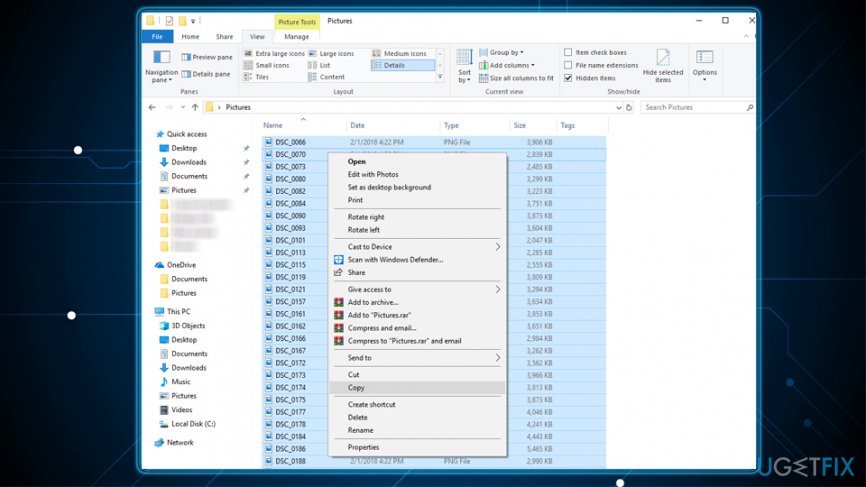
Using backups is the only guaranteed way that can get your files back. Therefore, it is vital to continually keep backups on a remote drive - such as USB stick or external HDD. Alternatively, the encoded data can be recovered from a virtual disk, such as Google Drive, OneDrive, Dropbox and similar. To restore your files using the external drive, use these instructions:
- Plug in a storage device to your computer only AFTER you removed Ryuk virus
- After the PC detects the external drive, and open the folder that contains your files
- Select all the files using Ctrl + A and press Ctrl + C after
- Go to the desired destination on your device and press Ctrl + V
Recover your files using Data Recovery Pro
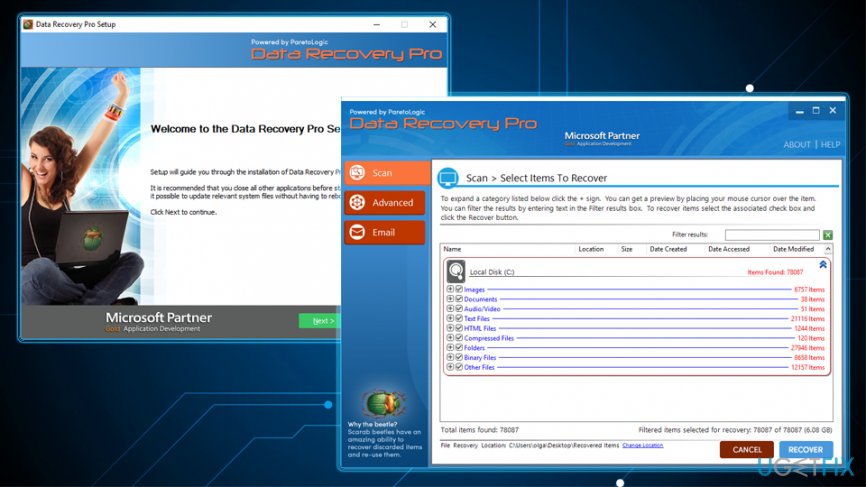
Data Recovery Pro was created to restore files that were accidentally deleted or lost after the system crash. However, the software can also help victims that need to recover data encrypted by Ryuk ransomware. Thus, it is worth a try:
- Download [rev id=”Data Recovery Pro”] and and follow on-screen instructions to install it on your device
- Open the application and set up a scan - pick Full Scan option and click on Start Scan
- You can also make the software look for specific files - simply enter a keyword
- As soon as the scan is complete, mark all the data you want to get back and press Recover
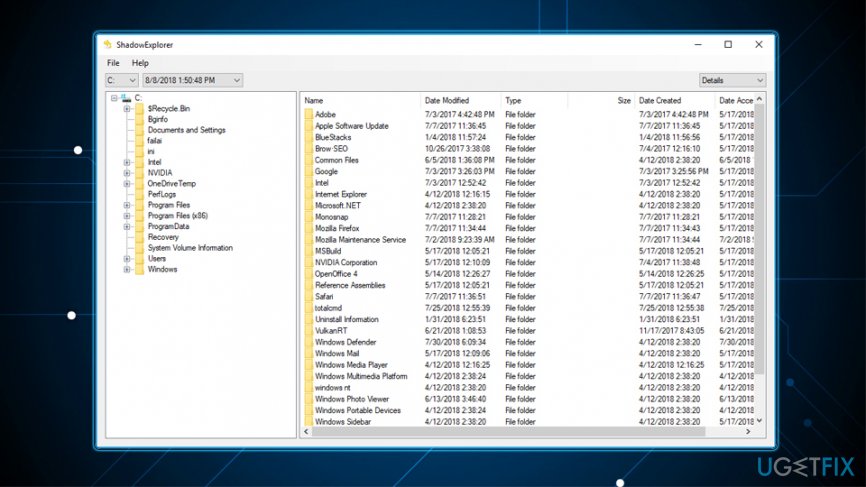
Retrieve files encrypted by Ryuk ransomware using ShadowExplorer
Most ransomware viruses target Shadow Volume Copies and delete them from Windows. However, this process might sometimes fail. In such case, ShadowExplorer will get all your data back:
- Download ShadowExplorer software and run the installation Wizard
- Open the app and select the drive you want to recover files from
- Click Export (you may also specify where to export files)
Resort to Windows Previous Version Feature to recover your files locked up by Ryuk virus
This method allows you to restore files one-by-one. Therefore, recovering a large amount of data might be impossible. Additionally, you should have System Restore function enabled before the malware infected your computer. If you meed these conditions, follow these steps to recover files encrypted by Ryuk ransomware:
- Select an encrypted file you want to restore and right-click it
- Choose Properties and then Previous Versions tab
- Pick a previous version and click Restore
Bottom line
To recover files encrypted by Ryuk ransomware, ensure that you have backups of your data, use reputable anti-malware software to scan your system, and consider professional data recovery services. If these methods do not work, it may be necessary to consult cybersecurity experts for further assistance.
Frequently asked questions
Immediately disconnect your device from the internet to prevent further spread and seek professional help for malware removal. Do not pay the ransom, as it does not guarantee file recovery.
If you don't have a backup, you can attempt using data recovery software or specialized decryption tools, but success is not guaranteed. It's important to keep your system updated and secure to prevent future infections.
While there is no universal decryption tool for Ryuk ransomware, tools like Emsisoft Decryptor may help in some cases. Always ensure your Windows system is protected with updated security software to mitigate risks.




Report an issue
What's wrong with this guide? We review every report and update or remove content.
Report received — thank you. We'll review and fix it.
You need a free account to submit a report.
Be the first to comment