How to recover
Files encrypted by Seto ransomware
from Windows
Recover your files encrypted by Seto ransomware on Windows 10 and 11 with our expert-tested guide. Fast solutions for urgent situations—fixed in minutes!

What leads to How to recover files encrypted by Seto ransomware?
- Infection by Seto ransomware
- Use of botnets to deliver spam emails
- Exploitation of software vulnerabilities
- Uploading fake torrents disguised as files
- Removal of Shadow Volume Copies
Repairs Windows system files, removes malware, and restores a clean OS state — without reinstalling.
Hi, my PC got infected with ransomware, and all my files are appended with .seto file extension - I can not open any of them! My photos, videos, and working documents are all locked... What is this ransomware, and is there a way to retrieve my data? Please help, as I am desperate.
Seto virus belongs to one of the most active ransomware families - Djvu/STOP. The malware strain was first spotted at the end of December 2017, and hackers behind it released approximately 150 variants since then, Seto being one of the most recent ones, spotted in August 2019.
However, various versions of Djvu ransomware can infected users regardless of their release date - malware authors use various methods to deliver the malicious payload the host machines. For example, they use botnets to deliver spam emails with malicious attachments, use software vulnerabilities to infect users automatically once they land on a predetermined site, upload fake torrents disguised as video or program files, etc.
Nevertheless, older versions tend to infect users less, as samples like Seto ransomware are more advanced - multiple changes were made to the malware over time, as security researchers were able to provide users with free tools like STOPDecrypter for file recovery. Unfortunately, it is now impossible to recover files locked by Seto ransomware by using this tool.
As soon as Seto ransomware enters the host computer, it performs a variety of changes, such as modifications to Windows registry, internet connection options, system certificates, permissions, kernel[ref en-3] functions, etc. Besides, Seto ransomware also removes Shadow Volume Copies - an automatic backup created by Windows operating system. This change in particular what makes data recovery so difficult.
Once the encryption process is triggered, it is usually complete just in a mere few seconds - so there is no way to stop it on time. Encryption, however, is not the same as file corruption, as, with adequate tools, the process can be reverted.
There are two types of encryption that are used in cryptography - symmetric and asymmetric.[ref en-4] Symmetric encryption uses a secret key that is only known to the hackers, while asymmetric uses a public key (known to everybody) to lock files and requires a different key to unlock it. Seto ransomware is known to use symmetric (AES) encryption method, which means that without acquiring the secret key, the recovery chances are relatively slim.
Hackers ask for $980 (or $490 with a discount) for the decryption tool that would revert the encryption and enable victims to use the files again. However, paying the ransom is a risky maneuver, as crooks might simply never send the decryptor after receiving money. Additionally, the action only proves threat actors the illegal business works as intended, and will encourage them to infect more people with Seto or other ransomware variants.
Therefore, you should think twice before paying the ransom, although it is up to you. Some users might be desperate and use it as a last resort. However, you should rather use alternative methods that might be able to help with file recovery without Seto ransomware decryptor from cybercriminals.
Remove Seto ransomware before you proceed with file recovery
As long as Seto ransomware infection is present on your PC, recovering files will not bring any use, as they will get encrypted immediately once again. Therefore, it is extremely important to get rid of malware before retrieving your data.
Seto virus performs a variety of system changes to be able to boot itself with every system launch. Djvu ransomware variants are also known to deliver secondary payloads in the past (such as AZORult[ref en-2] banking trojan), as well as to modify Windows host file to prevent users from visiting security-related sites.
The best way to delete the virus is by entering Safe Mode with Networking and then performing a full system scan using anti-malware [d1], although any other reputable tool should be able to detect[ref en-1] and eliminate the parasite. To enter Safe Mode, proceed with the following steps:
- Right-click on Start button and select Settings
- Go to Update & Security and click on Recovery
- Locate Advanced startup section and click on Restart now (note that this will immediately restart your PC)
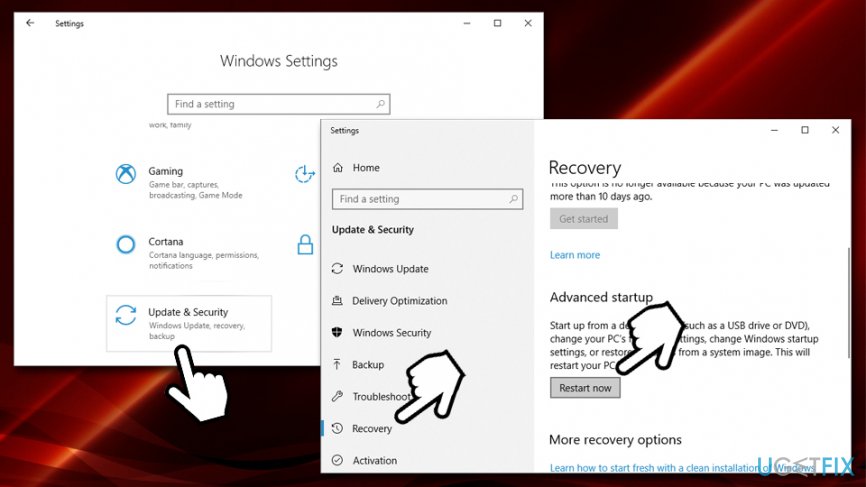
How to recover files encrypted by seto ransomware enter safe mode to remove seto ransomware - After your computer restarts, you will be presented with Choose an option screen
- Go to Troubleshoot > Advanced options > Startup Settings and click Restart
- Once the PC restarts, press F5 or 5 to to enter Safe Mode with Networking
Method 1. Use Data Recovery Pro to recover files encrypted by Seto ransomware
Data recovery software does not work the same way as the decryption tool for Seto ransomware would. Instead of deciphering the existing files, it tries to retrieve the working copies from the hard drive (or SSD). However, if the space that used to store these files was overwritten with other information, the recovery will not be successful. Therefore, whether or not Data Recovery Pro will help you, depends on how much data was written on your hard drive after file alternation.
- Download Data Recovery Pro (direct link) application installer and double click it to initiate the installation process
- Follow on-screen instructions to install the program
- Once the installation is finished, double click on Data Recovery Pro shortcut on your desktop to open it
- Select Full Scan option and pick Start Scan (alternatively, you can search for individual files based on keywords)
- After the scan is finished, choose which files you want to retrieve and and click on Recover button
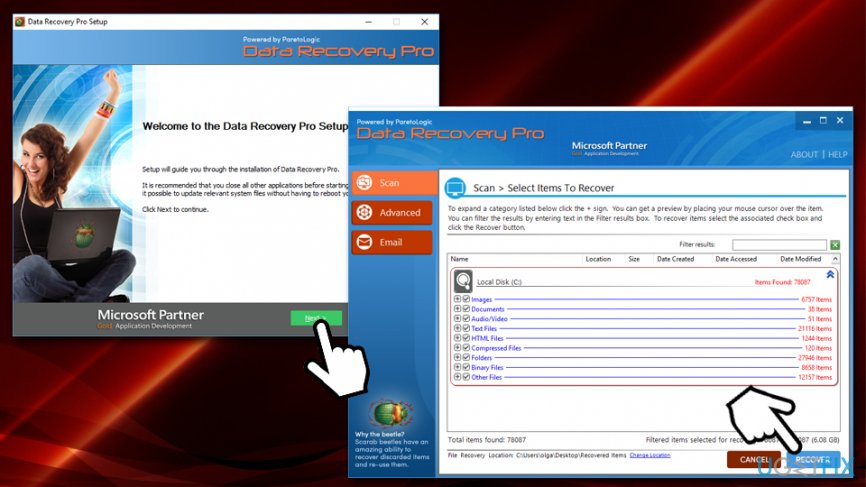
How to recover files encrypted by seto ransomware use data recovery pro
Method 2. ShadowExplorer might be able to recover all the data encrypted by Seto ransomware in some cases
As we previously mentioned, Seto ransomware is programmed to delete the files stored by the automatic Windows backup system - Shadow Volume Copies. However, in some cases, the malware might fail to eliminate these backups - that is when ShaodwExplorer is a great option to recover all your data:
- Download ShadowExplorer (direct link) and install it using on-screen instructions
- Once finished, open the application and pick the drive you would like to recover files from
- Select the folder, right-click on it and pick Export
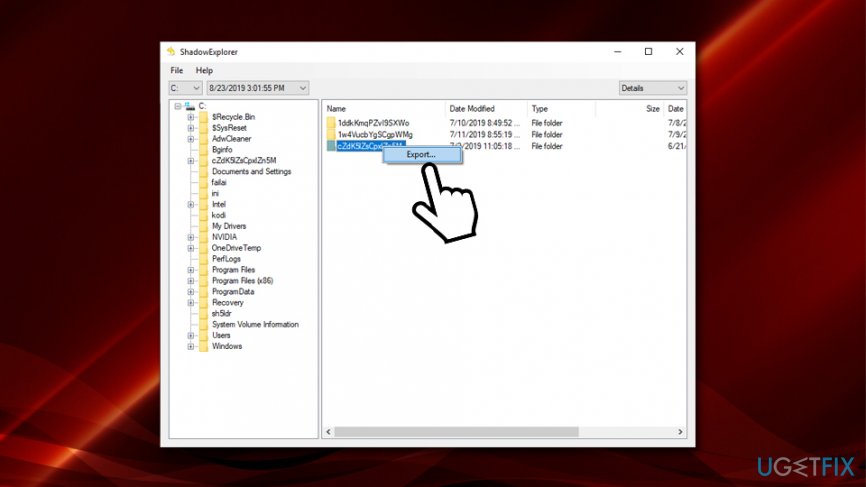
How to recover files encrypted by seto ransomware use shadowexplorer
Method 3. Try out Windows Previous Versions feature
Those users who had System Restore enabled before Seto ransomware attacked their computers have another chance of recovering the lost files. However, be aware that this option requires you to restore each of the files individually, so the process might take a while.
- Locate the file you want to recover
- Right-click on it and select Restore previous versions
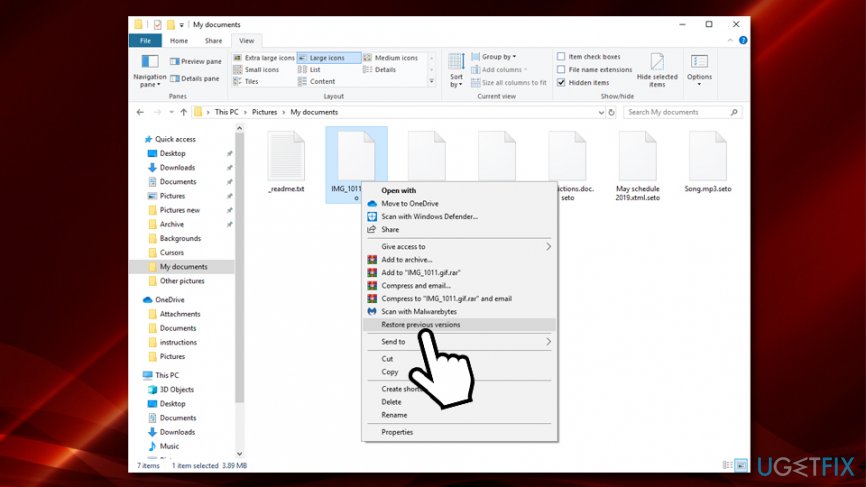
How to recover files encrypted by seto ransomware use windows previous versions feature - Click on the previous version and select Restore
You should avoid paying ransom for Seto ransomware decryption tool
It is worth saying that security researchers are constantly working on recovery tools that would be able to help users to avoid paying cybercriminals. STOPDecrypter was one of the tools that were able sometimes to help STOP ransomware victims (its developer is now working on a new version), and older ransomware variants like DATASTOP or INFOWAIT were decryptable thanks to cybersecurity firm Dr. Web researchers. Therefore, there is a chance that Seto ransomware will be completely decryptable in the future - so make sure you prepare the backups.
In some cases, paying hackers might be the only option. However, please be aware that you might lose your money, so do that at your own risk.
Bottom line
Unfortunately, it is currently impossible to recover files locked by Seto ransomware using tools like STOPDecrypter. The encryption process is rapid and prevents timely intervention. If none of the recovery methods work, consider seeking professional data recovery services.
Frequently asked questions
Immediately disconnect your device from the internet to prevent further damage, then use a reputable antivirus program to scan and remove the ransomware.
Yes, you can try using data recovery software or specialized decryption tools, but success may vary depending on the specific version of the ransomware.
If you have a backup that was created before the infection, you can restore your files from there, ensuring that the ransomware is fully removed first.




Report an issue
What's wrong with this guide? We review every report and update or remove content.
Report received — thank you. We'll review and fix it.
You need a free account to submit a report.
Be the first to comment