How to recover
Files Encrypted by Ykcol Ransomware
from Windows
Recover your files encrypted by Ykcol Ransomware on Windows 10 and 11 with expert-tested methods. Get your data back quickly and securely!

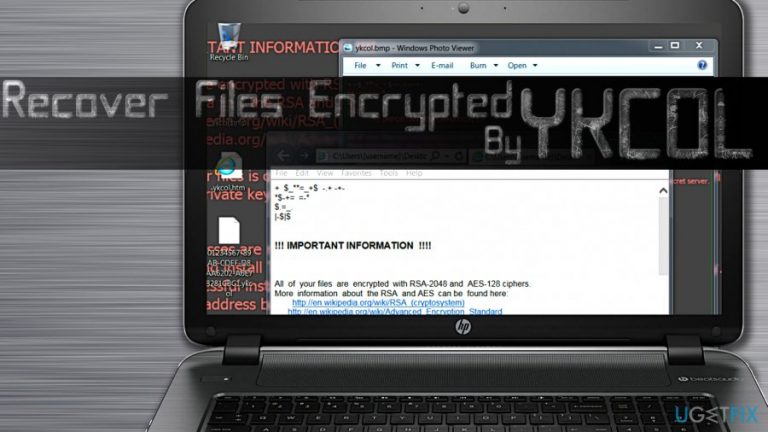
What leads to How to Recover Files Encrypted by Ykcol Ransomware?
- Files were encrypted by Ykcol ransomware after opening a malicious document
- Ykcol ransomware is a variant of Locky crypto-malware
- The malicious virus is distributed by Necurs botnet spam
- The ransomware encrypts files for ransom
- The ransom price is between 0.25 to 0.4 Bitcoin
Repairs Windows system files, removes malware, and restores a clean OS state — without reinstalling.
My files were encrypted by Locky ransomware as soon as I opened a malicious document sent to me via email! Every file now has .ykcol file extension and can no longer be opened. Are my files corrupted for good? Some of the encrypted files are very important to me, for instance, files associated with my work. Is there a way to recover them?
Ykcol file extension virus (also known as Ykcol ransomware) is a variant of Locky crypto-malware that encodes victim’s files for ransom. The malicious virus is actively distributed by Necurs botnet spam that delivers deceptive email attachments containing a JavaScript file inside of .7z attachment.
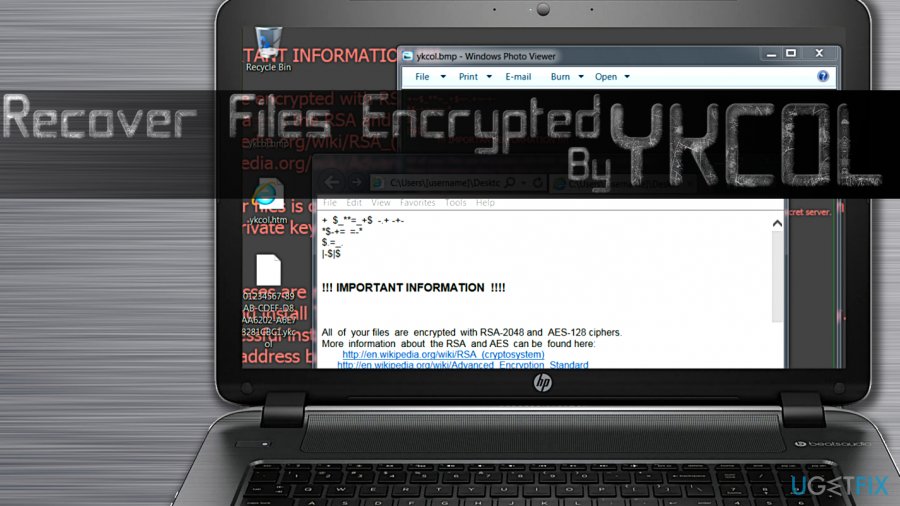
As soon as the .js file is opened, the script inside of it will address a web page hosting Ykcol ransomware and download a malicious program from there. Soon after, the script executes the fresh sample of Ykcol and allows it to encrypt all files on the system. The ransomware leaves instructions in ykcol.bmp and ykcol.htm files.
The virus points the victim to a website that can be accessed via Tor browser only. Here, the ransom price is stated. The new Locky variant asks from 0.25 to 0.4 Bitcoin as a ransom, whereas earlier it never lowered the price below half a Bitcoin.
Security experts say that paying the ransom is not a solution to the problem and it does not necessarily help to recover encrypted files. There are tons of other reasons why you shouldn't pay cyber extortionists, too. First of all, you risk losing a great amount of money and second, you fund criminals' projects and motivate them to continue working on future ransomware projects.
Unfortunately, Locky virus is extremely sophisticated and advanced piece of malware and reversing the damage it inflicts is simply not that easy. However, there are some methods you can try to recover .yckol file extension files.
Recover Files Encrypted by Ykcol Ransomware Virus
Method 1. System Restore Point can save your files
It is advisable to create system restore points every once in a while, and if you have done so prior to Locky attack, you can now restore some of your files using given directions:
- Find the file that you want to restore and right-click on it.
- Now, go to Properties and then to Previous Versions.
- Here, find the file copy that you want to restore. Click it and select Restore.
Method 2. Use data recovery programs
One of data recovery programs we suggest using is Data Recovery Pro. First of all, you will need to download and install it to test its capabilities regarding .ykcol file extension data decryption.
- Download [rev id=”Data Recovery Pro”].
- Open the installer you downloaded and follow instructions on your screen.
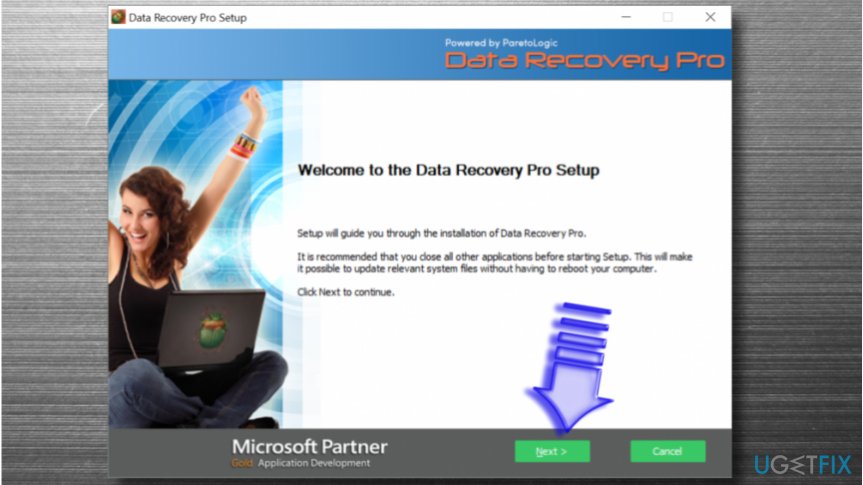
Data recovery pro installation - Open the software and then check your computer for files with .ykcol file extensions.
- Try to restore them.
Method 3. Use data backup
If you created a copy of important files earlier and moved it to an external disk/drive, you can use it to replace encrypted files. Do not forget to remove Ykcol ransomware first with software like [d1].
- As soon as your computer is malware-free, plug in the storage device with data copies. Wait until AutoPlay window shows up. Click Open Folder to view files;
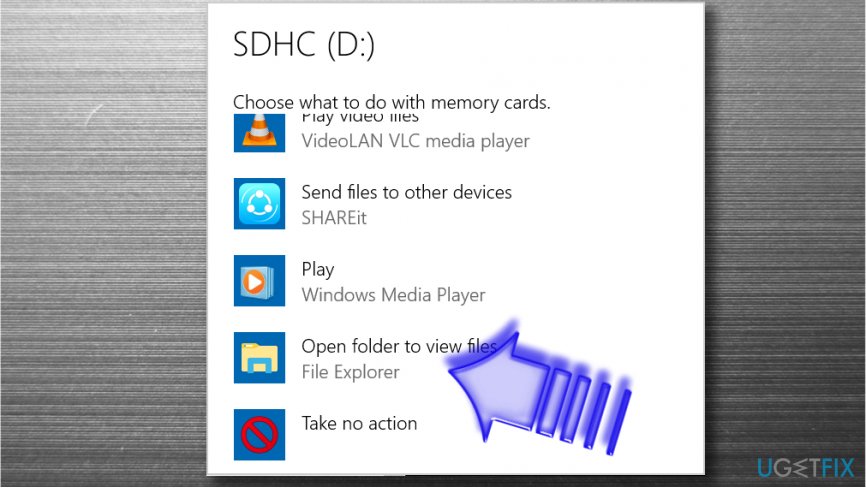
Open folder to view files - Now, select all files and move them to a preferred folder on your computer.
Method 4. Look for data copies in online data storage places
If you do not have a data backup and your files are encrypted, you can try to find some important files in your email, or in DropBox, iCloud or servers of other online data storage services you were using. Once the ransomware is deleted, log into your account and download copies of your files to your computer.
Bottom line
To recover files encrypted by Ykcol ransomware, you can try using a System Restore Point if one was created before the attack. Additionally, consider other recovery methods as paying the ransom is not recommended. If none of these methods work, seek professional help or data recovery services.
Frequently asked questions
You may notice that your files have unusual extensions added, and you'll typically receive a ransom note with instructions on how to pay for decryption. Additionally, your system may exhibit unusual behavior or performance issues.
You can try using data recovery software or restoring files from a recent backup if available, but results may vary. It's also advisable to check for any decryption tools released by cybersecurity experts.
First, disconnect your device from the internet to prevent further data loss, and then run a comprehensive antivirus scan to remove the ransomware. Afterward, consider restoring your system to an earlier state or using recovery options to access your files.




Report an issue
What's wrong with this guide? We review every report and update or remove content.
Report received — thank you. We'll review and fix it.
You need a free account to submit a report.
Be the first to comment