How to recover
Hajd ransomware files
from Windows
Recover your files from Hajd ransomware quickly and safely on Windows 10 or 11. Expert-tested techniques ensure zero traces left.

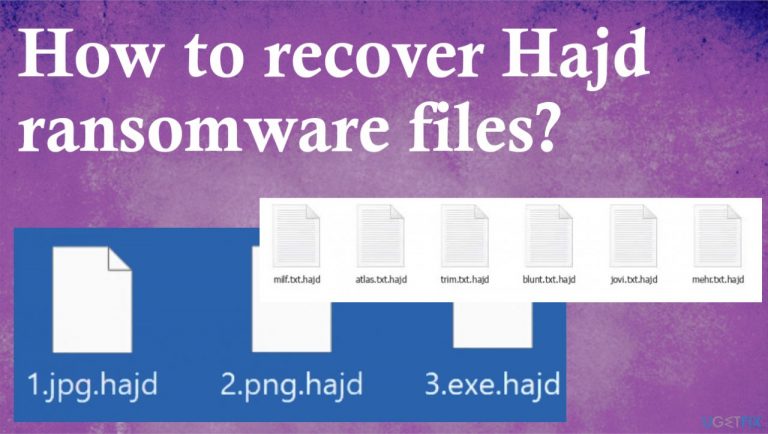
What leads to How to recover Hajd ransomware files?
- Malicious file drop
- Fake error messages
- Windows update pop-ups
- Active ransomware processes
- Lack of good backups
Repairs Windows system files, removes malware, and restores a clean OS state — without reinstalling.
Hello. Data got locked with .hajd marker on my computer. Can I do anything myself or the only solution is decryption? I don't want to pay, of course. I don't have good backups for these files though. I need all the tips.
The ransomware infection[ref en-1] is starting with the malicious file drop and there are various processes that get to run on the machine. However, until the file encryption users cannot notice any symptoms of the program. The file marker .hajd indicates the name of the file virus that affected the machine.
Data marked using the appendix is locked and useless, so the worst thing about the infection is the damage to common files. The threat starts the procedures quickly after installation and manages to do so with fake error messages and windows update pop-ups that keep users thinking that speed issues are not caused by infection.
The particular cryptovirus delivers a _readme.txt ransom note with instructions and encouragement to pay the amount of $980 in the form of Bitcoin. This is stated as the only solution for file recovery, but this is never a good idea to trust cyber criminals because these threat actors tend to advance their tactics over time.[ref en-2]
The threat is the version from a known family Djvu ransomware. This threat actor group is active since 2019 and the issue with these infections is the decryption option limitations. Previously it was possible to restore some of the data, but the advanced changes to encryption stepped the opportunity. However, there are some alternate solutions.
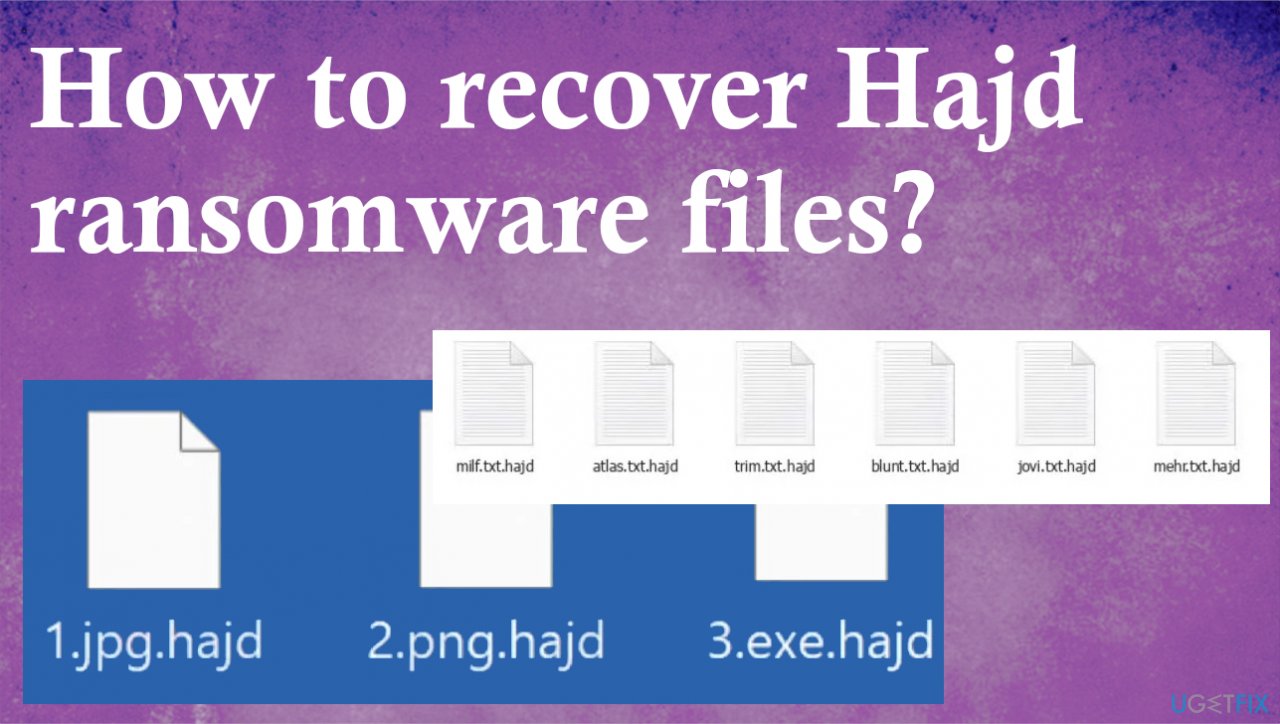
1. Remove the ransomware
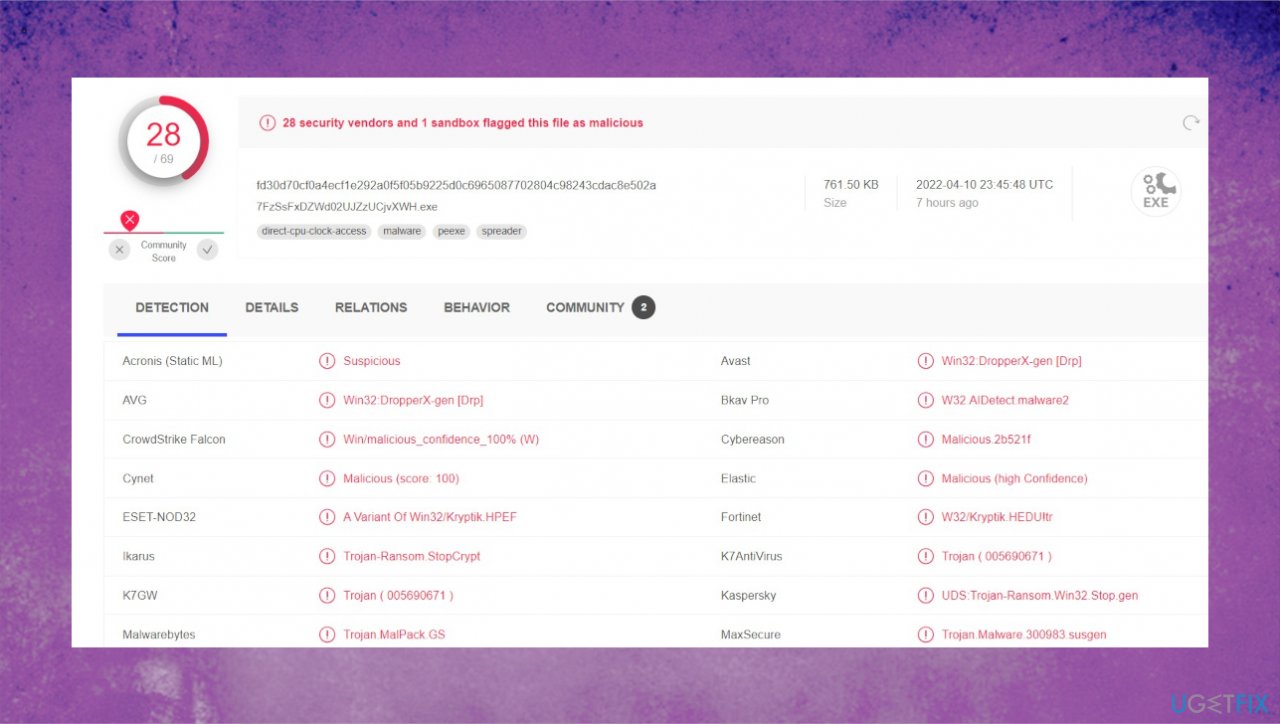
Threats need to be removed and fully cleared from the machine before the file recovery options can be explored. This is because viruses can remain active and trigger particular processes o the computer to keep the file-locking features. Hajd ransomware removal might seem difficult, but it is easier than decryption or file repair.
You can remove the file virus with anti-malware tools that are based on detection[ref en-3] engines and can find various infections and potentially malicious files on the machine. Run a program and scan the machine fully to indicate all intruders that affect the machine, so you can move on with file recovery safely.
2. Fix the virus damage to system files
- Install the PC repair tool [d1].
- Run the installation and launch a tool after that.
- Follow instructions for the system check.
- Once it is successful, review the results.
- Check the Summary of the found issues.
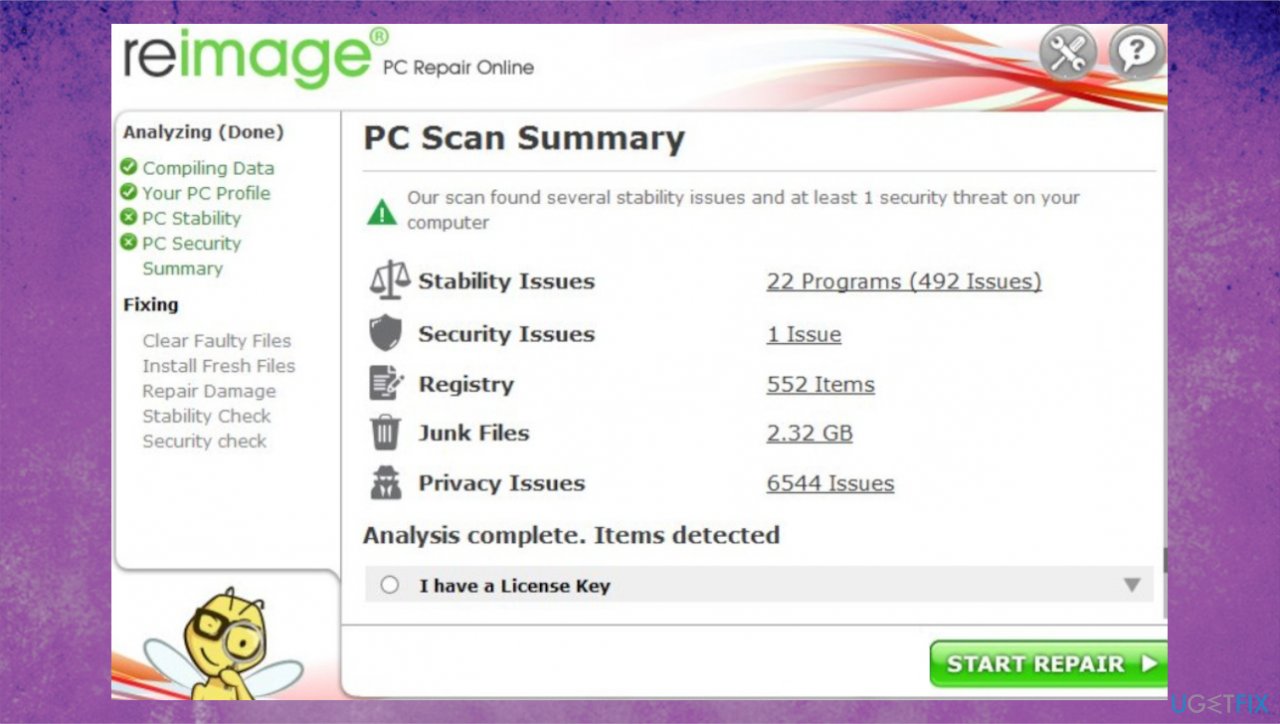
Hajd file recovery reimage - Fix any problems manually.
- You can also purchase the license for more in-depth help.
3. Check the decryption option
The family that this Hajd file virus is coming from is the program known for years and the issue with the decryption limitations frustrate people. Previous versions were possible to decrypt since the offline ids have been more in play and helped the researchers to develop a tool for file recovery.
These newer versions cannot be decrypted, in most cases, because the threat is relying on the online key forming methods. These keys are unique for each affected device, so people cannot easily get their files back to the normal state because the decryption tool and a particular key are needed. You can still run a check with the decryption tool to see if the recovery is possible.
- Download the app on official Emsisoft website.
- Once decrypt_STOPDjvu.exe shows up, launch the installation.
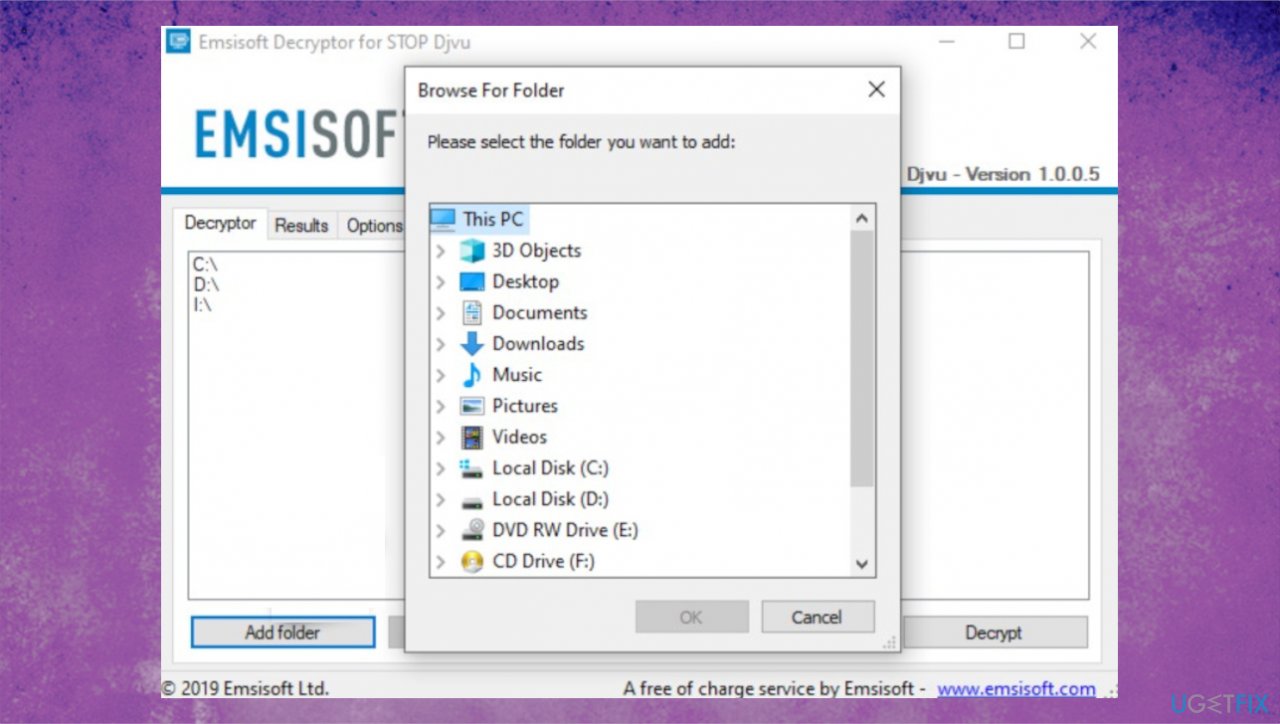
Hajd file recovery emsisoft - The tool should locate the affected folders once the system check is initiated.
- You can also press Add folder at the bottom.
- Press Decrypt.
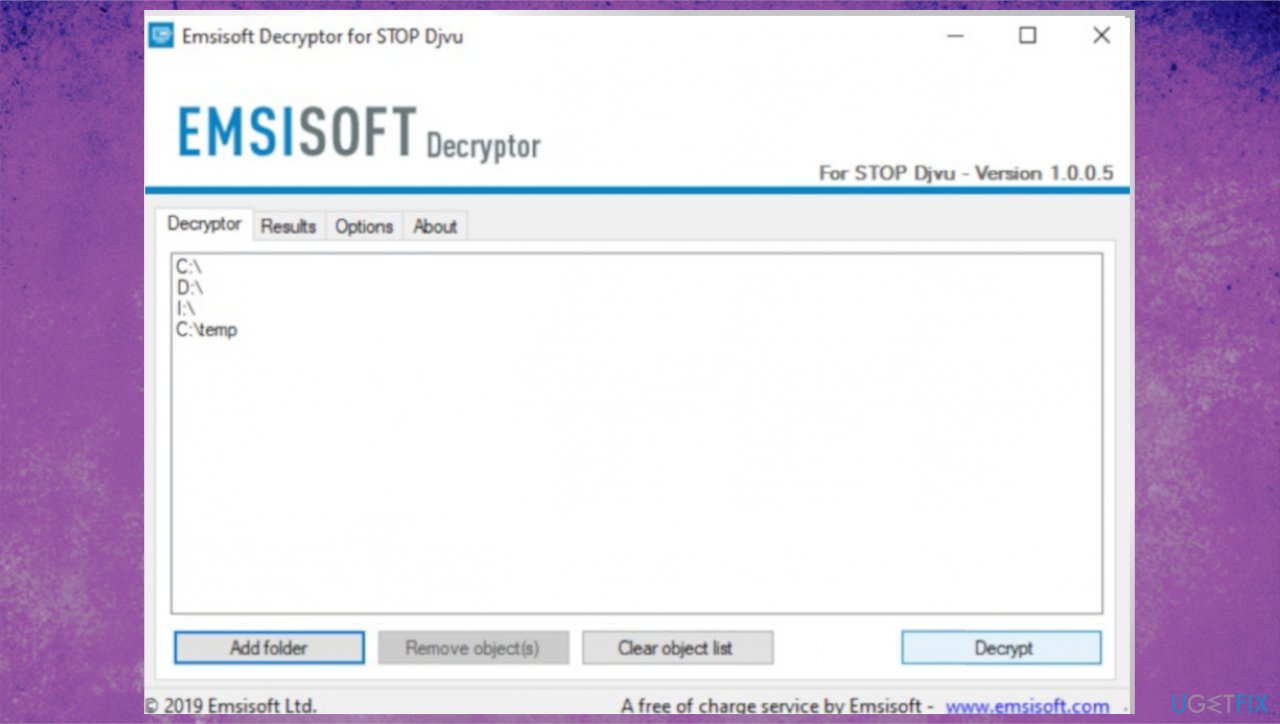
Hajd file recovery emsisoft tool - Results after the check determine if your files can be decrypted.
4. Try existing tools for file recovery
- Get a tool for file recovery like [rev id="Data Recovery Pro"].
- Follow installations.
- Use the application once it is done.
- Select Everything or pick individual folders to recover.
- Press Next.
- Run the Deep scan.
- Pick which Disk you want to be scanned.
- Hit Scan.
- Hit Recover to restore files.
Bottom line
To recover files affected by Hajd ransomware, it is crucial to first remove the ransomware using anti-malware tools. After ensuring the threat is cleared, explore file recovery options. If these methods do not work, consider seeking professional help.
Frequently asked questions
First, try using a reputable ransomware decryption tool specifically designed for Hajd. If that fails, consider restoring your files from a backup or using the Windows File History feature if it was enabled prior to the attack.
Yes, there are specialized decryption tools available for Hajd ransomware that are compatible with Windows 11, such as Emsisoft Decryptor. Always ensure you download these tools from official websites to avoid further infections.
System Restore can help revert your system settings to a previous state, but it will not recover encrypted files. It's best to combine this method with backup recovery options.




Report an issue
What's wrong with this guide? We review every report and update or remove content.
Report received — thank you. We'll review and fix it.
You need a free account to submit a report.
Be the first to comment