How to recover
Reinstall Mac OS
from Windows
Discover essential tips for recovering lost files and settings on Windows 10 or 11. Expert-tested solutions ensure a seamless reinstallation process, up…

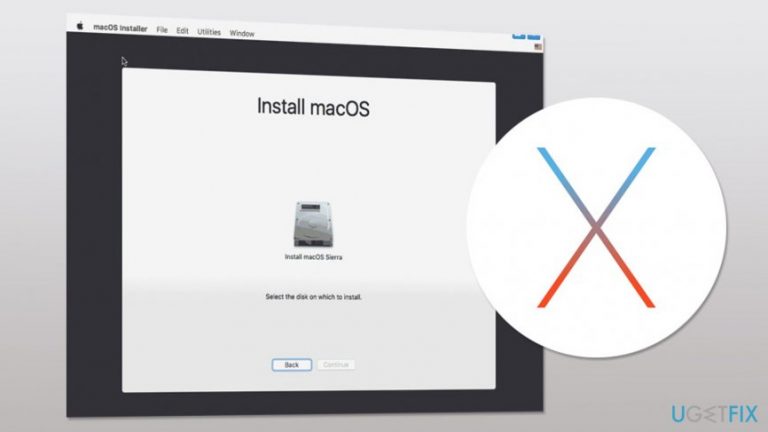
What leads to How to reinstall Mac OS?
- Selling or giving away the computer
- Mac runs slowly
- Computer is not working right or does not boot
- Downgrade or upgrade OS
Repairs Windows system files, removes malware, and restores a clean OS state — without reinstalling.
I am going to give my old Mac to my sister. However, I want to get rid of all information, programs, etc. from my device. Though, I want to reinstall Mac OS. How can I do it?
Reinstall Mac OS is not as complicated and hard task as it might seem from the beginning. A new version of the operating system can be installed from the Mac App store, or this procedure can be performed manually. Even if you are not very good with technology, you will be still able to complete the guide given below.
The main reasons why users decide to reinstall macOS are:[ref en-1]
- Selling or giving away the computer;
- Mac runs slowly;
- Computer is not working right or does not boot;
- Downgrade[ref en-3] or upgrade OS.
Differently than Windows,[ref en-2] Mac OS rarely crash or become sluggish. Hence, OS reinstallation due to slow computer’s performance is a rare occasion. In most cases, this procedure is needed when people say goodbye to their laptops or desktop PCs.
However, in order to remove all your files, apps, Apple ID and other information, you have not only reinstall OS but clean the disk as well. If you need to save some of the data, do not forget to create backups before you begin.
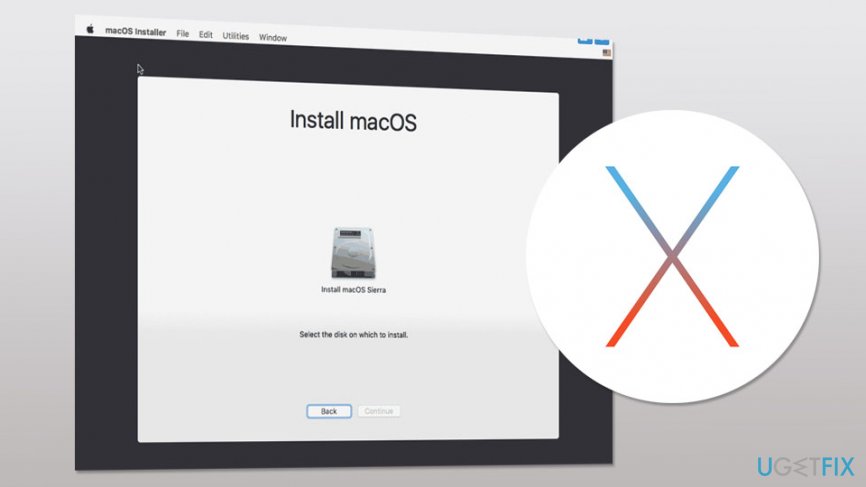
Two methods to reinstall macOS
You can reinstall Mac OS either manually or automatically. Of course, an automatic method is simpler and requires fewer skills. Meanwhile, manual requires having some knowledge and dedicating some time to this procedure. However, we will explain how to perform both of the methods correctly.
Method 1. Install OS from Mac App Store
Follow these steps to install macOS High Sierra:
- Open App Store.
- Enter macOS High Sierra in the search box, or you can access the High Sierra website directly.
- Click Download button. “Install macOS High Sierra” file should be downloaded in the Applications folder and run automatically.
- Click Continue in Install macOS High Sierra window and follow the instructions on the screen.
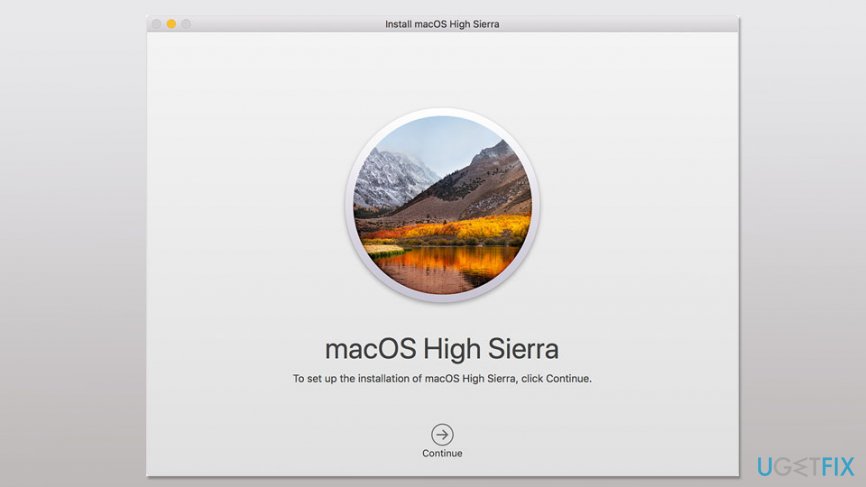
Install macos high sierra
Note. If you are asked to type admin name and password, you will have to click Add Helper option to continue.
Method 2. Install from macOS Recovery
Reinstalling Mac OS from the Recovery allows installing different versions of the operating system. Hence, before you start following the instructions, you have to make sure which version you want to reinstall.
- Reboot the computer and hold down one of the following key combinations in order to reinstall your preferred macOS version:
Command (⌘)-R > installs the latest version that was installed on your Mac;
Option-Command-R > installs the latest version which is compatible with your device;
Shift-Option-Command-R (Requires macOS Sierra 10.12.4 or later) > installs the original version of OS that came with your Mac or the closest still available version. - Release the keys as soon as you see the Apple logo or a spinning globe.
- You will see macOS Utilities window. Click Reinstall macOS option (or Reinstall OS X).
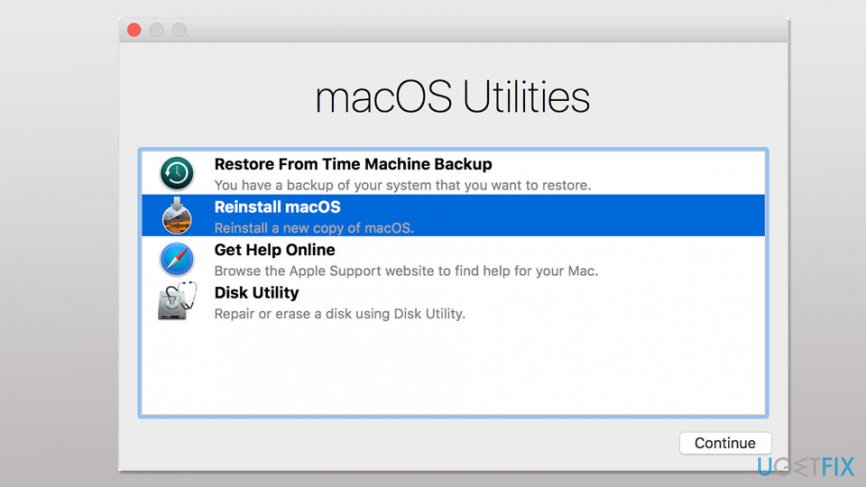
Reinstall macos - Click Continue and choose your disk. If you cannot see this option, you have to click Show All Disks option.
- Additionally, you might be asked to enter your Apple ID and password.
- Click Install button.
- Your Mac will be restarted as soon as the installation is completed.
Additional tip: Erase startup disk
If you need to reinstall Mac OS in order to sell it, you should consider erasing or formatting the startup disk. This step is necessary to clean your data, Apple ID and similar details.
In some cases, macOS installer delivers a warning that OS cannot be installed on the computer or volume because startup disk is formatted incorrectly. Hence, taking the following steps is also needed:
- Open macOS Recovery window as explained above.
- Click on Disk Utility option and choose Continue.
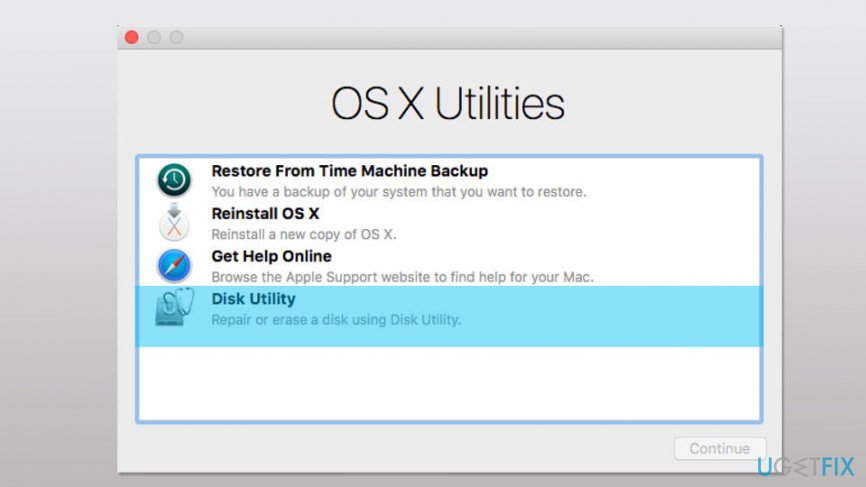
Run disk utility - Choose your device or volume which is located in the sidebar.
- Fill the following fields:
Name: Type the name of your disk
Format: Choose Mac OS Extended (Journaled) or APFS
Scheme (if available): Choose GUID Partition Map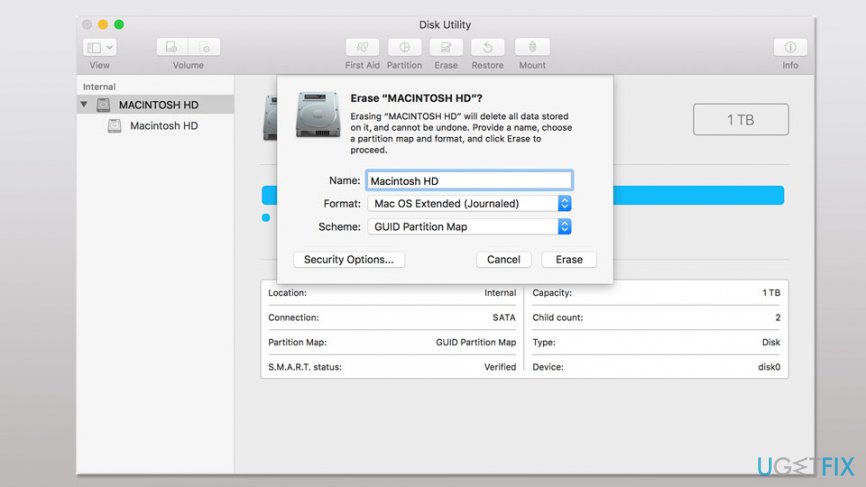
Erase disk - Click Erase button.
- Wait until the process is over and quit Disk Utility to return back to macOS Recovery window. Then choose Reinstall macOS option an follow the instructions above to install Mac OS.
Reinstall macos
Bottom line
To reinstall Mac OS, you can either use the Mac App Store for an automatic installation or perform a manual installation. Make sure to back up any important data before proceeding. If these methods do not resolve your issues, consider seeking professional help.
Frequently asked questions
Yes, you can use third-party recovery software on Windows to access and recover files from a Mac OS formatted drive, but ensure the software supports HFS+ or APFS formats.
You can restore Windows settings using the System Restore feature, but this won't recover Mac OS settings; consider using backup solutions for future protection.
Yes, you can access Mac OS files by using software that enables reading Mac-formatted drives on Windows, such as Paragon HFS+ or similar tools.




Report an issue
What's wrong with this guide? We review every report and update or remove content.
Report received — thank you. We'll review and fix it.
You need a free account to submit a report.
Be the first to comment