How to recover
Repair a corrupt PST file
from Windows
Repair a corrupt PST file on Windows 10 or 11 effortlessly. Recover lost emails and settings quickly with our expert-tested solutions. Fixed in minutes!

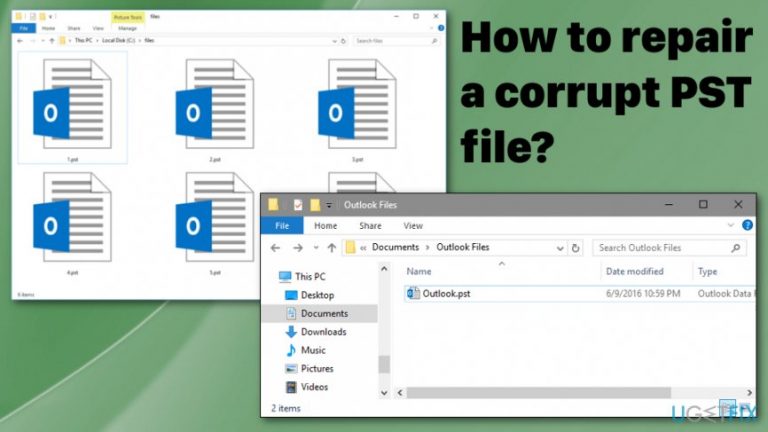
What leads to How to repair a corrupt PST file?
- Abrupt shutdown of the application without saving data
- System crash
- Power failure
- Exceeding the 2 GB size limit
- Infection caused by malware or virus
- Corruption during Windows upgrade
Repairs Windows system files, removes malware, and restores a clean OS state — without reinstalling.
Hello guys. I have an issue with my MS Outlook which does not seem to be opening for some reason. The text of the error says that a certain file cannot be opened. Is there a way to fix it? Please let me know as soon as possible.
If there is a problem, there is always a way to find a solution as well. Before discussing what can be done, let us briefly discuss what Microsoft Outlook is.[ref en-1] This program is a rather popular e-mail client used by both individual and business users as it features services like calendar, events, schedules, and RSS feeds and, of course, services enabling e-mail management.
All of its data is stored in a special file with the .PST (personal storage table) extension. This database is located on the hard drive of your computer. As popular as it is, however, it frequently encounters a certain problem resulting from a corrupted PST file. Therefore, let us discuss how to fix this problem.
PST files can be corrupted by a variety of reasons. Usually, this problem is caused by an abrupt shutdown of the application without saving the data. Also, it can result from the system crash or power failure. Finally, it might be caused by exceeding the 2 GB size limit. PST files can also be corrupted by an infection caused by some malware or another virus.[ref en-2]
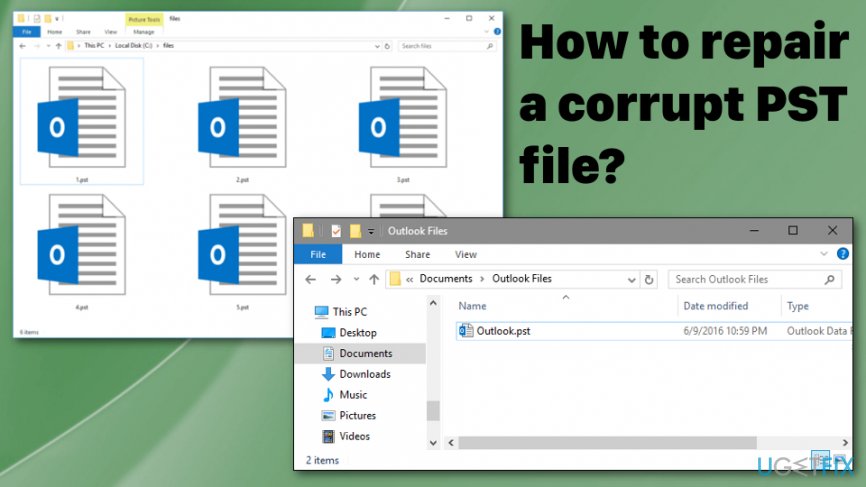
Files can also get corrupted when upgrading Windows.[ref en-3] Therefore, there are so many reasons for the files to become corrupted so it is highly advisable to back these files up from time to time. However, if you could not do it this time, there is still a way for you to fix it.
Ways to solve the corrupt PST file issue
Since there are a few reasons and causes to the issue with corrupted or damaged PST file the solutions may differ from issue to issue. The first thing you can do is check the system for any additional cyber intruders or system errors using a tool like [d1]. Then you can try all the manual solutions listed below.
Microsoft tool for scanning the system
In case the PST corruption is caused by one of the most common problems, it can be solved with a tool provided by Microsoft itself to solve it. The name of this file is Scanpst.exe. However, there is no shortcut provided for this tool so you will have to run it yourself through the Start menu.
Repairing PST file
- Open Run command by pressing Windows key + R.
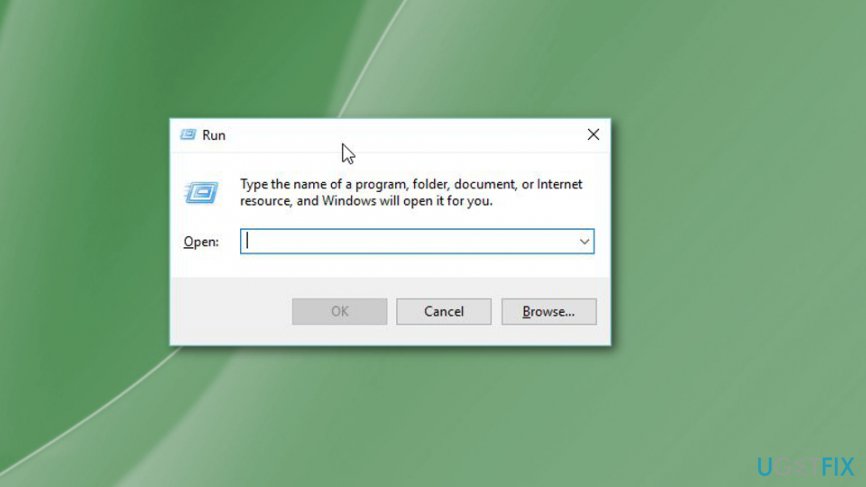
How to repair a corrupt pst file run window - Type the following and click OK:
C:\\Program Files (x86)\\Microsoft Office\\root\\Office16
orC:\\Program Files (x86)\\Microsoft Office\\Office15
or change the path according to the version of the app - Double-click the SCANPST.exe.
- Click Browse.
- Locate the .pst file.
- Choose Open.
- Then click Start.
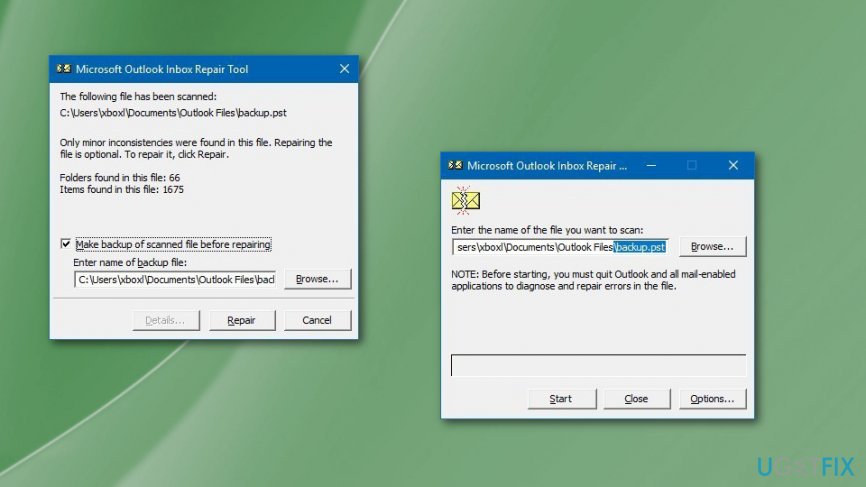
How to repair a corrupt pst file repair inbox - Make a backup as suggested and click the Repair button.
Recovering missing items from folder
- Locate Recovered Personal Folders or Lost and Found folder.
- Select items you need to recover.
- Drag and drop into the correct folder.
- Right-click the empty folder and choose Delete.
Recovering missing backup files
- Open the location where PST file is
- BAK file should also be there, so right-click on it and choose Copy.
- Right-click in the folder and select Paste option to create the copy of this file.
- Select .bak file and press F2 key.
- Rename the file and press Enter.
- Open Outlook.
- Click File and Open&Export.
- Click Import/Export button.
- Select Import from another program or file.
- Click Next.
- Outlook Data File (.pst).
- Click Next.
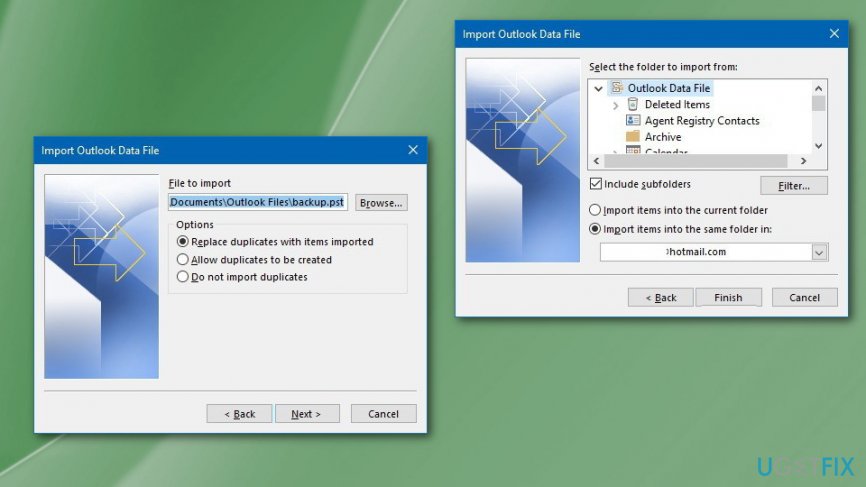
How to repair a corrupt pst file data repair - Choose the location of .pst file.
- Click Import.
- Again choose Next.
- Then click Finish.
Bottom line
To fix a corrupt PST file, you can check your system for cyber intruders or errors and try various manual solutions. If these steps do not resolve the issue, consider using a Microsoft tool for scanning the PST file.
Frequently asked questions
You can use the built-in Inbox Repair Tool (Scanpst.exe) to fix corrupt PST files on both Windows 10 and Windows 11.
You can typically find your PST file in the 'Documents' folder under 'Outlook Files' or by checking the account settings in Outlook to see its exact location.
If the PST file is severely damaged, you may need to use third-party recovery tools designed for recovering lost Outlook data.




Report an issue
What's wrong with this guide? We review every report and update or remove content.
Report received — thank you. We'll review and fix it.
You need a free account to submit a report.
Be the first to comment