How to recover
Reset Microsoft Account Password
from Windows
Easily reset your Microsoft Account password on Windows 10 and regain access to your files. Quick solutions with expert-tested methods.

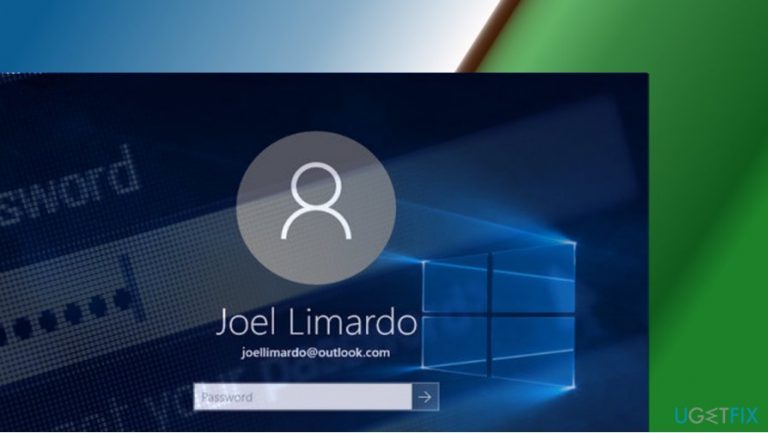
What leads to How to Reset Microsoft Account Password on Windows 10?
- Forgotten Microsoft Account password
- Infrequent sign-ins to the Microsoft Account
- Using an old Microsoft Account
- Incorrect password entry multiple times
- Not remembering the email address used for account creation
Repairs Windows system files, removes malware, and restores a clean OS state — without reinstalling.
I forgot my Microsoft Account Password, so I’m currently locked out from Windows. How can I reset the password? Many thanks!
Microsoft Account is a cross-device account or single sign-on account, which means that the same account can be used on a number of devices and Microsoft, including partners, services. For example, people usually use Microsoft account to sign into Windows 8/10 PCs, Windows Store, Xbox system, Microsoft Outlook, Windows Phone devices, Office 365, OneDrive, or even Skype. In a nutshell, using Microsoft Account enables syncing features, which is why it is superior over Local Account.
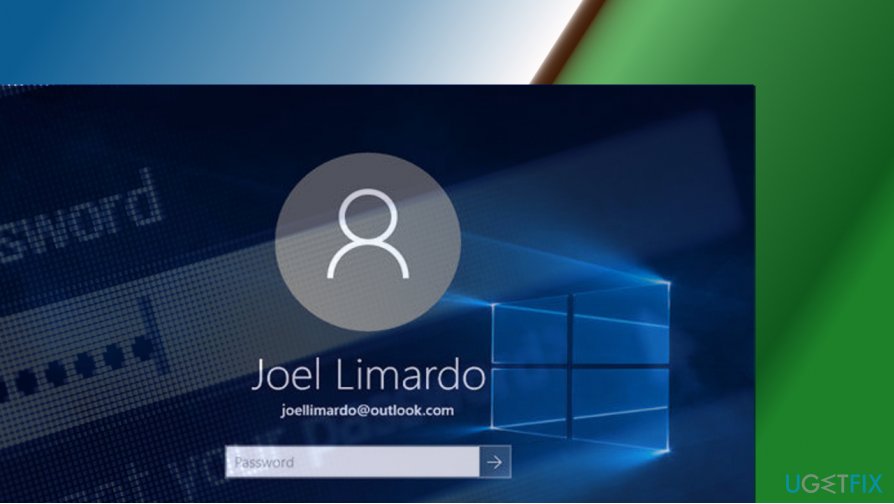
The problem is that sometimes people forget things and Microsoft Account Password is not an exception. Sometimes new Microsoft Account users may forget the password, but, in most of the cases, people who have created the Microsoft Account long time ago, but did not sign-in with it often, run into a Windows sign-in problem. Luckily, there’s a possibility to reset Microsoft Account password.
IMPORTANT: to reset Microsoft Account password, you’ll have to remember the email address, which you used for MA creation.
Reset Microsoft Account Password in Windows 10 (Fall Creators Update)
Microsoft is planning to roll out the Windows 10 Fall Creators Update on October 17th. The biggest improvement that it’s about to introduce is the Windows Mixed Reality – a platform for new VR headsets from Acer, Asus, Dell, HP, and Lenovo. However, Fall Creators Update is going to include smaller changes, for example, the possibility to reset Microsoft Account Password from the login screen. In Windows 10 (Anniversary and Creators Updates), the possibility to reset Microsoft Account password did exist, except that it was not straightforward. Since the due date of the Fall Creators Update is near, we’ll explain how to reset Microsoft Account password from login screen in case you need that:
1. When you enter the wrong Microsoft Account password for file times at the sign-in or login screen, you should get the “That password is incorrect. Make sure you are using the password for your Microsoft account” notification. Click OK.
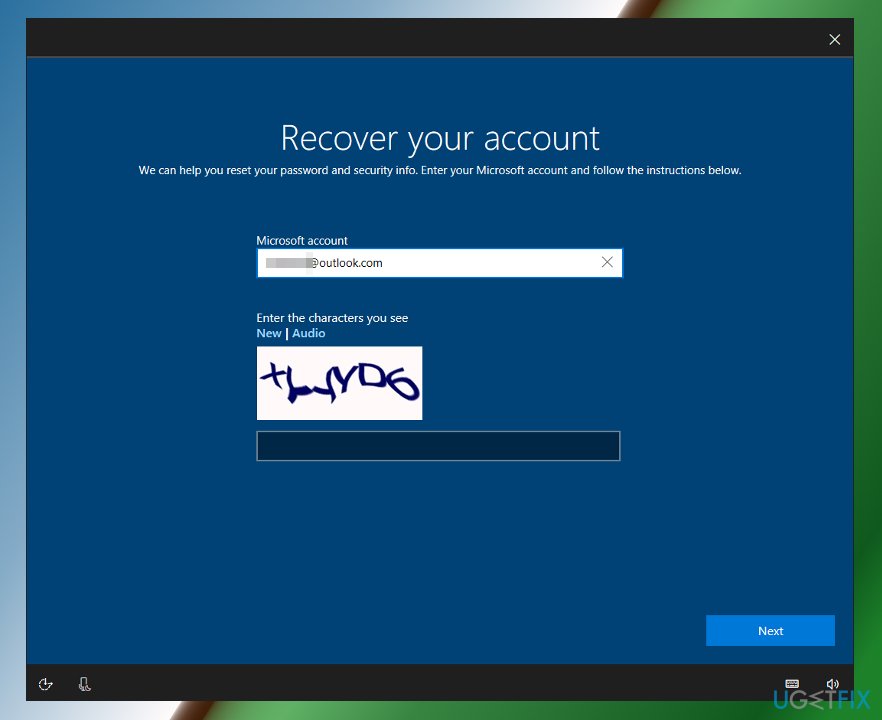
2. Now click I forgot my password link to open Recover your account environment.
3. Enter the required characters and press Next button.
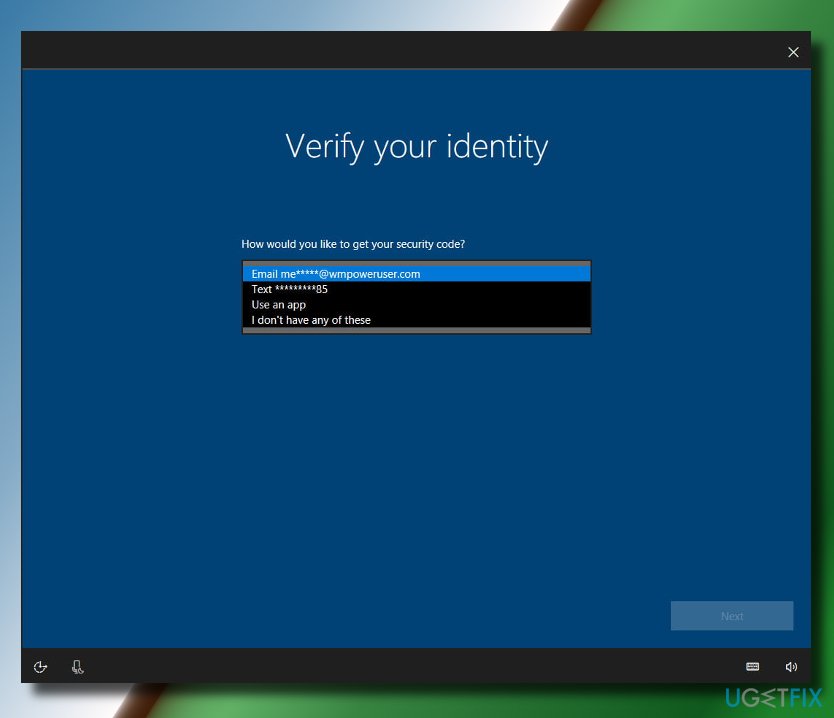
4. Now you’ll have to Verify your identity. To get the security code, you’ll have to select the contact number or secondary email address, which is associated with your Microsoft Account.
5. Enter the hidden part of the phone number or email and press Next.
7. After that, you should receive an option to set a new Microsoft Account password. Type the new password in and press Next (don’t forget to write down it somewhere).
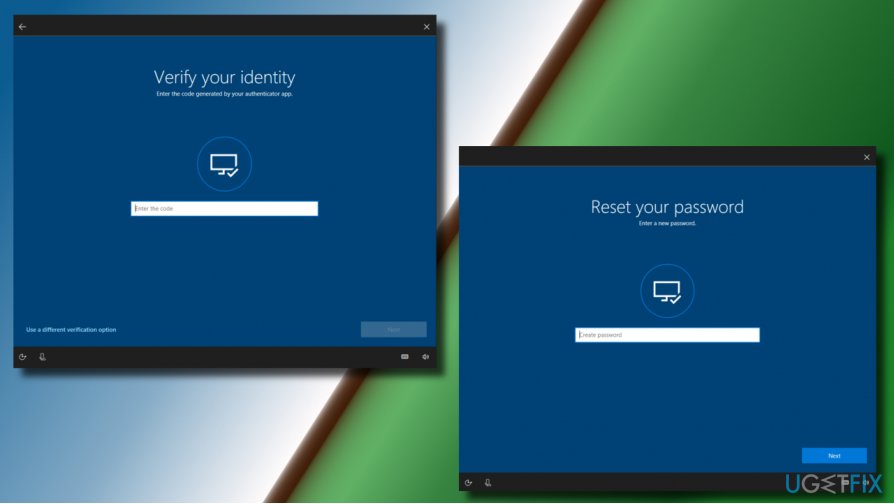
Resetting Microsoft Account Password in Windows 10
If you forgot your Microsoft account password and cannot sign-in to your PC, mobile device or services like Outlook, OneDrive or Skype, log into Windows using Local Account and then follow these steps:
1. Navigate to the Reset your password page by clicking on this link.
2. Select the reason why you need to reset Microsoft Account password and click Next.
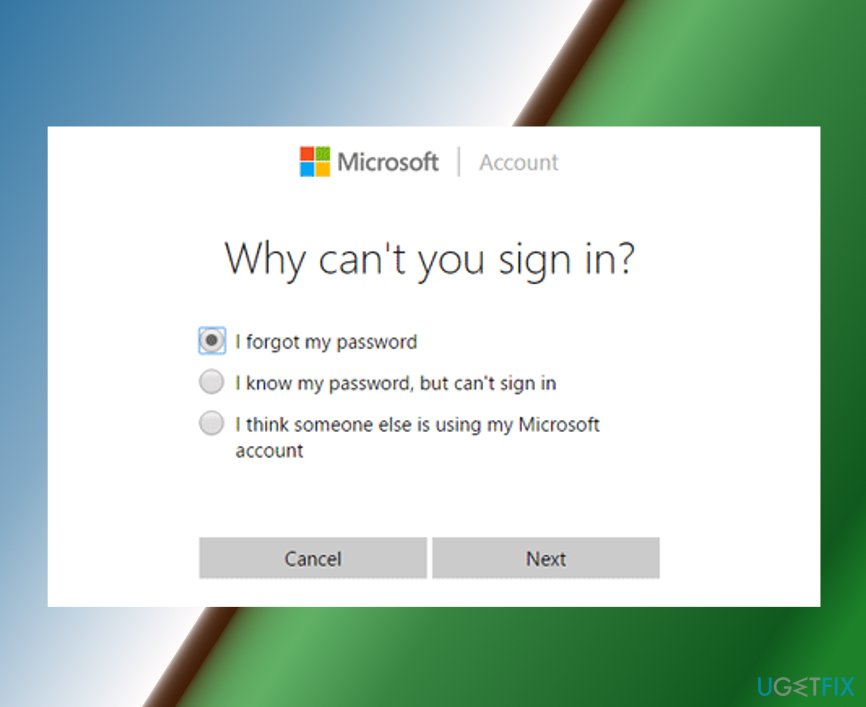
3. Enter the Microsoft Account email address to which you cannot sign-in due to the forgotten password.
4. Enter the required characters and click Next.
5. Now you’ll have to Verify your identity. To get the security code, you’ll have to select the contact number or secondary email address, which is associated with your Microsoft Account.
6. Enter the hidden part of the phone number or email and press Next.
7. Now find the one-time code on your phone or email and enter it to the password reset page.
8. Finally, enter the new password and click Next.
Bottom line
To reset your Microsoft Account password, you can use the 'I forgot my password' link on the login screen after entering the wrong password multiple times. If you cannot remember the email address associated with your account, you may need to seek additional support from Microsoft. If none of the methods work, consider creating a new Microsoft Account.
Frequently asked questions
To reset your Microsoft account password on Windows 10, go to the sign-in screen, select 'Forgot password?', and follow the prompts to verify your identity and create a new password.
If you don't have access to your recovery email, you can still reset your Microsoft account password using your phone number or by answering security questions, if those options were set up previously.
Resetting your Microsoft account password will not affect your Windows 10 settings, but you will need to sign in again with the new password to access your account and synced settings.




Report an issue
What's wrong with this guide? We review every report and update or remove content.
Report received — thank you. We'll review and fix it.
You need a free account to submit a report.
Be the first to comment