How to recover
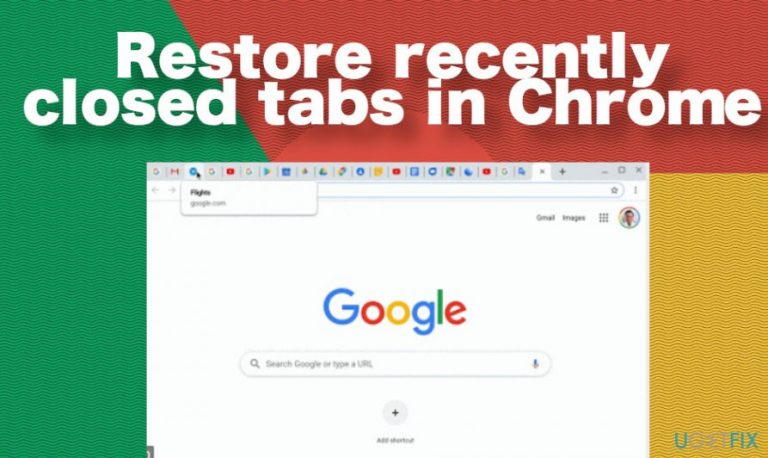
Restore recently closed tabs in Chrome
from Windows
Quickly restore recently closed Chrome tabs on your Windows 10 or 11 device. Access your lost work effortlessly with expert-tested solutions.

What leads to How to restore recently closed tabs in Chrome?
- Accidental closure of the browser
- Mouse pointer hovering over the X button
- Multiple Chrome windows open
- User not familiar with Chrome's features
- Not using keyboard shortcuts
Repairs Windows system files, removes malware, and restores a clean OS state — without reinstalling.
Hi. I've been working on multiple Chrome windows and accidentally closed the browser. Can someone please tell me how can I restore all closed tabs?
Google Chrome is a relatively new web browser if we compare it to the Interner Explorer or Opera. It has been launched in 2008 by Google and has been rather quick to prove its usefulness, convenience, multifunctional, and other features due to which billions of people across the globe in 2020[ref en-1] are using it as a default web browser. Experts and users unitedly agree that the following Chrome's features are most noteworthy:
- The widest supply of Chrome's extensions;
- Integrated services, like Gmail, Google Docs, Google Translate, etc.
- Well-designed user-friendly interface;
- Extremely fast (only Firefox can compete with it);
- Private-browsing possibilities[ref en-2];
- Multiple ad-blocking extensions, etc.
List list is rather endless. However, there are less noteworthy Chrome's features that can sometimes save a day for users. For example, a possibility to restore Chrome tabs. Although this feature is not a unique trait of modern web browsers, Chrome has exceptionally many ways to restore pages.

Indeed, those who have been using this web browser for ages the question of how to reopen closed tab may raise the smile. However, those who have been using Opera, Safari, Internet Explorer, or other competing web browsers and switched to Chrome may not find this function easily.
Restore accidentally closed tabs on Chrome
Most probably each of us has experienced that unpleasant situation when the mouse pointer accidentally hovers on the X button, which once clicked closes all opened tabs and the browser itself. It may be a problem if you've been currently working on research for a project, surfing through various links to open suitable sites, and all of a sudden all pages get lost. Luckily, Chrome is user friendly and allows people to restore chrome tabs accidentally closed quite easily.
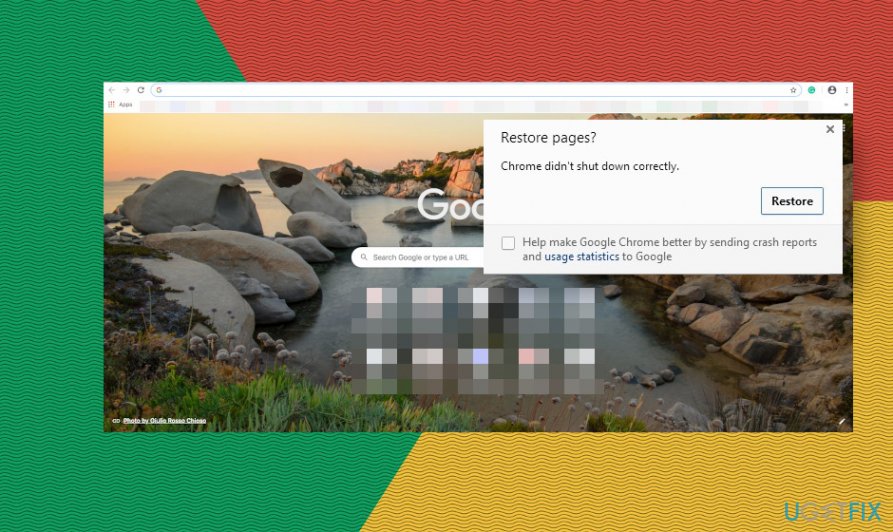
Usually, all you have to do is to reopen the Chrome browser and click the "Restore pages" option on the pop-up window. In case you did not get such a proposal, you should:
- open Chrome and right-click on an empty area on the tab bar;
- select Reopen Closed Tabs option.
- alternatively, you can use a shortcut on the keyboard. Press Ctrl + Shift + T simultaneously (or Command + Shift + T on Mac keyboard).
Restore pages on Chrome after browser's or PC's crash
If a browser freezes and eventually crashes or PC restarts[ref en-3] unexpectedly, all tabs on Chrome are automatically closed. Luckily, that doesn't mean that the pages you were visiting are lost forever. To reopen recently closed tabs chrome offers a one-click solution:
As with the accidental close of Chrome, restarting Chrome should provide an option to "Restore tabs" automatically. If, nevertheless, automatic restore pages button is not there on Chrome, recover Chrome's tabs this way:
- Click on the three vertical dots at the top-right corner (Menu) of Chrome;
- Find the History option.
- You should see Recently Closed tabs option on the dro-down menu.
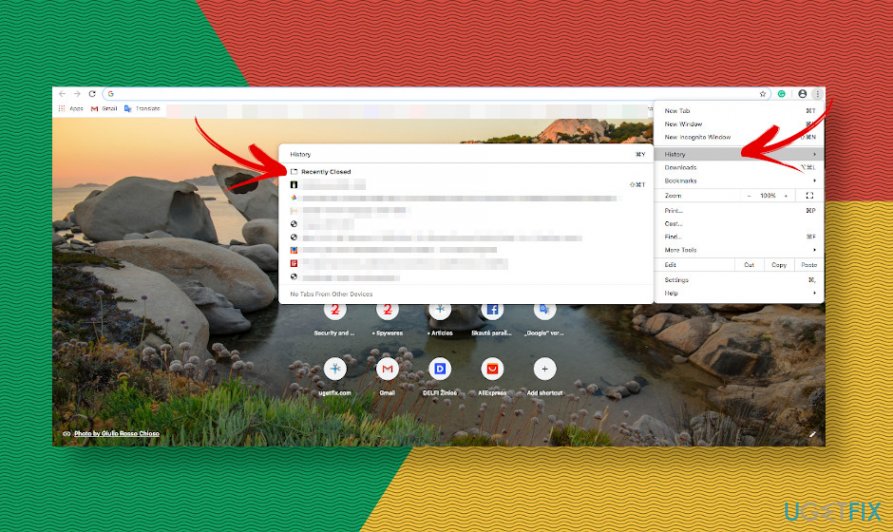
- Down below you should see the number of the possible-to-restore tabs, for example, "9 tabs."
- Click on this option and Chrome should automatically reopen closed tab.
Learn how to reopen the tabs closed the other day
We have already clarified that it's rather easy to reopen tabs that have been accidentally closed or closed due to the web browser's crash. But what if you have been viewing an informative website the other day and need to go back to it now? Without any problems, you can open the history and look for the websites that you've been browsing through.
- Open Chrome's menu (three vertical dots at the top-right corner of the screen).
- Open History and click on the History option on the drop-down menu.
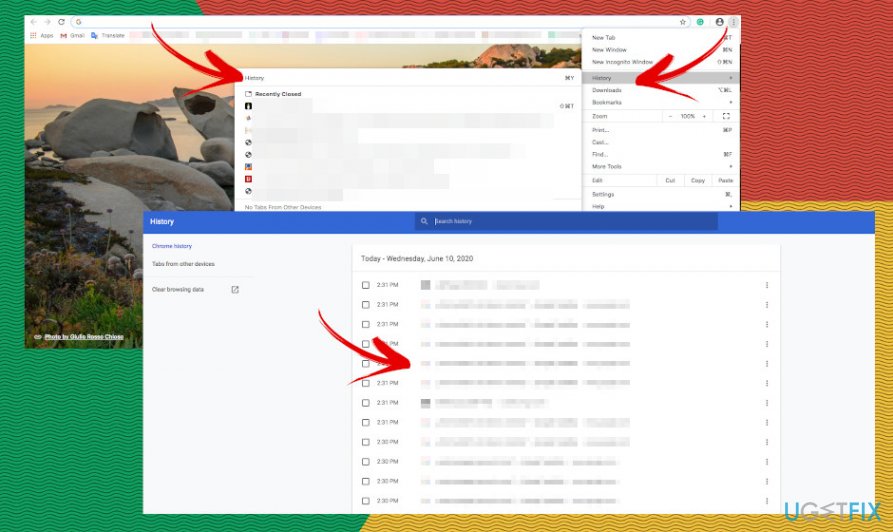
- Alternatively, you can press Ctrl + H simultaneously (Command + Y on Macs).
- Scroll through the list of viewed pages. If you found the one that you want to reopen, simply click on the link and Chrome will open it in a new tab.
NOTE: if you have been web browsing in Chrome's Incognito Window, the websites that you were viewing while in the private mode will not be listed in the browsing history.
Set Chrome to restore recently closed tabs by default
It's advisable to bookmark the websites that you approve of visiting frequently. This way, you will never lose the patch to the domains that contain valuable information. Moreover, you can also take advantage of another Chrome feature that program the browser to start at the point where you left off. Therefore, even after accidental closure or crash, Chrome restart will automatically recover recently closed tabs.
- Open Google Chrome and navigate to Settings.
- Find the On Start-Up option on the left pane.
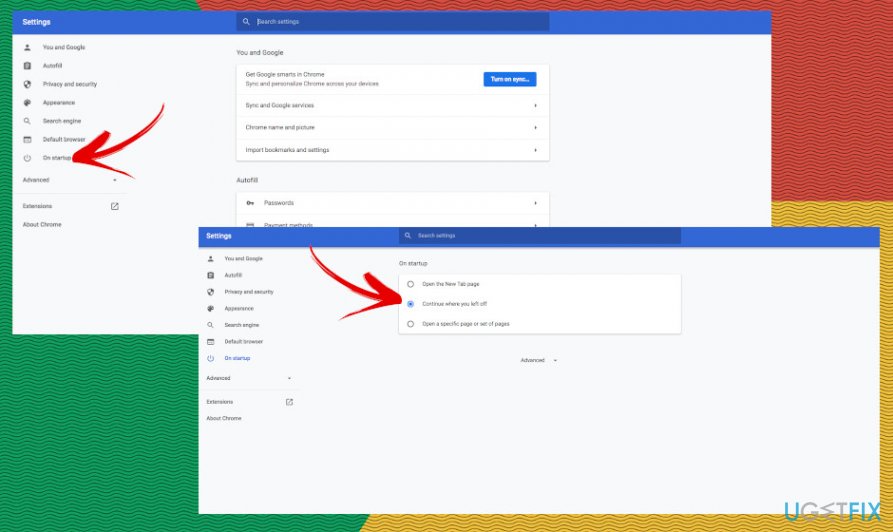
- Select the Continue where I left off option.
- Close Chrome and reopen it to check if the new settings have been applied.
Bottom line
To restore closed tabs in Chrome, you can reopen the browser and click the 'Restore pages' option on the pop-up window. If that option does not appear, you can right-click on an empty space in the tab bar to access the option to reopen closed tabs. If none of these methods work, consider checking your browsing history for the lost tabs.
Frequently asked questions
You can restore recently closed tabs in Chrome by right-clicking on the tab bar and selecting 'Reopen closed tab', or by pressing Ctrl + Shift + T.
Yes, you can access your browsing history by pressing Ctrl + H and find the closed tabs to reopen them individually.
You can restore the entire window with all tabs by using the 'Reopen closed window' option from the tab bar's right-click menu.




Report an issue
What's wrong with this guide? We review every report and update or remove content.
Report received — thank you. We'll review and fix it.
You need a free account to submit a report.
Be the first to comment