How to recover
Use Rannoh Decryptor
from Windows
Recover lost files on Windows 10 and 11 effortlessly with Rannoh Decryptor. Expert-tested solutions to restore your system in minutes.


What leads to How to Use Rannoh Decryptor?
- Ransomware has encrypted files using strong encryption algorithms
- Malicious programmers may leave gaps in the ransomware code
- Ransomware files may still be present on the device
- Antivirus software may not have been used to eliminate the ransomware
- Data recovery cannot begin without cleaning the system
Repairs Windows system files, removes malware, and restores a clean OS state — without reinstalling.
My PC’s has been encrypted by Cryp1 and I need help recovering my files! My friend has given me Rannoh Decryptor on the flash drive, but I have no idea how to use it… Could you please provide me with some quick software usage guide or something?
Ransomware are really devastating programs as they may damage your personal files beyond the point of recovery. These parasites use strong encryption algorithms to render files unreadable. Typically, the encryption is uncrackable, and the virus experts can only rely on the virus developers to leave errors in other parts of the ransomware code.
Luckily, in most cases, malicious programmers do leave gaps that can be used to decrypt the virus. Kaspersky is one of the companies that works on ransomware decryption intensively and has already released a number of different decryptors for CoinVault, Bitcryptor, Wildfire, Rakhni, Chimera, Crysis and Jaff.
The famous endpoint security company has especially cheered up ransomware victims after they released Rannoh Decryptor, a tool capable of decrypting files affected by AutoIt, Cryakl, Crybola, CryptXXX, Cryp1, Rannoh, Fury and Polyglot (Marsjoke).
While the mentioned ransomware viruses are still actively spreading throughout the web, their victims are still looking for instructions explaining how to use Rannoh Decryptor. In this article, we will try to answer this question as comprehensively and concisely. Keep reading and you will learn how to perform the data recovery safely.

Recovering encrypted file using Rannoh Decryptor:
Step 1. System cleanup
You cannot start data recovery without cleaning up your computer from the ransomware that has been fully eliminated from the computer first. It is absolutely necessary to make sure that no ransomware files are left on the device to potentially interfere with the data recovery.
Please note that leaving random virus files on your computer can cause the ransomware to bounce back to the PC and repeatedly encrypt the files. To be sure that none destructive virus components are left on the system, scan your device with [rev id=”Reimage”] or similar antivirus software.
Step 2. Data backup
Normally, professional companies that invent ransomware decryption tools make sure that these programs are well-built and pose no danger to the user's’ personal files. Nevertheless, it may be an accidental mistake on the users’ end that may trigger data destruction. That is why before commencing with the data recovery it is recommended to save backup copies of the encrypted files on a location separate from the device on which the recovery operation will take place.
Software like CryptoSearch can speed up the process of data recovery quicker as it automatically separates encrypted files from non-encrypted ones.
Step 3. Data recovery using Rannoh Decryptor
- You can downlaod Rannoh Decryptor on Kaspersky's official website. Nevertheless, to save you some time, we have included quick download link here: Download RannohDecryptor.zip
- After the download is finished, launch Rannoh Decryptor on the computer that you want to decrypt
- In the Decryptor Window click the Start scan button
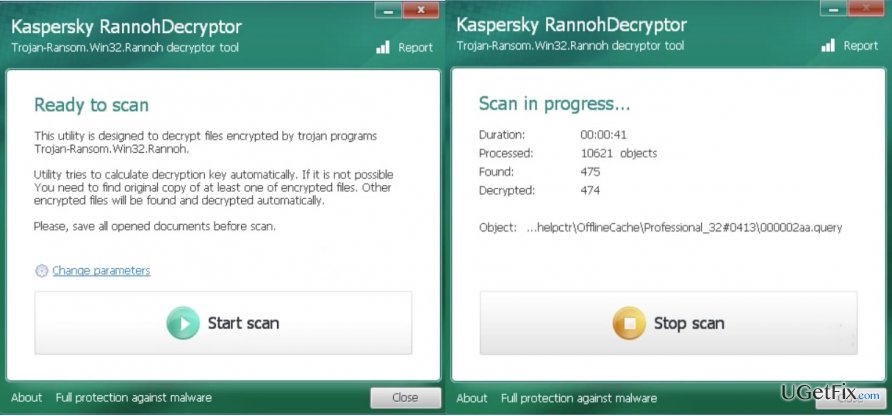
Run rannoh decryptor - Before the program starts scanning your device, it will ask you to provide a path to one encrypted and one non-encrypted version of some document. Make sure you have these two samples prepared before the scan
- After the scan is done, you may delete the encrypted version of the files by selecting the Delete encrypted files after decryption option
- Reset your computer to save changes.
Bottom line
To recover your files, first clean your system of the ransomware using antivirus software, then back up your data. If you still cannot recover your files, consider using Rannoh Decryptor as a potential solution. If none of these methods work, seek professional data recovery services.
Frequently asked questions
Rannoh Decryptor is designed to recover files that have been encrypted by the Rannoh ransomware, including documents, images, and various other file types.
No, Rannoh Decryptor is a standalone tool that you can run directly without installation, making it easy to use on your system.
You can check the Rannoh Decryptor's interface after scanning your encrypted files; it will indicate whether the files can be successfully decrypted.




Report an issue
What's wrong with this guide? We review every report and update or remove content.
Report received — thank you. We'll review and fix it.
You need a free account to submit a report.
Be the first to comment