
LogMeIn keeps popping up: stop LogMeIn Rescue or Hamachi opening automatically in Windows

Prefer to fix it yourself? The manual steps follow.
6 methods in this guide
I recently called Lenovo support to help me sort out an issue with my laptop, and we used the LogMeIn app. Since then, the LogMeIn app opens randomly without me doing anything. What can I do to fix this?
When LogMeIn keeps popping up after a support call, it is almost always a stuck LogMeIn Rescue applet whose cleanup never finished. LogMeIn's own fix is to delete the applet's Windows service with sc delete and restart. If the window is LogMeIn Hamachi instead, turn it off in startup apps or uninstall it.
A LogMeIn window that keeps popping up after a support session is a LogMeIn Rescue applet that did not remove itself. Open services.msc, find the service related to LogMeIn Rescue, copy its Service name, run sc delete with that name in an administrator Command Prompt, then restart. Delete the LogMeIn Rescue folder in AppData\Local too. If it is Hamachi, disable it in Startup apps or uninstall it.
| Program | Usually the LogMeIn Rescue applet, a one-time remote support tool. Sometimes LogMeIn Hamachi (a VPN) or the LogMeIn remote access app. |
|---|---|
| Publisher | GoTo, formerly LogMeIn, Inc. Support pages are at support.logmein.com. |
| Safe to remove | Yes for a stuck Rescue applet: the support session is over. Hamachi and the LogMeIn app are safe to remove if you no longer use them or your employer agrees. |
| Leaves behind | Rescue: a Windows service and a LogMeIn Rescue folder in AppData\Local. Hamachi: networks and settings unless you tick Remove all user settings. |
| Why it reopens | LogMeIn says the applet's cleanup can fail when the technician ends the session while disconnected, for example during a reboot or a network drop. |
| Official removal | Rescue: delete its service with sc delete (LogMeIn's own steps). Hamachi: Add or remove programs. No separate removal tool. |
| Needs a restart | Yes, after deleting the Rescue service. LogMeIn's steps include it. |
| Needs | An administrator account. LogMeIn says the Rescue steps cannot be done without administrator rights. |
| Time | About 5 minutes for the Rescue applet, 10 to 15 minutes for Hamachi with leftovers. |
Facts checked on 15 October 2026. Steps written for Windows 11 (25H2 and 26H2) and Windows 10 22H2, read against LogMeIn (GoTo) and Microsoft documentation.
What the LogMeIn window is and why it keeps opening
Three different LogMeIn products can open on their own, and each needs a different fix. Support lines such as Lenovo's often use LogMeIn Rescue: the technician sends you a link or a code, a small program called the applet runs for the session, and it should remove itself when the session ends.
| What you see | Product | Why it opens |
|---|---|---|
| A LogMeIn Rescue window after a support call. Closing it makes it reopen at once. | LogMeIn Rescue applet | The cleanup at the end of the session failed. LogMeIn names a technician who ends the session while disconnected, for example during a reboot or a network drop. |
| The same applet at every Windows start. | LogMeIn Rescue applet | The applet's Windows service is still registered, so Windows starts it again. |
| The Hamachi window with its list of networks at every sign-in. | LogMeIn Hamachi | Hamachi is installed and set to start with Windows. Its service LogMeIn Hamachi Tunneling Engine runs in the background. |
| A LogMeIn icon near the clock, and the PC can be reached remotely. | LogMeIn remote access app | It was installed on purpose, often by an employer, to reach the PC at any time. |
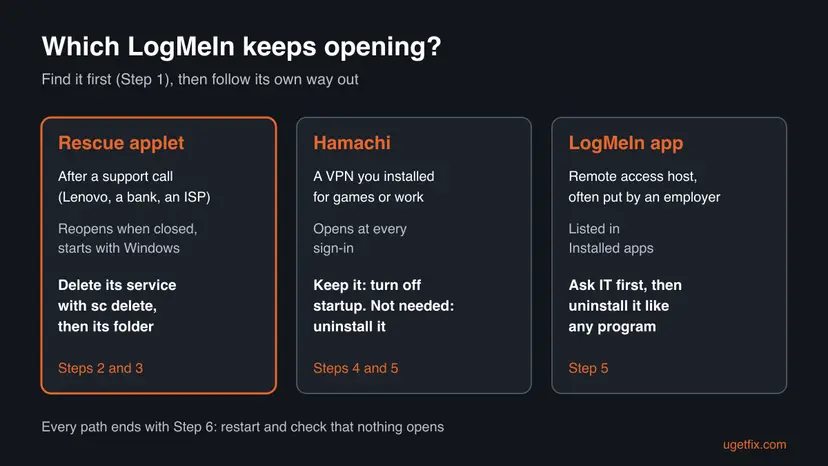
Safe to remove: yes for a stuck Rescue applet, because the support session that needed it has ended. A new support call simply downloads a fresh applet. Remove Hamachi or the LogMeIn app only if you no longer need them, and ask first if your employer installed them.
Before you start: what you need and what you can lose
- An administrator account. LogMeIn says you must have administrator rights on the computer to remove a stuck Rescue applet. On a work PC without them, ask your IT team.
- No open support session. If a technician is still connected, let them finish first. Deleting the service ends the applet for good.
- Hamachi networks. When you uninstall Hamachi with Remove all user settings ticked, LogMeIn says all your networks and membership information are lost. Leave it unticked if you may reinstall.
- The LogMeIn app on a work PC. Removing it cuts your IT team's remote access. Ask before you uninstall it.
Windows 10 left support on 14 October 2025. The steps are the same on Windows 10 22H2, and where a screen differs the Windows 10 path is given too. A Mac has its own LogMeIn Rescue steps, covered in the FAQ.
How to stop LogMeIn from opening automatically, step by step
Do Step 1 to see which LogMeIn product it is. For the Rescue applet after a support call, do Steps 2 and 3. For Hamachi, do Step 4 to keep it or Step 5 to remove it. Finish with Step 6.
Step 1. Find out which LogMeIn product keeps opening
2 minutesNo riskYou do not know whether it is the Rescue applet, Hamachi or the LogMeIn app.
The Rescue applet is not listed as an installed program, while Hamachi and the LogMeIn app are. Where the running process lives tells you which fix applies.
- Wait until the LogMeIn window is open, then press Ctrl + Shift + Esc to open Task Manager.
- On the Processes page, find the LogMeIn or Hamachi process.
- Right-click it and select Open file location. A path inside
AppData\Local\LogMeIn Rescuepoints to the Rescue applet. - Select Start > Settings > Apps > Installed apps (on Windows 10 Apps & features) and type
LogMeIn, thenHamachi, in the search box. - Note what you found: no installed entry plus a Rescue folder means the applet; an entry named Hamachi or LogMeIn means an installed program.
It worked if: You know whether you face the Rescue applet (Steps 2 and 3) or an installed program (Steps 4 and 5).
If not: If the window closes too fast to catch, go straight to Step 2 and look for a LogMeIn Rescue service there.
Step 2. Delete the stuck LogMeIn Rescue applet service with sc delete
5 minutesRead the warningThe LogMeIn Rescue applet keeps popping up after a support session has ended.
LogMeIn's own fix for a stuck applet: the leftover Windows service is what relaunches it at startup and when you close it. Deleting that service stops the loop.
sc delete removes a service for good. Copy the exact name of the LogMeIn Rescue service and never delete a service you are not sure about. If you also use the LogMeIn app or Hamachi, their services are separate: leave them alone here.
- Close the LogMeIn Rescue applet if it is open.
- Press Win + R, type
services.mscand press Enter. - In Services, find the service related to LogMeIn Rescue and double-click it.
- On the General tab, select and copy the Service name. If you cannot copy it, copy the long string of letters and numbers in Description.
- Close Services. Search the Start menu for Command Prompt and select Run as administrator.
- Type
sc deletefollowed by the service name you copied and press Enter. If you copied the Description string, typesc delete LMIRescue_and paste the string right after it, without parentheses. - Repeat for every LogMeIn Rescue service that is still listed.
Administrator Command Prompt
sc delete "service name"
sc delete LMIRescue_string-from-Description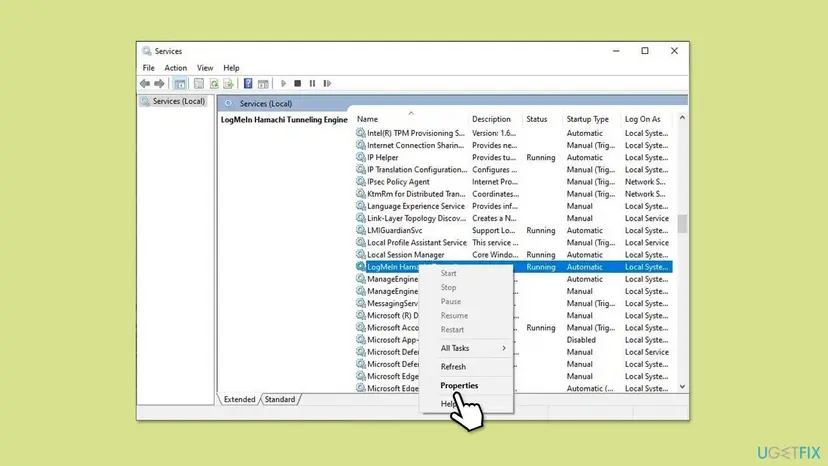
Put the name in quotes if it has spaces. More on the Services window: Check and restart Windows services.
It worked if: Command Prompt shows DeleteService SUCCESS, and the service is gone from the list after you reopen Services.
If not: If you see Access is denied, Command Prompt is not running as administrator. If the service does not exist, read the section on what to do when LogMeIn will not go away.
Step 3. Restart and delete the LogMeIn Rescue folder
3 minutesLow riskRight after Step 2, to remove the temporary applet files.
The applet's temporary files sit in your user profile. LogMeIn lists deleting them as optional, but the folder holds the program that kept starting, so clearing it leaves nothing to relaunch.
- Restart the computer, as LogMeIn's steps say.
- Press Win + R, type
%LocalAppData%and press Enter. This opensC:\Users\your name\AppData\Local, a hidden folder. - Find the LogMeIn Rescue folder.
- Select it and press Delete.
- Empty the Recycle Bin.
If you browse there by hand and cannot see AppData, turn on hidden items: on Windows 11 View > Show > Hidden items, on Windows 10 View and tick Hidden items.
It worked if: The LogMeIn Rescue folder is gone and the applet does not appear after you sign in.
If not: If Windows says a file is in use, Step 2 was not finished: delete the service, restart, then try the folder again.
Step 4. Stop Hamachi from opening on startup and keep it installed
3 minutesLow riskYou still use Hamachi but do not want it to open at every sign-in.
Microsoft's startup list controls which programs open when you sign in. Turning Hamachi off there stops the window, and Hamachi still works when you open it yourself.
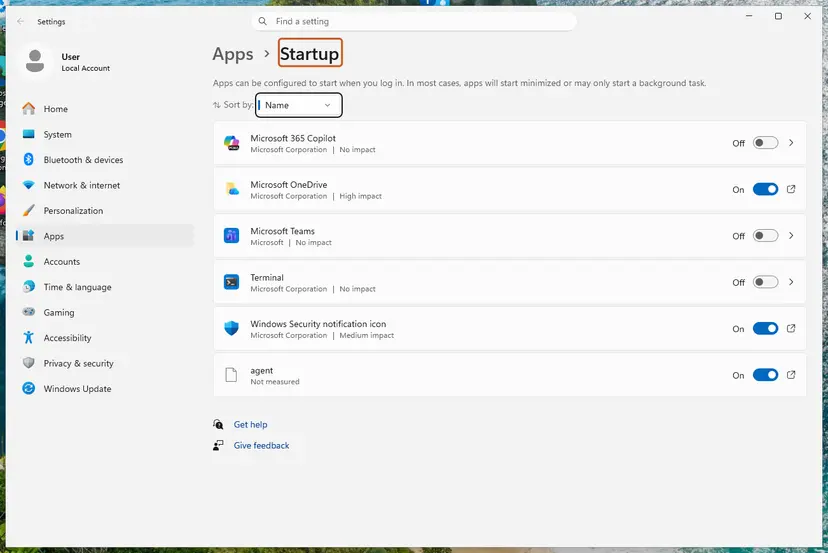
- Select Start > Settings > Apps > Startup.
- Find the entry for Hamachi or LogMeIn Hamachi and set its toggle to Off.
- On Windows 10 or in Task Manager: press Ctrl + Shift + Esc, open Startup apps (the Startup tab on Windows 10), select the Hamachi entry and click Disable.
- Optional, to stop the background part too: in
services.mscopen LogMeIn Hamachi Tunneling Engine and set Startup type to Manual.
Every way to manage startup programs: Stop apps from opening at startup. If the service is set to Manual, start it again in Services when Hamachi says it cannot connect.
It worked if: After a restart, Hamachi no longer opens by itself, and it still works when you start it from the Start menu.
If not: If Hamachi is not in the startup list, it may be started by its service: set the service to Manual as in the last step, or remove Hamachi with Step 5.
Step 5. Uninstall Hamachi or the LogMeIn app completely
5 minutesRead the warningYou no longer need Hamachi or the LogMeIn remote access app.
LogMeIn's official way to remove Hamachi on Windows is Add or remove programs. The uninstaller removes the program and its service together, which the startup list alone does not.
If you tick Remove all user settings, LogMeIn says all your Hamachi networks and membership information are lost. Leave it unticked to get your networks back after a reinstall. On a work PC, ask IT before removing the LogMeIn app.
- Search the Start menu for Add or remove programs and open it.
- Type
HamachiorLogMeInin the search box. - On Windows 11 select More (the three dots), then Uninstall. On Windows 10 select the entry, then Uninstall.
- For Hamachi, choose whether to tick Remove all user settings, then select Uninstall.
- Repeat for every other LogMeIn entry you no longer need.
- If an entry will not uninstall in Settings, open Control Panel > Programs > Uninstall a program, right-click it and select Uninstall.

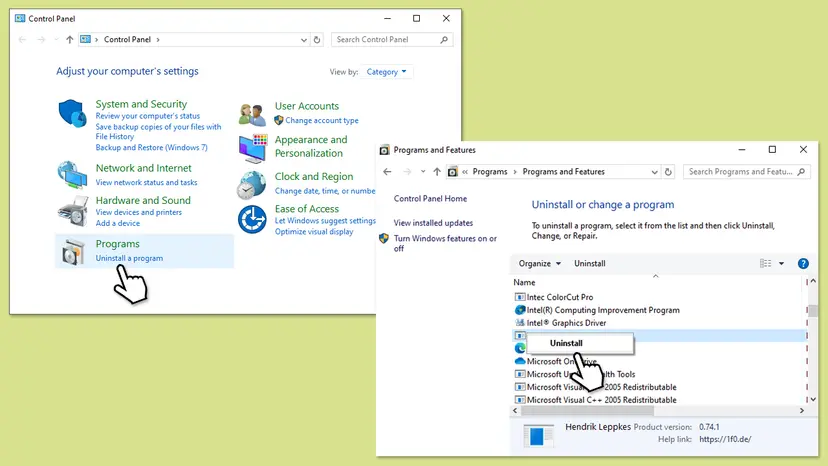
Every Windows screen of this: Uninstall a program or app in Windows.
It worked if: Hamachi or LogMeIn is no longer in Installed apps and its window does not open after a restart.
If not: Read the section on what to do when LogMeIn will not go away below.
Step 6. Restart the PC and confirm LogMeIn no longer opens
3 minutesNo riskAt the end, whichever of Steps 2 to 5 you did.
The applet and Hamachi both start with Windows, so only a fresh start shows whether they are really gone. Closing a window proves nothing.
- Select Start > Power > Restart.
- Sign in and wait two or three minutes without opening anything.
- Check that no LogMeIn or Hamachi window appears.
- Go through the checks in the section on how to confirm LogMeIn is gone.
It worked if: No LogMeIn Rescue applet and no Hamachi window appear, and the checks below come back clean.
If not: Repeat Step 1. If the applet still runs, a second Rescue service may be left: repeat Step 2 for it.
What LogMeIn Rescue and Hamachi leave behind
This table lists only the items named by LogMeIn or seen in Windows itself. Where we could not confirm a name, it says so.
| Where | What it is | Delete it? |
|---|---|---|
Services: the service related to LogMeIn Rescue, service name starting LMIRescue_ when copied from Description. | The leftover that relaunches the stuck applet. | Yes, with sc delete (Step 2). |
C:\Users\your name\AppData\Local\LogMeIn Rescue | Temporary applet files from the support session. | Yes, after the service is deleted (Step 3). |
| Services: LogMeIn Hamachi Tunneling Engine. | Hamachi's background service. | Not by hand. The Hamachi uninstaller removes it (Step 5). |
| Hamachi networks and membership settings. | Your Hamachi configuration. | Only if you tick Remove all user settings during the uninstall. |
| Startup apps entry for Hamachi. | What opens the Hamachi window at sign-in. | Turn it off (Step 4); it goes with the uninstall. |
| Registry keys. | LogMeIn names none for these steps. We could not confirm any key name. | Leave them. Do not search the registry for LogMeIn and delete the results. |
Microsoft lists the registry Run keys that start programs at sign-in, but the startup list in Settings and Task Manager shows the same entries. Use the list instead of editing the registry.
LogMeIn will not go away: each failure and its way out
| What you see | Why | Way out |
|---|---|---|
sc delete says Access is denied. | Command Prompt is not elevated, or your account is not an administrator. | Open Command Prompt with Run as administrator, or ask IT on a work PC. |
sc delete says the specified service does not exist. | The name was typed wrong, or the display name was used instead of the Service name. | Copy the Service name field again, or use the Description string with LMIRescue_. |
| No LogMeIn Rescue service in the list, but the applet still opens. | It may be Hamachi or the LogMeIn app, not Rescue. | Do Step 1 again and follow Step 4 or 5. |
| The LogMeIn Rescue folder will not delete. | The applet is still running. | Delete the service, restart, then delete the folder. |
| The applet keeps coming back after all steps. | Another applet service is left, or the cleanup failed again. | Repeat Step 2 for each service. LogMeIn asks you to contact its support if it continues. |
- Not sure the file is really LogMeIn? If the process runs from a folder that is not named LogMeIn and you never had a support call, scan the PC: How to scan for malware with Microsoft Defender.
- Window still opens after a clean restart? Start Windows in Safe Mode and repeat Steps 2 and 3 there: Start Windows or a Mac in Safe Mode.
How to confirm LogMeIn is gone
Run these checks after the restart in Step 6. Each one should come back clean for the product you removed.
| Check | How | Clean result |
|---|---|---|
| Services. | Press Win + R, type services.msc and sort by Name. | No service related to LogMeIn Rescue. Hamachi's service is gone if you uninstalled it. |
| Command. | In an administrator Command Prompt run sc query with the Rescue service name. | The specified service does not exist. |
| Folder. | Open %LocalAppData%. | No LogMeIn Rescue folder. |
| Startup. | Settings > Apps > Startup or Task Manager Startup apps. | No Hamachi entry, or it is Off. |
| Apps list. | Settings > Apps > Installed apps, search LogMeIn and Hamachi. | Only what you chose to keep. |
| Command. | Open Terminal and run winget list Hamachi. | No installed package found, if you uninstalled it. |
If one check still finds a LogMeIn Rescue service, repeat Step 2 for it. LogMeIn notes that more than one applet service can remain.
Frequently asked questions
Why does LogMeIn keep popping up on my computer?
Most often a LogMeIn Rescue applet from a past support call did not remove itself. LogMeIn says the applet normally closes and deletes its temporary files when the session ends, but the cleanup can fail if the technician ends the session while disconnected from you, for example during a reboot or a network drop. The applet then starts with Windows and reopens as soon as you close it. Deleting its Windows service with sc delete, as in Step 2, fixes that. If the window is Hamachi instead, it is set to start with Windows.
How do I stop the LogMeIn Rescue applet from popping up?
Close the applet, open services.msc, find the service related to LogMeIn Rescue and copy its Service name from Properties. Open Command Prompt as administrator, type sc delete followed by that name and press Enter. You should see DeleteService SUCCESS. Repeat for each Rescue service still listed, restart the computer, then delete the LogMeIn Rescue folder in AppData\Local. These are LogMeIn's own steps. You need administrator rights; if the applet still returns, LogMeIn asks you to contact its support.
How do I stop Hamachi from opening on startup?
Open Settings, go to Apps and then Startup, and set the Hamachi toggle to Off. On Windows 10, or if you prefer, open Task Manager with Ctrl + Shift + Esc, go to Startup apps, select Hamachi and click Disable. Hamachi stays installed and works when you open it from the Start menu. To keep its background service from starting too, set LogMeIn Hamachi Tunneling Engine to Manual in services.msc, and start it yourself when you need your networks. Restart once to make sure the window no longer appears.
How do I delete LogMeIn from my computer?
It depends on which LogMeIn you have. The Rescue applet from a support call is not in the installed apps list: remove it by deleting its service with sc delete and then its folder in AppData\Local. Hamachi and the LogMeIn remote access app are normal programs: search for Add or remove programs, find the entry, select Uninstall and follow the uninstaller. Restart afterwards. If your employer installed LogMeIn on a work computer, ask them first, because removing it cuts their remote access.
How do I uninstall LogMeIn Rescue?
LogMeIn Rescue has no normal uninstaller on the customer's side, because the applet is meant to run only for one session and remove itself. When it stays, LogMeIn's fix is to delete the applet's Windows service and its temporary folder: Steps 2 and 3 of this guide. If Installed apps does show an entry with LogMeIn Rescue in its name, uninstall it there like any program. After a restart nothing from Rescue should start. A new support call will simply download a fresh applet when you need it.
Is LogMeIn safe, or has someone got into my PC?
LogMeIn is legitimate remote support software from GoTo, and big support lines such as Lenovo's use it. A Rescue applet that keeps opening after a known support call is a cleanup failure, not a break-in. The applet works only while a session is open and someone has given the code or link. Be careful if you never had a support call, or someone called you first claiming to be support: then remove the applet, change your passwords and scan the PC with Microsoft Defender.
Does deleting the LogMeIn Rescue service break future support calls?
No. Every Rescue session downloads and runs a fresh applet when you enter the code or open the link the technician gives you. Deleting the stuck service only removes the leftover of the old session. LogMeIn's own instructions for a stuck applet delete the service and the temporary folder, so nothing you need is lost. The next time a technician connects, the applet installs itself again for that session and should remove itself at the end, as long as the session ends normally.
LogMeIn keeps popping up on my Mac. What do I do?
On a Mac, LogMeIn's steps are different. Open Finder, press Command + Shift + G to open Go to folder, type /private/var/tmp and press Return. Delete any folders named LogMeIn Rescue. If macOS says a folder is in use, open Activity Monitor, find the LogMeIn Rescue processes, select each one and choose Stop, then delete the folder again. For Hamachi on a Mac, LogMeIn says to run HamachiUninstaller from the Applications folder. The rest of this page is about Windows.
Tem alguma outra maneira? Is there another way to stop LogMeIn?
This page is in English; the Portuguese question means: is there another way? Yes. If the sc delete command is not possible, for example on a work PC without administrator rights, ask the company that held the support session or your IT team to end the Rescue session properly or remove the applet remotely. For Hamachi, turning it off in Startup apps is the gentler way, and uninstalling it in Add or remove programs is the full one. Creating a new Windows user account is not needed: the leftover is a service that runs for every user.
Do I need to clean the registry after removing LogMeIn?
No. LogMeIn's removal steps name no registry keys, and we could not confirm any, so this page gives none. The stuck applet is started by its Windows service, which sc delete removes properly, and Hamachi's own uninstaller removes its service. Searching the registry for LogMeIn and deleting every match can break the LogMeIn app or other software you still use. If something still starts at sign-in, check the startup list in Settings or Task Manager, which shows the same entries as the registry Run keys.
Sources
- LogMeIn Rescue Support (GoTo): Remove a stuck LogMeIn Rescue applet (support.logmein.com)
- LogMeIn Central Support (GoTo): Uninstall Hamachi (support.logmein.com)
- Microsoft Support: Configure Startup applications in Windows (support.microsoft.com)
Did this fix work?
One click, no account. It tells the next reader which guides are worth their time.
Questions and experiences: LogMeIn keeps popping up: stop LogMeIn Rescue or Hamachi opening automatically in Windows
Still broken, or found a fix we did not cover? Ask here: members and our editors answer. Reading is open; writing needs a free account.
…