How to remove
Delete Your Instagram Account
from Windows
Easily delete your Instagram account on Windows 10 or 11 with our quick guide. Follow expert-tested steps for a hassle-free process, fixed in minutes!

How does How to Delete Your Instagram Account end up on your PC?
- Instagram account deletion option not available in the app
- Users may think uninstalling the app deletes the account
- Account deletion is irreversible
- Temporary disabling of the account is an alternative
- Accessing Instagram Help Center is necessary for deletion
Repairs Windows system files, removes malware, and restores a clean OS state — without reinstalling.
I want to delete my Instagram account, but I do not find this option on the app. Please help me how to do it!
Instagram is one of the most popular social media platforms these days that allows sharing pictures and videos directly from the smartphone. On April 2017, it had about 600 million active users. This application made a huge impact on personal branding and whole marketing industry. Thus, it is not only a simple photo sharing platform for regular users, but it has become a useful advertising tool for various companies and businesses. Launched in October 2010, this App has been bought by Facebook on 2012. Since then, it has been improved, and now users can enjoy numerous new functions that allow capturing and sharing their life moments with friends, family, followers or customers. However, some people find Instagram useless and decide to leave this social media platform. Some users think that it’s enough to uninstall the application from the smartphone. Even if you do so, your account will still be available for your followers and other users. Thus, before uninstalling the app, you need to delete Instagram account first.
Deletion of the Instagram cannot be undone. Thus, if you do not refuse an idea of using this social media platform again in the future, you should just temporarily disable your account. This step does not delete your account entirely. However, while your account is disabled, your followers won’t see it. But as soon as you log in again, all your posts, messages, followers and people or brands you follow will be in the same place where you have left them. Although, you are hundred percent sure that you won’t be interested in capturing your life moments and sharing them with online friends, follow the steps below and delete the Instagram account.
How to delete Instagram account?
Instagram does not let users delete their account directly from the App. Probably, this feature is not available due to security reasons. Thus, you need to access Instagram Help Center page via the web browser or from the App.
1. Go to Instagram Support page via App (Settings -> Support section -> Instagram Help Center. Or you can access the page directly by typing https://help.instagram.com in the URL bar.
2. When in Support, choose the section “Managing Your Account."
3. In the “Managing Your Account” menu, choose “Delete Your Account” option.
You will be asked whether you want to disable the account or delete it entirely temporarily. Bear in mind that deletion is irreparable action. Thus, if you think about coming back to Instagram, you should just temporarily disable the account and login to it later.
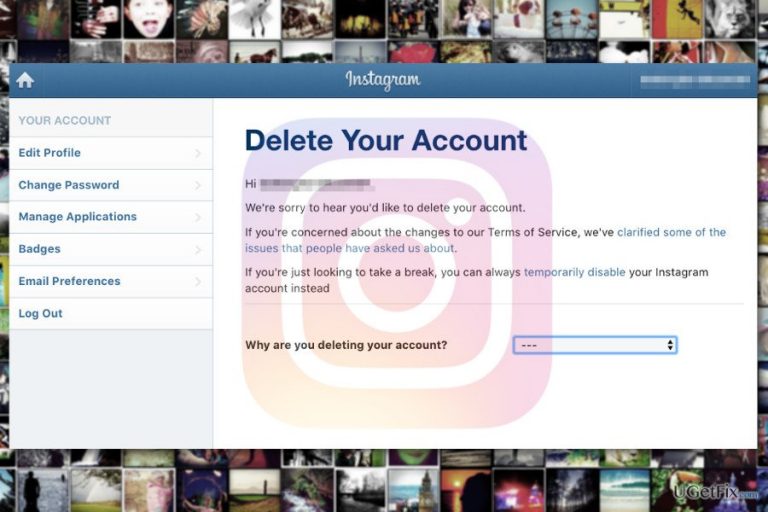
4. When you click or tap delete the account option, you will receive an informational page where you get detailed instructions how to delete Instagram Account permanently. There you will find a link leading to “Delete Your Account” page.
5. If you are not logged in into your account, you need to do that. Then you will be redirected to the “Delete Your Account” page.
6. Now you will need to choose the reason from a drop-down menu why you decided to delete your account, re-enter your password and tap/click “Permanently delete my account” button.
Bottom line
To delete your Instagram account, you must access the Instagram Help Center via a web browser or the app, as the option is not available directly in the app. If you are unsure about permanently deleting your account, consider temporarily disabling it instead. If none of these solutions work, seek further assistance from Instagram support.
Frequently asked questions
To delete your Instagram account, open a web browser on your Windows 10 or Windows 11 device, log into your account, go to the 'Delete Your Account' page, and follow the instructions provided.
Yes, you can uninstall the Instagram app by going to 'Settings' > 'Apps' > 'Apps & features', selecting Instagram, and clicking 'Uninstall'.
When you delete your Instagram account, all your photos, comments, and likes will be permanently removed and cannot be recovered, regardless of whether you are using Windows 10 or Windows 11.




Report an issue
What's wrong with this guide? We review every report and update or remove content.
Report received — thank you. We'll review and fix it.
You need a free account to submit a report.
Be the first to comment