How to remove
Delete Your Twitter Account Permanently
from Windows
Easily remove your Twitter account permanently on Windows 10 or Windows 11. Follow our expert-tested guide for a hassle-free process. Fixed in minutes!


How does How to Delete Your Twitter Account Permanently end up on your PC?
- Not using Twitter actively
- Desire to dissociate from social media
- Increasing competition from other platforms
- Temporary account status due to inactivity
- Intentional deactivation before permanent deletion
Repairs Windows system files, removes malware, and restores a clean OS state — without reinstalling.
I’m not using Twitter yet, but I’m about to register. However, before starting, I want to know if it is possible to remove the Twitter account permanently?
Twitter[ref en-2] is a popular social media platform, which stands alongside Facebook,[ref en-3] Snapchat, and Instagram. It differs from the others due to its unique communication model known as microblogging. In comparison to Facebook where people can post whatever they want, including emotions, one-word posts, long articles, and whatnot, Twitter does not allow posting volumes.
The approximate Twitter message consists of 140 characters or less and can be transmitted to the extensive Twitter community. At the beginning of 2017, there were 319.6 million monthly active users registered on Twitter. However, according to RBC Capital Markets[ref en-1] analysts, the number of Twitter users does not grow as fast as it did during 2006-2016.
On top of that, the exclusive departure of both old and new users has increased by almost 10 percent. Specialists assume that Twitter’s popularity may be gradually decreasing due to the occurrence of other competitive social media platforms, e.g. Snapchat. Besides, psychologists have noticed that more and more people get tired of the online world, which is why they decide to dissociate from social media and put an end to tweeting.
Do you want to delete the Twitter account permanently? Whatever reason prompted you to remove a Twitter account, you can do in an easy way. However, before deleting the account permanently, you will have to “deactivate” it. Deactivation is a temporary account status that happens either intentionally when you change accounts settings or automatically if you are neither posting tweets nor signing in to your account.
When you deactivate a Twitter account, you will have 30 days to change your mind before deletion of tweets, followers, favorites, and other data. If you don't sign into the account within those 30 days, the account will be deleted permanently. Therefore, if you haven’t been using your Twitter account for a long time, it might be that it has already been deleted. If, however, you want to remove it intentionally, you should perform the steps given below.
IMPORTANT: keep in mind that you won’t be able to use your email address or Twitter username on another account after deletion of the old one unless you change them and then confirm the changes before the deactivation. To get the chance to re-use the username or email address, make sure to change your username and email address before Twitter account deactivation:
- Sign in to your Twitter account and open Account Settings.
- Find the Username field and choose a new username.
- Then find the email address field and substitute your current email address to a new one that you own.
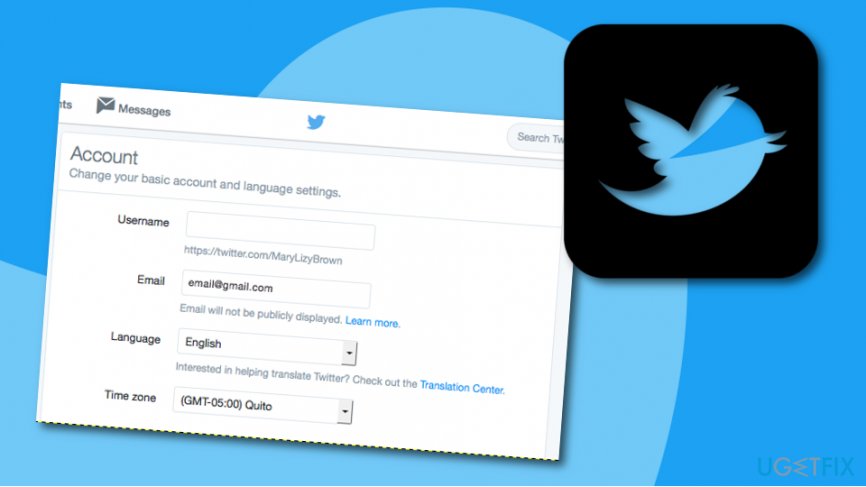
Change email address on twitter before deactivation - Email address changes have to be confirmed. For this purpose, Twitter will send a link.
- Once done, you can deactivate your Twitter account.
How to Deactivate Twitter Account?
- Sign in to your account on twitter.com.
- Open Account Settings and select Deactivate my account.
- Read the provided information and click Okay, fine, deactivate the account.
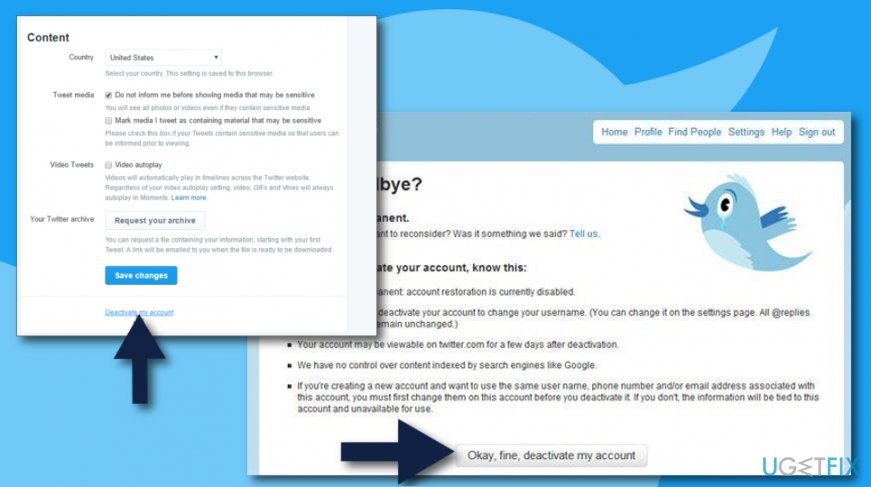
Deactivate your twitter account - When a confirmation window occurs, enter your password and confirm that you want to deactivate your account.
As we have pointed out, deactivation means that all your data will be saved in Twitter's database in case you would decide to reactivate it. After 30 days the account with all its data will be deleted permanently, so you don’t need to do anything else.
Bottom line
To delete your Twitter account permanently, you must first deactivate it, which gives you 30 days to change your mind. If you do not sign in during this period, your account will be permanently deleted. If you encounter issues during this process, consider checking Twitter's help resources for further assistance.
Frequently asked questions
Yes, you can delete your Twitter account by logging in through a web browser on Windows 10 or Windows 11 and navigating to your account settings.
Before deleting your Twitter account, make sure to back up any important data or tweets, as this process is permanent and cannot be undone.
No, deleting your Twitter account will not affect other applications on Windows 10 or Windows 11, but any app linked to your Twitter account will lose access.




Report an issue
What's wrong with this guide? We review every report and update or remove content.
Report received — thank you. We'll review and fix it.
You need a free account to submit a report.
Be the first to comment