How to remove
Disable Backup reminder in Start Menu
from Windows
Easily disable the Backup reminder in your Windows 10 or Windows 11 Start Menu. Follow our expert-tested guide for a hassle-free experience.

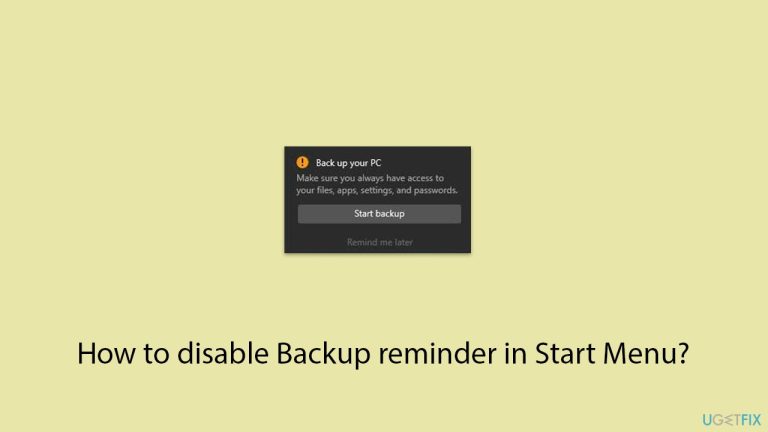
How does How to disable Backup reminder in Start Menu end up on your PC?
- Persistent notification in Start Menu
- Built-in backup tools prompting users
- User preference for alternative backup solutions
- Concerns about space and privacy
- Development of personal backup schedules
Repairs Windows system files, removes malware, and restores a clean OS state — without reinstalling.
I want to remove the "Back up your PC" reminder I keep getting on my Start menu on Windows 11 - it keeps popping up all the time and it's pretty annoying. How do I do that?
A backup represents one of the ways to efficiently protect all your important files and system settings. Routine backups allow you to restore information if there are hardware failures, software failures, or other unforeseen circumstances that might occur with an operating system.
The backup features in Windows 11 are built in to make this process seamless. Nonetheless, some of them might want to do a backup themselves or to use cloud-based solutions, or third-party applications fitting their needs. Sometimes, it may be completely unnecessary for some types of data, or you may have concerns about used space and privacy.
In Windows 11, many have faced a very persistent notification within the Start Menu titled "Back up your PC." It always pops up, urging you to set up a backup option with the system's built-in tools. While it's supposed to remind you to back up your data, this reminder can easily become annoying, especially if you have developed your own backup schedules or you feel that you don't need the extra backup.
Continuously popping Backup reminder prompt disrupts the smooth flow of work, as it engages an individual in tasks that are less important, ultimately cluttering the Start Menu experience and causing annoyance in general.
If you find the "Back up your PC" notification intrusive, there are several methods to disable it and prevent it from appearing in your Start Menu. You can adjust certain system settings, modify group policies, or even tweak registry entries to stop this reminder from bothering you.
These solutions allow you to customize your Windows 11 experience according to your preferences, ensuring that unnecessary prompts do not interfere with your daily activities. The step-by-step instructions on how to implement these changes will be provided below the article.
Additionally, using the [d1] PC repair tool can automatically fix any underlying Windows issues, ensuring your system runs smoothly and efficiently.

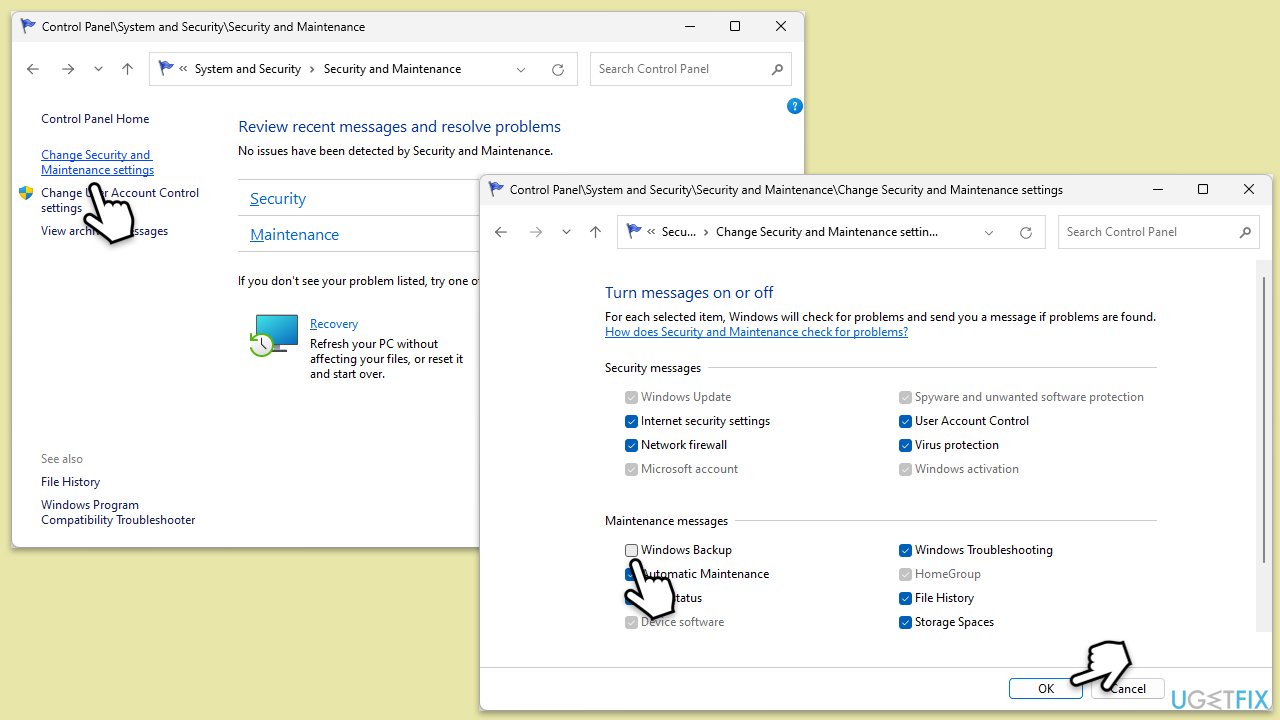
Fix 1. Disable Backup notifications via Control Panel
One of the easiest ways to disable backup notifications is by using the Control Panel; the Security and Maintenance settings to be precise. Here's how:
- Type Control Panel in Windows search and press Enter.
- Select the System and Security section.
- Click on Security and Maintenance.
- On the left side of the window, click on Change Security and Maintenance settings.
- Under Maintenance messages, untick the Windows Backup checkbox.
- Click OK.
Fix 2. Disable backup notifications in settings
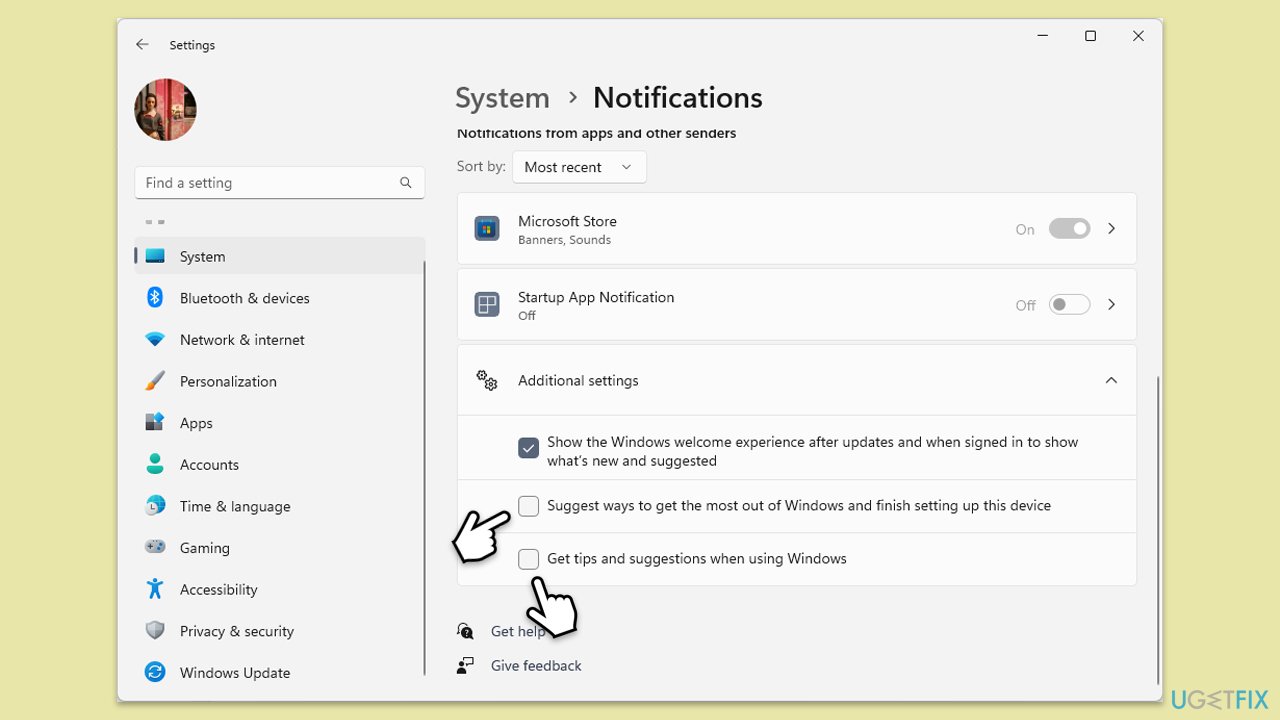
Another way to disable Back up your PC notifications is by using the Settings app.
- Right-click on Start and select Settings.
- Navigate to System.
- Click on Notifications.
- Scroll down to Additional Settings and click this option.
- Find the option for Suggest ways I can finish setting up my device to get the most out of Windows.
- Toggle this option off.
- Locate Get tips and suggestions when using Windows option and toggle it off as well.
Fix 3. Modify the registry to disable the prompt
Editing the registry can remove the backup notification from the Start menu.
- Press Win + R to open the Run dialog.
- Type regedit and press Enter to open the Registry Editor.
- Navigate to the following path: HKEY_CURRENT_USER\Software\Microsoft\Windows\CurrentVersion\UserProfileEngagement
- In the right pane, find the entry named ScoobeSystemSettingEnabled.
- Double-click on it and set the value data to 0.
- Close the Registry Editor and restart your computer.

Fix 4. Use Group Policy Editor to disable reminders
Note that Group Policy is not available for some Windows versions (for example, Windows Home editions).
- Press Win + R to open the Run dialog.
- Type gpedit.msc and press Enter to open the Local Group Policy Editor.
- Navigate to the following location:
User Configuration > Administrative Templates > Start Menu and Taskbar - Find the setting called Remove Notifications and Action Center.
- Double-click it and set it to Enabled.
- Click Apply and then OK.
- Restart your computer.

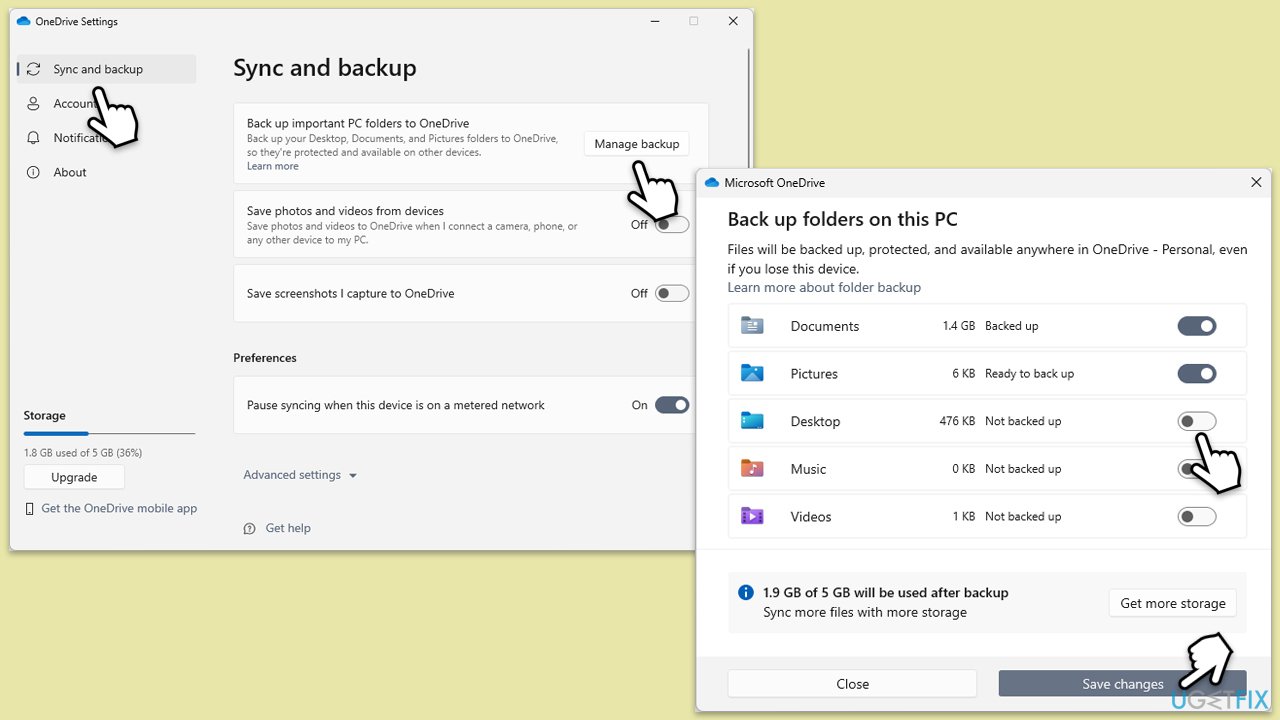
Fix 5. Disable OneDrive backup prompts
- Click the OneDrive icon in the system tray.
- Click the Help & Settings icon (a gear symbol).
- Select Settings.
- Go to the Sync and Backup tab, then click Manage backup.
- Uncheck the folders under Important PC Folders that you don't want to back up.
- Click OK to save the changes.
Bottom line
To disable the 'Back up your PC' reminder, you can adjust system settings, modify group policies, or tweak registry entries. These methods will help customize your Windows 11 experience and eliminate unnecessary prompts. If none of these solutions work, consider using a PC repair tool to address any underlying issues.
Frequently asked questions
To disable the Backup reminder in Windows 10, go to Settings > Update & Security > Backup, and toggle off the option for 'Back up my files.'
Yes, in Windows 11, you can remove the Backup reminder by navigating to Settings > System > Notifications, and then turning off notifications for Backup.
Disabling the Backup reminder will stop the notifications but will not affect your existing backup settings or files.




Report an issue
What's wrong with this guide? We review every report and update or remove content.
Report received — thank you. We'll review and fix it.
You need a free account to submit a report.
Be the first to comment