How to remove
Export Chrome bookmarks to Mac
from Windows
Easily transfer your Chrome bookmarks to Mac from Windows 10 or 11 with expert-tested tips and methods. Say goodbye to hassle and save time!

How does How to export Chrome bookmarks to Mac end up on your PC?
- Bookmarks are not properly exported from Chrome settings
- User is unfamiliar with the Chrome interface
- Incorrect method of accessing bookmark export options
- Potential software glitches in Chrome
- User may not have the latest version of Chrome
Repairs Windows system files, removes malware, and restores a clean OS state — without reinstalling.
Hello. I have been using a Mac OS X computer lately and have been wondering what is the trick for exporting bookmarks from my Google Chrome web browser straight to the computer? Thank you in advance.
Saving bookmarks on the web browser is a common thing that every user does. This bookmarking feature is a very good innovation that helps people to save time while browsing the Web. First of all, bookmarks are very easy to add, very simple to find, and accessible within one mouse click and everyone can learn how to inject one into their browser.
Continuously, bookmarks[ref en-1] can be found on your browser's toolbar. You can add them in different types of shapes, for example, in shortened URL versions or folders. This feature is advantageous especially for those who want to keep a big number of websites in mind so that they can be accessed often.
These bookmarking components can be created on any type of web browser, including Google Chrome, Mozilla Firefox, Internet Explorer, Microsoft Edge, Safari, etc. However, as long as Google Chrome is the most used browser app, we decided to write some guidelines on how to export Chrome bookmarks to Mac.[ref en-2]
Why Mac? Because this type of operating system is also a very commonly used nowadays and we have experienced users asking questions about bookmark exporting to this type of machine. If you are keen to know how to do the job on your own, take a look at the below-provided steps that should help you to export Chrome bookmarks to Mac.
How to export Chrome bookmarks to Mac?
Method. Export bookmarks via Chrome settings
Read the following guiding steps carefully in order to carry out all of them properly and not make mistakes. This method is a simple instructing guide on how to export Chrome bookmarks to Mac and should appear helpful:
- Find the Google Chrome icon on your Mac computer.
- Launch the browser and click on the three-dot (or arrow) icon that you will find located on your upper right.
- Once a drop-down list appears, opt for the Bookmark option.
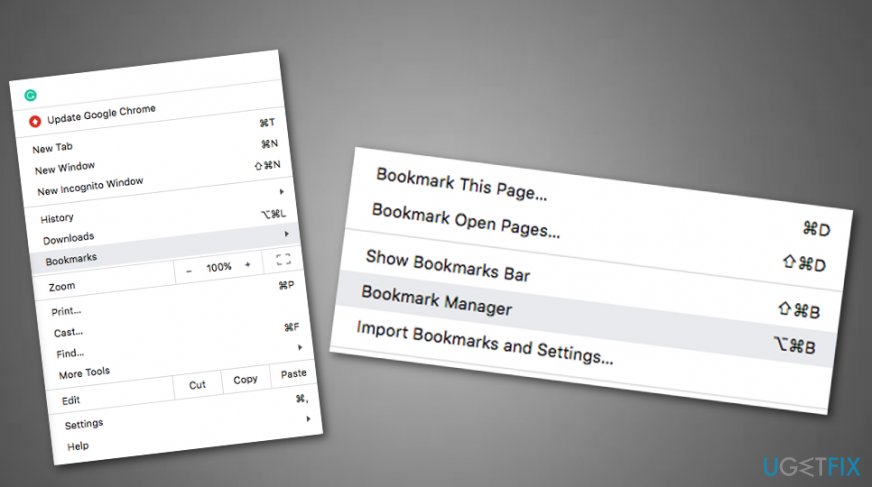
Export bookmarks - After that, go forward with the Bookmark Manager.
- Furthermore, select the Bookmarks menu and click on the three dots on your upper right.
- When another menu appears, choose the option that says "Export Bookmarks".
- Finder will appear and you can pick any bookmark to export.
- Select the location to where you want to transfer the component.
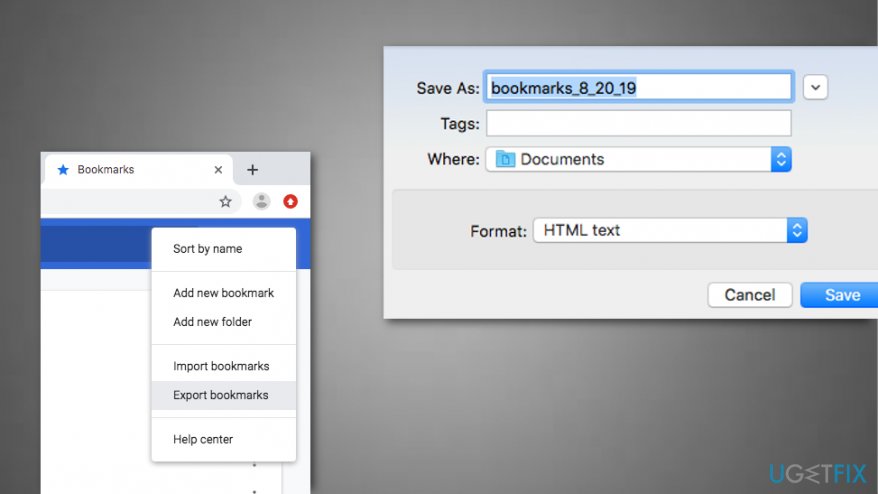
Export bookmarks pt - Afterward, press "Save" to confirm changes.
This is the main method used to export Chrome bookmarks to Mac and it mostly helps all users. However, if you have encountered some struggles or errors during the process, there might be some threats or rogue programs preventing you from completing this task. If you think that you have done everything exactly as required but bookmarks still remain in the same place, you can try scanning the entire system with an antimalware tool[ref en-3] such as [d1] that might be capable of detecting the problem that is stopping you from succeeding (e.g. file or software corruption).
Bottom line
To export Chrome bookmarks to a Mac, users can follow the steps to access Chrome settings and use the bookmark export feature. If the issue persists, ensure Chrome is updated or consult additional resources for troubleshooting. If none of these solutions work, consider seeking help from tech support.
Frequently asked questions
Yes, you can export your Chrome bookmarks from your Mac and then transfer them to a Windows 10 or Windows 11 computer using a USB drive or cloud service.
After exporting bookmarks from Chrome on your Mac, you can import them directly into Chrome on Windows 10 or 11 by accessing the bookmarks manager.
Chrome bookmarks are exported in an HTML file format, which can be easily imported into any web browser on Windows 10 or Windows 11.




Report an issue
What's wrong with this guide? We review every report and update or remove content.
Report received — thank you. We'll review and fix it.
You need a free account to submit a report.
Be the first to comment