How to remove
Fix No Audio Output Device is installed error
from Windows
Resolve the "No Audio Output Device is installed" error on Windows 10 and 11 quickly. Get expert-tested solutions and enjoy sound again in minutes!

How does How to fix No Audio Output Device is installed error end up on your PC?
- Audio drivers issue
- Realtek Audio Driver malfunction
- Incompatible drivers
- Driver corruption
- Windows update causing conflicts
Repairs Windows system files, removes malware, and restores a clean OS state — without reinstalling.
Hello. My Windows updates recently installed automatically, and after that, I figured that I have a problem - there is something wrong with my audio, as it does not work. When I looked at the system tray, I saw that the speaker icon has this red mark, and says, "No Audio Output Device is installed." I did not change anything on my Windows PC, although this happened after a Windows update. Any advice, please?
Problems with Windows audio are relatively common, and No Audio Output Device is installed error is one of them. The indication of the issue is shown clearly, as users can see that there is a red cross near the speaker icon in the system tray.[ref en-1]
Unfortunately, No Audio Output Device is installed error hinders users from listening to any sounds via the installed speakers. Understandingly, the issue can cause a lot of frustration, as performing audio-related activities like watching movies or listening to music becomes impossible.
In most cases, No Audio Output Device error occurs after Windows updates are applied, although other scenarios are possible too. Regardless of when the issue occurs, the most important thing that comes to users' minds is how to fix No Audio Output Device issue so that they could listen and use their speakers again.
The reason for the problem to occur is most likely audio drivers[ref en-2] - Realtek Audio Driver in particular. Nevertheless, the cause may lie in different drivers, as it depends on each system configuration.
Drivers are imperative for every Windows operating system, as they are a link that connects the computer's hardware to software.[ref en-3] In other words, without drivers, most of your computer would simply not function or suffer from serious compatibility and performance issues. Therefore, if something goes wrong with drivers, the dependable hardware component simply stops working - as it is the case with the No Audio Output Device is installed error.
However, everything cannot be blamed on drivers, as No Audio Output Device is installed error fix might lie within other methods. For example, users reported that the issue was fixed by running audio troubleshooter or after restarting audio-related services.
We strongly advise you scan your machine with repair software [d1], as it might be possible to repair your Windows system automatically. If no luck, proceed with the methods provided below.
Solution 1. Run the built-in audio troubleshooter
Windows troubleshooters are great tools to determine the cause of certain malfunctions on your system. And while troubleshooters might not be able to fix errors that they determine, they might point you in the correct direction by explaining the root cause of the issue. Therefore, because No Audio Output Device is installed is related to your audio device, you should run an adequate troubleshooter.
- Right-click on Start and select Settings
- Click on Update & Security
- On the left side of the window, pick Troubleshoot
- Scroll down and click on Playing Audio
- Select Run the troubleshooter
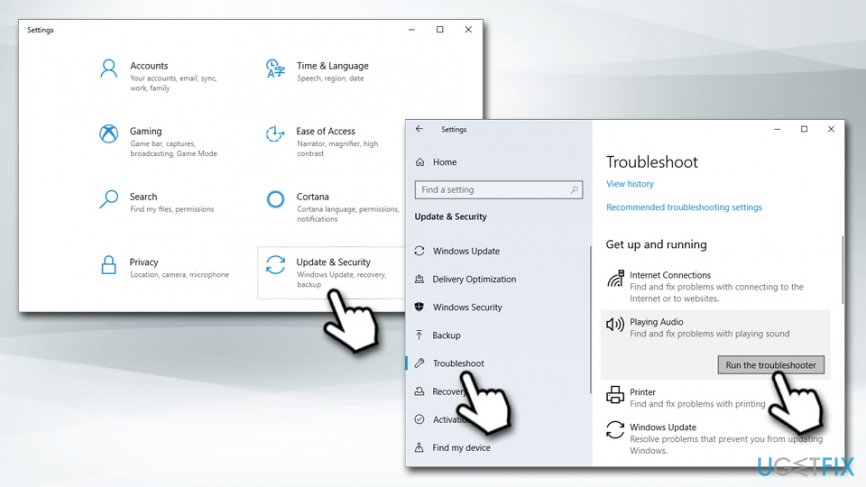
How to fix no audio output device is installed error run audio troubleshooter - Wait till Windows diagnoses problems and suggests what to do next
Solution 2. Update audio drivers
In some cases, No Audio Output Device is installed error might be caused by outdated audio drivers. Here's how to update them manually:
- Right-click on Start and pick Device Manager
- Expand the following section: Sound, video and game controllers
- Right-click on your audio device and select Update driver
- Pick Search automatically for updated driver software
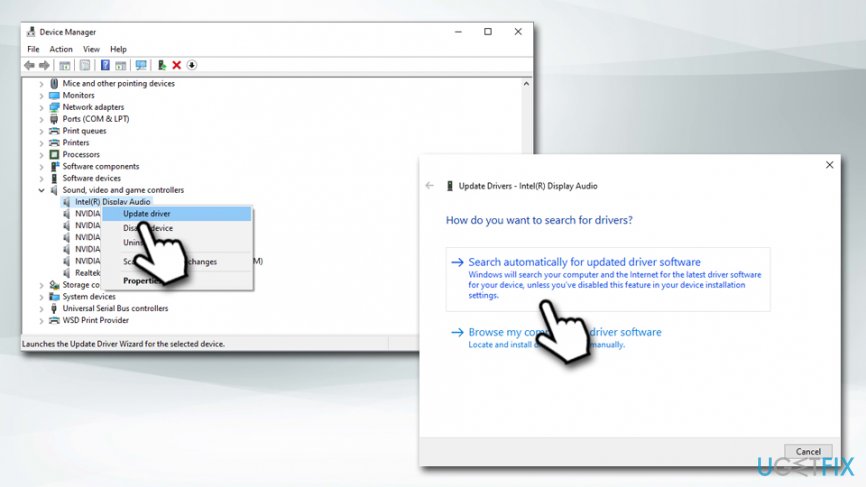
How to fix no audio output device is installed error update audio driver - Wait till windows installs updates and then reboot your machine
Note: if you see Realtek Audio Driver, update it as well.
Solution 3. Reinstall the audio device
After you open the Device Manager, you might notice a yellow exclamation mark next to one of your audio devices. If that is the case, you should reinstall it completely.
- Open Device Manager once again
- Right-click on problematic device driver
- Select Uninstall device
- Tick the Delete the driver software for this device
- Click Uninstall and reboot your PC
- After a restart, open Device manager once again
- Click on Scan for hardware changes at the top
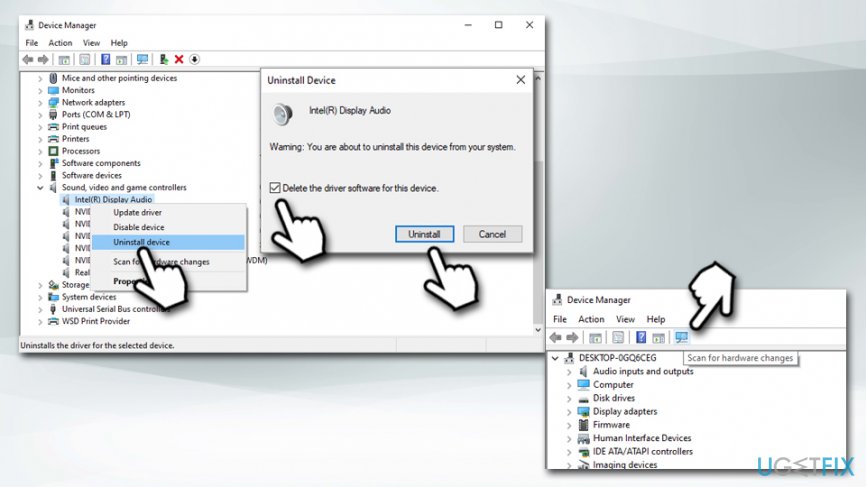
How to fix no audio output device is installed error reinstall audio driver - Wait till Windows installs the required drivers
- Restart
Note: if you see Realtek Audio Driver, reinstall it as well.
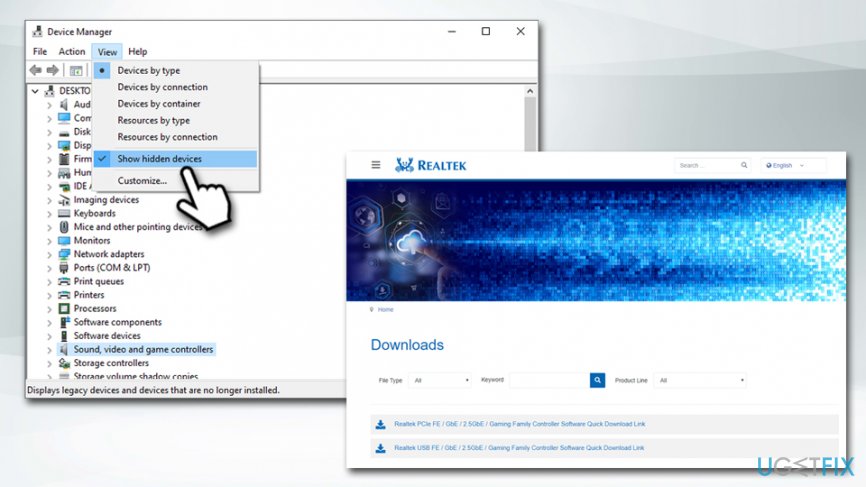
Solution 4. Uncover Realtek Audio Driver via Show hidden devices option
Many users said that reinstalling Realtek Audio Driver helped them fix the audio issue. The problem is, however, that they did not see the Realtek Audio Driver installed vie the Device Manager. If that is the case for you, follow these steps:
- Click on View and then tick the Show hidden devices option
- Expand the Sound, video and game controllers section once again and check if Realtek Audio Driver is showing up
- Right-click on it and select Enable or Update driver (if both are available, try both in that sequence)
In case you cannot enable it, you should follow the steps provided in Solution 4 and reinstall the driver completely.
If that does not work either, you should go to the official Realtek website and download the basic driver, which later can be updated by using steps provided in solution 2.
Solution 5. Restart Audio service
Restarting audio service might help you resolve this issue.
- Type in Services into Windows search
- Open the Services app
- Scroll down until you locate Windows Audio
- Right-click and select Restart
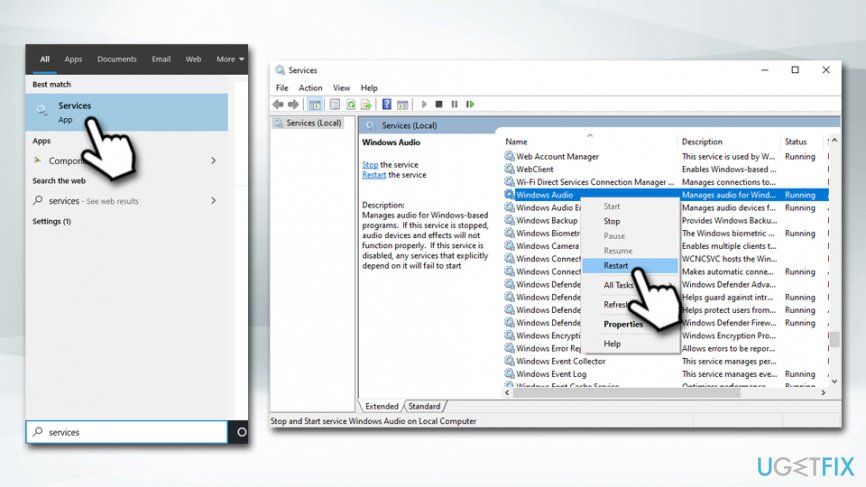
How to fix no audio output device is installed error restart windows audio service
Next, you should make sure that the service starts automatically each time you boot your machine:
- Right-click on Windows Audio
- Under Startup type, select Automatic from the drop-down menu
- Finally, click Apply and OK
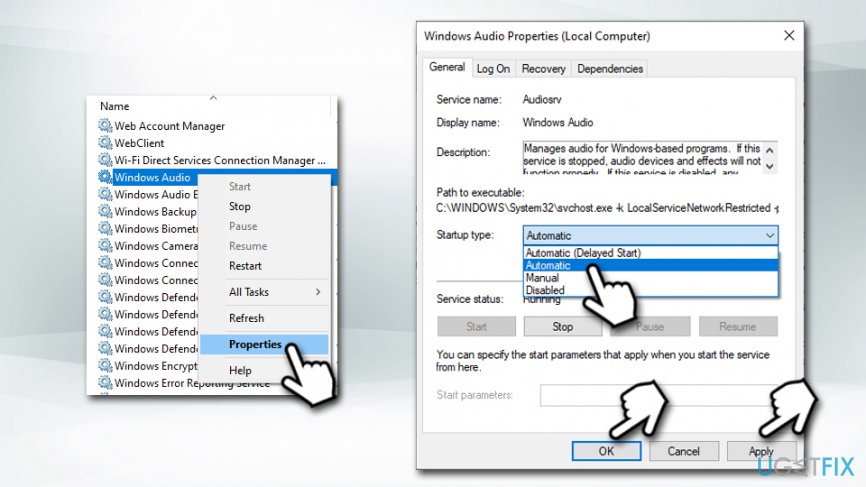
How to fix no audio output device is installed error set windows audio service to automatic - Reboot your PC
Bottom line
To fix the 'No Audio Output Device is installed' error, users can try updating or reinstalling audio drivers, running the audio troubleshooter, or checking for hardware issues. If none of these solutions work, further investigation into system settings or consulting technical support may be necessary.
Frequently asked questions
Reinstall the sound driver by going to Device Manager, right-clicking on the audio device, and selecting 'Update driver'. If that doesn't work, you may need to download the latest driver from the manufacturer's website.
Yes, uninstalling third-party audio software can disrupt the audio drivers, leading to the error. It's advisable to reinstall the audio software or the original drivers to resolve the issue.
You can check the audio driver status in Device Manager; if it shows 'This device is working properly', then the driver is correctly installed. If there's an exclamation mark, you may need to reinstall or update the driver.




Report an issue
What's wrong with this guide? We review every report and update or remove content.
Report received — thank you. We'll review and fix it.
You need a free account to submit a report.
Be the first to comment