How to remove
Fix Yahoo homepage change
from Windows
Fix the Yahoo homepage change on Windows 10 and 11 effortlessly. Follow our expert-tested guide and restore your settings in minutes!


How does How to fix Yahoo homepage change end up on your PC?
- Browser hijacker altered settings
- Potentially unwanted program installed
- Software bundling during freeware installation
- Users skipped Advanced or Custom installation mode
- Pre-ticked options set Yahoo as primary search engine
Repairs Windows system files, removes malware, and restores a clean OS state — without reinstalling.
Hi. I always used Google.com as my primary search engine, as I find it is the most accurate and useful. Recently, whenever I open my browser, I can see a Yahoo homepage change on my screen. Whenever I want to browse the internet, I have to enter Google page manually, instead of it popping automatically. I have no clue why this is happening, but I would like to regain my Google homepage, please? Thanks in advance!
Yahoo homepage change is simple to explain. You observed these changes because a potentially unwanted program hijacked your browser.[ref en-1] Browser hijackers often enter machines without users' permission and alter settings of Google Chrome, Internet Explorer, Mozilla Firefox, Safari and other browsers. Although these unwanted guests are not considered to be malware,[ref en-2] they definitely do not belong on users' machines, especially if they were injected unfairly.
Yahoo is a legitimate search engine and used by approximately 2.1% of users worldwide. It is only behind Bling (3.07%) and Google (91.2%)[ref en-3]. Google search engine remains exceptionally dominant and reliable, and most users prefer it. Nevertheless, Yahoo partners with other organizations and affiliates which promote it via their products. This technique is called software bundling and is often used by freeware developers.

If users do not pay attention while installing freeware, shareware or software updates, they might skip a pre-ticked tick box which indicates that Yahoo search engine will be set as a primary one. Also, users may also be offered optional components, such as toolbars, search engines, add-ons, etc. Unfortunately, in most cases, Advanced or Custom installation mode should be picked in order to avoid these applications. While most users still go for the Recommended method, they skip this step and suddenly find their search engine and home page altered.
We want to warn users that some of these applications can be potentially dangerous. The alarming features of browser hijackers include:
- Modified browser settings;
- Intrusive ads can block content on all websites visited;
- Redirects could lead to malware-ridden sites;
- The ability to prevent setting homepage to original one;
- The ability to monitor a significant amount of non-personally identifiable information;[ref en-4]
- Control browsing habits;
- Display less accurate search results, etc.
We can assure you that Yahoo on its own will not bring you to malicious websites, even if it entered your computer via software bundling. Nevertheless, if you noticed Yahoo homepage change, there is a high chance that you installed software without paying much attention and more PUPs might be hiding inside your machine. For extra security, we recommended scanning your device with [d1].
Without further delay, let's show you how to uninstall Yahoo from each of the browsers completely.
Uninstall Yahoo from Windows
- Click on Start and type in Control Panel in the search box
- Under Programs, click Uninstall a program
- Find Yahoo related software, right-click it and press Uninstall
- Wait till uninstall is complete
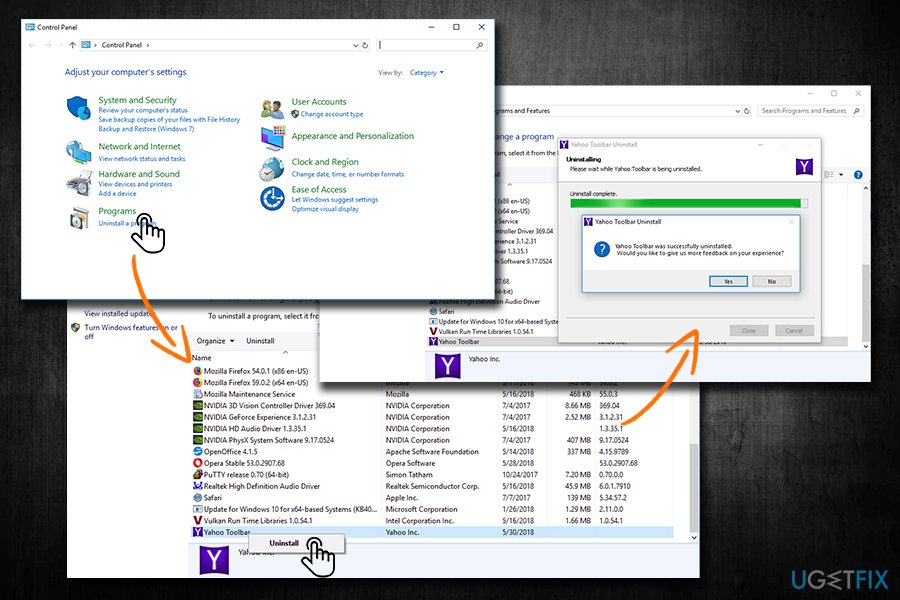
Remove yahoo from windows
Uninstall Yahoo from Mac
- Select Go button at the top-left of the screen and choose Applications
- Wait till Applications folder loads and then find Yahoo related program
- Right-click on it and select Move to Trash
Uninstall Yahoo extension from Google Chrome and reset its settings
You need to remove the extension manually from Google Chrome:
- Click on the Menu at the top-right corner of the browser
- Pick More tools and then Extensions
- Find the Yahoo extension and press Remove
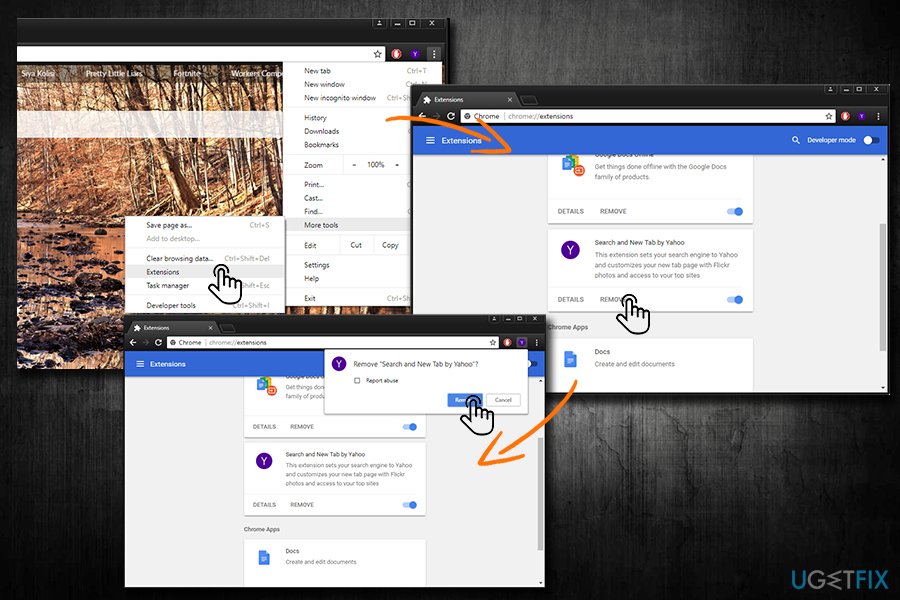
Remove yahoo from chrome
To reset Google Chrome, proceed with the following:
- Click on Menu again and choose Settings
- On the right side, select Settings again and click Advanced
- Pick Reset and Clean up
- Click Reset Settings and then Reset
Uninstall Yahoo extension from Mozilla Firefox and reset its settings
If you are using Mozilla Firefox browser, follow these guidelines:
- Click on the Menu button at the right-top corner
- Select Add-ons
- On the right side, click Extensions
- Find Yahoo related program and select Remove
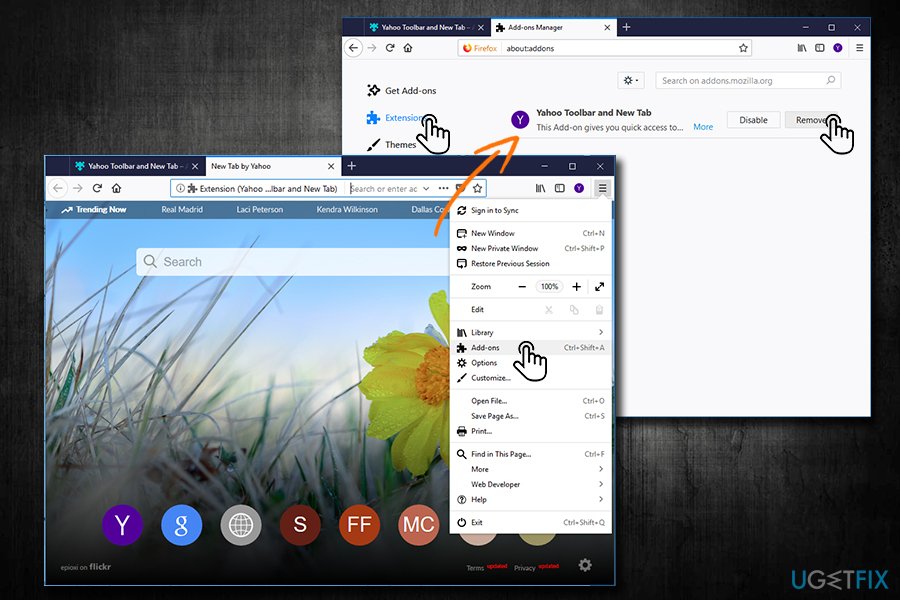
Remove yahoo from firefox
To reset Mozilla Firefox, follow these instructions:
- Go to Help > Troubleshooting information
- On the right side of the window click on Refresh Firefox
- A warning window will pop up. Select Refresh Firefox again
Bottom line
To regain your Google homepage, you should check your browser settings and remove any unwanted extensions or programs. Additionally, consider running a malware scan to detect and eliminate any hijackers. If these steps do not resolve the issue, you may need to reset your browser settings or seek further technical assistance.
Frequently asked questions
To remove unwanted Yahoo homepage settings, go to Settings > Apps > Default Apps, and reset your web browser's homepage to your preferred site.
If Yahoo keeps resetting your homepage, check your browser extensions for any that may be causing this and uninstall them if necessary.
You can uninstall programs by going to Settings > Apps > Apps & features, finding the suspicious program, and selecting 'Uninstall' to remove it.




Report an issue
What's wrong with this guide? We review every report and update or remove content.
Report received — thank you. We'll review and fix it.
You need a free account to submit a report.
Be the first to comment