How to remove
Ads
from Windows
Eliminate unwanted ads from Windows 11 effortlessly. Follow our expert-tested guide for a cleaner experience, and enjoy browsing without interruptions.

How does How to remove ads from Windows 11 end up on your PC?
- Ads displayed in File Explorer
- Ads in Windows Search
- Ads on the Lock Screen
- Ads in the Start menu
- Targeted ads based on privacy settings
Repairs Windows system files, removes malware, and restores a clean OS state — without reinstalling.
Hello. I have recently upgraded to Windows 11 and have noticed ads in places like the Start menu, Widgets, File Explorer, etc. How do I remove Windows 11 ads from the system? I don't think it's fair considering how I paid for the operating system a quite large sum of money.
Many users upgrading to Windows 11 have noticed an unexpected feature: ads are displayed in several parts of the operating system. These ads appear in areas like File Explorer, Windows Search, the Lock Screen, and the Start menu, which can be quite intrusive and affect the user experience.
Can you remove Windows 11 ads?
- Disabling specific features in the system settings can significantly reduce the number of ads.
- You can turn off tailored experiences and suggestions to minimize their occurrences.
- Adjusting your privacy settings helps reduce the frequency of targeted ads.
Why is Windows using ads?
Microsoft incorporates ads into Windows 11 primarily to introduce users to new services and features, and improve interaction with the broader Microsoft ecosystem. These ads also serve as a revenue source, supporting the development of new updates and features for the operating system. There is no doubt that more monetization is always welcome to any company, but seeing ads on a product that's already paid for might be quite frustrating.
How do I remove Windows 11 ads?
- To remove ads, you can explore several adjustments within the Windows settings.
- Navigate to the Personalization settings to disable ads in the Lock Screen, Start menu, and other areas.
- You can turn off Search Highlights to prevent ads from appearing in Windows Search results.
- For more advanced users, modifying the Windows Registry can help block ads more thoroughly, but this should be done with caution as incorrect changes can lead to system instability.
Although Windows includes integrated advertising, there are various ways to reduce or remove Windows 11 ads to prevent intrusive behavior. If you are experiencing persistent issues or need a more comprehensive solution, consider using PC repair software [d1]. This tool automatically resolves underlying system problems, freeing your system from unwanted ads and improving overall performance.
Method 1. Remove ads from the lock screen
Ads on the lock screen in Windows 11 can be distracting and reduce the aesthetic appeal of your device. By adjusting your personalization settings, you can remove these ads and restore a clean, uncluttered appearance to your lock screen.
- Open Settings by pressing the Win + I.
- Go to the Personalization section.
- Select Lock screen.
- Under the Background dropdown, choose a picture or slideshow instead of Windows Spotlight.
- Uncheck the box that says Get fun facts, tips, and more on your lock screen box,
Method 2. Get rid of ads in Windows Search
Ads in Windows Search can clutter your search results and slow down your ability to find needed information quickly.
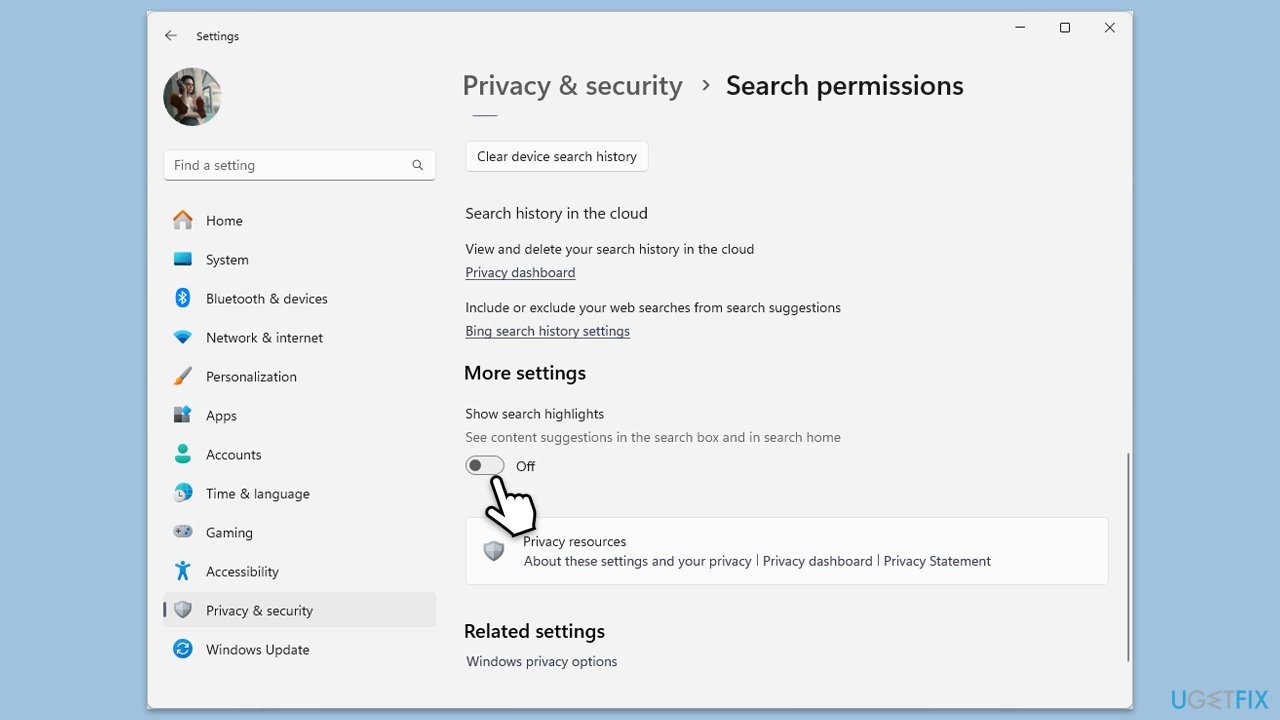
- Open Settings.
- Navigate to Privacy & Security.
- Go to Search permissions and then find the More settings section.
- Turn off the Show Search highlights option to disable Bing Search suggestions.
Method 3. Disable My Feed to remove ads in Widgets
Widgets in Windows 11 can display ads as part of the My Feed experience, which might not be useful to all users.
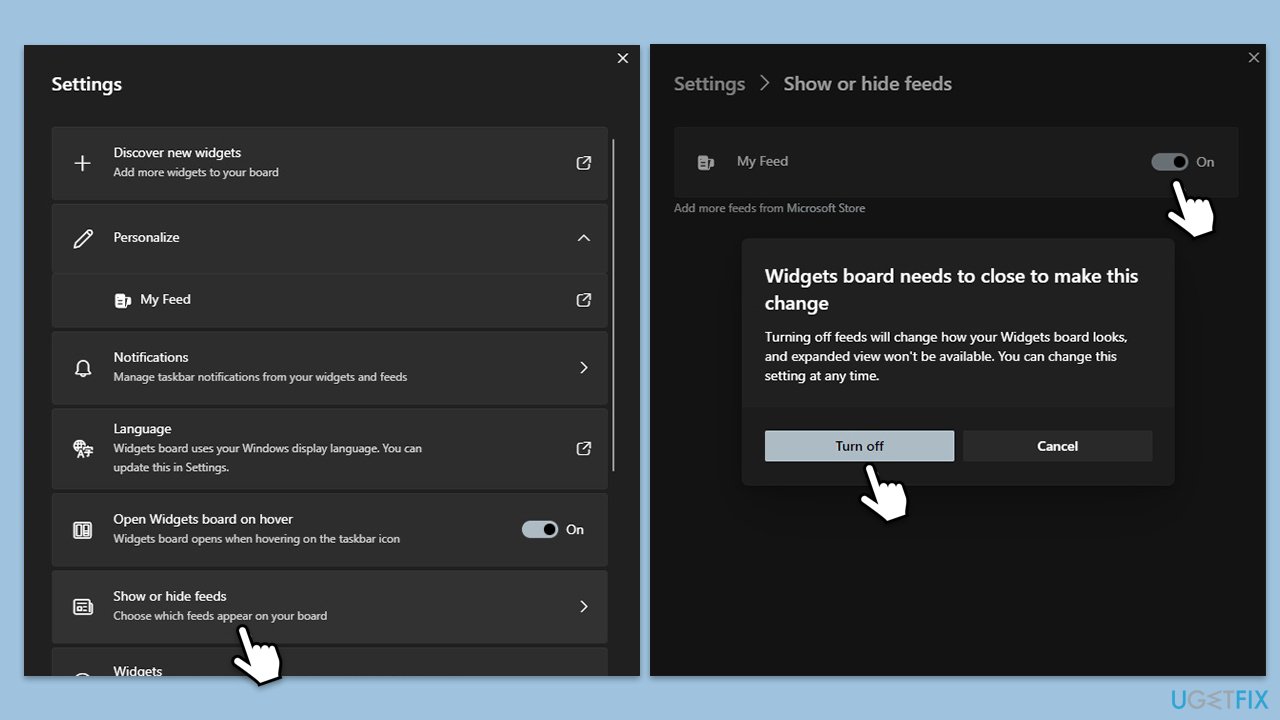
- Press Win + W on your keyboard to open the Widgets menu.
- Click Settings (cogwheel) in the top-right corner.
- Select Show or hide feeds from the list.
- Disable My Feed.
- When the prompt comes up, click Turn off.
- The Widget board will restart.
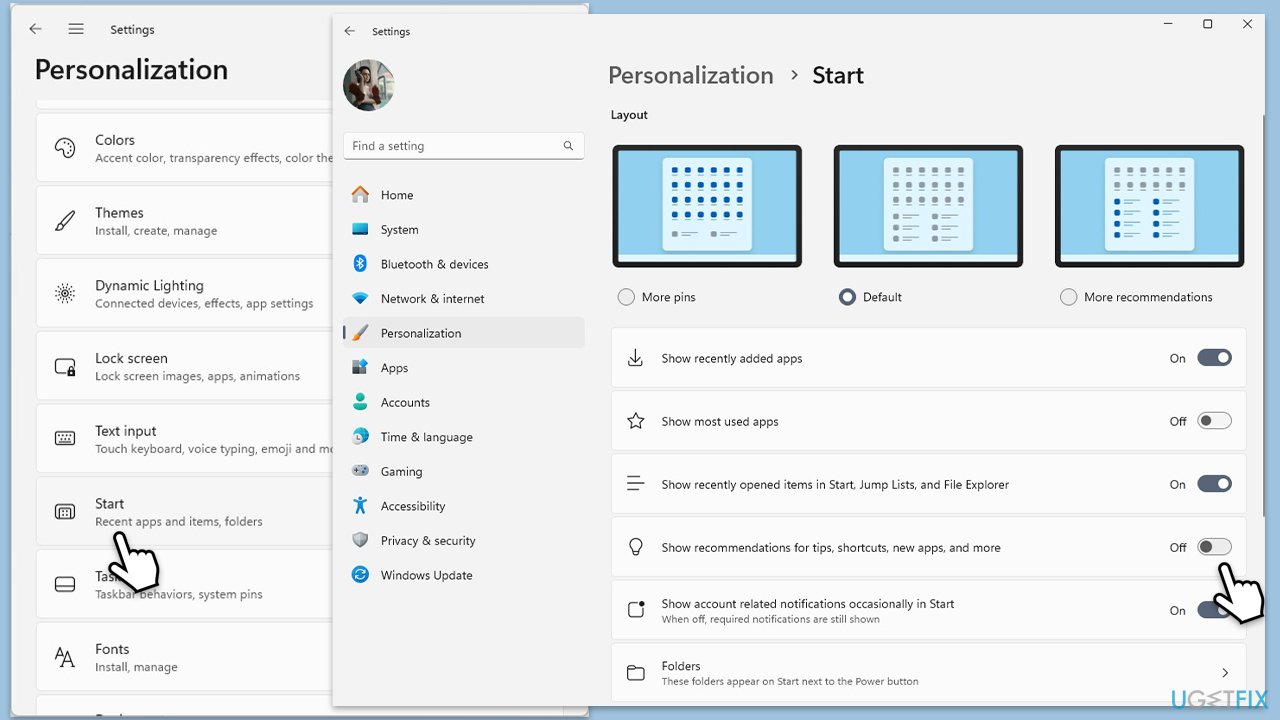
Method 4. Get rid of Start recommendations
The Start menu can show recommendations that are essentially ads for Microsoft Store apps and services.
- Open Settings.
- Go to Personalization.
- Select Start.
- Disable the Show recommendations for tips, shortcuts, new apps, ads, and more option by toggling the switch.
Method 5. Remove Windows notifications
Windows notifications can sometimes include ads or prompts to check out new features or services.
- Open Settings and go to System > Notifications.
- Expand the Additional settings section.
- Here, remove the checkmarks from the following:
- Show the Windows welcome experience after updates and when signed in to show what’s new and suggested
- Suggest ways to get the most out of Windows and finish setting up the device
- Get tips and suggestions when using Windows.
- Below you can also disable notifications from specific apps.
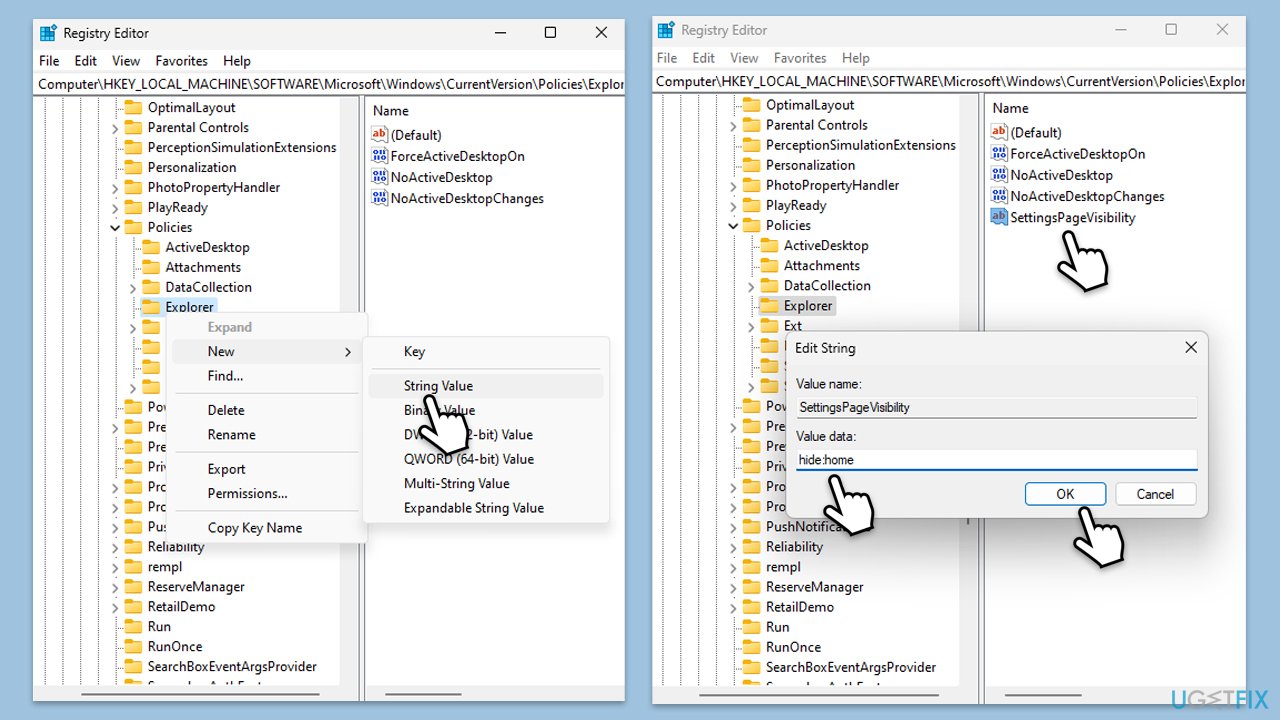
Method 6. Stop Homepage app showing ads via Registry Editor
Modifying the registry to stop the Homepage app from showing ads involves careful adjustments as incorrect changes can cause system issues. Make sure you backup your registry before proceeding.
- Type Regedit in Windows search and press Enter.
- When the confirmation prompt shows up, click Yes.
- Navigate to the following location:
HKEY_LOCAL_MACHINE\SOFTWARE\Microsoft\Windows\CurrentVersion\Policies\Explorer - Right-click on the Explorer folder and pick New > String Value.
- Name it SettingsPageVisibility and click OK.
- Double-click the SettingsPageVisibility entry.
- In the Value data section, type in hide:home and click OK.
- Restart your PC.
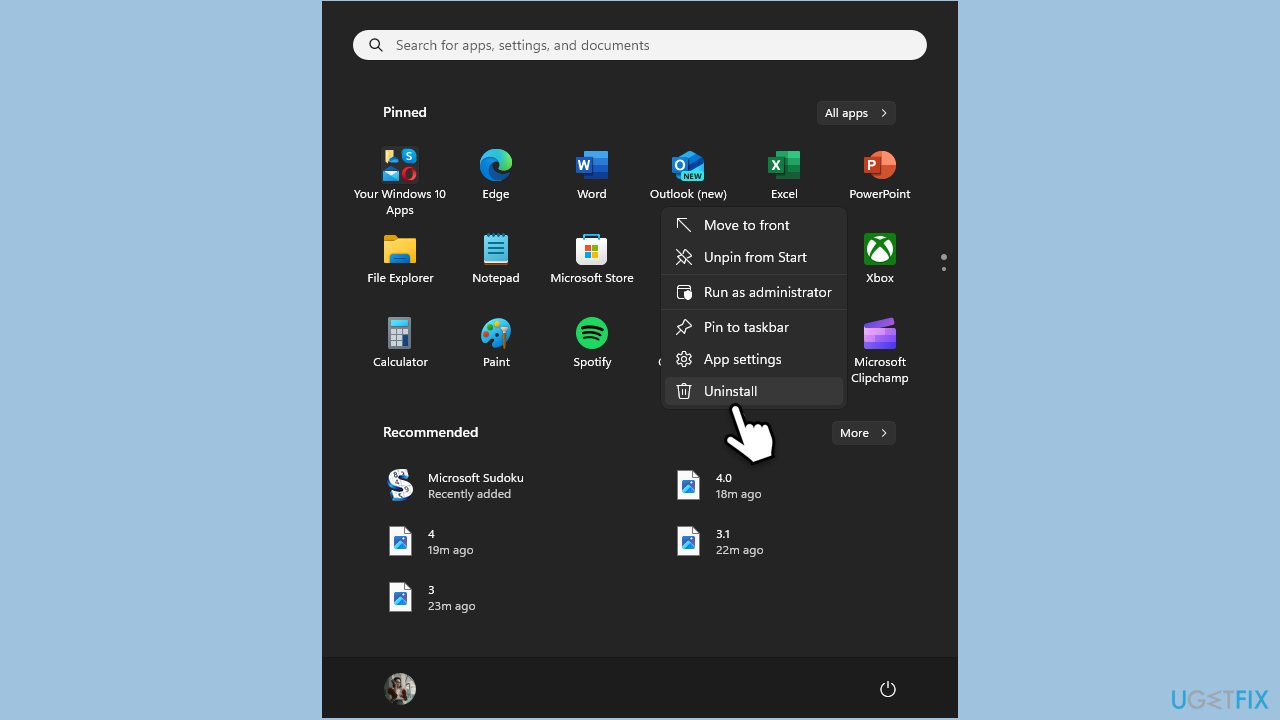
Method 7. Uninstall unused apps from the Pinned section in the Start menu
Uninstalling unused apps that often show ads in the Start menu can declutter your Start experience and reduce unwanted distractions.
- Click on Start.
- You should see various Pinned apps in this location.
- Right-click on every app that's not installed by you and select Uninstall.
- Proceed with the instructions to remove these apps.
Bottom line
To remove ads from Windows 11, you can disable tailored experiences and suggestions in the system settings, adjust privacy settings, and navigate to the Personalization settings to turn off ads in various areas. For more advanced users, modifying the Windows Registry may provide a more thorough solution. If these methods do not resolve the issue, consider using PC repair software for further assistance.
Frequently asked questions
To disable personalized ads in Windows 11, go to Settings > Privacy & security > General and turn off the option for 'Let apps use advertising ID to make ads more interesting.'
To remove adware from Windows 11, access Settings > Apps > Apps & features, find the suspicious program, and select 'Uninstall.' You may also want to run a malware scan using Windows Security or a trusted third-party antivirus.
Windows 11 does not have a built-in ad blocker, but you can use the Microsoft Edge browser's settings to block pop-ups and enable tracking prevention, which can reduce ads while browsing.




Report an issue
What's wrong with this guide? We review every report and update or remove content.
Report received — thank you. We'll review and fix it.
You need a free account to submit a report.
Be the first to comment