How to remove
Auto Mechanic 2018
from Windows
Easily remove Auto Mechanic 2018 from Windows 10 or 11. Follow our expert-tested guide for a quick and hassle-free uninstallation process. Fixed in minu…

How does How to remove Auto Mechanic 2018 end up on your PC?
- Potentially unwanted program category
- Developed by a company that rebrands suspicious software
- Installed without user consent through software bundling
- Users often accept terms and conditions without reading them
- Promises of eradication of threats are misleading
Repairs Windows system files, removes malware, and restores a clean OS state — without reinstalling.
Hello guys. Recently I found Auto Mechanic 2018 on my computer. It popped up out of nowhere and started performing a system scan. Out of a sudden, I was presented with a variety of issues and every threat was red. Is my computer really that damaged? I didn't have any problems with it, as everything runs smooth. I am starting to believe that it is a scam. Is it correct? If yes, please help me to uninstall it completely.
Auto Mechanic 2018 belongs to the potentially unwanted program[ref en-1] category and is created by the same developer that continually keeps rebranding suspicious software and re-releasing it under a different name. All these programs work identically and bring no benefit to a regular user. Nevertheless, developers of this dubious software are quick to promise a full eradication of malicious threats and other improvements to the computer. In reality, this application is nothing but a scam that tries to extort money out of innocent users.
Programs like Auto Mechanic 2018 usually enter users' machines without their consent - hence the "potentially unwanted program" name. Developers rely on software bundling[ref en-2] to populate their products to as many devices as possible. This technique, although not very fair, is legal and often abused. This is due to users picking Recommended or Quick modes during freeware installation. Fun fact: approximately 68% of users accept Terms and conditions without looking through them.[ref en-3]
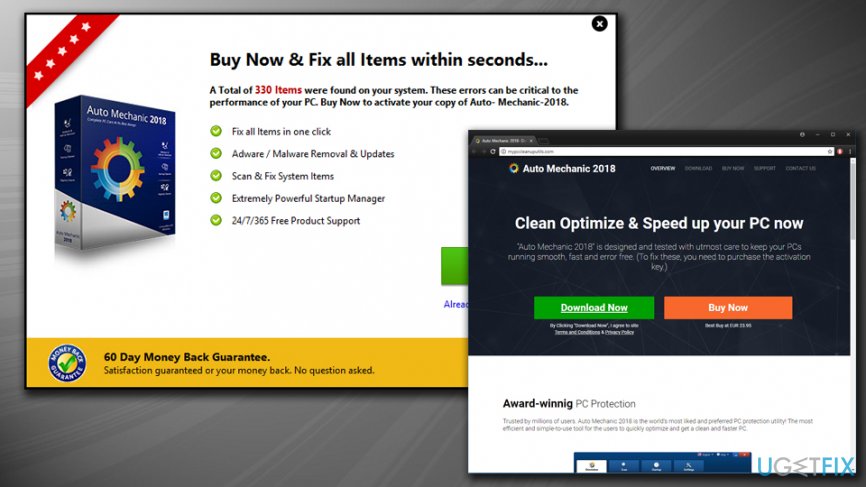
The official website is filled with fake reviews and recommendations from a well-known media website CNET and similar, although there is no proof that any of these companies ever rated auto Mechanic 2018. Most likely, it is a lie as well.
Our security team conducted an experiment and installed the PUP intentionally. Before we even installed the program, we were prompted to install Driver Updater.[ref en-4]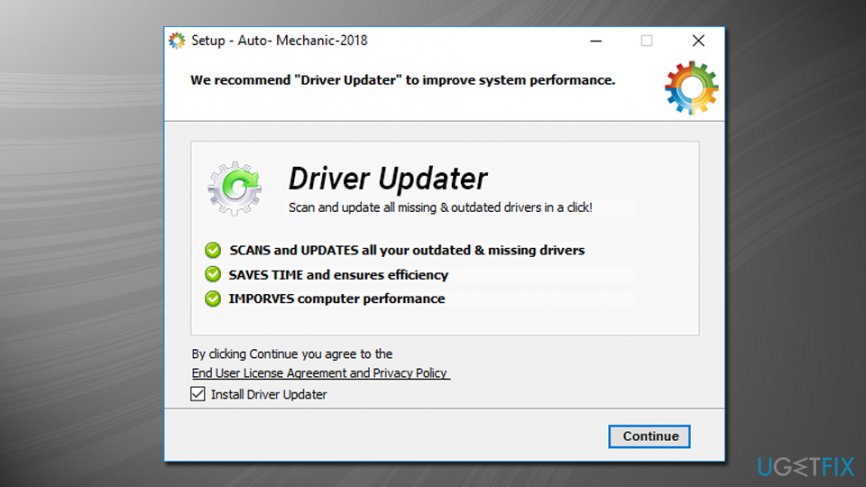
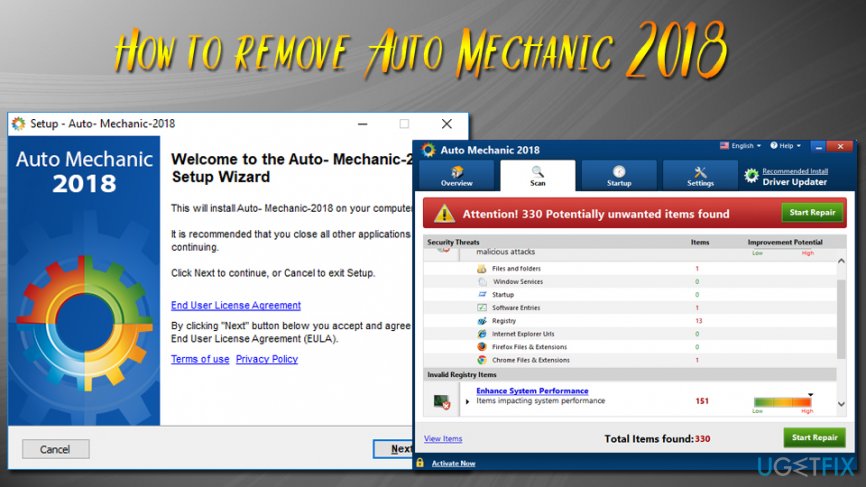
At his point, we merely unchecked the pre-selected box and proceeded with the installation. We were soon greeted with a scan (which was initiated without our permission) and turned out that our machine is "extremely compromised" as well. Auto Mechanic 2018 found 330 items that allegedly harm our PC.
Nevertheless, we noticed that all of these "problems" are simple registry entries or Google cookies. Absolutely untrue and bogus. The truth is, system optimizers might damage a perfectly working machine by deleting incorrect registry entries. To fix these "issues" we were prompted to buy a licensed version of the program. Our team decided to remove the application immediately. We suggest you do the same - follow the guide below.
Remove Auto Mechanic 2018 manually
- Press Ctrl + Shift + Escape to enter Task Manager
- Find the Auto Mechanic 2018 process and shut it down by right-clicking on it and pressing End Task
- Close Task Manager and type in Control Panel into the search box
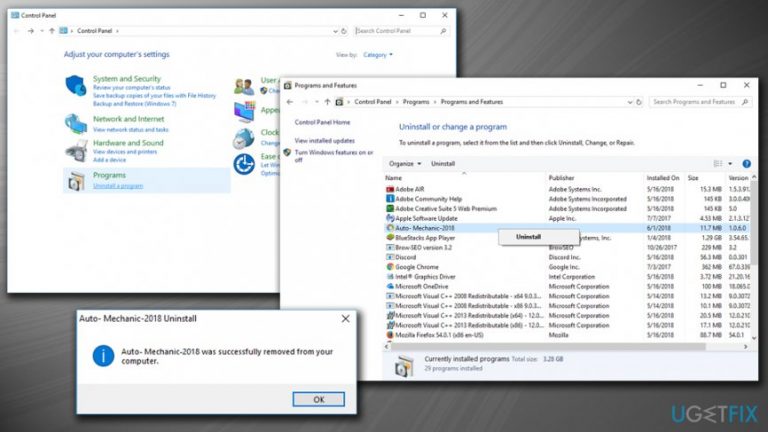
- Under Programs, select Uninstall a program
- Find Auto Mechanic 2018 in the list
- Right-click and select Uninstall
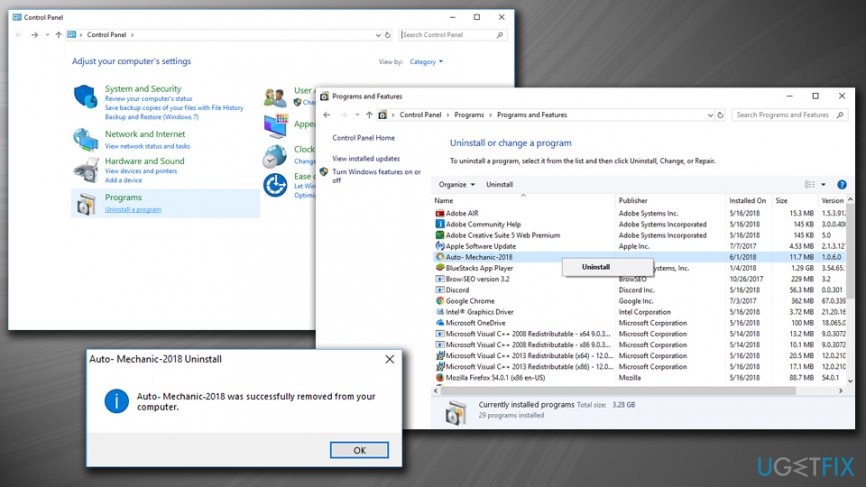
Auto mechanic 2018 uninstall manually - Follow the on-screen instructions to remove the program completely
- Then, press Windows key + R, type regedit, and press Enter
- Under Edit tab, click on Find Next and type Auto Mechanic 2018
- If any entries are detected, make sure to remove them all
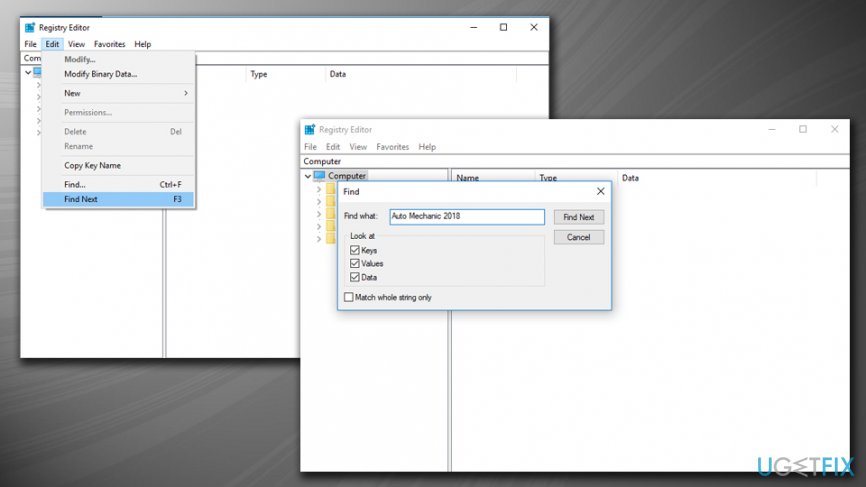
Auto mechanic 2018 clear registry
Remove Auto Mechanic 2018 automatically
Not all security software engines recognize Auto Mechanic 2018 as a potentially unwanted program. Thus, we recommended running a full system scan with [d1]. This way, all the remaining registry entries can be eliminated automatically. Besides, this security program checks for any other mistakes on the machine and can repair them automatically.
Delete Auto Mechanic 2018 using professional removal software
You can use [rev id="Perfect Uninstaller"] to easily remove Auto Mechanic 2018. The software is extremely useful when a potentially unwanted program does not have a built-in removal executable.
Bottom line
To remove Auto Mechanic 2018, you should uninstall it through the Control Panel and run a reputable antivirus or anti-malware program to clean your system. Additionally, be cautious during software installations to avoid similar issues in the future. If these steps do not resolve the problem, consider seeking professional tech support.
Frequently asked questions
To uninstall Auto Mechanic 2018 from Windows 10, go to Settings > Apps, find Auto Mechanic 2018 in the list, and click 'Uninstall.' Follow the prompts to complete the uninstallation process.
If Auto Mechanic 2018 is not listed in Windows 11, try using the Control Panel by navigating to Programs > Programs and Features, then locate it and select 'Uninstall'.
Yes, after uninstalling Auto Mechanic 2018, you may need to manually delete leftover files from the Program Files directory or use a third-party uninstaller to ensure complete removal.




Report an issue
What's wrong with this guide? We review every report and update or remove content.
Report received — thank you. We'll review and fix it.
You need a free account to submit a report.
Be the first to comment