How to remove
Chromesearch.win from the browser
from Windows
Easily remove Chromesearch.win from your Windows 10 or 11 browser. Follow our expert-tested guide for a clean solution and keep your system secure.

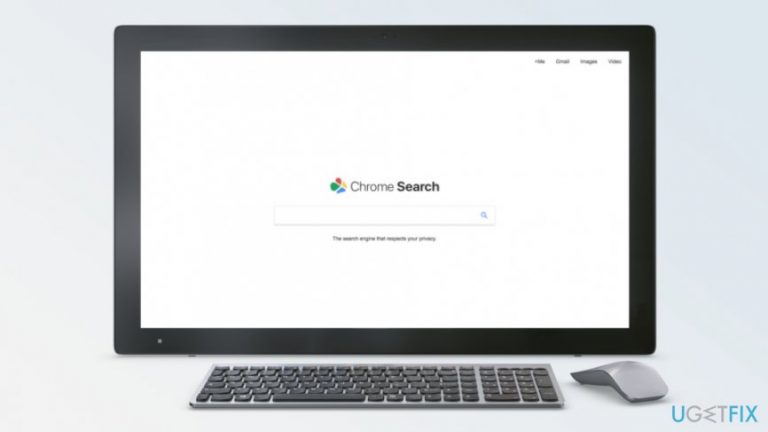
How does How to remove Chromesearch.win from the browser end up on your PC?
- Chromesearch.win is set as the default search engine without user consent.
- The hijacker may have been installed with recently downloaded software.
- Installation of optional third-party programs during freeware installation.
- Using Quick/Standard installation settings instead of Advanced/Custom settings.
Repairs Windows system files, removes malware, and restores a clean OS state — without reinstalling.
I found chromesearch.win set as my default Chrome search engine. However, I haven’t set it by myself. I tried to replace it with Google, but once I restart the computer, this website comes back. I am concerned that it’s not a normal activity, and I want to switch back to my previous homepage. Any tips?
Chromesearch.win, or Chrome Search,[ref en-1] is a highly suspicious search tool that should not be used on a daily basis. It is known as a potentially unwanted program (PUP)[ref en-2] and a browser hijacker that might sneak inside the system unnoticed, alter browser’s settings and prevent users from reverting its changes. Thus, it’s impossible to change the homepage, default search engine or homepage address via Chrome settings.
The so-called Chromesearch.win virus usually spread in software bundles and might infiltrate device when you install a free program incorrectly. During freeware or shareware installation, it’s important to be attentive and reject installation of optional third-party programs that might be attached to the needed software.[ref en-3] Thus, you should:
- Use Advanced/Custom installation settings instead of Quick/Standard;
- Opt out all pre-selected applications or agreements to change your default search engine;
- Carefully read Privacy Policy, Terms of Use or other information provided by the developers.
Therefore, the hijacker was installed with one of the recently downloaded programs. Once the PUP got inside, it may have modified Windows registry or created new keys. The hijacker is capable of making alterations that prevent removal. However, it’s still an achievable task.
Chromesearch.win removal is recommended because this search tool poses a risk to your privacy. Despite the fact it is advertised as a search tool that protects privacy; it actually behaves oppositely. It might not only collect various information about users and even limit access to the service if users do not agree to share some details. Thus, it’s definitely a suspicious tool.
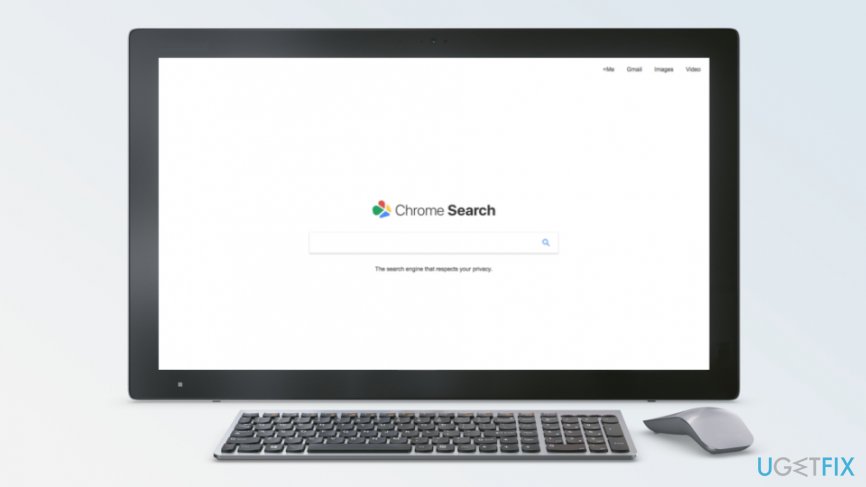
Two ways to remove Chromesearch.win from Google Chrome
To replace hijacked homepage with your preferred page, you have to uninstall Chromesearch.win with all its related components that may have been installed with the PUP. These elements might be installed to the system and web browser. You can do it either manually or automatically.
Method 1. Remove browser hijacker from Windows OS manually
Step 1. Uninstall suspicious programs from the Control Panel:
- Go to Start > Control Panel > Programs and Features (or Add/Remove programs, or Uninstall a Program).
- In the list, look up for Chrome Search or other suspicious applications. Click on these entries and choose Uninstall.
- Click OK to confirm and start uninstallation.
Step 2. Eliminate Chrome Search from Windows shortcuts:
- Right-click on the browser’s shortcut and choose Properties from the drop-down menu.
- From the Properties box go to Shortcut tab and delete URL address that is related to Chromesearch.win from the Target bar.
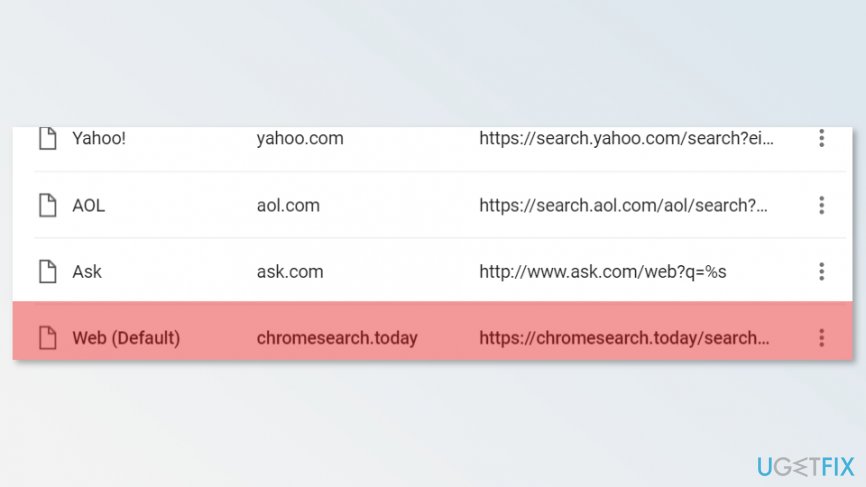
Remove chrome search from the browser
Use the same steps to clean all browser’s that are installed on your PC. Even though, the hijacker mostly affects Google Chrome; other browsers might be infected as well.
Step 3. Delete Chrome Search from the browser's startup page:
First of all, you have to delete suspicious browser extensions that may have been installed without your knowledge:
- Open Chrome.
- Click on the menu icon that is located at the top right corner.
- Choose More Tools (or Tools) and access Extensions.
- In the list of extensions, look up for suspicious add-ons. If you find them, click trash icon to uninstall those entries.
Now you can change your browser’s homepage and default search engine:
- Click on Chrome’s menu icon and go to Settings.
- Under On Startup section, find Open a specific page or set of pages option and click Use current pages option.
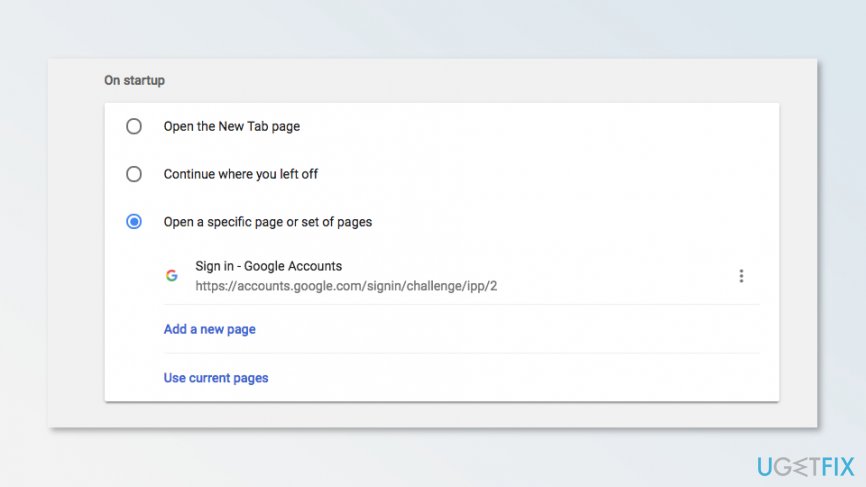
Choose open a specific page or set of page option - In the appeared list, you should see Chromesearch.win among the startup pages. Click X sign to remove it and enter your preferred search engine/homepage.
- Click menu icon and choose Settings again.
- Under the Search section, there’s Manage Search engines button. Click it.
- In Search Engine window, remove all suspicious sites by clicking X button. Leave Google or other legitimate search engines.
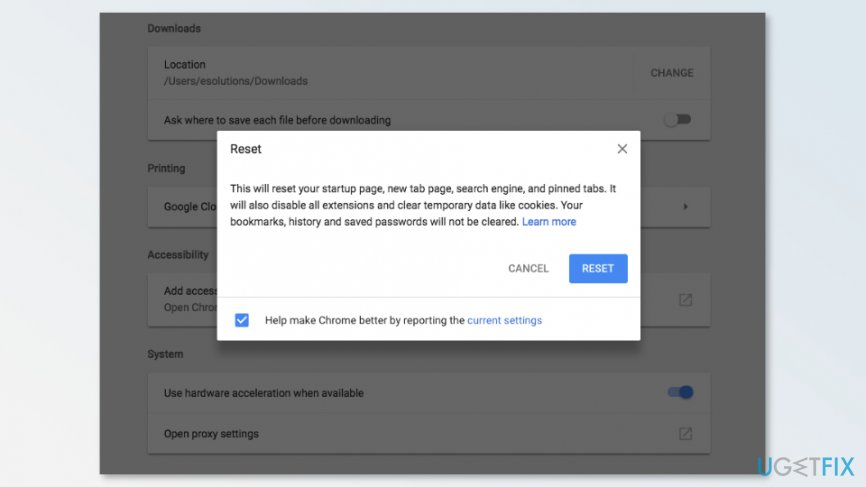
Additionally, you can speed up all removal procedure by resetting Google Chrome. You can do it by clicking Reset browser settings button in the Chrome settings.
Method 2. Automatic Chrome Search removal
If manual removal seems complicated, you can opt for the automatic elimination method that requires scanning the system with a reputable anti-malware tool. We recommend scanning the system with [rev id=“Reimage”]. Though, after the system scan, you should still reset the browser to set your preferred homepage and default search engine and delete tracking cookies.
Bottom line
To remove Chromesearch.win, it is recommended to uninstall it along with any related components. Additionally, use Advanced/Custom installation settings to avoid unwanted programs in the future. If these steps do not resolve the issue, consider seeking professional help.
Frequently asked questions
Chromesearch.win is a browser hijacker that alters your search settings and can redirect your searches. It affects browsers on Windows 10 and Windows 11 by changing the homepage and search engine without your consent.
To remove Chromesearch.win, go to Chrome settings, navigate to 'Extensions', and uninstall any suspicious extensions. Additionally, reset your browser settings to restore the default search engine.
Yes, using reputable anti-malware tools like Malwarebytes can effectively remove Chromesearch.win and other unwanted software from your PC. Make sure to run a full system scan after installation.




Report an issue
What's wrong with this guide? We review every report and update or remove content.
Report received — thank you. We'll review and fix it.
You need a free account to submit a report.
Be the first to comment