How to remove
“Google Chrome Fatal Error!” Pop-Up
from Windows
Eliminate the "Google Chrome Fatal Error!" pop-up from your Windows 10 or Windows 11 PC easily. Follow our expert-tested solutions for a hassle-free fix!

How does How to Remove “Google Chrome Fatal Error!” Pop-Up end up on your PC?
- Adware infection
- Browser hijacker
- Installation of free software
- Malicious redirects
- Tech-support scam
Repairs Windows system files, removes malware, and restores a clean OS state — without reinstalling.
“Google Chrome Fatal Error” pop-up shows up on Chrome randomly. It asks me to contact the Help Desk, but instead of that I force Chrome to close. Scanned PC with antivirus, but no virus found. Should I be worrying?
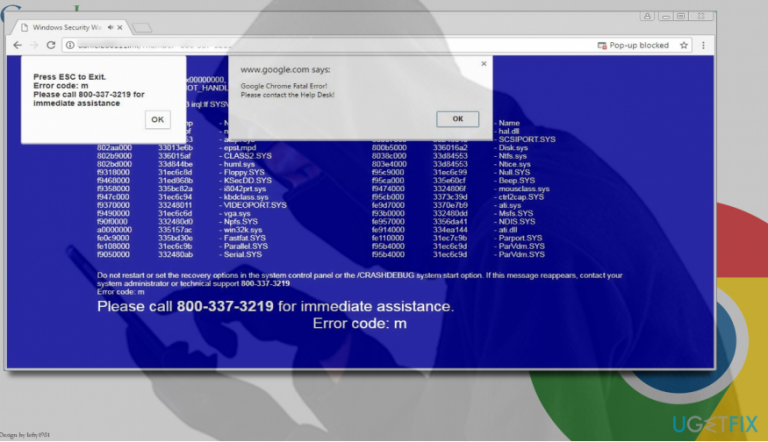
“Google Chrome Fatal Error!” is a pop-up alert that may and probably have already scared many Google Chrome users. It emerges randomly in a blue screen environment, but does not provide much information except error code “m.” The “Google Chrome Fatal Error!” error locks the current Chrome’s tab and asks its user to contact Help Desk for immediate assistance.
Inexperienced PC users may fall for this trick, but most of Chrome users are already aware of such alerts and know how to react. “Google Chrome Fatal Error!” pop-up alert is yet another Tech-Support-Scam developed by scammers. Usually this rogue alert starts showing up on Chrome when the system is infected with adware, which causes web browser’s redirects to malicious domains. Since it’s easy to run into malware like adware or browser hijacker when installing freewares, it’s not surprising that you don’t remember installing “Google Chrome Fatal Error!” adware. The next time you decide to install any free tool, make sure to select Advanced installation option and unmark all “free” browser add-ons or plug-ins.
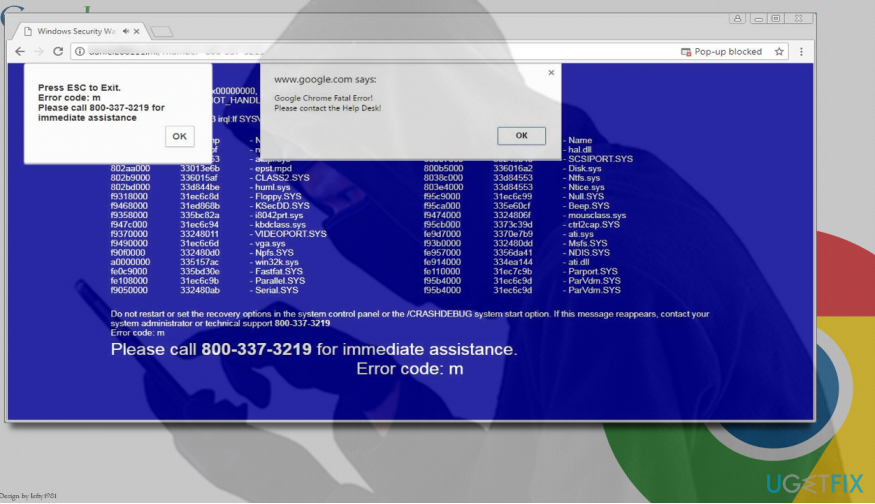
The purpose of “Google Chrome Fatal Error!” scam is to urge people to call the fake support line by dialing the 800-337-3219 number. Please memorize this number and include it in the blacklist because it’s owned by scammers. Despite the Help Desk like is referred to as Toll-Free, such claims may be false, so calling it may cost you much. By the way, tech-support-scam errors like “Google Chrome Fatal Error!” pop-up are often used as a catch to allure people into subscribing useless services, installing third-party tools or even extorting information that is needed to remote connection to a target PC.
Although “Google Chrome Fatal Error!” scam alert is not dangerous as long as you won’t call the given number, ignoring the pop-up would not be wise. Adware-type programs may open the backdoor for other potentially unwanted programs. Thus, to fix “Google Chrome Fatal Error!” pop-up scam, remove the adware by scanning the system with [d1] or another professional anti-malware tool. After that, reset Google Chrome and reboot the system. In case you want to remove “Google Chrome Fatal Error!” adware manually, follow these steps:
- First of all, close the “Google Chrome Fatal Error!” scam window. Unfortunately, you won't be allowed to close that window separately, so you'll have to close Google Chrome browser. For this purpose, press Ctrl + Shift + ESC and find Chrome.
- Click it and select End Task.
- Now run a scan with a professional anti-malware utility, for example [d1].
- OR uninstall adware manually. For this purpose, open Control Panel -> Programs and Features.
- Fing unknown or suspicious applications. If you are not sure whether the app is malware or not, check the date when it was installed. If the date coincides (approximately) with the date when the “Google Chrome Fatal Error!” scam showed up, it's nothing else but malware. Click the app and select Uninstall.
- Now open Google Chrome. IMPORTANT: do not restore the last browsing session.
- Click the menu icon (three vertical dots) at the top-right corner of the screen.
- Open Settings and select Show Advanced Settings.
- Find Reset Settings option and click it.
- To confirm the option, click Reset and wait while resetting is being executed.
Bottom line
To resolve the "Google Chrome Fatal Error!" pop-up, users should scan their PC for adware, avoid calling the fake support number, and be cautious when installing free tools by selecting the Advanced installation option. If these steps do not work, consider seeking professional help or using reputable antivirus software.
Frequently asked questions
You can try reinstalling Google Chrome by uninstalling it from your system and then downloading the latest version from the official website to eliminate the pop-up.
Make sure your Windows 11 is up to date and consider resetting Google Chrome settings to default, which can help resolve the issue.
Yes, you can try clearing your browser's cache and cookies, or running a malware scan to check for any underlying issues that could be causing the pop-up.




Report an issue
What's wrong with this guide? We review every report and update or remove content.
Report received — thank you. We'll review and fix it.
You need a free account to submit a report.
Be the first to comment