How to remove
MASetupCleaner.exe file
from Windows
Easily remove MASetupCleaner.exe from your Windows 10 or 11 system with our expert-tested guide. Fixed in minutes, zero traces left!

How does How to remove MASetupCleaner.exe file end up on your PC?
- Installed Samsung Kies application
- Bundled with another freeware
- Modified versions spread by third parties
- Potential virus disguise
- High CPU usage by MASetupCleaner.exe
Repairs Windows system files, removes malware, and restores a clean OS state — without reinstalling.
What is the MASetupCleaner.exe file? Should I keep it? I haven’t seen it before, but it showed up as if out of nowhere a couple of weeks ago.
If Windows Firewall throws a notification about an unexpected connection to the Internet initiated by MASetupCleaner.exe, it means that your PC is running a program called Samsung Kies. If you remember installing such a tool, then there is no need to worry because the file Windows Firewall[ref en-3] informed you about is a part of Samsung Kies.[ref en-2]
The purpose of this file/process is to connect to the Internet on a certain schedule and connect to remote control servers owned by Samsung Kies. Such activity is legitimate and lots of applications use files like MASetupCleaner.exe in practice. The problem is that sometimes people do not install Samsung Kies purposely and are not even aware of such application at all.
If you haven’t installed this application, but suspect that it might have been installed in a bundle with another freeware,[ref en-4] security specialists recommend removing the tool or at least disable the MASetupCleaner.exe file. Although neither the application nor the file is malicious, third parties might spread the modified versions of them. Consequently, they may be exploited for initiating potentially unwanted tasks. For example:
- MASetupCleaner.exe sometimes use more CPU than it is expected.
- It may be misused by third parties for gathering and sharing non-personal information about a PC user.
- Samsung Kies and the MASetupCleaner.exe process might have been bundled with ad-supported applications.
- In some rare instances, the MASetupCleaner.exe file name may disguise a virus infection. Hackers often misuse the names of legitimate files and processes to prevent detection and removal.
In a nutshell, if you installed Samsung Kies or another Samsung application recently and plan to use it, then you should ignore the MASetupCleaner.exe file and all notifications that Firewall displays about it. BUT if you did not install any of the Samsung apps and do not approve of MASetupCleaner.exe connections to the Internet or high CPU usage,[ref en-1] do not wait any longer and remove the application to stop the file from appearing.
How to terminate MASetupCleaner.exe process?
To stop Windows Firewall from reporting about MASetupCleaner.exe error, you will have to remove Samsung Kies application completely. For this purpose, you have these options:
Option 1. Remove Samsung Kies automatically
Samsung Kies can be removed with the help of [rev id="Perfect Uninstaller"]. This software removal utility will ensure a complete removal of the application, so you won’t need to worry about file leftovers. However, if you have installed this app accidentally in a bundle with free software or if you have installed it from a third-party download source, we would also recommend you to check the system for malware.[ref en-5] For this purpose, we recommend using [d1].
Option 2. Uninstall Samsung Kies manually
- First of all, make sure to disconnect Samsung cell phone from the PC.
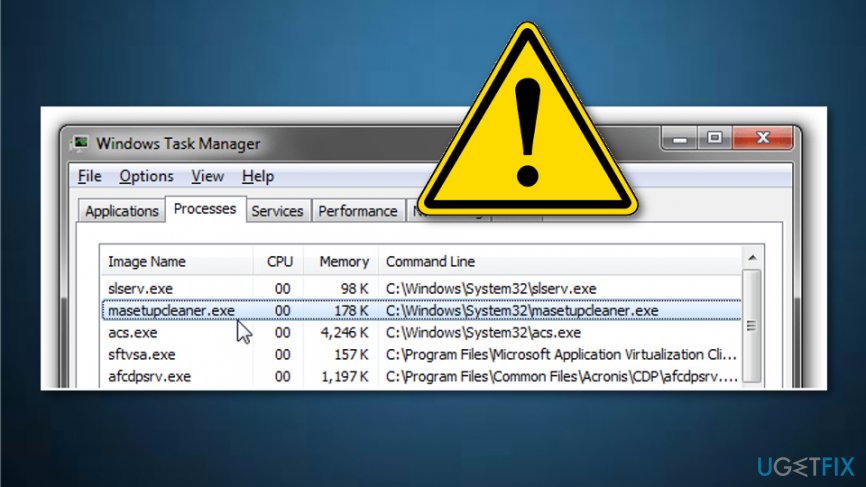
- Then press Ctrl + Shift + ESC to open Task Manager.
- Find MASetupCleaner.exe file, click it and select Disable.
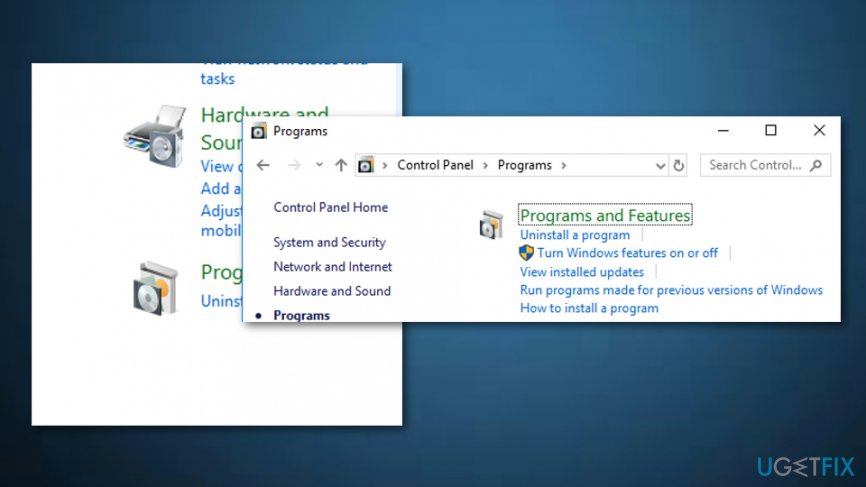
- After that, click Windows key + X and open Control Panel.
- Click Add/Remove programs and find Samsung Kies.
- Click it and select Uninstall.
2 - If a confirmation window shows up, click Yes to proceed.
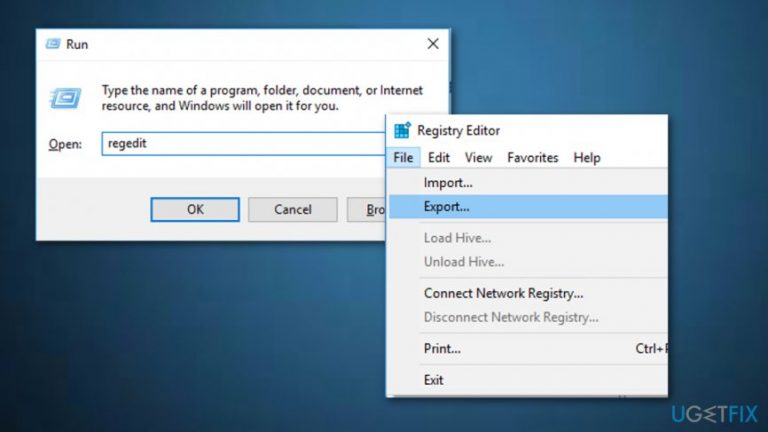
- When the removal process is finished, click Windows key + R, type regedit, and press Enter.
- Select File and Export to create registry backups (just in case something goes wrong).
- After that, delete the following entries:
HKEY_LOCAL_MACHINE\\SOFTWARE\\Samsung
HKEY_LOCAL_MACHINE\\SOFTWARE\\Samsung\\Kies
HKEY_LOCAL_MACHINE\\SOFTWARE\\Samsung\\Kies\\FUS - Finally, reboot your PC.
Option 3. Get rid of MASetupCleaner.exe from Startup
- Press Windows key and R at the same time;
- When a dialog box pops out, type regedit and select OK;
- Select on the File menu which is located in the upper right corner and choose Export;
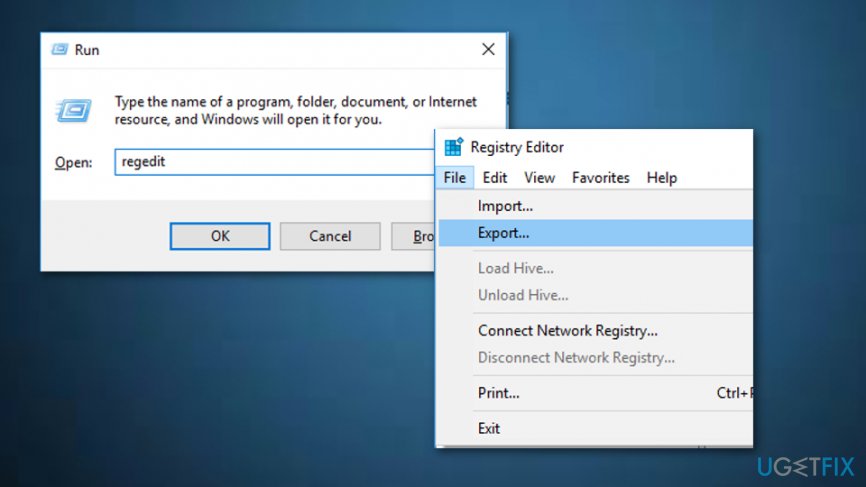
3 - Pick the place where you want to save the changes;
- In case some misunderstanding happens, you can open the Registry Editor again, select File ---> Import ---> .reg (this is the file you exported before.
Option 4. Use the System Restore function
- Find the Windows power icon and click on it;
- Choose Restart and hold Shift on your keyboard;
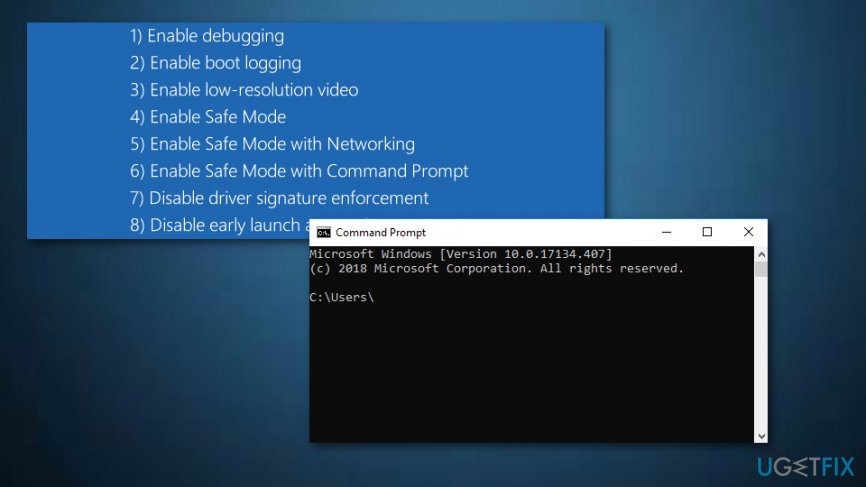
- Go to Troubleshoot ---> Advanced options ---> Startup Settings ---> Restart;
- Choose the option that says: "Enable Safe Mode with Command Prompt";
- Wait until the Command Prompt window opens and type these commands by hitting enter one after other: cd restore, rstrui.exe;
4 - Pick a restore point;
- Click yes to permit the System Restore;
- Wait until the process is fully completed.
Bottom line
If you installed Samsung Kies or another Samsung application, you can ignore the MASetupCleaner.exe file. However, if you did not install any Samsung apps and are experiencing issues, it is recommended to remove the application or disable the MASetupCleaner.exe file. If none of these solutions work, consider seeking further technical assistance.
Frequently asked questions
MASetupCleaner.exe is often associated with third-party software installations and can sometimes be a part of unwanted programs. Removing it can help improve system performance and eliminate potential security risks.
You can uninstall MASetupCleaner.exe by going to 'Settings', selecting 'Apps', finding the program in the list, and clicking 'Uninstall'. Alternatively, you can use a dedicated uninstaller tool for a more thorough removal.
While removing MASetupCleaner.exe is generally safe, ensure that it is not a critical system file or part of a program you still need, as this could affect your system's functionality.




Report an issue
What's wrong with this guide? We review every report and update or remove content.
Report received — thank you. We'll review and fix it.
You need a free account to submit a report.
Be the first to comment