How to remove
OneDrive icon from File Explorer
from Windows
Easily remove the OneDrive icon from File Explorer in Windows 10 or 11 with our expert-tested guide. Enjoy a cleaner workspace in minutes!

How does How to remove OneDrive icon from File Explorer in Windows end up on your PC?
- OneDrive is installed and configured with a Microsoft account
- OneDrive icon appears by default in File Explorer
- Users prefer a minimalistic interface
- Users may have switched to other cloud solutions
- Some users do not use OneDrive at all
Repairs Windows system files, removes malware, and restores a clean OS state — without reinstalling.
I have a OneDrive - Personal folder on the left navigation pane of File Explorer. I don't use OneDrive and I don't want it there - I want OneDrive icon removed from File Explorer. I thought I could do it easily but to my surprise, there is no simple option (like I can't right-click and delete it). Are there some other ways I'm not aware of?
OneDrive is an online storage tool from Microsoft - it lets users to access their files across devices and from any location. Access to OneDrive is also very easy to initiate through the OneDrive app, the taskbar icon, and the web. The other common method with which one can interact with OneDrive is through File Explorer. Starting from the left navigation in File Explorer, OneDrive is an option by default that enables fast access to files stored in the cloud.
Once installed and configured with a Microsoft account, the OneDrive icon magically appears in File Explorer, effectively retrofitting your cloud storage into the Windows file manager. It's there for convenience - so you can access cloud files any time you want, like any other folder.
Not everyone wants that icon. Some users prefer having a neat File Explorer interface, while others might not even be using OneDrive at all. Others may have moved to other cloud solutions and will no longer require the OneDrive shortcut occupying space on the navigation pane.
Thankfully, for those in love with minimalistic interfaces, removing the OneDrive icon within File Explorer is possible. The user can take this action through system settings or even by tweaking Windows Registry. It's not a complex process but does have very specific steps in place to get the icon removed correctly without affecting the rest of the system.
Detailed instructions on how to remove the OneDrive icon can be found below. Make use of a reliable [d1] repair tool for optimizing operating system settings and managing these settings, which will automatically sort out your system-related issues.
Method 1. Edit the Windows Registry
Changing the Registry helps people remove the OneDrive icon if they feel confident doing system changes.
- Type regedit in Windows search and press Enter.
- When the User Account Control shows up, click Yes.
- Navigate to the following location:
HKEY_CURRENT_USER\Software\Classes\CLSID\{018D5C66-4533-4307-9B53-224DE2ED1FE6} - Double-click on System.IsPinnedToNameSpaceTree located in the right pane.
- Change the value from 1 to 0, then click OK.
- Restart your PC to apply changes.

Method 2. Unlink OneDrive from your account
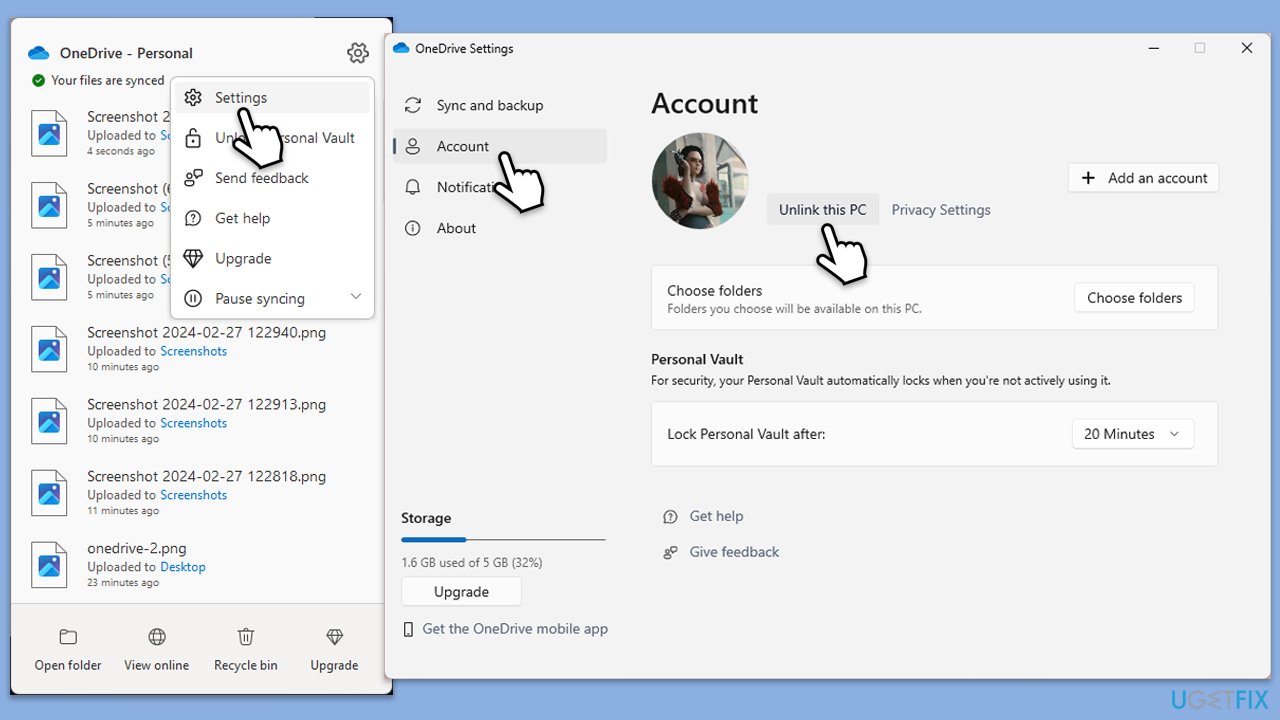
OneDrive stops syncing your files after unlinking it from your Microsoft account. The icon goes away from File Explorer but the OneDrive app stays.
- Right-click the OneDrive icon in the taskbar.
- Select Settings.
- Go to the Account tab.
- Click Unlink this PC.
- Confirm the unlinking process.
Method 3. Use Group Policy Editor
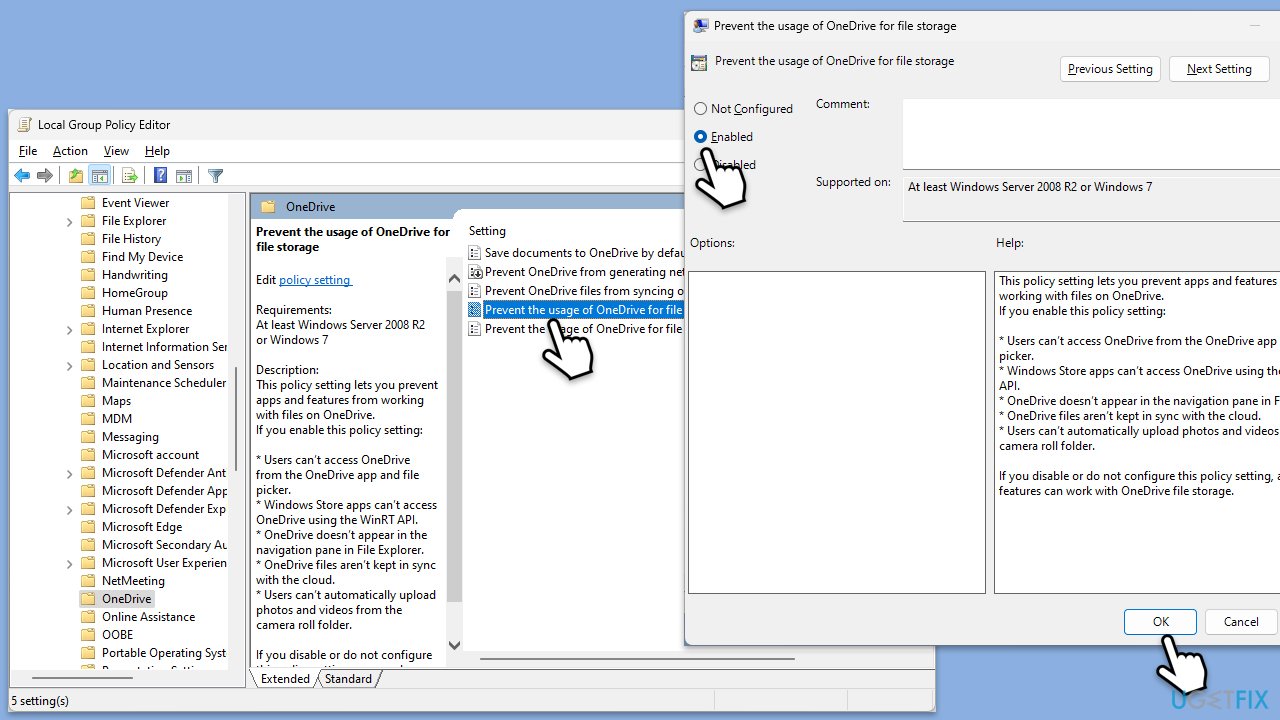
For Windows Pro and Enterprise users, the Group Policy Editor allows you to disable OneDrive completely, removing it from File Explorer.
- Type Group Policy in Windows search and press Enter.
- Navigate to the following location:
Computer Configuration > Administrative Templates > Windows Components > OneDrive. - Double-click Prevent the usage of OneDrive for file storage.
- Select Enabled and click Apply, then OK.
- Restart your computer to apply the changes.
Method 4. Uninstall OneDrive
Uninstalling OneDrive removes its integration with File Explorer, including the icon.
- Right-click on Start and pick Apps & Features/Installed apps.
- Find OneDrive in the list, select it, and click Uninstall, then follow the on-screen instructions.
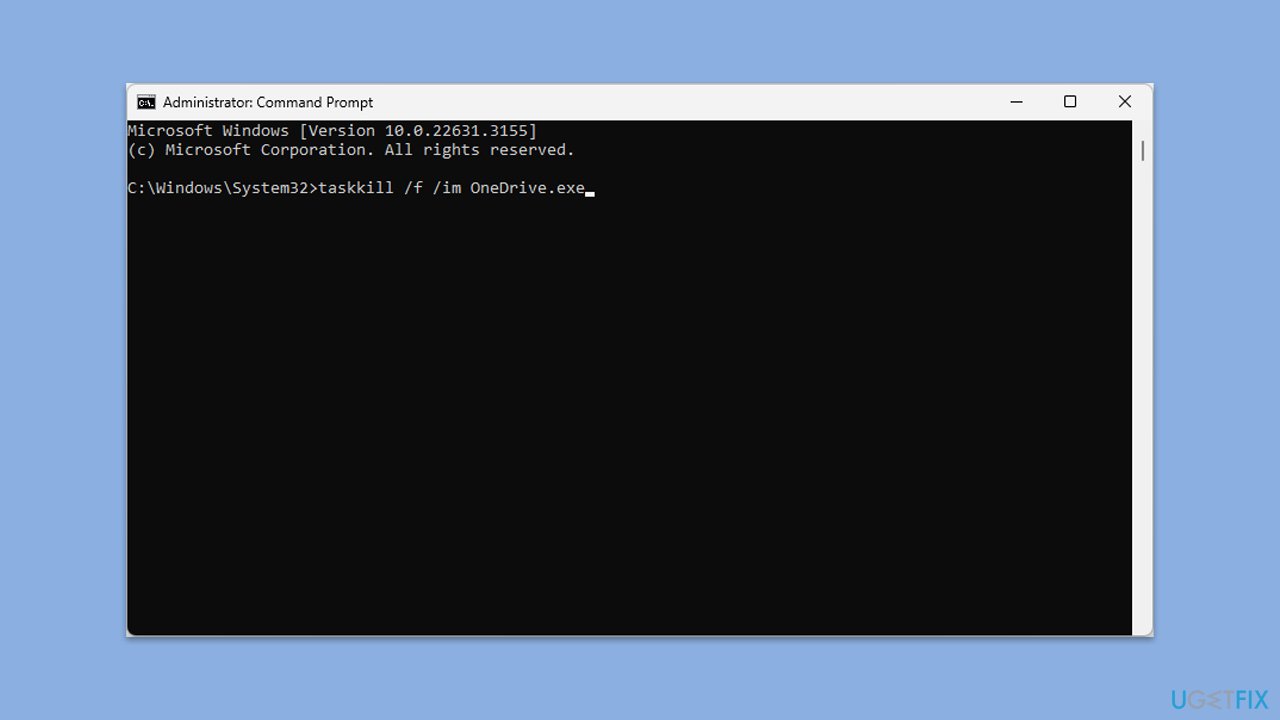
Or, you can remove it through Command Prompt as follows:
- Type cmd in Windows search.
- Right-click on Command Prompt and pick Run as administrator.
- User Account Control will ask whether you want to accept changes - click Yes.
- Type in the following and press Enter to terminate any leftover OneDrive processes:
taskkill /f /im OneDrive.exe - If you are using 64-bit Windows, use the following command and hit Enter:
%SystemRoot%\SysWOW64\OneDriveSetup.exe /uninstall - If you are using 32-bit Windows, use the following command and hit Enter:
%SystemRoot%\System32\OneDriveSetup.exe /uninstall - After that, restart your PC.
Bottom line
To remove the OneDrive icon from File Explorer, users can edit the Windows Registry or adjust system settings. These methods allow for the removal of the icon without affecting other system functions. If these solutions do not work, consider using a reliable repair tool for further assistance.
Frequently asked questions
Right-click on the OneDrive icon, select 'Settings', go to the 'Account' tab, and click 'Unlink this PC'. This will remove the icon from your File Explorer.
Yes, you can uninstall OneDrive by going to Settings > Apps > Apps & features, finding OneDrive, and clicking 'Uninstall'. This will remove the icon from File Explorer as well.
If the icon persists, try restarting your computer or resetting the File Explorer settings through the Folder Options menu to refresh the view.




Report an issue
What's wrong with this guide? We review every report and update or remove content.
Report received — thank you. We'll review and fix it.
You need a free account to submit a report.
Be the first to comment